

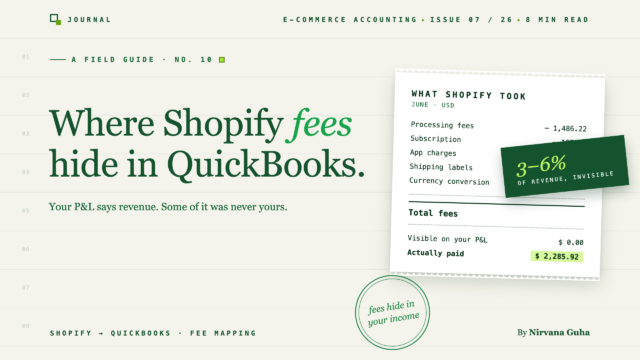
העמלות אינן מופיעות בשום דוח. הן נמצאות בתוך מספר ההכנסות שלך - וזו הסיבה שאינך יכול למצוא אותן.
אתה פותח את דוח רווח והפסד שלך ומחפש מספר אחד: כמה שופיפיי באמת לקחה ממך בחודש שעבר? אין שורה עבור זה. אתה בודק את דוח הבנק - פיקדונות נכנסים משופיפיי, שום דבר לא יוצא. אתה נכנס לממשק הניהול של שופיפיי ולוחץ על כספים, חיובים ודוחות תשלומים, ומוצא שברים: עמלת עיבוד קבורה בתוך תשלום אחד, חיוב אפליקציה בחשבונית חיוב, המנוי שלך בדף אחר לגמרי. אין סך הכל. בשום מקום.
בינתיים, דוח רווח והפסד שלך מציין מספר הכנסות אחד, דשבורד שופיפיי שלך מציין מספר אחר, והבנק שלך מציין מספר שלישי. בשלב מסוים הפסקת לצפות שהם יסכימו.
הנה החלק הלא נוח. אם הספרים שלך רושמים פיקדונות שופיפיי כהכנסה - וזו הדרך שבה רוב בעלי החנויות והרבה רואי חשבון עושים זאת - מציאת עמלות שופיפיי שלך ב-QuickBooks אינה בעיית קטגוריזציה. העמלות נגרעו לפני שהספרים שלך בכלל ראו אותן. הן מעולם לא נרשמו כלל.
פוסט זה עובר על כל עמלה ששופיפיי גובה, היכן כל אחת מהן גלויה (ולא גלויה), מדוע הנהלת חשבונות מבוססת פיקדונות גורמת להן להיעלם, וכיצד לבנות את חשבונות ה-QuickBooks שלך כך שהמספר האמיתי יופיע בדוח רווח והפסד שלך בכל חודש.
אנטומיה מלאה של עמלות שופיפיי
שופיפיי לא גובה ממך עמלה אחת. היא גובה חמש או שש, במקומות שונים, בלוחות זמנים שונים, ורק חלקן מופיעות כחיוב שניתן להצביע עליו.
| עמלה | גודל טיפוסי | היכן היא נגבית | היכן ניתן לראות אותה |
|---|---|---|---|
| עמלות עיבוד של Shopify Payments | ~2.9% + 30 סנט להזמנה מקוונת (פחות בתוכניות גבוהות יותר) | נגרע מכל תשלום לפני שהוא מגיע לבנק שלך | דפי פירוט תשלומים או ייצוא עסקאות תשלומים - לעולם לא כחשבון |
| מנוי | 39$-399$ לחודש תלוי בתוכנית | מחויב לכרטיס שלך או נטו כנגד תשלומים | הגדרות → חיובים |
| תוספת שער צד שלישי | 0.5%-2% לעסקה אם אינך משתמש ב-Shopify Payments | נוסף לחשבון השופיפיי שלך, בנוסף לעמלת השער של הספק שלך | חשבוניות חיוב |
| מנויי אפליקציות | 50$-500$+ לחודש עבור רוב החנויות הבינוניות | כלול בחשבוניות החיוב של Shopify | הגדרות → חיוב, מפורט לפי אפליקציה |
| תוויות משלוח | משתנה לפי נפח | מחויב באצוות לכרטיס שלך, או מקוזז כנגד תשלומים | חשבוניות חיוב |
| המרת מטבע | ~1.5% מהמכירות שהומרו (חנויות בארה"ב) | משולב בסכום ההזמנה שהומרה | בשום מקום כפריט שורה - המכירה פשוט מגיעה קטנה יותר |
שני דברים שכדאי לשים לב אליהם. ראשית, אין דוח ב-Shopify שסוכם את אלה עבורך. שנית, הגדול מכולם - עמלות עיבוד - לעולם אינו מופיע כחיוב כלל. זוהי הפחתה בתוך הפקדה.
חבר את הערימה יחד וזה בדרך כלל מסתכם ב-3-6% מההכנסות ברוטו, לפעמים יותר כאשר אפליקציות ותוויות גדלות עם נפח ההזמנות. בחנות שעושה 600,000 דולר בשנה, זה 18,000$-36,000$ - קטגוריית הוצאה אמיתית, שנמצאת איפשהו בין עלויות המשלוח שלך להוצאות הפרסום שלך בגודל.
בעלי חנויות מטפלים בזה באחת משלוש דרכים. חלקם רושמים הפקדות כהכנסה וממשיכים הלאה. חלקם מייצאים קבצי CSV של עסקאות מדי חודש ובונים מחדש את סך העמלות ידנית. וחלקם מבנים את ספריהם כך שכל עמלה נוחתת בחשבון הוצאה משלה באופן אוטומטי. הקבוצה הראשונה היא הגדולה ביותר - והיא המקום שבו הצרות חיות.
השקר: "העמלות קטנות - הפיקדונות קרובים מספיק"
הנה ההיגיון, וזה נשמע הגיוני: העמלות הן שגיאת עיגול. רישום ההפקדה כהכנסה לוכד את מה שבאמת נכנס לבנק, כך ששום דבר לא באמת אבוד. קרוב מספיק.
זה אפילו שורד בדיקה ראשונית, בגלל חתיכת מתמטיקה מפתה באמת: השורה התחתונה שלך יוצאת זהה בכל מקרה. צפה.
נניח שהחנות שלך עושה חודש ברוטו של 50,000 דולר:
| סכום | |
|---|---|
| מכירות ברוטו | $50,000 |
| החזרים | −1,500$ |
| עמלות עיבוד של Shopify Payments | −1,600 דולר |
| הופקד לבנק שלך | $46,900 |
| מחויב בנפרד: מנוי (105$) + אפליקציות (250$) + תוויות משלוח (900$) | −1,255$ |
הנהלת חשבונות נטו-הפקדה רושמת 46,900$ של "הכנסה". הנהלת חשבונות נכונה רושמת 50,000$ של מכירות ברוטו, 1,500$ של החזרים, ו-1,600$ של עמלות עיבוד. הכנסה נטו לחודש? זהה. אז זה מסתכם - נכון?
זה מסתכם בשורה אחת, פעם אחת. כל מה שנבנה מעל השורה הזו שגוי כעת:
- הרווחים שלך מעוותים. עומס העמלות האמיתי שלך החודש היה 2,855$ - 5.7% מהברוטו. בגרסת ההפקדה, 1,600$ של עמלות עיבוד אינם קיימים כעלות, כך שכאשר אתה מחשב כלכלה לפי הזמנה או קובע מחירים, אתה משתמש בשולי יחידה שהם טובים יותר מהמציאות בסתר. הספרים מחמיאים לך, והחלטות התמחור יורשות את המחמאות.
- ההכנסה שלך לא תתאים למה שה-IRS רואה. Shopify Payments מדווח על נפח עיבוד ברוטו ב-1099-K שלך. החזר שנבנה על הכנסה נטו-הפקדה מציג פחות הכנסה מהטופס שה-IRS קיבל. חוסר התאמה זה הוא טריגר קלאסי לביקורת, והסברתו לאחר מעשה הוא אחר צהריים רע.
- אתה מאבד ניכויים גלויים. כל אחת מהעמלות הללו היא הוצאה עסקית לגיטימית. עמלות שלא נרשמו לא ניתן לנכות בצורה נקייה - או להגן עליהן אם מישהו ישאל.
- התגנבות עמלות הופכת לבלתי נראית. כאשר עמלות גולשות מ-4% ל-6% מההכנסה - אפליקציה נוספת כאן, עוד הזמנות חוצות גבולות שם - שום דבר בספרים שלך לא זז. אין שורה לצפות בה.
- החזרים נעלמים גם כן. הם נטוצים באותו הפיקדון, כך שיעור ההחזר שלך - אות אזהרה מוקדם לבעיות מוצר וביצוע - לעולם אינו צץ.
אם הזמנת פיקדונות כהכנסה, לא היית עצל. פתרת את הבעיה שיכולת לראות: לגרום לבנק להתאים לספרים. הבעיה שלא יכולת לראות היא שמספר הבנק מעולם לא היה מספר ההכנסות. (אם התשלומים שלך אפילו לא תואמים את מה ש-QuickBooks מציג, לאי-התאמה זו יש אנטומיה משלה.)
כיצד לרשום עמלות שופיפיי ב-QuickBooks כראוי
התיקון הוא מבני, לא הרואי: רשום ברוטו, ואז הצג כל ניכוי במפורש. שני חלקים.
1. צור את החשבונות. בתרשים החשבונות של QuickBooks שלך, הגדר:
- הכנסות: מכירות Shopify (ברוטו) · החזרים והנחות (הכנסה נגדית)
- הוצאות: עמלות עיבוד סוחר · מנוי Shopify ואפליקציות · הוצאות תוויות משלוח · עמלות המרת מטבע
- נכס שוטף אחר: פיקדון Shopify
האחרון הוא סוס העבודה. חשבון הפיקדון הוא המקום שבו מצטברות מכירות ברוטו והעמלות מופחתות, כך שהיתרה שנותרה תואמת את הפיקדון הבנקאי בפועל.
2. הגדל כל תשלום ברוטו. עבור כל תשלום, הרישום מזכה את מכירות Shopify בסכום הברוטו, מחייב החזרים והנחות ועמלות עיבוד סוחר עבור חלקיהם, ומנקה את היתרה מול הפיקדון הבנקאי דרך חשבון הפיקדון. הפיקדון מפסיק להיות "הכנסה" והופך למה שהוא באמת: שארית ההכנסה לאחר ניכויים שאתה עוקב אחריהם כעת.
כך גם מסווגים עמלות Shopify שמגיעות מחוץ לתשלומים: הפנה את חיוב כרטיס מדף הבנק שלך - מנוי, אפליקציות, תוויות משלוח - לחשבונות ההוצאות הייעודיים שלהם במקום לדלי "תוכנה" גנרי. חמש דקות בחודש, וערימת העמלות שלך הופכת לחלק קריא מהרווח וההפסד שלך.
מכניקת העיתון המלאה - הגדרת חשבון פיקדון, קבלות מכירה לעומת רישומי יומן, תזמון - היא יותר ממה שפוסט זה צריך. כתבנו את המדריך המלא בכיצד לרשום מכירות Shopify ב-QuickBooks Online.
אם תבצע אוטומציה של זה במקום זאת, מבנה החשבון שלמעלה הופך למיפוי חד-פעמי. הנה איך זה נראה ב-LedgerPort:
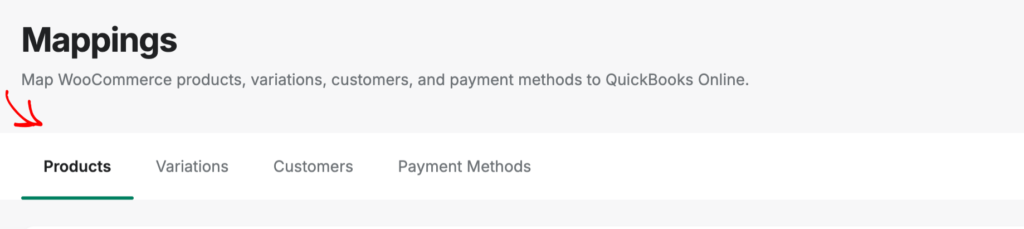
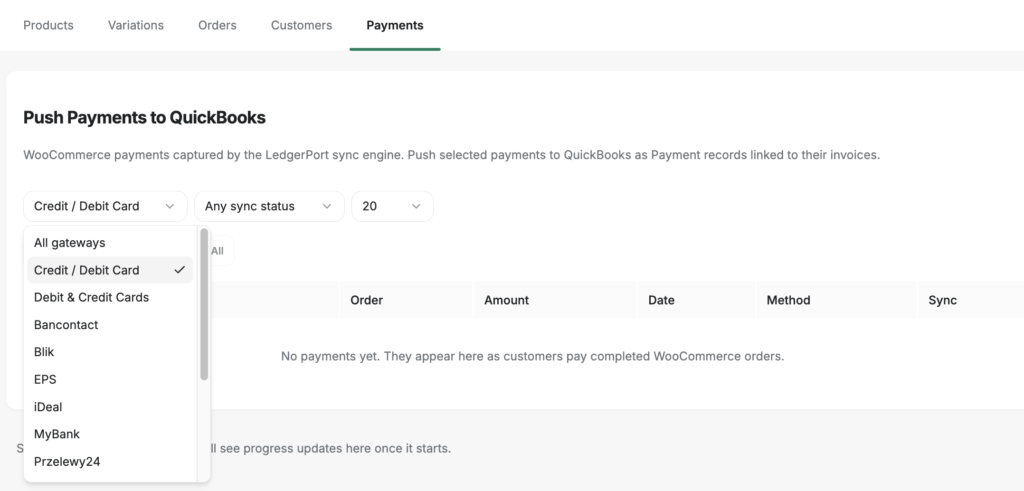
המיפוי מחליט היכן העמלות וההכנסות נרשמות. זרם הפיקדון הוא המקום שבו הפרש העמלה באמת צץ. כל שער תשלום ממופה לחשבון הפיקדון שלו ב-QuickBooks - Sync Config » Payments באפליקציית Shopify, הלשונית Payments בתוסף WooCommerce - כאשר שערי תשלום מזוהים אוטומטית מהחנות שלך וחשבון ברירת מחדל כגיבוי לכל דבר שאינו מוגדר. מכירות ברוטו זורמות דרך חשבון הפיקדון של כל שער תשלום, כך שההבדל בין מה שהצטבר שם למה שהגיע לבנק הוא מספר העמלה שלך *לכל שער תשלום*, לא הפרש אחד מרוח על פני סכום כולל.
אותה תבנית מעניקה לך את הבדיקה החודשית שתבצע בפועל: רשומות התשלומים ניתנות לסינון לפי שער וסטטוס סנכרון, כך ש"האם כל עסקה של Shopify Payments נרשמה החודש?" היא שאלה של שתי תיבות נפתחות. ותשלומים מגיעים ל-QuickBooks מקושרים לעסקאות שלהם - לא כפיקדונות רופפים שאתה מתאים ידנית מאוחר יותר.
[תמונה: השוואת רווח והפסד זו לצד זו - הצד השמאלי מציג שורת הכנסה אחת "פיקדונות Shopify"; הצד הימני מציג מכירות Shopify ברוטו, החזרים, וארבע שורות הוצאות עמלה מפורטות]
מה משתנה כשהעמלות גלויות
בחודש הראשון שהתבנית הזו מיושמת, אתה מקבל את התשובה שהתחילה את כל התרגיל הזה: שורה - כמה שורות - שאומרות בדיוק מה Shopify לקחה. בדוגמה שעובדה למעלה, היית רואה 2,855$ מתוך 50,000$, והיית רואה זאת כל חודש, במגמה.
משם, דברים מעשיים באים. הנהלת החשבונות של עמלות עיבוד התשלומים שלך ב-Shopify תומכת כעת בדוח המס שלך: הכנסה ברוטו תואמת את ה-1099-K, וכל עמלה היא ניכוי מפורט וניתן להגנה. שולי הרווח של המוצר שלך כוללים את 3% שעיבוד בפועל עולה, כך שהחלטות תמחור והוצאות פרסום מבוססות על מספרים אמיתיים. וכאשר אחוז העמלה משתנה, אתה מבחין בכך בחודש שבו הוא משתנה - לא בניתוח שלאחר מעשה בסוף השנה.
הפשרה היא עבודה ישרה מלפנים: יצירת חשבונות, ובניית יומני התשלומים ידנית כל חודש או אוטומציה שלהם.
זו הבעיה הספציפית שעבורה קיימים כלים להפרדת עמלות. LedgerPort, לדוגמה, קורא כל תשלום מ-Shopify ורושם את ה-gross-up באופן אוטומטי — מכירות ברוטו, החזרים, וכל סוג עמלה המנותב לחשבונות QuickBooks שתבחרו דרך מיפוי החשבונות שלו. כיצד כל עסקה מתפרסמת — תאריכים, מספור, וטיפול בעמלות — מוגדר תחת אפשרויות עסקה בתצורת הסנכרון, כך שההתנהגות תואמת את הגדרות החשבונאות שלכם ולא ברירות מחדל של מישהו אחר. יומני תשלומים עם טיפול בעמלות הם חלק מחבילת Scale (החל מ-67$ לחודש), אם כי יש חבילה חינמית להתחיל איתה, וכל חבילה בתשלום נושאת אחריות להחזר כספי תוך 14 יום, ללא שאלות. כלים כמו A2X ו-Synder פותרים את אותה קטגוריית בעיות היטב; ההבדלים באים לידי ביטוי בשליטה על המיפוי ובאופן הטיפול במקרי קצה, מה שכדאי להשוות עבור החנות שלכם.
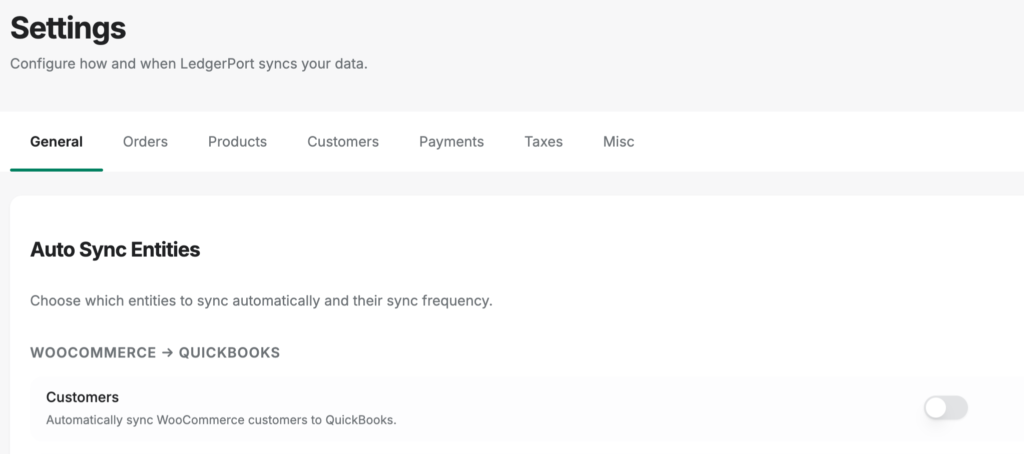
אם אתה מקבל תשלום דרך יותר ממפעיל אחד, ההפרדה יורדת רמה נוספת: הפרדת העמלות של LedgerPort מפרידה את עמלות Shopify Payments, Stripe ו-PayPal בנפרד - העלות של כל מפעיל מקבלת שורה משלה "כדי שדוח הרווח וההפסד שלך יישאר נקי", במסגור של התיעוד עצמו. זו השיטה הידנית של פוסט זה, אוטומטית, מיושמת לכל מפעיל. והיא חיה בתצורה, לא במשימה חוזרת: טיפול בעמלות ובתשלומים מוגדר פעם אחת בהגדרות הסנכרון ומיושם לכל תשלום לאחר מכן.
הערה כנה אחת: הנראות משמעותית רק אם קיימים החשבונות לקבל אותה — זו הסיבה ששלב המיפוי שלעיל בא קודם.
העמלות מעולם לא היו חסרות
הנה האירוניה שכדאי להתעכב עליה. חיפשת את העמלות של Shopify כמו שהיית מחפש כל הוצאה — דוח, חשבונית, חיוב בכרטיס. ולגבי העמלה הגדולה מכולן, אין מסמך כזה. חיפשת את התזרים החוצה שלך בזמן שהעמלות ישבו בתוך התזרים פנימה שלך, מחופשות כמספר הכנסה מעט קטן יותר, בכל תשלום, כל הזמן.
הן הסתתרו במקום היחיד שאף אחד לא מבקר בו: הכנסות.
אם דוח הרווח וההפסד שלך עדיין מציג הפקדות כהכנסה, 2,855$ בדוגמה המעובדת הם הגרסה של החנות שלך למספר שלא נרשם — כל חודש בנפרד. הגדר את החשבונות, הגדל את התשלומים, או תן לתוכנה לעשות את ההגדלה עבורך. התחל עם התוכנית החינמית של LedgerPort וראה את התשלום הראשון שלך מחולק למכירות ברוטו ועמלות מפורטות →
קשור: כיצד לרשום מכירות Shopify ב-QuickBooks Online · מדוע תשלום ה-Shopify שלך לעולם לא תואם את מה ש-QuickBooks מציג · תמחור LedgerPort →
