

- 1WooCommerce QuickBooks इंटीग्रेशन बनाने के तीन तरीके
- 2ऑर्डर-स्तरीय सिंकिंग समाधान को क्यों तोड़ती है
- 3एक काम किया हुआ उदाहरण
- 4“यह ओपन-सोर्स है — एक मुफ़्त प्लगइन को इसे संभालना चाहिए”
- 5वह आर्किटेक्चर जो काम करता है: क्लियरिंग अकाउंट, दैनिक सारांश, शुल्क लाइनें
- 6LedgerPort में, यह आर्किटेक्चर एक सेटिंग्स पेज है
- 7जब एक प्लगइन पर्याप्त होता है — और जब यह नहीं होता है
- 8सिंक लेयर को जो इंजीनियरिंग बार क्लियर करना चाहिए
- 9यह स्वचालित रूप से कैसा दिखता है
- 10और जब एक वेबहुक विफल हो जाता है — क्योंकि एक होगा
- 11लचीलापन कर
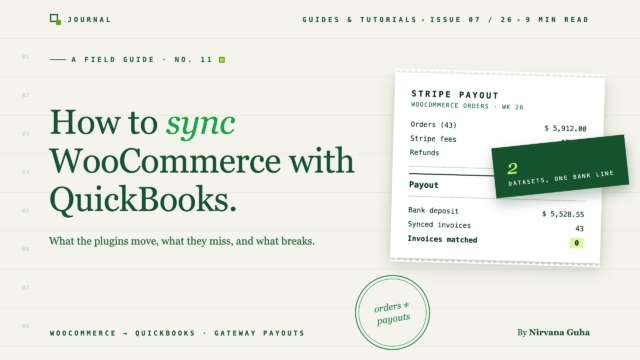
ऑर्डर को QuickBooks में डालना आसान हिस्सा है। यह गाइड उस हिस्से के बारे में है जिसका उल्लेख प्लगइन लिस्टिंग में नहीं है: किताबों को बैंक से मिलाना।
आपके QuickBooks Online फ़ाइल में 1,400 नए इनवॉइस हैं, और उनमें से हर एक सही है।
आपने कनेक्टर इंस्टॉल किया, कुछ फ़ील्ड मैप किए, और इसे काम करते देखा। हर WooCommerce ऑर्डर ग्राहक के नाम, लाइन आइटम, शिपिंग, टैक्स के साथ QBO में आया। प्लगइन के फ़ीचर पेज पर हर माप के अनुसार, आपका WooCommerce QuickBooks इंटीग्रेशन पूरा हो गया था।
फिर आपने बैंक फ़ीड खोली। स्ट्राइप ने सोमवार को $6,782.40 जमा किए। पेपैल ने बुधवार को $1,911 गिराए। और उन 1,400 इनवॉइस में से एक भी — एक भी नहीं — किसी भी नंबर से मेल नहीं खाता है। QuickBooks अब आपसे एक एकल जमा को दर्जनों खुले इनवॉइस के विरुद्ध मिलान करने के लिए कह रहा है, जिनमें से कोई भी उसके बराबर नहीं है।
यदि आप यहाँ रहे हैं, तो आपने शायद वही किया जो अधिकांश स्टोर मालिक करते हैं: प्लगइन को अनइंस्टॉल कर दिया, CSV एक्सपोर्ट पर वापस चले गए, और निष्कर्ष निकाला कि पूरी श्रेणी टूटी हुई है। यह नहीं है। लेकिन जो चीज़ आपको बेची गई थी — ऑर्डर सिंकिंग — वह कभी भी वास्तविक समस्या नहीं थी।
वास्तविक समस्या यह है कि WooCommerce और आपका बैंक खाता दो अलग-अलग वास्तविकताओं का वर्णन कर रहे हैं, और कोई भी ऑर्डर सिंकिंग उनके बीच अनुवाद नहीं करती है। यह पोस्ट बताता है कि क्यों, संख्याओं के साथ, और उस सेटअप के माध्यम से चलता है जो वास्तव में समाधान करता है।
WooCommerce QuickBooks इंटीग्रेशन बनाने के तीन तरीके
व्यापक रूप से, हर दृष्टिकोण तीन बकेट में से एक में आता है।
1. आधिकारिक QuickBooks कनेक्टर। Intuit का अपना कनेक्टर (पुराने OneSaas इंजन पर निर्मित) WooCommerce ऑर्डर को इनवॉइस या बिक्री रसीद के रूप में QBO में पुश करता है। यह सस्ता है, यह Intuit द्वारा समर्थित है, और बुनियादी ऑर्डर-कॉपी के लिए यह वही करता है जो यह कहता है। जो यह जानता है वह ऑर्डर हैं — ग्राहक ने क्या खरीदा और WooCommerce ने उनसे क्या शुल्क लिया।
2. समर्पित सिंक प्लगइन्स। MyWorks Sync जैसे उपकरण बहुत गहराई में जाते हैं: दो-तरफ़ा सिंकिंग, दानेदार फ़ील्ड मैपिंग, इन्वेंट्री और ग्राहक सिंक, रीयल-टाइम पुश। यदि आपका व्यवसाय व्यक्तिगत इनवॉइस पर चलता है — थोक खाते, बी2बी ग्राहक, विशिष्ट लोगों से जुड़े भुगतान — तो वह प्रति-ऑर्डर निष्ठा वास्तव में मूल्यवान है, और MyWorks इसमें मजबूत है। यदि आप उस मार्ग पर विचार कर रहे हैं तो हमने LedgerPort बनाम MyWorks पर एक विस्तृत तुलना लिखी है।
3. मैन्युअल CSV निर्यात। वूकॉमर्स से ऑर्डर निर्यात करें, स्प्रेडशीट को ठीक करें, क्यूबीओ में मैन्युअल रूप से जर्नल प्रविष्टियाँ दर्ज करें। पूर्ण नियंत्रण, शून्य सॉफ़्टवेयर लागत, और मात्रा के आधार पर प्रति माह दो से आठ घंटे के बीच कहीं भी - साथ ही हर वह त्रुटि जो एक थका हुआ इंसान तीसरे घंटे में करता है।
| विधि | यह क्या ले जाता है | लागत | बैंक से मिलान होता है? |
|---|---|---|---|
| क्विकबुक्स कनेक्टर | ऑर्डर → चालान/रसीदें | कम | अपने आप नहीं |
| सिंक प्लगइन (जैसे, MyWorks) | ऑर्डर, ग्राहक, इन्वेंट्री | $ – $$ | केवल सावधानीपूर्वक भुगतान कॉन्फ़िगरेशन के साथ |
| मैन्युअल CSV | जो कुछ भी आप टाइप करते हैं | आपका समय | केवल तभी जब आप स्वयं भुगतान की गणना करते हैं |
ध्यान दें कि तीनों में क्या समान है: वे ऑर्डर डेटा से शुरू होते हैं। और ऑर्डर डेटा आपके लिए आवश्यक डेटासेट का केवल आधा हिस्सा है।
ऑर्डर-स्तरीय सिंकिंग समाधान को क्यों तोड़ती है
यहाँ संरचनात्मक समस्या है, और इसका आपके द्वारा चुने गए प्लगइन से कोई लेना-देना नहीं है।
वूकॉमर्स ऑर्डर के बारे में जानता है: ग्राहक, आइटम, कुल, कर। यह नहीं जानता कि स्ट्राइप ने प्रोसेसिंग शुल्क में कितना काटा, पेपैल ने भुगतान कब बैच किया, पिछले सप्ताह की कौन सी वापसी इस सप्ताह की जमा राशि के मुकाबले की गई थी, या चार्जबैक शुल्क ने मंगलवार के वितरण को क्या प्रभावित किया। वह जानकारी आपके भुगतान गेटवे के साथ रहती है - एक पूरी तरह से अलग डेटासेट, एक पूरी तरह से अलग शेड्यूल पर।
इस बीच, आपका बैंक फ़ीड केवल गेटवे की कहानी का एक पक्ष देखता है: शुद्ध जमा, गेटवे के समय-सारणी पर बैच किया गया। इसलिए जब एक सिंक टूल ऑर्डर को क्यूबीओ में कॉपी करता है, तो यह निष्ठापूर्वक एक डेटासेट रिकॉर्ड कर रहा होता है जिसे आपका बैंक खाता कभी पुष्टि नहीं करेगा।
एक काम किया हुआ उदाहरण
मान लीजिए कि आपके स्टोर ने सप्ताहांत में 96 ऑर्डर लिए, कुल $7,200 सकल। वूकॉमर्स इसे तीन अलग-अलग दिनों की बिक्री के रूप में रिपोर्ट करता है, और आपका ऑर्डर-स्तरीय सिंक क्यूबीओ में 96 चालान बनाता है।
सोमवार को, स्ट्राइप एक भुगतान भेजता है:
| स्ट्राइप भुगतान - सोमवार | राशि |
|---|---|
| सकल सप्ताहांत बिक्री (96 ऑर्डर) | $7,200.00 |
| प्रोसेसिंग शुल्क (2.9% + $0.30 × 96) | −₹237.60 |
| वापसी (पिछले सप्ताह के 2 ऑर्डर) | −₹180.00 |
| आपके बैंक में शुद्ध जमा | $6,782.40 |
क्विकबुक्स में अब $7,200 के कुल 96 चालान हैं, जो शुक्रवार, शनिवार और रविवार में फैले हुए हैं। आपके बैंक फ़ीड में $6,782.40 की एक सोमवार की जमा राशि है। $237.60 शुल्क आपके बहीखातों में कहीं भी मौजूद नहीं है। $180 की वापसी उन ऑर्डर से संबंधित है जो इस सप्ताहांत के डेटा में हैं भी नहीं। उन 96 चालानों का कोई भी संयोजन उस जमा राशि के बराबर नहीं है - निर्माण द्वारा गणित का मिलान नहीं किया जा सकता है।
हर भुगतान, हर गेटवे, हर महीने से गुणा करें। इस तरह आप 1,400 सटीक चालान और एक बैंक फ़ीड के साथ समाप्त होते हैं जो उनमें से किसी से भी मेल नहीं खाता है।
[छवि: वूकॉमर्स ऑर्डर डेटा और स्ट्राइप भुगतान डेटा को दो अलग-अलग स्ट्रीम के रूप में दिखाने वाला आरेख, जिसमें बैंक फ़ीड केवल भुगतान स्ट्रीम से जुड़ा हुआ है — और वह गैप जहां शुल्क और रिफंड का समय रहता है]
इस बिंदु पर अधिकांश लोग तीन में से एक निष्कर्ष पर पहुंचते हैं: कुछ तय करते हैं कि उन्हें एक बहीखाता लेखक नियुक्त करने की आवश्यकता है, कुछ स्प्रेडशीट पर वापस चले जाते हैं, और कुछ महसूस करते हैं कि समस्या वास्तुशिल्प है और वास्तुकला को ठीक करते हैं। यह खंड तीसरे समूह के लिए है।
“यह ओपन-सोर्स है — एक मुफ़्त प्लगइन को इसे संभालना चाहिए”
आइए धारणा को सीधे नाम दें, क्योंकि यह उचित है और यह गलत है।
वूकॉमर्स ओपन-सोर्स है, इकोसिस्टम में हर चीज के लिए एक प्लगइन है, और उनमें से अधिकांश मुफ्त या सस्ते हैं। इसलिए सहज ज्ञान युक्त है: *एक मुफ्त प्लगइन को क्विकबुक्स को भी संभालना चाहिए।* और एक मुफ्त प्लगइन कर सकता है वह संभालना जो प्लगइन्स अच्छे हैं - ऑर्डर डेटा को एक डेटाबेस से दूसरे में ले जाना। वह हिस्सा वास्तव में एक हल की गई समस्या है।
लेकिन समाधान एक डेटा-ट्रांसफर समस्या नहीं है। यह दो डेटासेट के बीच एक *अनुवाद* समस्या है जो राशियों (सकल बनाम शुद्ध), समय (ऑर्डर की तारीख बनाम भुगतान की तारीख), और दायरे (इस सप्ताहांत के ऑर्डर बनाम पिछले सप्ताह के रिफंड) के बारे में असहमत हैं। कोई भी प्लगइन इसे ऑर्डर को तेज़ी से ले जाकर या फ़ील्ड को अधिक सटीक रूप से मैप करके ठीक नहीं करता है - आपने इसे गलत कॉन्फ़िगर नहीं किया है, और न ही प्लगइन डेवलपर ने। टूल ने उस समस्या को हल किया जिसे वह समझता था। आपके पास जो वास्तविक समस्या है वह उस टूल के मॉडल से बड़ी है।
वह आर्किटेक्चर जो काम करता है: क्लियरिंग अकाउंट, दैनिक सारांश, शुल्क लाइनें
इसका समाधान एक ऐसी संरचना है जिसका उपयोग एकाउंटेंट दशकों से कर रहे हैं, जिसे गेटवे पर लागू किया गया है। तीन घटक: प्रति गेटवे एक **क्लियरिंग खाता**, प्रति-ऑर्डर चालान के बजाय **दैनिक सारांश**, और हर भुगतान पर **स्पष्ट शुल्क लाइनें**। यहाँ चरण-दर-चरण मैन्युअल सेटअप दिया गया है।
**प्रत्येक गेटवे के लिए एक क्लियरिंग खाता बनाएं।** QBO में, *अन्य वर्तमान संपत्ति* प्रकार का एक खाता जोड़ें जिसका नाम “Stripe Clearing” हो, एक “PayPal Clearing” के लिए, और एक अतिरिक्त गेटवे प्रति। यह खाता वह पैसा दर्शाता है जो ग्राहकों ने भुगतान किया है और जो अभी तक आपके बैंक में नहीं पहुंचा है — जो ठीक वही है जो यह है।
**व्यक्तिगत चालान के बजाय दैनिक बिक्री सारांश पोस्ट करें।** प्रति दिन एक बार, प्रति गेटवे एक प्रविष्टि रिकॉर्ड करें: सकल बिक्री, छूट, जारी किए गए रिफंड, शिपिंग आय, और एकत्र किया गया बिक्री कर। सकल राशि के लिए क्लियरिंग खाते को डेबिट करें; अपनी आय, शिपिंग और कर-देयता खातों को क्रेडिट करें। आपका P&L अब प्रति दिन राजस्व दिखाता है — जो कि सभी कर तैयारी और मार्जिन विश्लेषण की आवश्यकता है — 96 अनाथ चालानों के बिना। (यदि आप खरोंच से आय और कर खाते स्थापित कर रहे हैं, तो हमारी वूकॉमर्स बुककीपिंग गाइड पूर्ण चार्ट-ऑफ-खाता संरचना को कवर करती है।)
भुगतान को आते ही जर्नल एंट्री के रूप में रिकॉर्ड करें। भुगतान की सकल राशि के लिए क्लियरिंग खाते को क्रेडिट करें। शुद्ध जमा राशि के लिए अपने चेकिंग खाते को डेबिट करें। शुल्क अंतर के लिए “मर्चेंट प्रोसेसिंग फीस” व्यय खाते को डेबिट करें, और आय के विरुद्ध रिफंड रिवर्सल पोस्ट करें। सप्ताहांत के उदाहरण का उपयोग करते हुए: स्ट्राइप क्लियरिंग $7,200 को क्रेडिट करें, चेकिंग $6,782.40 को डेबिट करें, शुल्क $237.60 को डेबिट करें, राजस्व के विरुद्ध $180 के रिफंड बुक करें। अब हर डॉलर का एक घर है।
बैंक फ़ीड में जमा का मिलान करें। क्योंकि आपकी जर्नल एंट्री की बैंक लाइन $6,782.40 है और जमा राशि $6,782.40 है, क्विकबुक्स उन्हें एक क्लिक में मिला देता है। यह वह क्षण है जब पूरी संरचना का भुगतान होता है: समाधान जांच के बजाय पुष्टि बन जाता है।
क्लियरिंग खाते की शेष राशि देखें। यह वर्तमान में गेटवे के साथ ट्रांज़िट में राशि के करीब होनी चाहिए — कुछ दिनों की बिक्री, इससे ज़्यादा कुछ नहीं। लगातार बढ़ती शेष राशि का मतलब है कि शुल्क या रिफंड कहीं अनरिकॉर्डेड जा रहे हैं। यह एकल संख्या आपकी प्रारंभिक चेतावनी प्रणाली है, और यह पहली चीज़ है जिसे एक अच्छा सीपीए जांचेगा।
[छवि: फ्लो डायग्राम — दैनिक सारांश प्रविष्टियाँ स्ट्राइप क्लियरिंग खाते में प्रवाहित हो रही हैं, फिर एक भुगतान जर्नल चेकिंग (शुद्ध) और प्रोसेसिंग फीस (व्यय) में विभाजित हो रही है, जिसके अंत में बैंक फ़ीड मिलान होता है]
हाथ से किया गया, इसमें एक सक्षम बुककीपर को प्रति गेटवे प्रति सप्ताह 30-60 मिनट लगते हैं, और हर कदम टाइपो का मौका होता है। लेकिन संरचना सही है — और संरचना वह चीज़ है जो कोई ऑर्डर-सिंकिंग प्लगइन आपको नहीं देता है।
LedgerPort में, यह आर्किटेक्चर एक सेटिंग्स पेज है
यदि वे पांच चरण बहुत सारे जर्नल अनुशासन की तरह लगते हैं, तो यहाँ वह हिस्सा है जो जानने लायक है: लेजरपोर्ट के वूकॉमर्स प्लगइन में, प्रत्येक घटक कॉन्फ़िगरेशन के रूप में मौजूद है। सिंक कॉन्फ़िगरेशन का भुगतान टैब आपके स्टोर पर सक्रिय प्रत्येक भुगतान गेटवे का स्वतः पता लगाता है और प्रत्येक को अपना क्लियरिंग खाता सौंपता है, जिसमें एक डिफ़ॉल्ट क्लियरिंग खाता उन सभी के लिए फ़ॉलबैक के रूप में होता है जिन्हें आपने कॉन्फ़िगर नहीं किया है। प्रति गेटवे एक क्लियरिंग खाता जर्नल जिम्नास्टिक नहीं है — यह प्रति गेटवे एक ड्रॉपडाउन है।
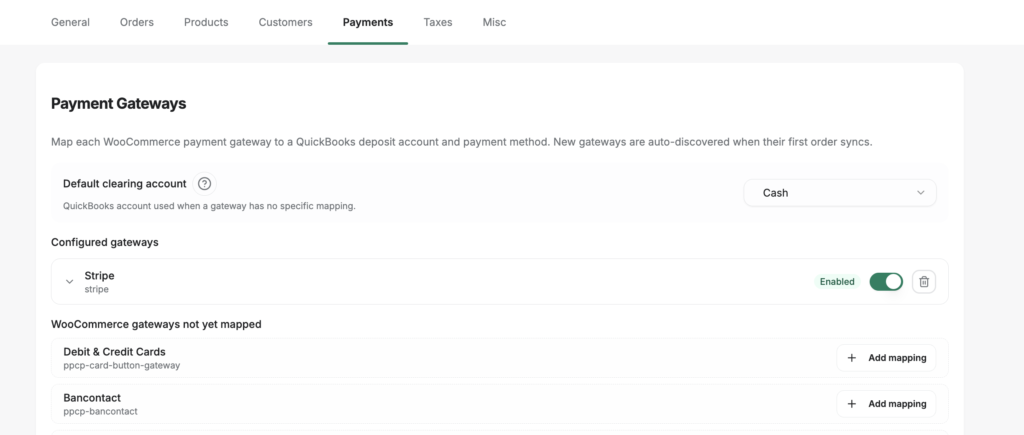
टैक्स को भी वही ट्रीटमेंट मिलता है: बिक्री कर आपके द्वारा नामित क्विकबुक्स देनदारी खाते में पोस्ट होता है, और एक राउंडिंग लाइन आइटम वूकॉमर्स के टैक्स गणित और क्विकबुक्स के बीच सेंट-लेवल के अंतर को अवशोषित करता है — वह सुलह पेपरकट जिसके बारे में कोई आपको चेतावनी नहीं देता है। ऑर्डर कैसे पोस्ट होते हैं यह एक और ड्रॉपडाउन है: भुगतान किए गए ऑर्डर के लिए सेल्स रसीद, बाद में भुगतान आने पर इनवॉइस, कोट्स के लिए अनुमान। और सिंक विधियों की शब्दावली प्लेटफ़ॉर्म-सामान्य है — डॉक्स का अपना मार्गदर्शन लगभग 100+ ऑर्डर प्रति दिन को उस बिंदु के रूप में रखता है जहां प्रति-ऑर्डर रिकॉर्ड बुककीपिंग बंद हो जाते हैं और तलछट बनना शुरू हो जाते हैं, जो ठीक वही है जहां दैनिक सारांश अपना महत्व अर्जित करते हैं।
इनमें से किसी के लिए भी कॉन्फ़िगरेशन प्रोजेक्ट की आवश्यकता नहीं है। डॉक्स के अपने FAQ के अनुसार, हर टैब समझदार डिफ़ॉल्ट के साथ आता है — अधिकांश स्टोर सिंक कॉन्फ़िगरेशन को बिल्कुल भी छुए बिना सिंक करना शुरू कर सकते हैं, और बाद में किताबों की मांग के अनुसार सेटिंग्स को कड़ा कर सकते हैं।
जब एक प्लगइन पर्याप्त होता है — और जब यह नहीं होता है
ईमानदार जवाब: कभी-कभी ऑर्डर-स्तरीय उपकरण सही विकल्प होते हैं।
एक ऑर्डर-स्तरीय सिंक प्लगइन शायद पर्याप्त है यदि: आप प्रति माह लगभग 100-200 ऑर्डर के तहत हैं और अंतराल का अनुमान लगा सकते हैं; आप सरल, कभी-कभार होने वाले रिफंड के साथ एक एकल गेटवे चलाते हैं; या आपका व्यवसाय चालान-संचालित है — थोक और बी2बी स्टोर जहां भुगतान वास्तव में विशिष्ट ग्राहक चालान से जुड़े होते हैं। उस अंतिम मामले में, प्रति-ऑर्डर सिंक एक बग नहीं है, यह आवश्यकता है, और MyWorks जैसा टूल ठीक उसी के लिए बनाया गया है।
उस अंतिम मामले पर एक स्पष्टीकरण, क्योंकि यह वह है जिसे पीछे की ओर लिया जाता है। आपका स्टोर इनवॉइस-संचालित है या नहीं, यह आपके द्वारा चुने गए सिंक टूल की संपत्ति नहीं है - यह स्टोर परत पर, अपस्ट्रीम तय किया जाता है। एक WooCommerce स्टोर केवल इनवॉइस-आकार के ऑर्डर उत्सर्जित करता है यदि कुछ होलसेल भूमिकाएँ निर्दिष्ट कर रहा है, B2B मूल्य निर्धारण लागू कर रहा है और स्वीकृत खरीदारों को शर्तों पर चेक आउट करने दे रहा है; होलसेल सुइट आमतौर पर ऐसा करने का तरीका है। इसलिए सुविधा सूची को पढ़ने से पहले अपने स्टोर को पढ़ें: यदि यह नेट-टर्म ऑर्डर का उत्पादन कर रहा है, तो भुगतान-जागरूक दैनिक सारांश उन्हें खुशी-खुशी एक ही राजस्व पंक्ति में समतल कर देगा और एआर विवरण को अपने साथ ले जाएगा।
आपको भुगतान-जागरूक परत की आवश्यकता है यदि: आप कई गेटवे चलाते हैं (अधिकांश स्टोर लाइन पार करते हैं जहां स्ट्राइप के साथ पेपैल है); रिफंड और विवाद साप्ताहिक वास्तविकता हैं; आपका वॉल्यूम प्रति-ऑर्डर प्रविष्टियों को अव्यवस्थित बनाता है; या एक सीपीए मासिक रूप से आपकी किताबें बंद करता है और बैंक फ़ीड से मिलान की उम्मीद करता है। उस बिंदु पर, केवल ऑर्डर डेटा सुलह योग्य किताबें उत्पन्न नहीं कर सकता है — चाहे वह कितनी भी अच्छी तरह से सिंक हो।
यदि आप भुगतान-जागरूक मार्ग की ओर झुक रहे हैं, तो तीन व्यावहारिक आपत्तियां अगले आती हैं:
“क्या यह मेरी सब्सक्रिप्शन को संभालेगा?” लेजरपोर्ट मानक वूकॉमर्स ऑर्डर और ग्राहक डेटा को सिंक करता है, और सब्सक्रिप्शन नवीनीकरण नियमित ऑर्डर के रूप में आते हैं जब वूकॉमर्स उन्हें बनाता है — इसलिए आवर्ती राजस्व उसी पाइपलाइन से प्रवाहित होता है, कॉन्फ़िगर करने के लिए कुछ भी खास नहीं है।
“क्या होगा यदि सिंक चुपचाप विफल हो जाए?” रियल-टाइम सिंक वूकॉमर्स वेबहुक पर चलता है, और वूकॉमर्स विफल डिलीवरी को स्वचालित रूप से पुनः प्रयास करता है। यदि कुछ अभी भी छूट जाता है, तो wp-एडमिन के अंदर एक मैनुअल सिंक पृष्ठ मांग पर डेटा भेजता है — आप कभी भी किसी ऑर्डर को फिर से भेजने के लिए समर्थन की प्रतीक्षा नहीं करते हैं।
“क्या मैं एक खाते के विरुद्ध कई स्टोर चला सकता हूँ?” हाँ — प्रत्येक कनेक्टेड स्टोर आपके प्लान की सीमा के विरुद्ध एक कनेक्शन के रूप में गिना जाता है, जो कनेक्शन पृष्ठ पर दिखाई देता है। व्यावहारिक प्रश्नों के बाकी (HPOS संगतता, क्रेडेंशियल भंडारण, आवश्यक उपयोगकर्ता भूमिकाएँ) वूकॉमर्स के लिए लेजरपोर्ट के साथ शुरुआत करना में उत्तर दिए गए हैं।
सिंक लेयर को जो इंजीनियरिंग बार क्लियर करना चाहिए
मूल्यांकन का एक और अक्ष है, और यह वह है जो प्लगइन लिस्टिंग कभी नहीं दिखाते हैं: जब सॉफ़्टवेयर आपके स्टोर से जुड़ता है — और जब वह छोड़ता है — तो वह क्या करता है। लेजरपोर्ट का प्रोविजनिंग स्वचालित और लेन-देन योग्य है। कनेक्ट करने पर एक केवल-पढ़ने के लिए वूकॉमर्स रेस्ट एपीआई कुंजी बनती है — यह आपके स्टोर को पढ़ती है, यह उसमें लिखती नहीं है — और ऑर्डर, उत्पाद, भिन्नता, ग्राहक और रिफंड को कवर करने वाले 13 नामित वेबहुक पंजीकृत करती है। यदि कोई प्रोविजनिंग चरण बीच में विफल हो जाता है, तो पहले से पूरा किया गया सब कुछ स्वचालित रूप से वापस कर दिया जाता है, इसलिए आपका स्टोर कभी भी आधा-कॉन्फ़िगर नहीं रह जाता है।
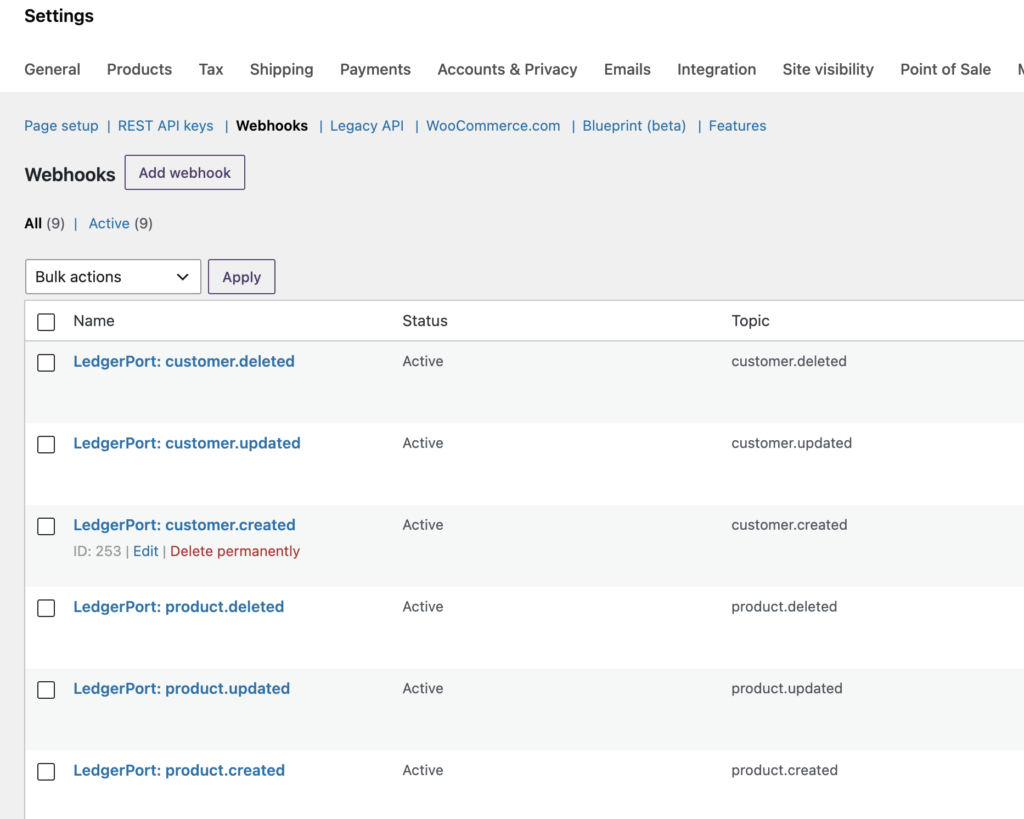
सुरक्षा मुद्रा का बाकी हिस्सा भी समान रूप से जांच योग्य है: क्रेडेंशियल्स आपके साइट की अपनी वर्डप्रेस सुरक्षा कुंजियों का उपयोग करके AES-256-CBC-एन्क्रिप्टेड संग्रहीत किए जाते हैं, कनेक्ट करने के लिए manage_woocommerce क्षमता की आवश्यकता होती है (व्यवस्थापक और शॉप मैनेजर), और लेजरपोर्ट कभी भी आपके द्वारा स्वयं बनाए गए वेबहुक को नहीं छूता है। डिस्कनेक्ट करना भी उतना ही साफ है - यह ठीक उसी एपीआई कुंजी और वेबहुक को हटा देता है जिसे उसने बनाया था, आपका स्टोर और ऑर्डर अछूते रहते हैं, और आपके मैपिंग पुन: कनेक्शन के लिए बने रहते हैं। पहली असफल कोशिश में कुछ भी खर्च नहीं होता है।
वही अनुशासन तब दिखाई देता है जब कोई सिंक गलत हो जाता है। विफलताएं एक मूक अंतर या पीएचपी नोटिस नहीं हैं - वे प्रलेखित सुधारों के साथ एक नामित वर्गीकरण हैं: एक समाप्त हो चुका क्विकबुक्स टोकन (सबसे आम सिंक त्रुटि के लिए डॉक्स का अपना चयन), एक अनमैप्ड उत्पाद, एक डुप्लिकेट प्रविष्टि, एक आवश्यक फ़ील्ड गायब है। प्रत्येक त्रुटि इसके कारण और इसके रिकवरी पथ को बताती है। वह, किसी भी सुविधा चेकबॉक्स से अधिक, "एक प्लगइन पर्याप्त है" की वास्तविक सीमा है: यह वहां समाप्त होता है जहां अप्राप्य, अदृश्य विफलता शुरू होती है।
यह स्वचालित रूप से कैसा दिखता है
लेजरपोर्ट को उस भुगतान-जागरूक परत के रूप में बनाया गया है, और यह शॉपिफाई के साथ वूकॉमर्स का समर्थन करता है। यह आपके स्टोर और आपके गेटवे से जुड़ता है, फिर स्वचालित रूप से उपरोक्त आर्किटेक्चर चलाता है: गेटवे क्लियरिंग खातों में पोस्ट किए गए दैनिक सारांश, शुल्क अलग किए गए भुगतान जर्नल, जमा जो आपके बैंक फ़ीड से पैसे तक मेल खाते हैं। सेटअप में लगभग 15 मिनट लगते हैं, और महत्वपूर्ण मात्रा वाले स्टोर हर हफ्ते घंटों की बचत की रिपोर्ट करते हैं।
यहां पूरा वूकॉमर्स सेटअप है, शुरुआत से अंत तक:
प्लगइन इंस्टॉल करें। अपने वर्डप्रेस एडमिन में, प्लगइन्स » नया प्लगइन जोड़ें पर जाएं, लेजरपोर्ट खोजें, अभी इंस्टॉल करें पर क्लिक करें, फिर सक्रिय करें। आपको अपनी साइट पर HTTPS और एक लेजरपोर्ट खाते की आवश्यकता होगी - पूर्ण इंस्टॉल वॉकथ्रू दोनों पूर्वापेक्षाओं को कवर करता है।
सेटअप विज़ार्ड चलाएँ। सक्रियण के बाद, लेजरपोर्ट स्वचालित रूप से एक पूर्ण-स्क्रीन ओवरले के रूप में विज़ार्ड खोलता है। शुरू करने के लिए लेजरपोर्ट से कनेक्ट करें पर क्लिक करें।
कनेक्शन को अधिकृत करें। आपको लॉग इन करने, उस व्यवसाय को चुनने के लिए जिसे आप कनेक्ट कर रहे हैं, और अधिकृत करें पर क्लिक करने के लिए app.ledgerport.com पर रीडायरेक्ट किया जाता है - फिर सीधे आपके वर्डप्रेस एडमिन पर वापस भेजा जाता है।
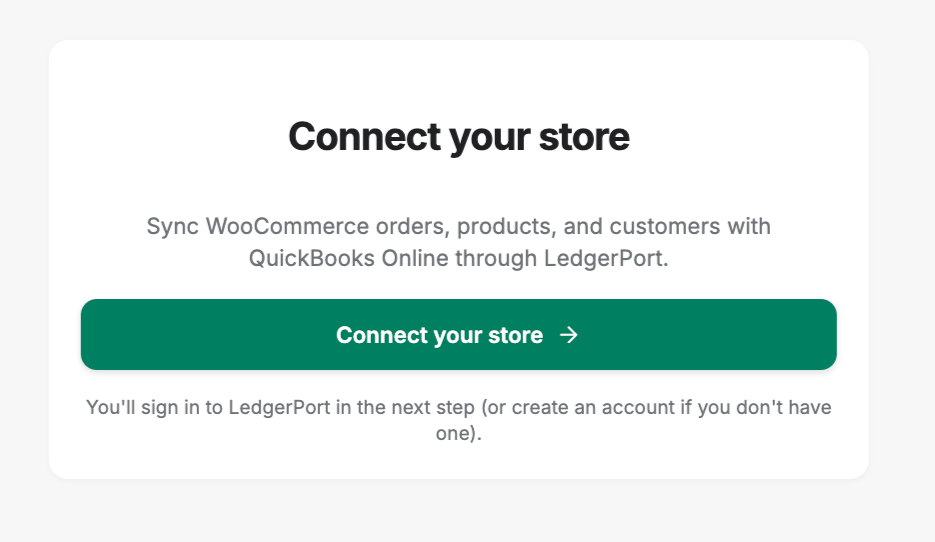
- प्रावधान चलाने दें। लेजरपोर्ट रीड एक्सेस के साथ एक वूकॉमर्स रेस्ट एपीआई कुंजी बनाता है, ऑर्डर, रिफंड, उत्पादों और ग्राहकों के लिए वेबहुक पंजीकृत करता है, और कनेक्शन की पुष्टि करता है। यदि कोई भी चरण विफल रहता है, तो सब कुछ स्वचालित रूप से वापस रोल हो जाता है - कोई आधा-कॉन्फ़िगर किया गया स्टोर नहीं। जब यह सफल होता है, तो आप कनेक्टेड लेजरपोर्ट डैशबोर्ड पर उतरते हैं।
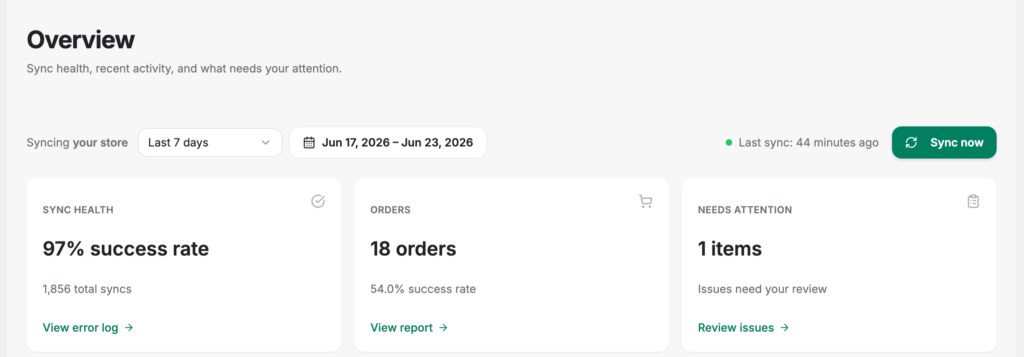
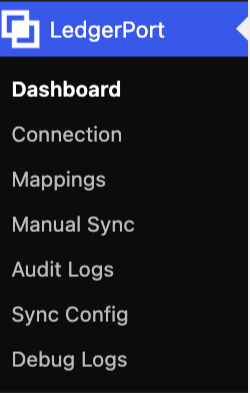
वहां से, सब कुछ wp-admin के अंदर एक लेजरपोर्ट मेनू के तहत रहता है — डैशबोर्ड, मैपिंग, मैन्युअल सिंक, ऑडिट लॉग — इसलिए प्लंबिंग की जांच करने का मतलब कभी भी वर्डप्रेस छोड़ना नहीं है। और पिछले अनुभाग से क्लियरिंग-अकाउंट संरचना एक अलग कॉन्फ़िगरेशन प्रोजेक्ट नहीं है: यह डेली समरी सिंक विधि है, पांच में से एक ड्रॉपडाउन, जिसे एक बार चुना जाता है।
और जब एक वेबहुक विफल हो जाता है — क्योंकि एक होगा
रियल-टाइम सिंक वेबहुक पर चलता है, और वेबहुक अपनी प्रकृति के बारे में ईमानदार होते हैं: जल्द या बाद में, एक डिलीवरी विफल हो जाती है। सबसे मुफ्त प्लगइन्स जो सवाल का जवाब नहीं दे सकते वह यह है कि आगे क्या होता है। यहां जवाब की परतें हैं। वू कॉमर्स स्वयं विफल वेबहुक डिलीवरी को स्वचालित रूप से पुनः प्रयास करता है। जो कुछ भी अभी भी फिसल जाता है वह गायब नहीं होता है — यह प्रति-रिकॉर्ड सिंक स्थिति के रूप में सतह पर आता है, wp-admin के अंदर मैन्युअल सिंक पेज से ठीक हो जाता है।
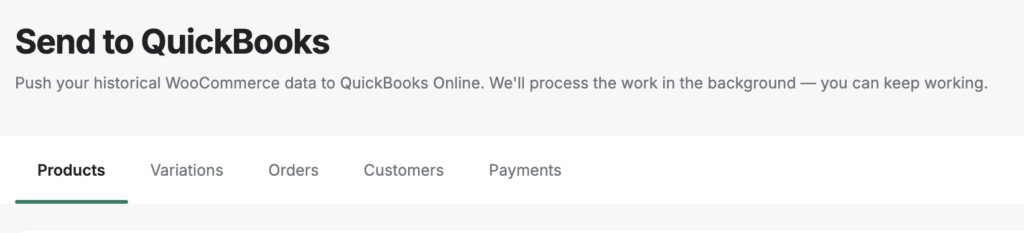
वर्कफ़्लो चेकबॉक्स चयन है, फिर चयनित पुश करें या सभी पुश करें, फिर एक लाइव प्रगति मोडल जो प्रत्येक रिकॉर्ड को लैंड या फेल होते हुए दिखाता है — एक लाल आइकन के बजाय एक कारण के साथ। और वह विवरण जो आउटेज के बाद कैच-अप को सुरक्षित बनाता है: पुश करने की गारंटी डुप्लिकेट न करने की है। पहले से सिंक किए गए रिकॉर्ड स्वचालित रूप से छोड़ दिए जाते हैं, और फेल हुए रिकॉर्ड को फिर से पुश करने से क्विकबुक्स एंट्री पोस्ट होने के बजाय बनाई या अपडेट की जाती है। एक बुरे सप्ताह के बाद “सब कुछ चुनें, सब कुछ पुश करें” डबल-पोस्ट राजस्व नहीं कर सकता।
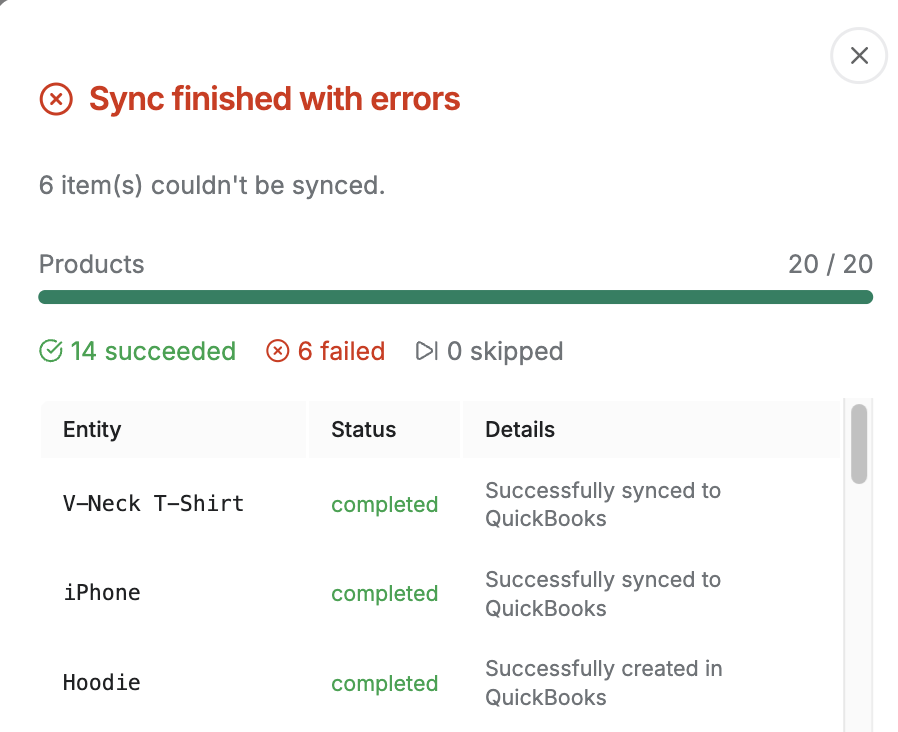
एफएक्यू से दो और तथ्य जो यहां संबंधित हैं: प्लगइन वू कॉमर्स के हाई-परफॉरमेंस ऑर्डर स्टोरेज के साथ शून्य अतिरिक्त कॉन्फ़िगरेशन के साथ पूरी तरह से संगत है, और — जैसा कि ऊपर कवर किया गया है — वू कॉमर्स सब्सक्रिप्शन रिन्यूअल नियमित ऑर्डर के समान पाइपलाइन पर चलते हैं। हिस्टोरिकल बैकफिल भी इसी पेज का उपयोग करता है, जिसका मतलब है कि “हम पूरे साल स्प्रेडशीट पर रहे हैं” एक इम्पोर्ट है, डेटा-एंट्री प्रोजेक्ट नहीं: साल भर पृष्ठ देखें, पुश करें, स्टेटस को हरा होते हुए देखें।
समझौता, सीधे शब्दों में कहा गया है: लेजरपोर्ट सारांशित करता है। यह व्यक्तिगत ग्राहक रिकॉर्ड को सिंक नहीं करेगा या क्यूबीओ में इन्वेंट्री का प्रबंधन नहीं करेगा — यदि आपके व्यवसाय को प्रति-ग्राहक चालान की आवश्यकता है, तो माईवर्क्स जैसा टूल मजबूत फिट बना रहता है, और तुलना उस लाइन को ईमानदारी से वॉकथ्रू करता है।
मूल्य निर्धारण मुफ्त से शुरू होता है — प्रति माह 30 ऑर्डर तक, एक स्टोर, मांग पर मैन्युअल सिंक — ताकि आप कुछ भी भुगतान करने से पहले एक वास्तविक भुगतान को सुलझाते हुए देख सकें। ग्रोथ $25/माह से शुरू होती है जिसमें दैनिक स्वचालित सिंक होता है; स्केल, $67/माह से, रियल-टाइम सिंक के साथ-साथ भुगतान जर्नल और शुल्क हैंडलिंग जोड़ता है जिसके बारे में यह पोस्ट है। हर सशुल्क प्लान में 14-दिन की बिना शर्त मनी-बैक गारंटी होती है — परीक्षण नहीं, पूर्ण वापसी, कोई सवाल नहीं पूछा जाता।
लचीलापन कर
WooCommerce के बारे में दुखद-हास्यपूर्ण सच्चाई यहाँ दी गई है: जो चीज़ इसे महान बनाती है, वही चीज़ आपके खातों को बिगाड़ देती है।
आप कोई भी गेटवे, कोई भी चेकआउट प्लगइन, कोई भी सब्सक्रिप्शन एक्सटेंशन, कोई भी क्षेत्रीय भुगतान विधि चला सकते हैं — और इकोसिस्टम उन सभी का समर्थन करेगा। वह लचीलापन वास्तव में वह कारण है जिससे आपने प्लेटफ़ॉर्म को चुना। लेकिन इसका मतलब यह भी है कि आपका वित्तीय डेटा चार या पाँच सिस्टम से उत्पन्न होता है जो कभी भी एक ही भाषा बोलने के लिए सहमत नहीं हुए, और लेखांकन परत उन बोलियों में से प्रत्येक को इनहेरिट करती है।
प्लगइन इकोसिस्टम आपके लिए उस संरचना को नहीं बना सकता है, क्योंकि संरचना ठीक वही है जो एक खुला इकोसिस्टम लागू नहीं करता है। इसलिए संरचना को लेखांकन परत पर रहना होगा: खातों को साफ़ करना, दैनिक सारांश, शुल्क लाइनें। यह वह कर है जो आप कहीं और लचीलेपन के लिए चुकाते हैं — और यह एक उचित मूल्य है, एक बार जब आप ऑर्डर सिंक को इसके लिए भुगतान करने की उम्मीद करना बंद कर देते हैं।
शुरुआत से 1,400 चालान गलत नहीं थे। वे बस एक ऐसे प्रश्न का उत्तर दे रहे थे जो आपके बैंक ने कभी नहीं पूछा। यदि आप चाहते हैं कि आपके खाते सही प्रश्न का उत्तर दें, तो अपने WooCommerce स्टोर को LedgerPort से कनेक्ट करें — मुफ़्त प्लान आपके पहले भुगतान को कवर करता है, और जैसे ही जमा राशि मेल खाती है, आपको पता चल जाएगा कि आर्किटेक्चर काम करता है।
