

- 1Proč je účetnictví WooCommerce pro firmy jiná práce
- 21. Neexistuje jediná platební kolej
- 32. Infrastrukturu vlastní klient
- 43. Vrstva synchronizace je plugin, který si klient nainstaluje
- 5Rozdíl v onboardingu: Co se mění oproti vašemu seznamu úkolů pro Shopify
- 6Vyrovnání platební brány jako stálá politika
- 7Nedostatečně obsluhované a loajální
- 8Druhé doporučení
Účetnictví WooCommerce pro firmy je z velké části vaše příručka pro Shopify, která přežila cestu beze změny. Tři místa, kde se liší, jsou přesně tam, kde se zakázka vymkne cenové nabídce.
Doporučující e-mail sedí ve vaší schránce. Jeden z vašich klientů Shopify má přítele, který „provozuje svůj obchod na WordPressu – myslím WooCommerce?“ – a protože jste mu letos do 10. dne v měsíci uzavřeli účetnictví, řekl mu, že jste firma, která se zabývá e-commerce.
Zasloužíte si to. Máte seznam úkolů pro onboarding Shopify, který může zaměstnanec zvládnout za méně než hodinu: připojení, standardní šablonu mapování, historické doplnění dat, jedna výplata sledovaná od začátku do konce. Takže otevřete systém nového klienta s očekáváním Shopify s jiným logem.
Místo toho najdete: Stripe *a* PayPal *a* platební bránu „kup teď, zaplatíš později“, kterou jste nikdy nevyrovnávali. Žádný obchod s aplikacemi – stránka pluginů s 31 položkami, čtyři z nich chtějí aktualizace. A žádná platformní společnost, která by cokoli z toho hostovala – klient si pronajímá server od hostingové společnosti, o které jste také nikdy neslyšeli, a její synovec „řeší věci s webem“.
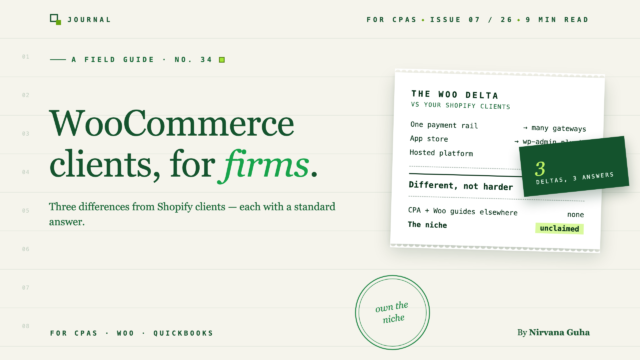
Nejlákavější závěr je ten, který si většina firem tiše nese: *Klienti WooCommerce jsou jen klienti Shopify s dalšími kroky – stejná příručka, více trpělivosti.* To je lež, a je drahá, protože znamená, že každé překvapení specifické pro Woo se objeví uprostřed zakázky místo v cenové nabídce. Pravda je, že WooCommerce se pro účetní firmy liší ve třech specifických, strukturálních ohledech – a každý z nich má standardní odpověď, kterou můžete nastavit jako politiku před úvodním hovorem.
Proč je účetnictví WooCommerce pro firmy jiná práce
Žádný z těchto tří rozdílů se netýká účetnictví. Příjmy, poplatky, protiúčet vrácených peněz, daňové závazky – identické jako u vašich klientů Shopify. Co se mění, je, odkud data pocházejí a kdo ovládá stroj, který je produkuje.
1. Neexistuje jediná platební kolej
Typický klient Shopify používá Shopify Payments a většina jejich peněz přichází jedním výplatním tokem s jednou logikou poplatků. Vaše svalová paměť pro vyrovnání je na tom postavena.
WooCommerce nemá žádnou vlastní platební bránu. Pokladna je sestavena: Stripe pro karty, PayPal, protože ho zákazníci očekávají, možná Klarna nebo regionální zpracovatel, kterého klient přidal během promo akce před dvěma lety. Každá platební brána dávkuje výplaty podle vlastního harmonogramu, odečítá své vlastní poplatky a vyrovnává vrácené peníze podle vlastního časového plánu. Neexistuje nic jako „výplata WooCommerce“ – existují tři nebo čtyři nesouvisející výplatní proudy zasahující na stejný běžný účet.
Odpověď z pohledu firmy: zúčtování na bránu, deklarované jako stálá politika. Jeden zúčtovací účet a jedna položka poplatku za každou aktivní bránu v obchodě, vytvořená před synchronizací první transakce — nikdy sdílený „balík poplatků obchodníka“. Toto je stejná zúčtovací architektura, které již důvěřujete; rozdíl Woo spočívá v tom, že ji provozujete paralelně, na několika kolejích najednou. Více o politice níže.
2. Infrastrukturu vlastní klient
Shopify je hostovaná platforma: provozní doba, zabezpečení a databáze prodejů jsou problémem Shopify. Obchod WooCommerce je software, který klient provozuje na hostingu, který si klient vybral. Jádro WordPressu, WooCommerce, verze PHP, certifikáty SSL a 30 dalších pluginů žijí na infrastruktuře, do které vaše firma nemá žádný vhled — a vše sedí nad vašimi zdrojovými daty.
To z vás nedělá jejich IT oddělení. Z infrastruktury se stává otázka rozsahu, stejně jako „je to QuickBooks Online nebo Desktop?“ je otázka rozsahu pro klienty Shopify.
Odpověď ze strany firmy: přístup a aktualizace hygieny patří do vašeho úvodního e-mailu, ne do třetího měsíce. Přidejte čtyři otázky do kontrolního seznamu před hovorem: Kdo hostuje web a kdo jej spravuje? Je povoleno HTTPS? (Nástroj pro synchronizaci se bez něj nepřipojí.) Odpovídá měna obchodu domácí měně společnosti QuickBooks? A kdo má přístup do wp-admin s právy k instalaci pluginu? Pět minut na začátku; tím se odstraní celá kategorie překvapení typu „web byl nedostupný / certifikát vypršel / synovec něco aktualizoval“.
3. Vrstva synchronizace je plugin, který si klient nainstaluje
Pro klienty Shopify je synchronizační nástroj instalací z obchodu s aplikacemi na platformě, která zaručuje prostředí. Pro WooCommerce je synchronizační nástroj plugin pro WordPress, nainstalovaný v wp-admin klienta, který komunikuje s REST API obchodu. Spojení, na které spoléháte pro čisté účetnictví, žije v systému z rozdílu č. 2.
Odpověď z pohledu firmy: váš seznam pro onboarding obsahuje jejich wp-admin. Ne jako zátěž — jako desetiminutový řízený krok, který provedete během úvodního hovoru, s klientem (nebo kýmkoli, kdo má administrátorská práva) jako řidičem. Tok instalace a připojení je krátký a standardní a společné procházení znamená, že přesně víte, co běží v jejich obchodě. Další sekce to pokrývá.
Rozdíl v onboardingu: Co se mění oproti vašemu seznamu úkolů pro Shopify
Pokud jste vytvořili pětistupňový onboarding Shopify, ponechte si ho. Páteř zůstává: příprava před hovorem, připojení, mapování proti standardnímu grafu vaší firmy, historické doplnění, první kontrola vyrovnání. Zde je delta Woo, stupeň po stupni.
Příprava před hovorem zahrnuje otázky týkající se infrastruktury. Hosting, HTTPS, shoda měn, přístup do wp-admin — čtyři z výše uvedených. Vše ostatní ve vstupním e-mailu (pozvánka účetního QBO, která společnost QuickBooks, datumové rozmezí doplnění) zůstává nezměněno.
Přidejte si tam pátou otázku pro příjem: prodává klient velkoobchodně? Je to ta, která nejčastěji mění podobu zapojení. Woo obchod běžící B2B vedle maloobchodu generuje pohledávky, kreditní riziko a objednávky osvobozené od daně, které čistý D2C soubor nikdy nevytváří — a odpověď rozhoduje, zda mapujete na zúčtovací účet nebo účet AR, než cokoli jiného zmapujete. Zeptejte se také, s čím to běží: Wholesale Suite a pluginy jako je tento drží role, cenová pravidla a kreditní limity, které vysvětlují, proč se daná objednávka zaúčtovala tak, jak se zaúčtovala, a budete chtít, aby to bylo viditelné ve wp-admin vedle synchronizačního pluginu, spíše než aby se to objevilo ve třetím měsíci.
Fáze připojení se přesouvá do wp-admin. Místo handshake URL a instalace aplikace na hostované platformě klient nainstaluje plugin. S LedgerPortem sekvence hovoru vypadá takto:
-
Nainstalujte. V administraci WordPress klienta: Pluginy » Přidat nový plugin, vyhledejte LedgerPort, Nainstalovat, Aktivovat. Průvodce nastavením se automaticky otevře jako překryvné okno přes celou obrazovku.
-
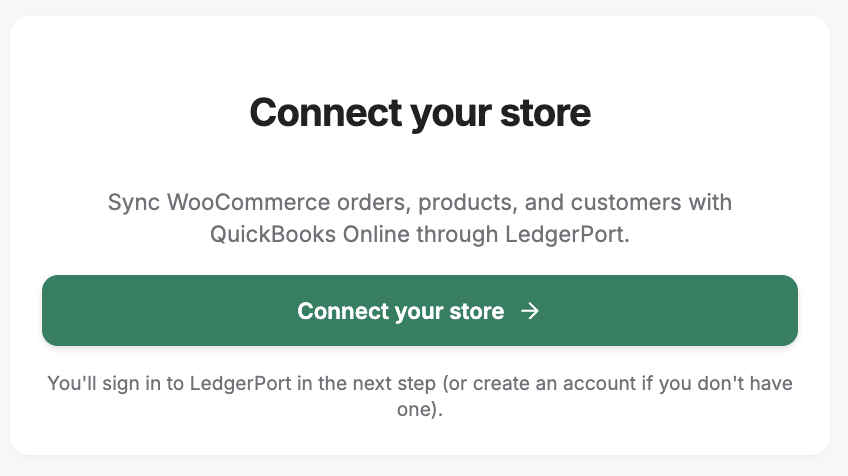
Připojte. Průvodce vás požádá o jedno kliknutí k zahájení procesu připojení.
-
Autorizujte. Klient je přesměrován na app.ledgerport.com, přihlásí se, vybere firmu a autorizuje — poté se vrátí do své administrace WordPress. Žádná hesla se nepředávají, což stojí za to říci nahlas během hovoru, přesně jako byste to udělali pro udělení OAuth pro QuickBooks.
-
Zřízení probíhá samo. LedgerPort vytvoří klíč WooCommerce REST API s přístupem pro čtení a zaregistruje webhooky pro objednávky, refundace, produkty a zákazníky. Pokud jakýkoli krok selže, vše se automaticky vrátí zpět — obchod nikdy nezůstane částečně nakonfigurován. Po úspěchu se klient dostane na připojený dashboard.
Zde je část, kterou ukážete klientovi — a skeptickému synovci IT — než budete pokračovat: vše, co plugin zřídil, je viditelné v nastavení vlastního obchodu WooCommerce, v sekci Webhooky. Pojmenované, uvedené, auditovatelné.
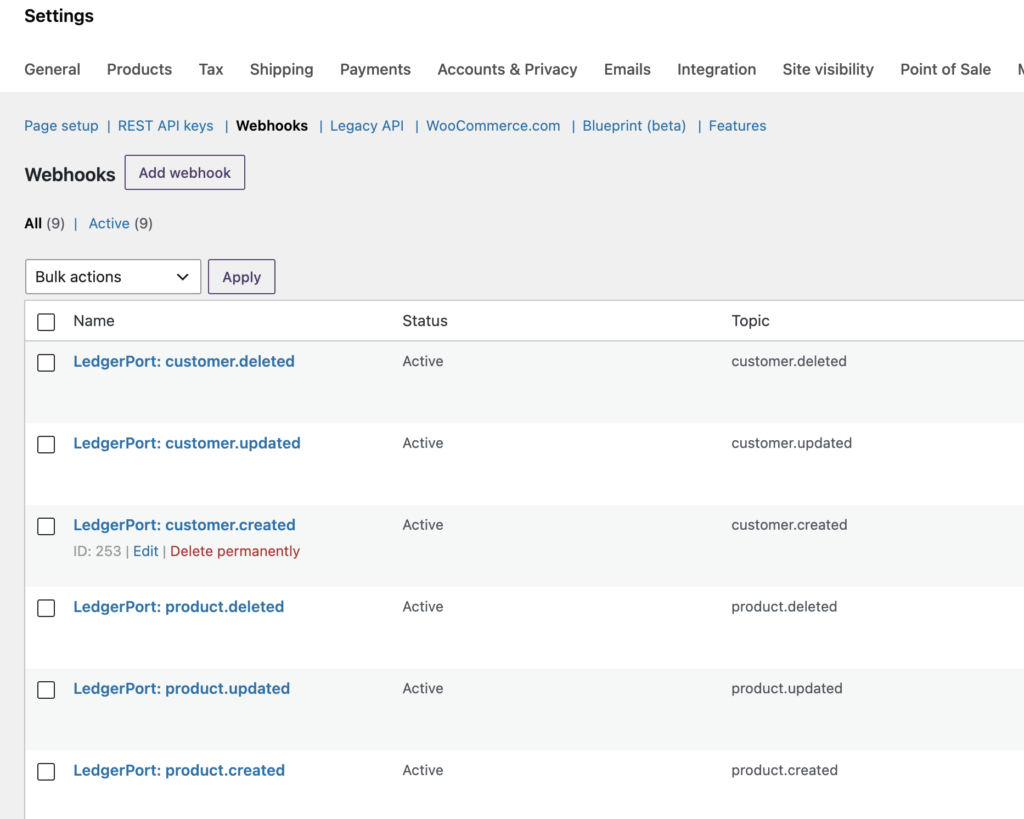
Tato transparentnost je čestnou odpovědí na obavy o hygienu přístupu z rozdílu č. 2. Plugin drží přístup pro čtení, jeho stopa je kontrolovatelná v wp-admin a odpojení smaže API klíč a webhooky, které vytvořil — ve vašem obchodě klienta nic nezůstane, pokud již nesloužíte.
Mapování, doplňování a ověřování jsou stejná svalová skupina. Váš standardní e-commerce graf platí; mapování produktů a účtů probíhá z nabídky LedgerPort, která nyní žije v postranním panelu administrace klienta — Dashboard, Mapování, Manuální synchronizace, Auditní protokoly — takže kontrola stavu synchronizace nikdy nevyžaduje přihlášení k ničemu novému. Historické doplňování a krok ověření filtrování auditního protokolu na Chybu fungují přesně tak, jak fungují na vašich souborech Shopify.
Čistá delta k seznamu úkolů: čtyři vstupní otázky a jedna desetiminutová řízená instalace. To je celá část lži „další kroky“ — a je to menší polovina příběhu.
Vyrovnání platební brány jako stálá politika
Větší polovina je rozdíl č. 1, protože se opakuje při každém uzavření, nejen při onboardingu. Zapište si to jako pevné pravidlo — tři řádky:
Jeden zúčtovací účet na bránu, bez výjimek. Stripe Clearing, PayPal Clearing, jeden pro každý další kanál — každý jako Jiné krátkodobé aktivum ve vašem souboru QBO klienta, vytvořený při onboardingu. Sdílený zúčtovací účet napříč branami obnovuje přesně ten problém, který jste měli vyřešit.
Jedna položka poplatku na bránu. Smíšené poplatky nelze rozumně zkontrolovat. Odděleně se efektivní sazba každé brány stává měsíční dvouminutovou kontrolou: Stripe obvykle běží kolem 3 % a měsíc, kdy čte 4,1 %, se stalo něco, co stojí za dvě minuty.
Zúčtovací zůstatky jsou kontrolou stavu. Každý zúčtovací účet by měl obsahovat pouze peníze v tranzitu — několik dní prodejů. Plíživý zůstatek znamená, že poplatky nebo vrácení peněz nejsou na této konkrétní kolejnici zaznamenány, a říká vám, která to je.
Mechaniku zde záměrně znovu neodvozujeme — architektura denního souhrnu a výplatního deníku je popsána s propracovanými čísly v našich průvodcích pro majitele obchodů k synchronizaci WooCommerce s QuickBooks a účetním strukturám WooCommerce. Tyto dva příspěvky jsou také užitečné doslovně jako vzdělávání klientů: pošlete je majiteli obchodu před zahájením práce a konverzace „proč prostě nemůžete shodit vklady?“ je již vedena.
Pro firmu je důležité, že tato politika je konfigurace, nikoli disciplína. LedgerPort automaticky detekuje každou aktivní bránu v obchodě a každé přiřadí vlastní řádek — zúčtovací účet, platební metodu QBO, zpracování vrácení peněz — s výchozím záložním řešením pro cokoli nezkontfigurovaného. Váš junior ji nastaví jednou při onboardingu proti standardnímu účetnímu plánu firmy a architektura pro každou bránu se od té doby sama provádí.
Nedostatečně obsluhované a loajální
Nyní argument pro budování praxe, protože je silnější pro WooCommerce než téměř kdekoli jinde v e-commerce.
Většina nástrojů pro účetnictví v elektronickém obchodování je zaměřena na Shopify. Většina obsahu, většina CPA marketingu, většina pozic „mluvíme elektronickým obchodem“ – zaměřeno na Shopify. WooCommerce spravuje srovnatelný podíl online obchodů na světě, přesto majitel obchodu Woo, který hledá účetního, který rozumí platbám na bránu a synchronizaci založenou na pluginech, nenajde téměř nikoho. Nativní nástroje Woo, které existují, většinou řeší jiný problém – obousměrnou synchronizaci na úrovni objednávek pro firmy řízené fakturací, kterou MyWorks zvládá skutečně dobře – nikoli usmíření na úrovni plateb, na kterém závisí měsíční uzávěrka.
Pro firmu taková nedostupnost dělá dvě věci. Zvyšuje kanál doporučení neúměrně štědrým: dobře obsloužíte jednoho klienta WooCommerce a stanete se „firmou, která zvládne obchody na WordPressu“ v komunitách, kde je tato věta vzácná. A dělá klienty loajálními — majitel obchodu, jehož knihy konečně odpovídají bance, vytvořené firmou, která věděla, aby se zeptala na její hosting, než ji její synovec rozbil, nehledá specialistu, aby ušetřil 50 dolarů měsíčně.
Je to stejný argument o infrastruktuře, který jsme uvedli v článku proč klienti e-commerce ničí marže firem – marže je dána nástroji, nikoli typem klienta – s jedním vylepšením: u WooCommerce tato konkurence tento příspěvek nečetla. A portfolio strojů se přenáší vcelku: CPA Partner Program aplikuje vaši konfiguraci grafu Master Template napříč klienty, ať už používají Shopify nebo WooCommerce, pod jedním firemním přihlášením, takže váš šestý klient Woo zdědí rozhodnutí, která jste učinili u svého prvního.
Druhé doporučení
Představte si další. Další obchod na WordPressu, další sestavená pokladna – Stripe, PayPal a tentokrát něco severského. Váš vstupní e-mail již obsahuje čtyři infrastrukturní otázky. Váš úvodní hovor zahrnuje desetiminutovou instalaci pluginu, kterou jste již dříve provedli. Váš mapovací šablona již obsahuje řádky pro zúčtování na bránu a uzávěrka konce měsíce u tohoto klienta je stejné uzavření typu revize, nikoli rekonstrukce, které provádíte u svých souborů Shopify.
Stejný scénář nakonec – jen ne ten, který slibovala lež. Tři zásady, jednou přijaté, a rozdíl v platformě přestává být důvodem k odmítnutí doporučení.
Máte tři rozdíly a jejich stálé odpovědi; nejrychlejší způsob, jak je otestovat pod tlakem, je na skutečném klientském souboru. Rezervujte si hovor pro onboarding CPA → a provedeme vás vaším prvním klientem WooCommerce – čtyři vstupní otázky, instalace wp-admin, nastavení zúčtování na bránu a první uzávěrka, která se váže na každý z těchto vkladových proudů.
