
Saklaw ng gabay na ito ang pag-install ng LedgerPort plugin sa iyong WooCommerce store at pagkumpleto ng koneksyon sa QuickBooks Online sa pamamagitan ng Setup Wizard.
Bago Ka Magsimula
- Dapat gumagamit ng HTTPS ang iyong site. Kailangan ng LedgerPort ng secure na koneksyon at haharangan nito ang daloy ng koneksyon sa mga HTTP-only na site.
- Dapat naka-install at aktibo ang WooCommerce. Hindi gagana ang LedgerPort kung wala ito.
- Kailangan mo ng aktibong LedgerPort account sa ledgerport.com. Kung wala ka pa, maaari kang gumawa sa app.ledgerport.com.
- Dapat tumugma ang currency ng iyong WooCommerce store sa home currency ng iyong QuickBooks Online company. Hindi nagko-convert ng mga currency ang LedgerPort at haharangan nito ang activation kung may hindi pagtutugma.
Hakbang 1: I-install ang Plugin
Opsyon A: I-install mula sa WordPress.org
- Sa iyong WordPress admin, pumunta sa Plugins » Add New Plugin.
- Hanapin ang LedgerPort.
- I-click ang Install Now, pagkatapos ay Activate.
Opsyon B: I-upload ang zip file
- Sa iyong WordPress admin, pumunta sa Plugins » Add New Plugin.
- I-click ang Upload Plugin.
- Piliin ang
ledgerport.zipfile na iyong na-download. - I-click ang Install Now, pagkatapos ay Activate.
Pagkatapos ng activation, awtomatikong ire-redirect ka ng LedgerPort sa Setup Wizard. Kung hindi ka na-redirect, pumunta sa LedgerPort » Dashboard sa admin menu at i-click ang Set Up Connection o hanapin ang link ng Setup Wizard.
Hakbang 2: Buksan ang Setup Wizard
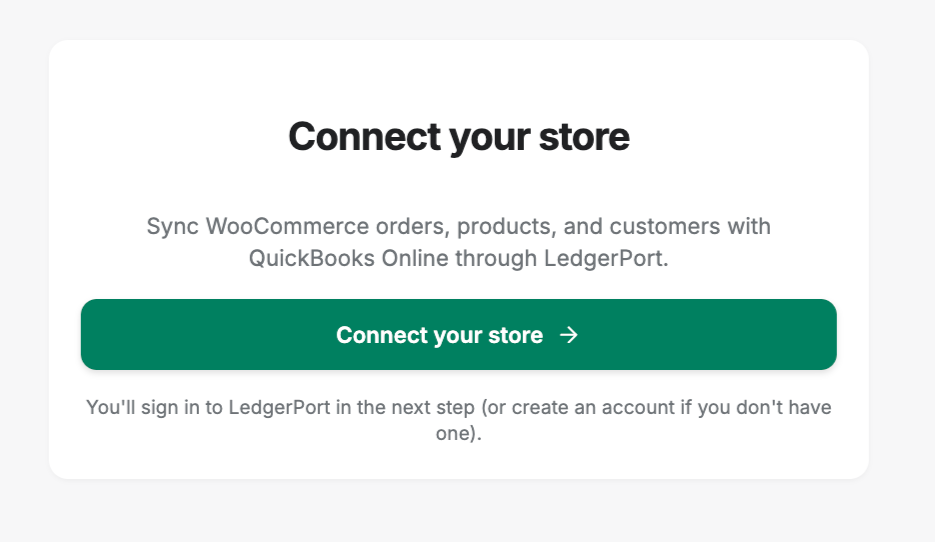
Ang Setup Wizard ay bubukas bilang isang full-screen overlay. Gagabayan ka nito sa pagkonekta ng iyong store sa LedgerPort at pag-authorize ng access sa iyong QuickBooks Online company.
I-click ang Connect to LedgerPort para magsimula.
Hakbang 3: I-authorize ang Koneksyon
Pagkatapos i-click ang Connect, ire-redirect ka ng LedgerPort sa app.ledgerport.com para makumpleto ang authorization.
- Mag-log in sa iyong LedgerPort account (o gumawa ng bago).
- Piliin ang LedgerPort business account na gusto mong ikonekta sa iyong WooCommerce store.
- I-click ang Authorize para bigyan ng access ng LedgerPort ang iyong store.
Pagkatapos ay awtomatiko kang ire-redirect pabalik sa iyong WordPress site.
Hakbang 4: Connection Provisioning
Kapag na-redirect ka pabalik, awtomatikong pinapatakbo ng LedgerPort ang provisioning flow sa background:
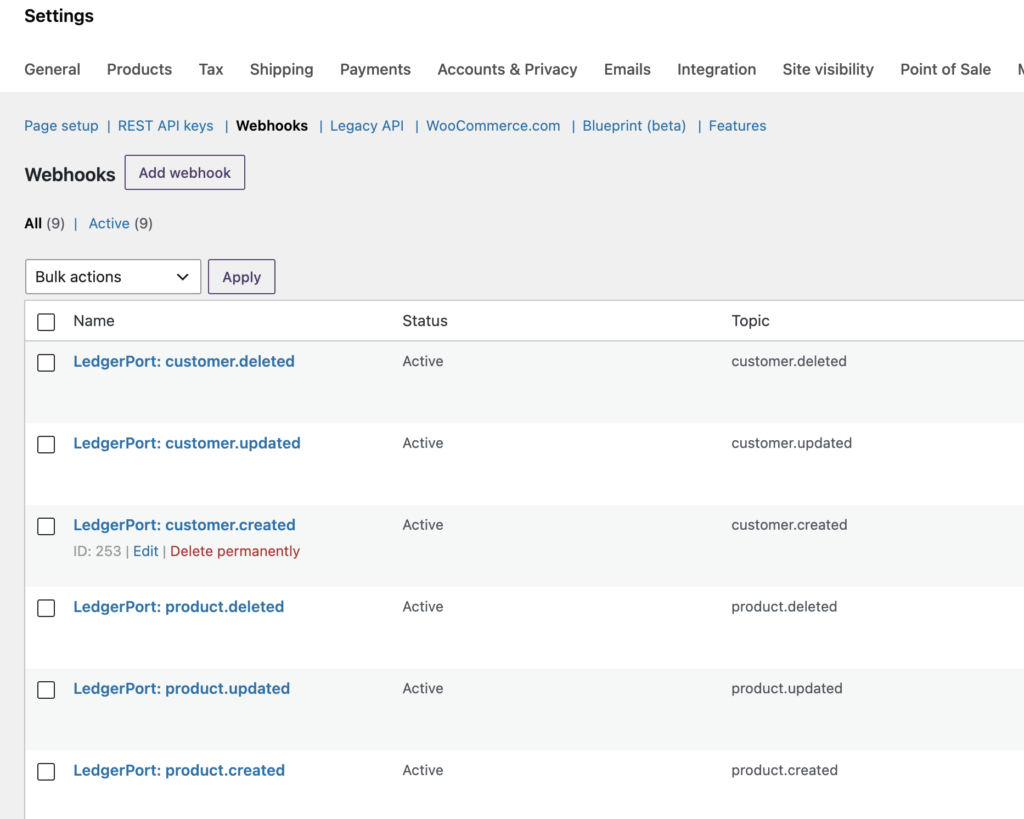
- Ligtas na sine-save ang iyong mga API credential.
- Gumagawa ng WooCommerce REST API key na may read access.
- Nagrerehistro ng mga sumusunod na WooCommerce webhook upang magpadala ng real-time na data sa LedgerPort:
| Paksa ng Webhook | Ano ang nakukuha nito |
|---|---|
| order.nilikha | Mga bagong order |
| order.na-update | Mga pagbabago sa order (status, item, atbp.) |
| order.binura | Mga binurang order |
| product.nilikha | Mga bagong produkto |
| product.na-update | Mga pag-edit ng produkto |
| product.binura | Mga binurang produkto |
| customer.nilikha | Mga bagong customer |
| customer.na-update | Mga pagbabago sa profile ng customer |
| customer.binura | Mga binurang customer |
| refund.nilikha | Mga refund ng order |
| product_variation.nilikha / na-update / binura | Mga variant ng variable na produkto |
- Nagrerehistro ng koneksyon sa platform ng LedgerPort.
Kung magtagumpay ang provisioning, mapupunta ka sa LedgerPort Dashboard at aktibo ang koneksyon.
Pag-troubleshoot ng mga Error sa Koneksyon
“Hindi gumagamit ng HTTPS ang iyong site” Kailangang may naka-enable na SSL ang iyong site. Makipag-ugnayan sa iyong hosting provider para i-enable ang HTTPS, pagkatapos ay bumalik sa Setup Wizard at subukang muli.
“Hindi tugma ang pera” Nakatakda ang iyong WooCommerce store sa ibang currency kaysa sa iyong QuickBooks Online company. Pumunta sa WooCommerce » Settings » General at i-update ang field ng Currency para tumugma sa home currency ng iyong QBO company, pagkatapos ay muling kumonekta.
“Naabot na ang maximum na koneksyon” Ang iyong LedgerPort plan ay may limitasyon sa bilang ng mga konektadong store. Mag-log in sa app.ledgerport.com, suriin ang iyong plan, at mag-upgrade kung kinakailangan.
“Nakakonekta na ang site na ito sa ibang account” Ang URL ng iyong site ay nakarehistro na sa ilalim ng ibang LedgerPort account. Kung ikaw ang may-ari ng account na iyon, mag-log in sa app.ledgerport.com at idiskonekta ang kasalukuyang koneksyon, pagkatapos ay muling kumonekta. Kung ito ay hindi inaasahan, makipag-ugnayan sa suporta ng LedgerPort.
Nabigo ang pag-provision sa kalagitnaan Gumagamit ang LedgerPort ng transactional rollback. Kung mabigo ang anumang hakbang sa pag-provision, lahat ng nakumpletong hakbang (API keys, webhooks) ay awtomatikong binabawi upang ang iyong WooCommerce store ay hindi maiwan sa isang bahagyang estado. Bumalik sa Setup Wizard at subukang muli.
Pagdiskonekta
Para idiskonekta ang iyong store mula sa LedgerPort:
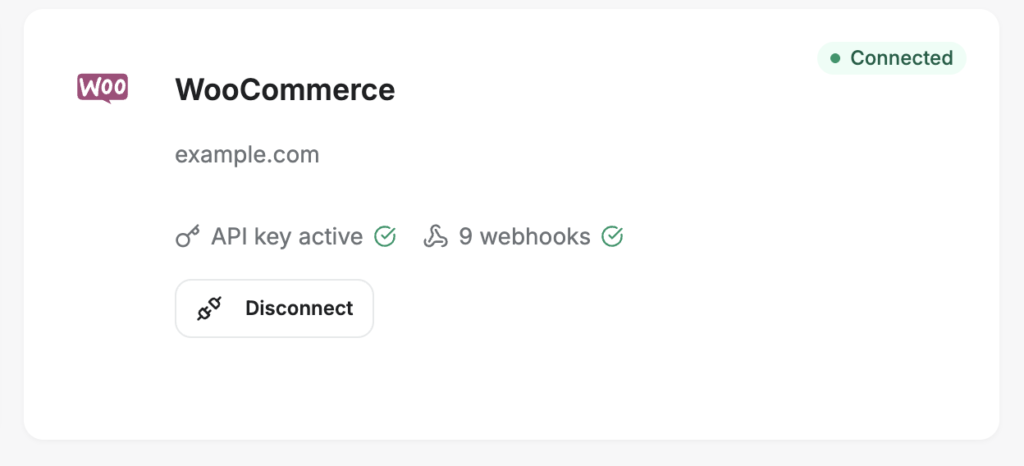
- Pumunta sa LedgerPort » Connection.
- I-click ang Disconnect.
- Kumpirmahin ang pagdiskonekta.
Gagawin ng LedgerPort ang:
- Buburahin ang WooCommerce REST API key na nilikha nito.
- Buburahin ang lahat ng LedgerPort webhooks mula sa WooCommerce.
- Ipapaalam sa LedgerPort platform upang ang koneksyon ay ma-deactivate sa SaaS side.
Hindi maaapektuhan ang iyong WooCommerce store at mga order. Tanging ang LedgerPort-specific API key at mga webhook ang aalisin.
Muling Pagkonekta
Para muling kumonekta pagkatapos ng pagdiskonekta, bumalik sa LedgerPort » Dashboard at i-click ang setup o reconnect button para muling patakbuhin ang Setup Wizard. Lahat ng nakaraang mapping na nakaimbak sa LedgerPort ay mananatili.
Mga Madalas Itanong
Kailangan ko bang manu-manong likhain ang WooCommerce API key? Hindi. Awtomatikong nililikha at pinamamahalaan ng LedgerPort ang WooCommerce REST API key sa panahon ng koneksyon. Hindi mo kailangang mag-set up ng anumang bagay sa WooCommerce » Settings » Advanced » REST API.
Maaapektuhan ba ng LedgerPort ang aking mga kasalukuyang WooCommerce webhooks? Lumilikha at namamahala lamang ang LedgerPort ng sarili nitong mga webhook (na may pangalang “LedgerPort – topic”). Hindi nito binabago ang anumang webhook na iyong nilikha.
Saan nakaimbak ang aking mga kredensyal? Ang iyong LedgerPort API key at WooCommerce credentials ay nakaimbak sa WordPress options table, naka-encrypt gamit ang AES-256-CBC gamit ang mga security key ng iyong WordPress site.
Maaari ko bang muling patakbuhin ang Setup Wizard nang hindi nagdidiskonekta? Kung nakakonekta ka na, makikilala ng Setup Wizard ang kasalukuyang koneksyon. Para magsimula muli, idiskonekta muna mula sa Connection page, pagkatapos ay patakbuhin muli ang wizard.
Anong user role sa WooCommerce ang kailangan para maikonekta ang LedgerPort? Kailangan mong magkaroon ng manage_woocommerce capability, na awtomatikong itinalaga sa mga WordPress Administrator at WooCommerce Shop Manager.
Kung makaranas ka ng anumang mga isyu, huwag mag-atubiling makipag-ugnayan sa amin sa pamamagitan ng pag-click dito. Ang aming support team ay makakatulong sa iyo.
