
Jedes Mal, wenn LedgerPort einen Datensatz synchronisiert, wird ein Protokolleintrag erstellt. Diese Protokolle sind Ihr Hauptwerkzeug, um zu verstehen, was synchronisiert wurde, was fehlgeschlagen ist und warum. Diese Anleitung führt Sie durch die Fundorte, die Bedeutung der einzelnen Spalten und wie Sie die Suche eingrenzen können, wenn Sie nach einem bestimmten Problem suchen.
Audit-Protokoll finden
Über das LedgerPort Dashboard
- Melden Sie sich bei app.ledgerport.com an.
- Klicken Sie in der linken Seitenleiste auf Audit-Protokoll.
Sie sehen eine Liste aller Synchronisierungsaktivitäten für Ihr aktuelles Unternehmen, sortiert mit den neuesten Einträgen oben.
Innerhalb der Shopify-App
- Gehen Sie zur installierten LedgerPort-App.
- Sie können jetzt auf Audit-Protokolle klicken. Auf diese Weise können Sie den Synchronisierungsstatus jedes Produkts überprüfen.
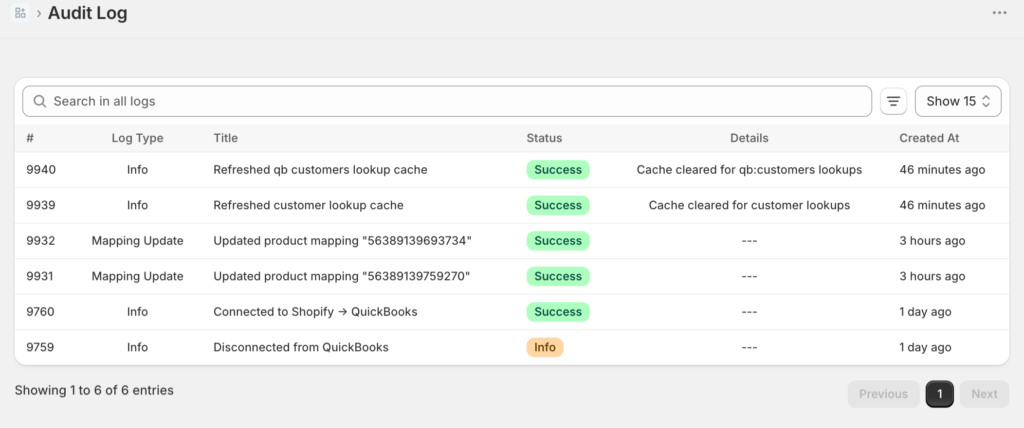
Die Protokollspalten verstehen
Jede Zeile in Ihrem Audit-Protokoll stellt einen Synchronisierungsversuch für einen Datensatz dar. Hier erfahren Sie, was jede Spalte aussagt:
Entitätstyp: Welche Art von Datensatz wurde synchronisiert. Gängige Typen sind Bestellung, Produkt, Kunde, Auszahlung und Tageszusammenfassung.
Status: Das Ergebnis des Synchronisierungsversuchs:
- Synchronisiert – Der Datensatz wurde erfolgreich an QuickBooks gesendet.
- Fehler – Die Synchronisierung ist fehlgeschlagen. Die Zeile enthält einen Fehlergrund.
- Ausstehend – Der Datensatz ist in der Warteschlange und wurde noch nicht verarbeitet.
- Angehalten – Der Datensatz wartet darauf, dass eine Synchronisierungs-Triggerbedingung erfüllt wird (z. B. eine bestimmte Zahlungs- oder Erfüllungsstatus).
Datum: Wann der Synchronisierungsversuch unternommen wurde.
Referenz: Die Shopify-Bestellnummer, der Produktname oder der Kundenname, der mit dem Datensatz verknüpft ist.
Fehlerdetails: Sichtbar bei Fehlerzeilen. Diese Spalte zeigt den Grund für den Synchronisierungsfehler an. Klicken Sie auf die Zeile, um sie zu erweitern und die vollständige Fehlermeldung anzuzeigen.
Ihre Protokolle filtern
Wenn Sie eine große Anzahl von Protokolleinträgen haben, hilft Ihnen das Filtern, schnell zu finden, wonach Sie suchen.
Nach Status filtern
Verwenden Sie den Filter Status, um nur Fehler, nur erfolgreiche Synchronisierungen oder nur angehaltene Datensätze anzuzeigen.
- Klicken Sie oben auf der Seite Audit-Protokoll auf das Dropdown-Menü Status.
- Wählen Sie Fehler, um nur fehlgeschlagene Datensätze anzuzeigen.
- Die Liste wird sofort aktualisiert.
Dies ist der schnellste Weg, um tägliche Fehler zu überprüfen – filtern Sie nach Fehler, und Sie sehen alles, was Aufmerksamkeit erfordert.
Nach Entitätstyp filtern
Verwenden Sie den Filter Entitätstyp, um Protokolle auf einen bestimmten Datensatztyp einzugrenzen, z. B. nur Bestellungen oder nur Produkte.
- Klicken Sie auf das Dropdown-Menü Entitätstyp.
- Wählen Sie den Typ aus, den Sie überprüfen möchten (Bestellung, Produkt, Kunde, Auszahlung, Tageszusammenfassung usw.).
Dies ist nützlich bei der Fehlerbehebung für eine bestimmte Kategorie. Wenn ein Kunde beispielsweise meldet, dass seine Bestellung nicht in QuickBooks vorhanden ist, filtern Sie nach Bestellungen und suchen Sie nach seiner Bestellnummer.
Nach Datumsbereich filtern
Verwenden Sie den Datumsfilter, um sich auf ein bestimmtes Zeitfenster zu konzentrieren.
- Klicken Sie auf den Datumsfilter.
- Legen Sie ein Start- und ein Enddatum fest.
- Die Protokolle zeigen nur Einträge innerhalb dieses Bereichs an.
Dies ist besonders nützlich nach einer Verbindungsunterbrechung – legen Sie den Datumsbereich so fest, dass er den Zeitraum abdeckt, in dem die Verbindung unterbrochen war, um alle Datensätze zu finden, die erneut synchronisiert werden müssen.
Protokolle durchsuchen
Wenn Sie nach einer bestimmten Bestellung oder einem bestimmten Kunden suchen, verwenden Sie die Suchleiste oben auf der Seite des Audit-Protokolls.
- Klicken Sie auf die Suchleiste.
- Geben Sie die Shopify-Bestellnummer, den Produktnamen oder den Kundennamen ein.
- Passende Einträge werden angezeigt, während Sie tippen.
Fehlermeldung lesen
Wenn eine Synchronisierung fehlschlägt, teilt Ihnen die Fehlermeldung im Protokoll genau mit, was schiefgelaufen ist. Um sie zu lesen:
- Suchen Sie die Zeile mit dem Status Fehler.
- Klicken Sie auf eine beliebige Stelle in der Zeile, um sie zu erweitern.
- Lesen Sie das Feld Fehlerdetails. Dies beschreibt die Ursache, z. B. „Kunde nicht in QuickBooks gefunden“ oder „Produkt nicht zugeordnet“.
Die meisten Fehlermeldungen lassen sich direkt einer Lösung zuordnen. Eine vollständige Liste der Fehler und ihrer Lösungen finden Sie unter Häufige Synchronisierungsfehler und deren Behebung.
Fehlgeschlagene Datensätze erneut synchronisieren
Nachdem Sie einen Fehler behoben haben, können Sie die betroffenen Datensätze erneut durchlaufen lassen, ohne auf die nächste automatische Synchronisierung warten zu müssen.
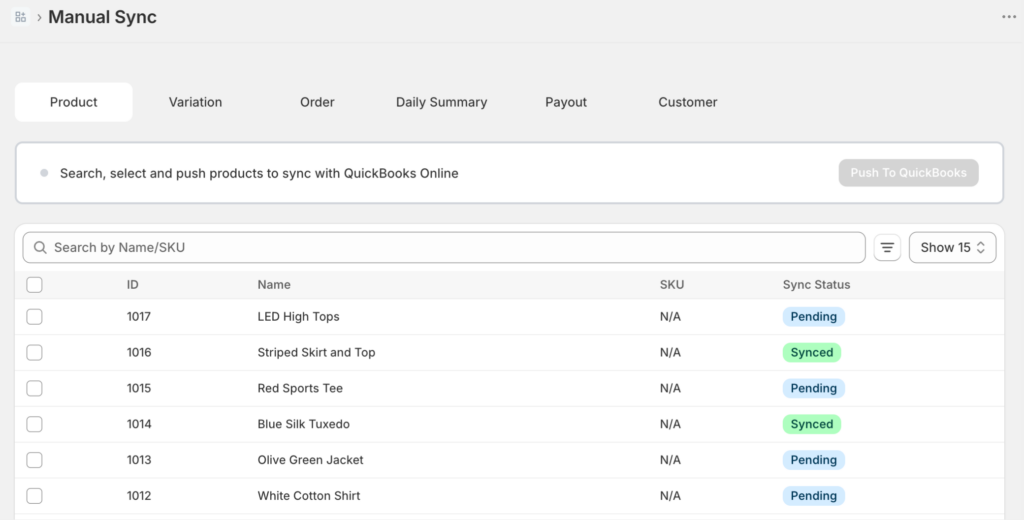
- Klicken Sie in der linken Seitenleiste auf Manuelle Synchronisierung.
- Wählen Sie den Entitätstyp aus (Bestellungen, Produkte, Kunden usw.).
- Filtern oder suchen Sie, um die fehlgeschlagenen Datensätze zu finden.
- Wählen Sie sie aus und klicken Sie auf Ausgewählte synchronisieren.
Protokollaufbewahrung nach Plan
Wie weit Ihre Protokolle verfügbar sind, hängt von Ihrem Plan ab.
| Tarif | Protokollaufbewahrung |
|---|---|
| Kostenlos | 7 Tage |
| Wachstum | 30 Tage |
| Skalieren | 90 Tage |
| Enterprise | Unbegrenzt |
| Agentur | 90 Tage |
Wenn Sie ein Problem untersuchen müssen, das außerhalb Ihres Aufbewahrungszeitraums liegt, können Sie diese Protokolleinträge in LedgerPort nicht finden. Um Protokolle länger aufzubewahren, aktualisieren Sie Ihren Plan unter Abrechnung.
Tipp: Wenn Sie den Growth-Tarif nutzen und häufiger als 30 Tage zurückblicken müssen, verlängert Scale (79 $/Monat) die Protokollaufbewahrung auf 90 Tage und ermöglicht außerdem eine schnellere Synchronisierung (alle 15 Minuten statt alle 60 Minuten).
Wenn Sie auf Probleme stoßen, kontaktieren Sie uns und unser Support-Team hilft Ihnen gerne weiter.