


- 1Почему общая бухгалтерия не подходит для магазина WooCommerce
- 2Пять структур чистого учета WooCommerce
- 31. План счетов, созданный для электронной коммерции
- 42. Один клиринговый счет на платежную систему
- 53. Строка расходов на комиссию для каждой платежной системы
- 64. Налог с продаж на счет обязательств
- 75. Возвраты как контрвыручка
- 8Если вы также продаете оптом: шестая структура
- 9Чек-лист ежемесячного закрытия для магазина WooCommerce
- 10Учет WooCommerce против бухгалтерского учета WooCommerce
- 11Где вписывается автоматизация учета WooCommerce (честно говоря)
- 12Конец месяца, после
Ваши книги не в беспорядке из-за вашей недисциплинированности. Они в беспорядке, потому что они были настроены для бизнеса, которым вы не управляете.
Электронное письмо вашего бухгалтера состоит из трех строк: «Быстрый вопрос — что это за депозит в размере 12 318 долларов от 14 марта?»
Сорок минут спустя у вас есть ответ. Это два платежа от Stripe, покрывающие четыре дня заказов, минус 402 доллара комиссий за обработку, минус 618 долларов возврата за предыдущую неделю, плюс 75 долларов возмещения по оспариванию. Вы знаете это, потому что открыли панель управления Stripe, экспортировали CSV, сопоставили ее со списком заказов WooCommerce и выполнили арифметические расчеты в приложении для заметок.
Вы уже проходили через это. Ваша бухгалтерия WooCommerce — это папка CSV-файлов платежных систем и файл QuickBooks, о котором ваш бухгалтер дипломатично молчит. Каждый конец месяца вы обещаете себе настоящую систему. Каждый конец месяца вы вместо этого латаете текущую.
Вот что стоит знать до наступления следующего конца месяца: это не проблема дисциплины и не проблема навыков бухгалтерского учета. Это структурная проблема. Ваши книги были настроены для обычного малого бизнеса — а интернет-магазин таковым не является.
Почему общая бухгалтерия не подходит для магазина WooCommerce
Ложь, лежащая в основе большинства беспорядочных бухгалтерских книг в электронной коммерции, звучит так: «Бухгалтерия — это бухгалтерия. Моя стандартная настройка для малого бизнеса подойдет и для интернет-магазина».
Это разумное убеждение. Это также неверно по пяти конкретным, механическим причинам. Консалтинговая фирма или кофейня никогда не сталкиваются с этим. Магазин WooCommerce сталкивается со всеми пятью каждый день.
1. Заработанные деньги — это не полученные деньги. Консультант выставляет счет на 1000 долларов и получает 1000 долларов. Ваш магазин продает на 1000 долларов во вторник, а Stripe перечисляет 953,90 доллара в четверг — вместе с заказами за среду. Банковский депозит никогда не равен сумме продаж. Если ваши книги рассматривают депозиты как выручку, они неверны с первого дня.
2. Комиссии вычитаются до того, как вы увидите деньги. Каждая платежная система берет свою долю из источника, и каждая берет разную долю — Stripe, PayPal и Square имеют разные тарифы. Если записывать депозиты как доход, эти комиссии исчезнут: выручка будет занижена, а реальный операционный расход нигде не появится в ваших книгах.
3. Взимаемый вами налог с продаж не ваш. Вы держите его от имени штата. Записанный как доход, он раздувает вашу выручку — а затем перевод средств поступает как «неожиданный» расход, который никогда не был расходом. Это была ответственность все время.
4. Возвраты не являются расходами. Возврат — это отмена выручки, а не понесенные вами затраты. Скрытие возвратов в депозитах — или, что еще хуже, учет их как расходов — искажает как ваш валовой объем продаж, так и вашу прибыль в разных направлениях.
5. Затраты на инвентарь не относятся к месяцу их покупки. Если вы учтете покупку запасов на 20 000 долларов в марте, ваш P&L покажет катастрофический март и вымышленный апрель. Себестоимость проданных товаров относится к месяцу фактической продажи товаров, иначе ваши показатели прибыли ничего не значат.
Каждый из них невидим в общем плане счетов. Вот почему исправления никогда не работают: вы не допускаете ошибок при вводе, вы упускаете структуры счетов. Исправление — это не более тщательный ввод данных. Это пять структур.
Пять структур чистого учета WooCommerce
Настройте эти пять элементов в QuickBooks Online один раз, и ежедневная работа станет рутиной. Пропустите их, и каждый конец месяца будет археологией.
1. План счетов, созданный для электронной коммерции
Это основа, от которой зависят остальные четыре структуры. Как минимум, ваш раздел доходов разделяет продажи продуктов, доход от доставки и контр-счет возвратов. Ваши расходы включают одну строку комиссий для каждого платежного шлюза. Ваши обязательства включают налог с продаж к уплате. Ваши активы включают клиринговый счет для каждого шлюза и счет инвентаризации.
Вам не нужно разрабатывать это с нуля — мы опубликовали полный шаблон плана счетов для электронной коммерции, который вы можете скопировать в QuickBooks за полдня. Сделайте это в первую очередь. Все нижеприведенное предполагает, что он существует.
2. Один клиринговый счет на платежную систему
Это структура, которая навсегда отвечает на вопрос «что это за депозит?».
Клиринговый счет — это перевалочный пункт между «продажа состоялась» и «деньги поступили». Когда вы регистрируете 1000 долларов заказов Stripe за вторник, деньги поступают на счет Stripe Clearing — а не на ваш банковский счет, потому что их там еще нет. Когда выплата Stripe поступит в четверг, вы переведете 953,90 доллара с клирингового счета на банковский и 46,10 доллара на комиссии Stripe. Клиринговый счет возвращается к нулю (или к точному количеству денег в пути).
Теперь банковская сверка означает сопоставление горстки выплат, а не сотен заказов. И если выплата когда-либо не пройдет, баланс клирингового счета укажет на это — деньги, которые должны были поступить, не поступили.
Один клиринговый счет на шлюз, а не один общий счет. Магазины WooCommerce обычно используют два или три шлюза, каждый со своим графиком выплат. Смешайте их, и вы восстановите головоломку, которую пытались решить.
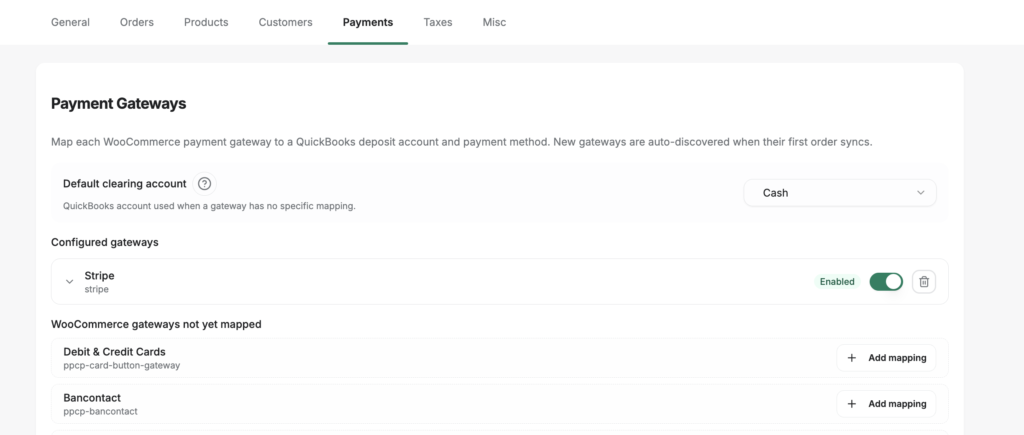
Если инструмент синхронизации публикует ваши заказы, эта структура представляет собой страницу настроек, а не дисциплину. LedgerPort автоматически определяет каждый активный платежный шлюз в вашем магазине и предоставляет каждому свою строку конфигурации — переключатель включения, клиринговый счет QuickBooks, на который поступают деньги этого шлюза, способ оплаты QBO и переключатель синхронизации возвратов для каждого шлюза — с резервным клиринговым счетом по умолчанию для всего, что не настроено. Это именно та структура, которую этот раздел только что велел вам построить вручную; программная версия только просит вас направить каждый обнаруженный шлюз на его счет.
3. Строка расходов на комиссию для каждой платежной системы
Комиссии Stripe, Комиссии PayPal, Комиссии Square — отдельные счета, а не одна категория "комиссии продавца".
Две причины. Во-первых, точность: комиссии по каждому шлюзу дают вам ежемесячную проверку здравого смысла. Если эффективная ставка Stripe обычно составляет около 3%, а в этом месяце — 4,1%, что-то произошло — изменение цены, всплеск международных карт, комиссия за спор — и вы действительно это увидите. Во-вторых, решения: вы не можете сравнить, сколько вам на самом деле стоят ваши шлюзы, если расходы смешаны.
4. Налог с продаж на счет обязательств
Каждый собранный доллар налога заносится в Sales Tax Payable (Налог к уплате), обязательство, — никогда не в доход. Когда вы перечисляете средства штату, платеж уменьшает обязательство. Ваш отчет о прибылях и убытках никогда не затрагивает его ни в одном направлении.
Выгода — это спокойствие: крайний срок перечисления перестает быть неожиданностью для денежных потоков, потому что деньги никогда не считались вашими. Баланс на счете Sales Tax Payable всегда должен примерно соответствовать тому, что ваши налоговые отчеты говорят о собранных суммах. Когда это не так, вы обнаружили ошибку рано, а не во время подачи декларации.
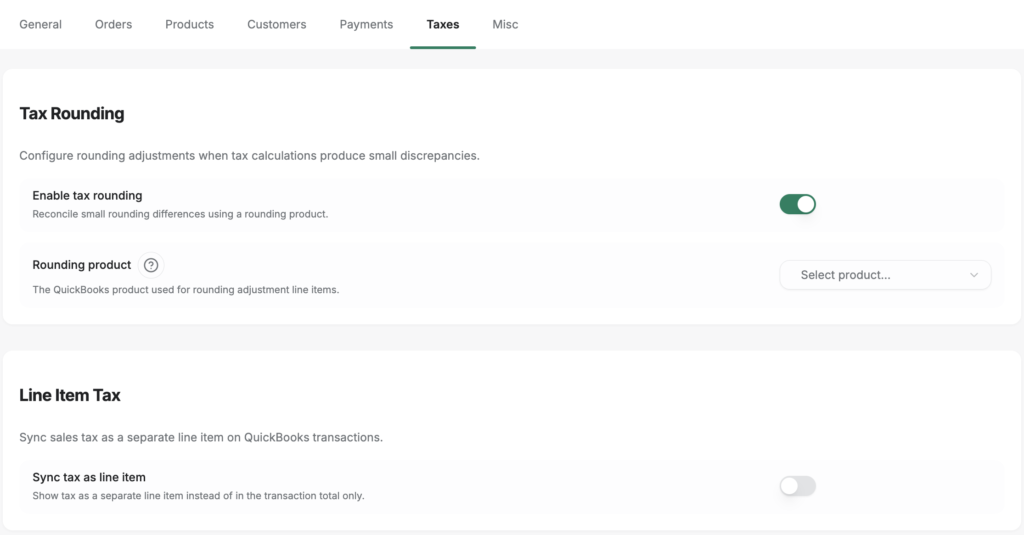
В LedgerPort это правило представлено в виде раскрывающегося списка: настройка Line Item Tax (Налог по позициям) на вкладке "Налоги" отправляет налог WooCommerce отдельной строкой на счет обязательств QBO, который вы выбираете — структура № 4, применяемая к каждому синхронизированному заказу. На той же вкладке есть деталь, которую почти никто не объясняет: округление налога. WooCommerce и QuickBooks рассчитывают налог независимо и иногда расходятся на цент; позиция корректировки округления поглощает эти различия, поэтому счет обязательств точно соответствует тому, что вы собрали, вместо того чтобы накапливать необъяснимый дрейф в несколько долларов в месяц.
5. Возвраты как контрвыручка
Создайте счет Refunds & Allowances (Возвраты и скидки) в разделе доходов, который имеет отрицательный баланс. Каждый возврат заносится туда — уменьшая чистую выручку, оставляя при этом валовые продажи нетронутыми.
Это сохраняет два важных показателя: общий объем продаж (для понимания спроса) и чистый доход (для понимания бизнеса). Это также показывает ваш процент возвратов как отслеживаемую статью, а не как скрытую утечку. Магазин, который принимает 2% возвратов, и магазин, который принимает 9% возвратов, — это разные бизнесы, и обычно только один из них знает об этом.
Эти пять структур являются основой электронной коммерции; для более широких практик, связанных с ними, наше руководство по лучшим практикам бухгалтерского учета в электронной коммерции охватывает остальное.
Если вы также продаете оптом: шестая структура
Все пять вышеуказанных структур молчаливо предполагают, что каждый заказ обрабатывается как розничный заказ — оплачивается при оформлении заказа, урегулируется через платежный шлюз, зачисляется за вычетом комиссий. Оптовые продажи нарушают это предположение на первом же шаге. Заказ с отсрочкой платежа зарабатывается при отгрузке и оплачивается через несколько недель, поэтому ему требуется счет-фактура и открытая дебиторская задолженность, а не кассовый чек, и он вообще не проходит через клиринговый счет платежного шлюза.
Если оптовые продажи являются чем-то большим, чем редкое одолжение дружественному покупателю, добавьте шестую структуру: дебиторскую задолженность, четко отделенную от ваших клиринговых счетов платежного шлюза, плюс надежный способ отличать оптовый заказ от розничного в момент его создания. Вторая часть устанавливается на уровне магазина, а не в QuickBooks — плагины, такие как Wholesale Suite, обрабатывают оптовые роли, цены и условия оплаты, которые делают заказ идентифицируемым как B2B еще до того, как он попадет в вашу бухгалтерию. Бухгалтерская сторона вопроса рассмотрена в нашем руководстве по учету отсроченных платежей в QuickBooks.
Чек-лист ежемесячного закрытия для магазина WooCommerce
Когда структуры готовы, конец месяца перестает быть реконструкцией и становится проверкой. Вот контрольный список в порядке:
0. Проверьте записи с ошибками и ожидающие записи перед закрытием. Если инструмент синхронизации публикует ваши книги, это шаг, который выполняется перед всем остальным. В LedgerPort каждая запись имеет один из пяти статусов — Синхронизировано, Ожидает, Ошибка, Пропущено (намеренно исключено вашими фильтрами синхронизации) или Ожидает — поэтому двухминутная фильтрация по Ошибкам и Ожидающим записям за месяц выявляет пропущенный вебхук, когда это один заказ, а не один квартал. Исправление выполняется в том же окне: выберите записи и повторно отправьте их, а гарантия отсутствия дубликатов означает, что уже синхронизированные записи автоматически пропускаются, а повторно отправленные ошибки обновляют существующую транзакцию QuickBooks, а не публикуют вторую. «Надеюсь, все синхронизировалось» становится флажком.
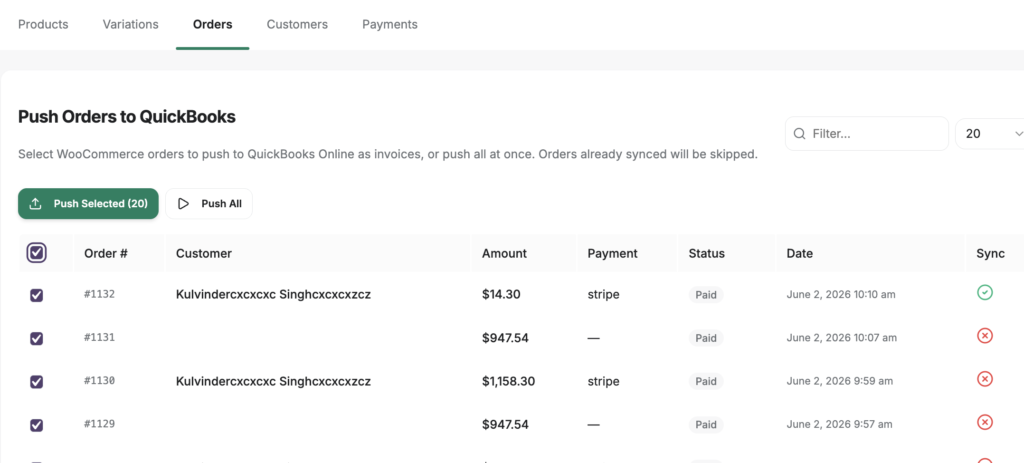
- Подтвердите, что каждый заказ есть в QuickBooks. Все продажи за месяц опубликованы — с учетом дохода от продуктов, доставки, налогов и маршрутизации шлюза. Если вы вводите данные вручную, это самый долгий шаг; делайте это еженедельно, а не ежемесячно. Если публикацию выполняет инструмент синхронизации, проверяйте, а не вводите заново: журнал аудита LedgerPort показывает полную историю синхронизации, которую можно фильтровать по типу, сущности, статусу и дате, поэтому пропущенный или неудачный заказ обнаруживается за секунды.
- Сопоставьте каждую выплату шлюза с банковским депозитом. Каждая выплата Stripe, PayPal и других должна соответствовать депозиту и очищать соответствующий клиринговый счет.
- Проверьте балансы клиринговых счетов. Каждый должен равняться только деньгам, находящимся в пути — продажам за последние день-два, которые еще не были выплачены. Все, что больше, — это несопоставленная транзакция, указывающая, где искать.
- Просмотрите комиссии по каждому шлюзу. Сравните общую сумму комиссий каждого шлюза с ожидаемой эффективной ставкой. Отклонение более чем на полпроцента заслуживает двухминутного расследования.
- Проверьте налог с продаж к уплате. Остаток обязательств должен соответствовать тому, что ваши налоговые отчеты показывают как собранное, за вычетом того, что вы перечислили. Обратите внимание на предстоящие сроки уплаты.
- Запишите себестоимость проданных товаров и скорректируйте запасы. Отразите стоимость единиц, фактически проданных в этом месяце; переместите ее из запасов в себестоимость проданных товаров.
- Отражайте возвраты и чарджбэки. Убедитесь, что они попали в контра-выручку, и взгляните на процент возвратов, пока вы там.
- Запустите P&L и балансовый отчет. Не для подачи — для чтения. Маржа в ожидаемом диапазоне, ни один счет не раздувается, ничего, что заставляет вас щуриться. Если ничего не заставляет щуриться, вы закончили.
При ручном выполнении с четкими структурами это занимает от одного до трех часов в месяц в зависимости от объема заказов. Без структур та же самая закрытие занимает выходные — потому что шаги 2, 3 и 5 превращаются в криминалистические проекты.
Учет WooCommerce против бухгалтерского учета WooCommerce
Эти два термина используются взаимозаменяемо, и для небольшого магазина разница в основном академическая — но она стоит тридцати секунд, потому что объясняет, кто что делает.
Бухгалтерский учет WooCommerce — это уровень записи: заказы, выплаты, сборы, возвраты и налог с продаж попадают на правильные счета каждый месяц таким образом, чтобы они сверялись. Вот что дают вам пять вышеуказанных структур.
Учет WooCommerce — это все, что находится поверх чистых записей: чтение отчета о прибылях и убытках, маржа по SKU, налоговое планирование, звонки по денежным потокам. Это уровень, на котором работает ваш бухгалтер или бухгалтерская фирма — и он всегда настолько хорош, насколько хорош лежащий в его основе бухгалтерский учет.
Практический вывод: вы не можете купить себе хороший учет WooCommerce с помощью инструментов отчетности. Сначала исправьте уровень записи — вручную с помощью вышеуказанных структур или автоматически с помощью синхронизации WooCommerce с QuickBooks — и учет сверху станет значительно проще.
Где вписывается автоматизация учета WooCommerce (честно говоря)
Вот честная версия, потому что нечестную версию легко найти.
При объеме примерно до 100–200 заказов в месяц ручной учет с пятью структурами действительно подходит. Закрытие короткое, объем ввода управляемый, и инструмент будет решать проблему, которой у вас еще нет.
Свыше этого математика меняется. Ввод заказов масштабируется линейно с объемом, а процент ошибок масштабируется с усталостью. При 500–1000 заказов в месяц через два или три шлюза один только шаг 1 этого контрольного списка может съесть часы, которые вы хотели потратить на управление магазином — и одна ошибочно введенная сумма налога скрывается среди десяти тысяч строк.
Одна вещь, которую автоматизация не сделает: исправить сломанный план счетов. Инструмент синхронизации, направленный на общие книги, производит быстрый, автоматизированный беспорядок. Сначала структуры, всегда.
Что инструмент синхронизации делает, так это непрерывно выполняет пять структур. LedgerPort, например, подключает WooCommerce к QuickBooks Online и ежедневно отправляет продажи, сборы, налоги и возвраты на соответствующие счета — включая клиринговые счета — так что шаги с 1 по 7 контрольного списка в основном выполнены до того, как вы сядете. Настройка занимает около 15 минут, и есть бесплатный план, который охватывает до 30 заказов в месяц, с платными планами от 25 долларов в месяц по мере роста объема. Если вы хотите полное пошаговое руководство по подключению двух систем, мы написали руководство по синхронизации WooCommerce с QuickBooks Online.
Он также находится там, где вы уже работаете. LedgerPort устанавливается как плагин WordPress, поэтому панель управления, сопоставления, история синхронизации и элементы управления ручной синхронизацией находятся в боковой панели вашего wp-admin — нет отдельного приложения для входа.
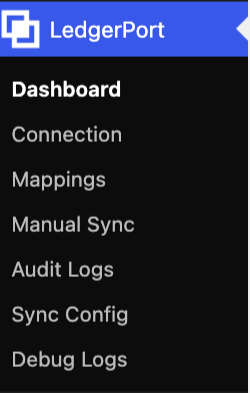
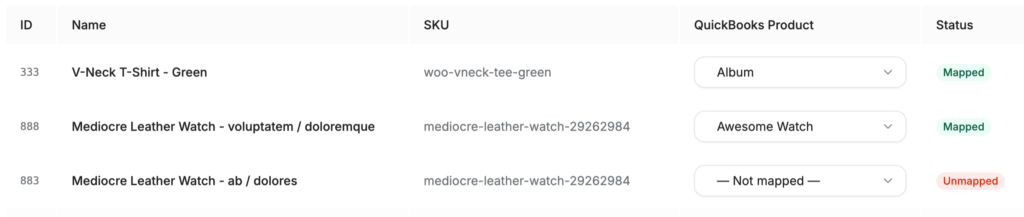
И правило «сначала структуры» получает преимущество: на странице «Сопоставления» Auto-Map сравнивает ваши продукты, клиентов и счета WooCommerce с QuickBooks и предлагает совпадения, отмечая каждое предложение, чтобы вы могли подтвердить или отменить его перед отправкой.
Стоит упомянуть компромисс: вы все равно будете проверять закрытие. Автоматизация переводит вас от выполнения бухгалтерского учета к проверке его — что именно там должен находиться владелец магазина.
Конец месяца, после
Представьте себе следующую версию того электронного письма от бухгалтера: «Быстрый вопрос: что это за депозит в размере 14 205 долларов от 14-го числа?»
Вы не открываете CSV. Вы открываете QuickBooks, нажимаете на депозит и видите журнал выплат: два дня заказов, детализированные сборы, один возврат, налог, направленный на расчетный счет. Ваш ответ состоит из одной строки и занимает полторы минуты, и ваш бухгалтер — впервые — отвечает: «Отлично, это все, что мне было нужно».
Конец месяца — это контрольный список из восьми шагов выше, чашка кофе и около тридцати минут. Ничего не нужно восстанавливать, потому что ничего не было упущено. Папка с CSV-файлами шлюза все еще где-то существует, как люди хранят старый телефон в ящике. Вы просто никогда ее не открываете.
Объяснение этого депозита в размере 12 318 долларов заняло у вас 40 минут, потому что не хватало пяти структур счетов — не потому, что ваши книги требовали больше усилий. Настройте структуры на этой неделе, запустите контрольный список в конце месяца, и если ваш объем заказов уже превысил ручной ввод, запустите LedgerPort бесплатно, и он будет автоматически записывать продажи, сборы и налоги для вас →
Каждый платный план включает 14-дневную гарантию возврата денег — 100% возврат средств без лишних вопросов.
Связанное: План счетов для электронной коммерции · Как синхронизировать WooCommerce с QuickBooks Online · Лучшие практики бухгалтерского учета в электронной коммерции
