

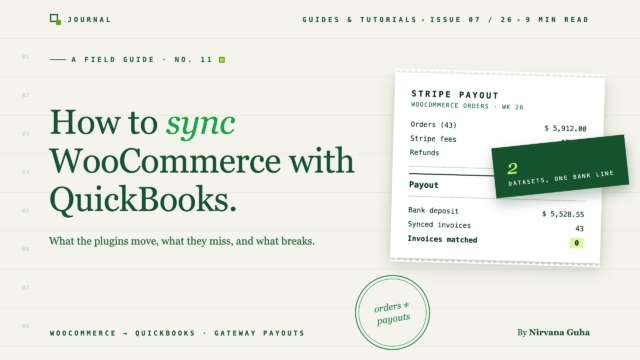
- 1WooCommerce QuickBooks Entegrasyonu Oluşturmanın Üç Yolu
- 2Sipariş Düzeyinde Senkronizasyon Neden Mutabakatı Bozar
- 3Çalışan bir örnek
- 4“Açık Kaynaklı - Ücretsiz Bir Eklenti Bunu Halletmeli”
- 5İşe Yarayan Mimari: Hesapları Temizleme, Günlük Özetler, Ücret Satırları
- 6LedgerPort'ta bu mimari bir ayarlar sayfasıdır
- 7Bir Eklenti Yeterli Olduğunda - ve Ne Zaman Yeterli Olmadığında
- 8Mühendislik çubuğu bir senkronizasyon katmanını temizlemelidir
- 9Otomatikleştirildiğinde Bu Nasıl Görünür
- 10Ve bir webhook başarısız olduğunda — çünkü olacaktır
- 11Esneklik Vergisi
Siparişleri QuickBooks'e almak kolay kısımdır. Bu rehber, eklenti listesinin bahsetmediği kısım hakkında: defterlerin bankayla eşleşmesini sağlamak.
QuickBooks Online dosyanızda 1.400 yeni fatura var ve bunların her biri doğru.
Bağlayıcıyı yüklediniz, birkaç alanı eşleştirdiniz ve çalışmasını izlediniz. Her WooCommerce siparişi, müşteri adı, ürün kalemleri, nakliye ve vergi ile QBO'ya ulaştı. Eklentinin özellik sayfasındaki her ölçüte göre, WooCommerce QuickBooks entegrasyonunuz tamamlanmıştı.
Sonra banka akışını açtınız. Stripe Pazartesi günü 6.782,40 ABD Doları yatırdı. PayPal Çarşamba günü 1.911 ABD Doları gönderdi. Ve bu 1.400 faturadan hiçbiri - hiçbiri - bu rakamlardan biriyle eşleşmiyor. QuickBooks şimdi sizi düzinelerce açık faturadan tek bir mevduatı eşleştirmeye zorluyor, hiçbiri toplamı ona uymuyor.
Eğer bu durumu yaşadıysanız, muhtemelen çoğu mağaza sahibinin yaptığı şeyi yaptınız: eklentiyi kaldırdınız, CSV dışa aktarmalarına geri döndünüz ve tüm kategorinin bozuk olduğuna karar verdiniz. Bozuk değil. Ancak size satılan şey - sipariş senkronizasyonu - asla asıl sorun değildi.
Asıl sorun, WooCommerce ve banka hesabınızın iki farklı gerçeği tanımlamasıdır ve hiçbir sipariş senkronizasyonu bunların arasında çeviri yapmaz. Bu yazı nedenini, rakamlarla birlikte açıklıyor ve gerçekten mutabakat sağlayan kurulumu adım adım anlatıyor.
WooCommerce QuickBooks Entegrasyonu Oluşturmanın Üç Yolu
Genel olarak, her yaklaşım üç kategoriden birine girer.
1. Resmi QuickBooks Bağlayıcısı. Intuit'in kendi bağlayıcısı (eski OneSaas motoru üzerine kurulu) WooCommerce siparişlerini fatura veya satış makbuzu olarak QBO'ya aktarır. Uygun fiyatlıdır, Intuit tarafından desteklenir ve temel sipariş kopyalama için vaat ettiğini yapar. Bildiği tek şey siparişlerdir - bir müşterinin ne aldığı ve WooCommerce'in onlardan ne kadar ücret aldığı.
2. Özel senkronizasyon eklentileri. MyWorks Sync gibi araçlar çok daha derine iner: çift yönlü senkronizasyon, ayrıntılı alan eşleme, envanter ve müşteri senkronizasyonu, gerçek zamanlı aktarımlar. İşletmeniz bireysel faturalara dayanıyorsa - toptan satış hesapları, B2B müşterileri, belirli kişilere bağlı ödemeler - bu sipariş başına sadakat gerçekten değerlidir ve MyWorks bu konuda güçlüdür. Eğer bu yolu düşünüyorsanız, ayrıntılı bir karşılaştırmayı LedgerPort vs. MyWorks adresinde yazdık.
3. Manuel CSV dışa aktarmaları. WooCommerce'ten siparişleri dışa aktarın, elektronik tabloyu düzenleyin, QBO'ya manuel olarak yevmiye kayıtları girin. Tam kontrol, sıfır yazılım maliyeti ve hacme bağlı olarak ayda iki ila sekiz saat arasında bir zaman - artı yorgun bir insanın üçüncü saatte yaptığı her hata.
| Yöntem | Neleri taşır | Maliyet | Bankayla mutabakat sağlar mı? |
|---|---|---|---|
| QuickBooks Bağlayıcısı | Siparişler → faturalar/makbuzlar | Düşük | Kendi başına değil |
| Eşitleme eklentisi (ör. MyWorks) | Siparişler, müşteriler, envanter | ₺ – ₺₺ | Yalnızca dikkatli ödeme yapılandırmasıyla |
| Manuel CSV | Ne yazarsanız yazın | Sizin zamanınız | Yalnızca ödeme hesaplamalarını kendiniz yaparsanız |
Üçünün de ortak noktasını fark edin: hepsi sipariş verilerinden başlar. Ve sipariş verileri, ihtiyacınız olan veri setinin yalnızca yarısıdır.
Sipariş Düzeyinde Senkronizasyon Neden Mutabakatı Bozar
İşte yapısal sorun bu ve seçtiğiniz eklentiyle hiçbir ilgisi yok.
WooCommerce siparişleri bilir: müşteri, ürünler, toplamlar, vergi. Stripe'ın işlem ücretleri olarak ne kadar kestiğini, PayPal'ın ne zaman bir ödemeyi toplu hale getirdiğini, geçen haftadan hangi iadenin bu haftanın mevduatına karşı netleştirildiğini veya Salı günkü ödemeyi bir geri ödeme ücretinin nasıl etkilediğini bilmez. Bu bilgiler, ödeme ağ geçitlerinizde bulunur — tamamen ayrı bir veri kümesi, tamamen ayrı bir zaman çizelgesinde.
Bu arada banka akışınız yalnızca ağ geçidinin hikayenin bir tarafını görür: ağ geçidinin zaman çizelgesinde toplu olarak net mevduatlar. Bu nedenle, bir eşitleme aracı siparişleri QBO'ya kopyaladığında, banka hesabınızın asla onaylamayacağı bir veri kümesini doğru bir şekilde kaydeder.
Çalışan bir örnek
Diyelim ki mağazanız hafta sonu boyunca 96 sipariş alıyor ve toplamda 7.200 ₺ brüt tutuyor. WooCommerce bunu üç ayrı günlük satış olarak raporlar ve sipariş düzeyindeki eşitlemeniz QBO'da 96 fatura oluşturur.
Pazartesi günü Stripe tek bir ödeme gönderir:
| Stripe ödemesi — Pazartesi | Tutar |
|---|---|
| Brüt hafta sonu satışları (96 sipariş) | $7,200.00 |
| İşlem ücretleri (%2,9 + 0,30 ₺ × 96) | −237,60 ₺ |
| İadeler (geçen haftadan 2 sipariş) | −180,00 ₺ |
| Banka hesabınıza net mevduat | $6,782.40 |
QuickBooks şimdi Cuma, Cumartesi ve Pazar günlerine yayılmış toplam 7.200 ₺ tutarında 96 fatura tutuyor. Banka akışınız 6.782,40 ₺ tutarında tek bir Pazartesi mevduatı tutuyor. 237,60 ₺'lik ücretler defterlerinizde hiçbir yerde görünmüyor. 180 ₺'lik iadeler bu hafta sonu verilerinde bile olmayan siparişlere ait. Bu 96 faturanın hiçbir kombinasyonu o mevduata eşit değil — matematik yapı gereği eşleştirilemez.
Her ödeme, her ağ geçidi, her ay ile çarpın. İşte 1.400 kusursuz faturayla ve hiçbiriyle uyuşmayan bir banka akışıyla karşılaşmanızın nedeni budur.
[RESİM: WooCommerce sipariş verilerini ve Stripe ödeme verilerini iki ayrı akış olarak gösteren, banka akışının yalnızca ödeme akışına bağlı olduğu — ve ücretlerin ve iade zamanlamasının bulunduğu boşluğun olduğu bir diyagram]
Bu noktada çoğu insan şu üç şeyden birine karar verir: bazıları bir muhasebeci tutmaları gerektiğini düşünür, bazıları tablolara geri döner ve bazıları sorunun mimari olduğunu fark edip mimariyi düzeltir. Bu bölüm üçüncü grup içindir.
“Açık Kaynaklı - Ücretsiz Bir Eklenti Bunu Halletmeli”
Varsayımı doğrudan adlandıralım, çünkü makul ve yanlış.
WooCommerce açık kaynaklıdır, ekosistemde her şey için bir eklenti vardır ve çoğu ücretsiz veya ucuzdur. Bu yüzden içgüdü şudur: ücretsiz bir eklenti QuickBooks'i de halletmelidir. Ve ücretsiz bir eklenti, eklentilerin iyi olduğu şeyi — sipariş verilerini bir veritabanından diğerine taşımayı — halledebilir. Bu kısım gerçekten çözülmüş bir sorundur.
Ancak mutabakat bir veri aktarım sorunu değildir. Bu, tutarlar (brüt vs. net), zamanlama (sipariş tarihi vs. ödeme tarihi) ve kapsam (bu hafta sonu siparişleri vs. geçen haftanın iadeleri) konusunda anlaşmazlığa düşen iki veri kümesi arasındaki bir çeviri sorunudur. Hiçbir eklenti, siparişleri daha hızlı taşıyarak veya alanları daha hassas eşleyerek bunu düzeltmez — siz yanlış yapılandırmadınız, eklenti geliştiricisi de yanlış yapılandırmadı. Araç, anladığı sorunu çözdü. Sahip olduğunuz gerçek sorun, aracın modelinden daha büyüktür.
İşe Yarayan Mimari: Hesapları Temizleme, Günlük Özetler, Ücret Satırları
Çözüm, muhasebecilerin on yıllardır kullandığı, ağ geçitlerine uygulanan bir yapıdır. Üç bileşen: ağ geçidi başına bir takas hesabı, sipariş başına fatura yerine günlük özetler ve her ödemede açık ücret satırları. İşte adım adım manuel kurulum.
Her ağ geçidi için bir takas hesabı oluşturun. QBO'da, Diğer Cari Varlık türünde "Stripe Takas" adlı bir hesap, diğeri "PayPal Takas" ve ek ağ geçidi başına bir tane ekleyin. Bu hesap, henüz bankanıza ulaşmamış, müşterilerin ödediği parayı temsil eder — tam olarak budur.
Bireysel faturalar yerine günlük satış özetlerini gönderin. Günde bir kez, ağ geçidi başına bir giriş kaydedin: brüt satışlar, indirimler, yapılan iadeler, nakliye geliri ve toplanan satış vergisi. Brüt tutarı takas hesabına borçlandırın; gelir, nakliye ve vergi yükümlülüğü hesaplarınızı alacaklandırın. Kâr ve Zararınız artık güne göre geliri gösteriyor — vergi hazırlığı ve marj analizi için gereken tek şey bu — 96 yetim fatura olmadan. (Gelir ve vergi hesaplarını sıfırdan kuruyorsanız, WooCommerce muhasebe kılavuzumuz tam hesap tablosu yapısını kapsar.)
Her ödemeyi ulaştığında bir yevmiye kaydı olarak kaydedin. Ödemenin brüt tutarı kadar takas hesabını alacaklandırın. Net mevduat için banka hesabınızı borçlandırın. Ücret farkı için "Ticari İşlem Ücretleri" gider hesabını borçlandırın ve gelir aleyhine iade ters kayıtlarını yapın. Hafta sonu örneğini kullanarak: Stripe Takas 7.200 $, banka 6.782,40 $, ücretler 237,60 $ borçlandırılır, 180 $ iadeler gelire karşı kaydedilir. Her doların artık bir yeri var.
Banka akışındaki mevduatı eşleştirin. Yevmiye kaydınızın banka satırı 6.782,40 $ ve mevduat 6.782,40 $ olduğundan, QuickBooks bunları tek bir tıklamayla eşleştirir. Tüm yapının karşılığını verdiği an budur: mutabakat, soruşturma yerine onay haline gelir.
Takas hesabının bakiyesini izleyin. Ağ geçidi ile transferde olan tutara yakın seyretmelidir — birkaç günlük satış, fazlası değil. Sürekli artan bir bakiye, ücretlerin veya iadelerin bir yerlerde kaydedilmediği anlamına gelir. Bu tek sayı, erken uyarı sisteminizdir ve iyi bir CPA'nın kontrol edeceği ilk şeydir.
[RESİM: Akış şeması — günlük özet girişleri bir Stripe Hesaplaşma hesabına akıyor, ardından bir ödeme kaydı Kontrol Hesabı (net) ve İşlem Ücretleri (gider) olarak ayrılıyor, sonunda banka akışı eşleşmesi yapılıyor]
Elle elle yapıldığında, yetkin bir muhasebeci haftada her bir geçit için 30-60 dakika harcar ve her adımda bir yazım hatası şansı vardır. Ancak yapı doğru - ve yapı, sipariş senkronizasyon eklentisinin size vermediği şeydir.
LedgerPort'ta bu mimari bir ayarlar sayfasıdır
Bu beş adım çok fazla kayıt disiplini gerektiriyormuş gibi geliyorsa, bilinmesi gereken kısım şudur: LedgerPort’un WooCommerce eklentisinde her bileşen yapılandırma olarak bulunur. Senkronizasyon Yapılandırmasının Ödemeler sekmesi, mağazanızda aktif olan her ödeme ağ geçidini otomatik olarak algılar ve yapılandırmadığınız her şey için varsayılan bir hesaplaşma hesabı yedek olarak, her birine kendi hesaplaşma hesabını atar. Ağ geçidi başına bir hesaplaşma hesabı, kayıt jimnastiği değildir — bu, ağ geçidi başına bir açılır menüdür.
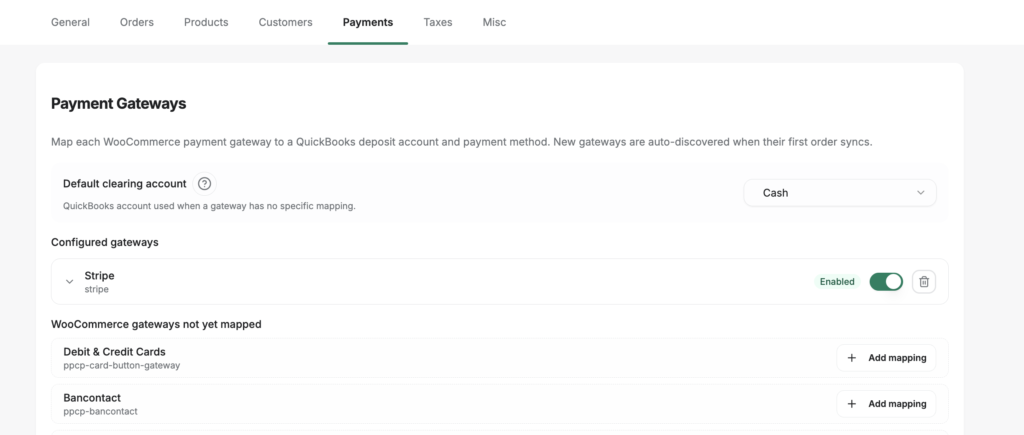
Vergi de aynı muameleyi görüyor: satış vergisi, belirttiğiniz bir QuickBooks yükümlülük hesabına gönderilir ve bir yuvarlama satırı öğesi, WooCommerce’in vergi matematiği ile QuickBooks’inki arasındaki sent farkını emer — kimsenin sizi uyarmadığı mutabakat kağıt kesiği. Siparişlerin nasıl gönderildiği bir açılır menü daha: ödenmiş siparişler için Satış Faturası, ödeme daha sonra gelirse Fatura, teklifler için Tahmini. Ve senkronizasyon yöntemlerinin taksonomisi platform genellemesidir — belgelerin kendi kılavuzu, günde kabaca 100+ siparişi, sipariş başına kayıtların muhasebe olmaktan çıkıp tortu olmaya başladığı nokta olarak koyar, ki bu tam olarak günlük özetlerin işe yaradığı yerdir.
Bunların hiçbiri bir yapılandırma projesi gerektirmez. Belgelerin kendi SSS'sine göre, her sekme mantıklı varsayılanlarla birlikte gelir — çoğu mağaza, Senkronizasyon Yapılandırmasına hiç dokunmadan senkronize etmeye başlayabilir ve defterler gerektirdikçe ayarları daha sonra sıkılaştırabilir.
Bir Eklenti Yeterli Olduğunda - ve Ne Zaman Yeterli Olmadığında
Dürüst cevap: bazen sipariş düzeyindeki araçlar doğru seçimdir.
Bir sipariş düzeyinde senkronizasyon eklentisi muhtemelen yeterlidir eğer: ayda kabaca 100-200 sipariş alıyorsanız ve boşlukları gözden kaçırabiliyorsanız; basit, seyrek iadelerle tek bir geçit kullanıyorsanız; veya işletmeniz fatura odaklıysa - toptan satış ve B2B mağazaları, ödemelerin gerçekten belirli müşteri faturalarına bağlandığı yerlerdir. Son durumda, sipariş başına senkronizasyon bir hata değil, gereksinimdir ve MyWorks gibi bir araç tam olarak bunun için tasarlanmıştır.
Son vaka hakkında bir açıklama, çünkü geri alınarak ele alınan vaka budur. Mağazanızın fatura odaklı olup olmaması, seçtiğiniz senkronizasyon aracının bir özelliği değildir — bu, mağaza katmanında, yukarı akışta belirlenir. Bir WooCommerce mağazası yalnızca toptan satış rolleri atayan, B2B fiyatlandırması uygulayan ve onaylanmış alıcılara vadeli ödeme yaptıran bir şey varsa fatura şeklinde siparişler oluşturur; Toptan Satış Paketi genellikle bu şekilde yapılır. Bu nedenle, özellik listesini okumadan önce mağazanızı okuyun: net vadeli siparişler üretiyorsa, ödeme farkındalığına sahip günlük özet, bunları tek bir gelir satırına mutlu bir şekilde düzleştirecek ve AR ayrıntılarını onunla birlikte alacaktır.
Ödeme farkındalığı katmanına ihtiyacınız varsa: birden fazla geçit kullanıyorsanız (Stripe artı PayPal çoğu mağazanın sınırı aştığı yerdir); iadeler ve anlaşmazlıklar haftalık bir gerçeklikse; hacminiz sipariş başına girişleri yönetilemez hale getiriyorsa; veya bir YMM (Yeminli Mali Müşavir) her ay defterlerinizi kapatıyor ve banka akışının eşleşmesini bekliyorsa. O noktada, yalnızca sipariş verileri, ne kadar iyi senkronize olursa olsun, mutabakatı yapılabilecek defterler üretemez.
Ödeme farkındalığı yolunu tercih ediyorsanız, bir sonraki adımda üç pratik itiraz ortaya çıkar:
“Aboneliklerimi halleder mi?” LedgerPort standart WooCommerce sipariş ve müşteri verilerini senkronize eder ve WooCommerce bunları oluşturduğunda abonelik yenilemeleri normal siparişler olarak gelir - böylece yinelenen gelir aynı işlem hattından akar, yapılandırılacak özel bir şey yoktur.
“Ya bir senkronizasyon sessizce başarısız olursa?” Gerçek zamanlı senkronizasyon WooCommerce webhook'larına dayanır ve WooCommerce başarısız teslimatları otomatik olarak yeniden dener. Hala bir şeyler atlarsa, wp-admin içindeki Manuel Senkronizasyon sayfası isteğe bağlı olarak veri gönderir - asla bir siparişi yeniden göndermesi için desteği beklemezsiniz.
“Birden fazla mağazayı tek bir hesapla çalıştırabilir miyim?” Evet - bağlanan her mağaza, planınızın limitine karşı bir bağlantı olarak sayılır, Bağlantı sayfasında görünür. Diğer pratik sorular (HPOS uyumluluğu, kimlik bilgileri depolama, gerekli kullanıcı rolleri) WooCommerce için LedgerPort ile Başlarken bölümünde yanıtlanmıştır.
Mühendislik çubuğu bir senkronizasyon katmanını temizlemelidir
Bir değerlendirme ekseni daha var ve bu, eklenti listelerinin asla göstermediği şeydir: yazılım bağlandığında — ve ayrıldığında — mağazanıza ne yapar. LedgerPort’un tedariki otomatik ve işlemseldir. Bağlanma, salt okunur bir WooCommerce REST API anahtarı oluşturur — mağazanızı okur, ona yazmaz — ve siparişleri, ürünleri, varyasyonları, müşterileri ve geri ödemeleri kapsayan 13 adlandırılmış webhook kaydeder. Herhangi bir tedarik adımı yarı yolda başarısız olursa, zaten tamamlanan her şey otomatik olarak geri alınır, böylece mağazanız asla yarı yapılandırılmış kalmaz.
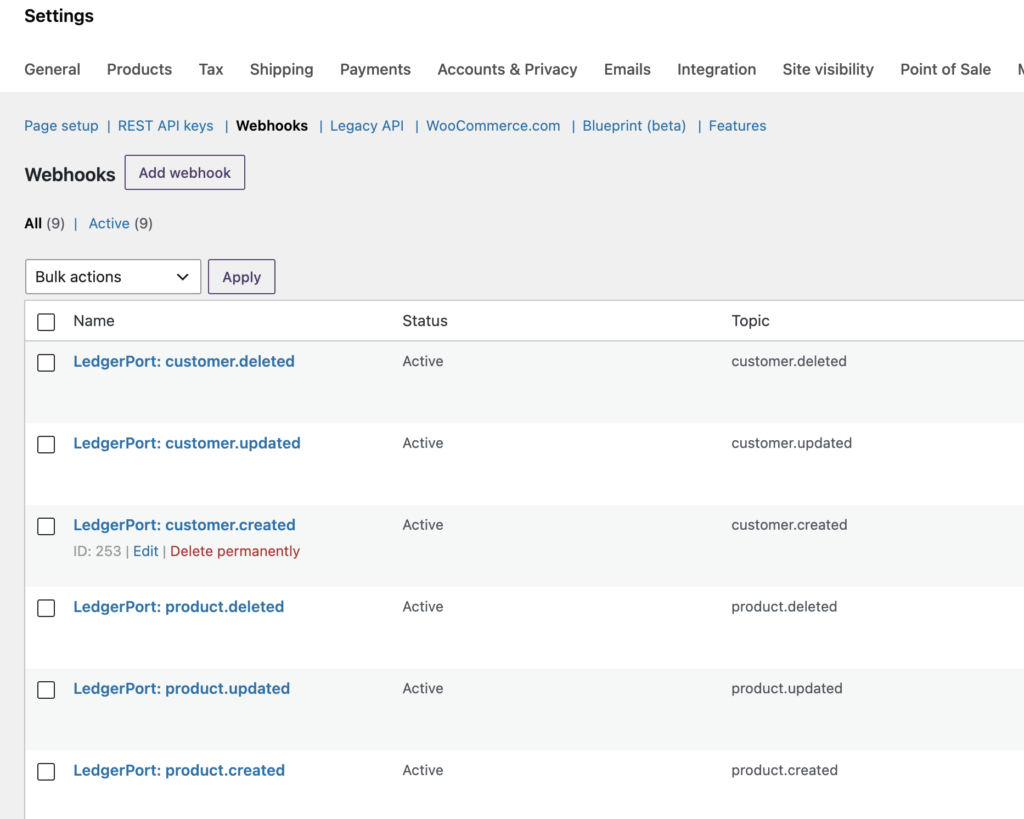
Güvenlik duruşunun geri kalanı da aynı şekilde kontrol edilebilir: kimlik bilgileri, sitenizin kendi WordPress güvenlik anahtarları kullanılarak AES-256-CBC ile şifrelenmiş olarak saklanır, bağlanmak manage_woocommerce yetkisini gerektirir (Yöneticiler ve Mağaza Yöneticileri) ve LedgerPort kendi oluşturduğunuz webhook'lara asla dokunmaz. Bağlantıyı kesmek de aynı derecede temizdir — oluşturduğu API anahtarını ve webhook'ları tam olarak siler, mağazanız ve siparişleriniz dokunulmadan kalır ve eşlemeleriniz yeniden bağlanmak üzere saklanır. Başarısız bir ilk deneme hiçbir şeye mal olmaz.
Aynı disiplin, bir senkronizasyon ters gittiğinde de kendini gösterir. Hatalar sessiz bir boşluk veya PHP bildirimi değildir — belgelenmiş düzeltmeleri olan adlandırılmış bir taksonomidir: süresi dolmuş bir QuickBooks belirteci (belgelerin en yaygın senkronizasyon hatası için kendi seçimi), eşlenmemiş bir ürün, yinelenen bir giriş, eksik bir zorunlu alan. Her hata nedenini ve kurtarma yolunu belirtir. Özellik onay kutusundan daha fazlası, “bir eklenti yeterlidir”in gerçek sınırıdır: kurtarılamayan, görünmez hatanın başladığı yerde biter.
Otomatikleştirildiğinde Bu Nasıl Görünür
LedgerPort, bu ödeme farkındalığı katmanı olarak oluşturulmuştur ve WooCommerce'i Shopify'ın yanı sıra destekler. Mağazanızı *ve* geçitlerinizi bağlar, ardından yukarıdaki mimariyi otomatik olarak çalıştırır: günlük özetler geçit temizleme hesaplarına gönderilir, ücretleri ayrılmış ödeme makbuzları, banka akışınızla kuruşuna kadar eşleşen mevduatlar. Kurulum yaklaşık 15 dakika sürer ve anlamlı hacme sahip mağazalar her hafta saatler kazandıklarını bildirir.
İşte baştan sona tüm WooCommerce kurulumu:
Eklentiyi yükleyin. WordPress yöneticinizde Eklentiler » Yeni Eklenti Ekle'ye gidin, LedgerPort'u arayın, Şimdi Yükle'ye, ardından Etkinleştir'e tıklayın. Sitenizde HTTPS ve bir LedgerPort hesabına ihtiyacınız olacak - tam kurulum kılavuzu her iki ön koşulu da kapsar.
Kurulum Sihirbazını Çalıştırın. Etkinleştirmeden sonra LedgerPort, sihirbazı otomatik olarak tam ekran bir katman olarak açar. Başlamak için LedgerPort'a Bağlan'a tıklayın.
Bağlantıyı Yetkilendirin. Giriş yapmak, bağladığınız işletmeyi seçmek ve Yetkilendir'e tıklamak için app.ledgerport.com adresine yönlendirilirsiniz — ardından doğrudan WordPress yönetiminize geri gönderilirsiniz.
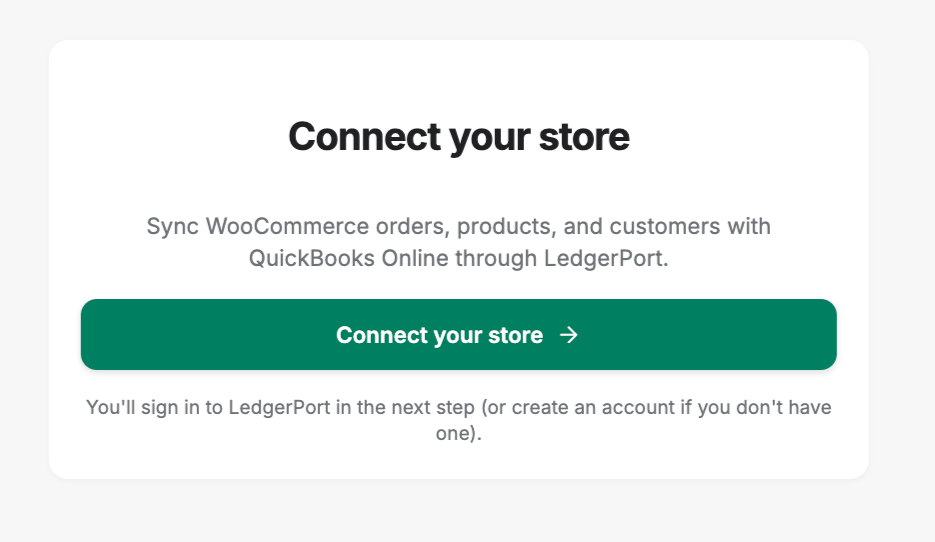
- Sağlama işleminin çalışmasına izin verin. LedgerPort, okuma erişimine sahip bir WooCommerce REST API anahtarı oluşturur, siparişler, iadeler, ürünler ve müşteriler için webhook'lar kaydeder ve bağlantıyı onaylar. Herhangi bir adım başarısız olursa, her şey otomatik olarak geri alınır — yarı yapılandırılmış bir mağaza olmaz. Başarılı olduğunda, LedgerPort Kontrol Paneline ulaşırsınız, bağlısınız.
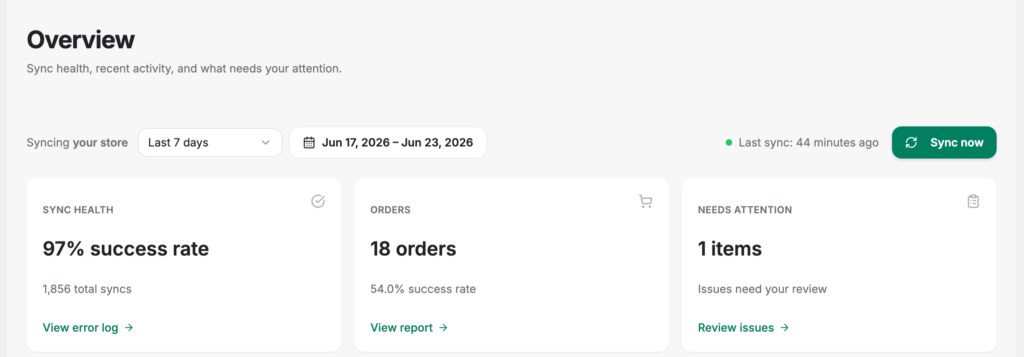
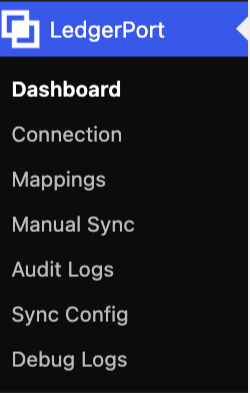
Oradan itibaren her şey wp-admin içindeki bir LedgerPort menüsü altında yaşar — Kontrol Paneli, Eşlemeler, Manuel Senkronizasyon, Denetim Günlükleri — bu nedenle tesisatı kontrol etmek asla WordPress'ten ayrılmak anlamına gelmez. Ve önceki bölümdeki takas hesabı yapısı ayrı bir yapılandırma projesi değildir: bu, Günlük Özet senkronizasyon yöntemi'dir, beş seçenekten biri, bir kez seçilir.
Ve bir webhook başarısız olduğunda — çünkü olacaktır
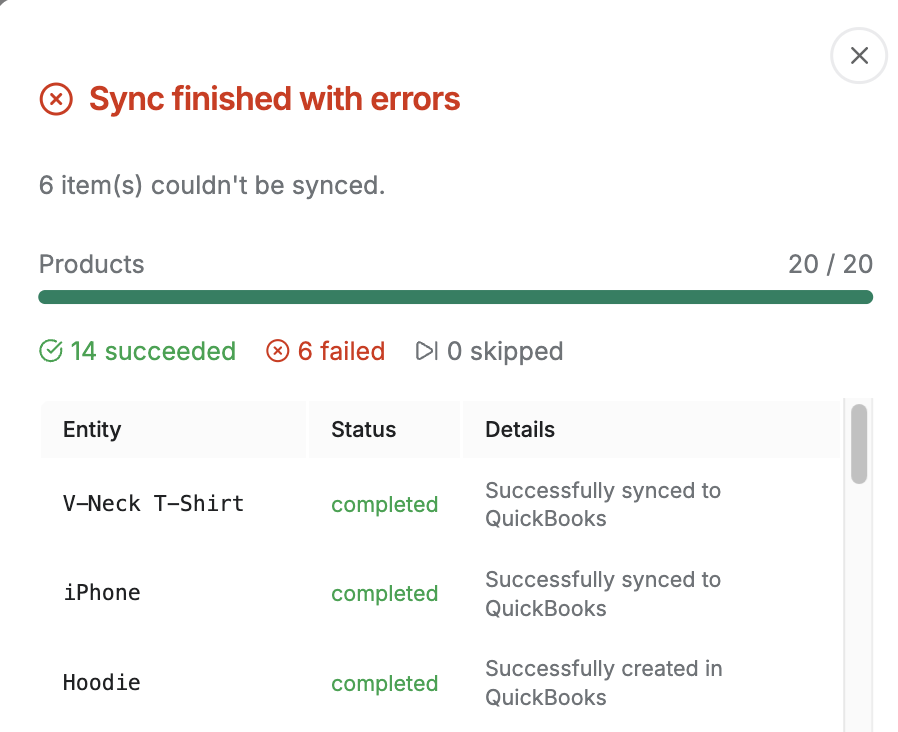
Gerçek zamanlı senkronizasyon webhook'lara dayanır ve webhook'lar doğaları gereği dürüsttür: er ya da geç bir teslimat başarısız olur. Çoğu ücretsiz eklentinin cevaplayamadığı soru bundan sonra ne olacağıdır. Burada cevap katmanlıdır. WooCommerce'in kendisi başarısız webhook teslimatlarını otomatik olarak yeniden dener. Hala kaçan hiçbir şey kaybolmaz — bir kayıt başına senkronizasyon durumu olarak yüzeye çıkar, wp-admin içindeki Manuel Senkronizasyon sayfasından kurtarılabilir.
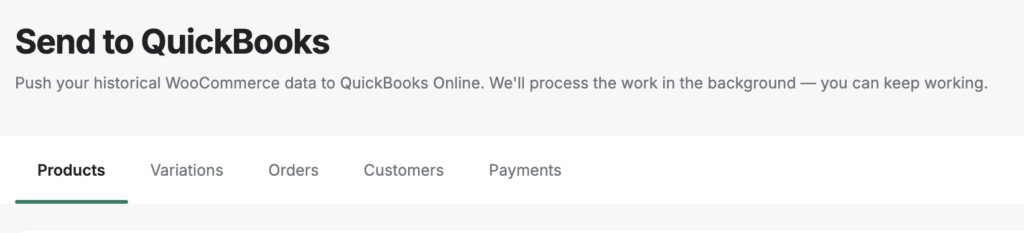
İş akışı onay kutusu seçimi, ardından Seçilenleri Gönder veya Tümünü Gönder, ardından her kaydın gelmesini veya başarısız olmasını gösteren canlı bir ilerleme penceresi — sadece kırmızı bir simge değil, eklenmiş bir nedenle. Ve bir kesintiden sonra yakalamayı güvenli hale getiren ayrıntı: göndermenin yinelenmeyeceği garanti edilir. Zaten eşitlenmiş kayıtlar otomatik olarak atlanır ve başarısız bir kaydı yeniden göndermek, işlemi iki kez göndermek yerine QuickBooks girişini oluşturur veya günceller. Kötü bir haftadan sonra "Her şeyi seç, hepsini gönder" geliri iki kez gönderemez.
SSS'den buraya ait iki gerçek daha: eklenti, WooCommerce'in Yüksek Performanslı Sipariş Depolaması ile sıfır ek yapılandırma gerektirmeden tam uyumludur ve — yukarıda belirtildiği gibi — WooCommerce Abonelikleri yenilemeleri, normal siparişlerle aynı işlem hattını kullanır. Geçmişe dönük doldurma da bu aynı sayfayı kullanır, bu da "tüm yıl boyunca e-tablolardaydık" ifadesinin bir veri girişi projesi değil, bir içe aktarma olduğu anlamına gelir: yıl boyunca sayfayı çevirin, gönderin, durumların yeşile döndüğünü izleyin.
Açıkça ifade edilen ödünleşme: LedgerPort özetler. QBO'da bireysel müşteri kayıtlarını eşitlemez veya envanteri yönetmez — işiniz müşteri başına fatura gerektiriyorsa, MyWorks gibi bir araç daha güçlü bir uyum sağlar ve karşılaştırma bu çizgiyi dürüstçe ele alır.
Fiyatlandırma ayda 30 siparişe kadar, bir mağaza, isteğe bağlı manuel senkronizasyon ile ücretsiz başlar — böylece herhangi bir ödeme yapmadan önce gerçek bir ödemenin mutabakatını izleyebilirsiniz. Büyüme, günlük otomatik senkronizasyon ile ayda 25 ABD dolarından başlar; Ölçek, ayda 67 ABD dolarından, gerçek zamanlı senkronizasyon artı bu gönderinin bahsettiği ödeme makbuzları ve ücret işlemleri eklenir. Her ücretli plan, 14 günlük koşulsuz para iade garantisi sunar — deneme değil, tam para iadesi, sorgusuz sualsiz.
Esneklik Vergisi
WooCommerce hakkında trajikomik gerçek şu: onu harika yapan şey, defterlerinizi bozan şeydir.
Herhangi bir ödeme ağ geçidini, herhangi bir ödeme eklentisini, herhangi bir abonelik uzantısını, herhangi bir bölgesel ödeme yöntemini çalıştırabilirsiniz — ve ekosistem hepsini destekleyecektir. Bu esneklik, platformu seçmenizin gerçek nedenidir. Ancak aynı zamanda, aynı dili konuşmak üzere anlaşmamış dört veya beş sistemden gelen finansal verileriniz olduğu ve muhasebe katmanının bu lehçelerin her birini devraldığı anlamına gelir.
Eklenti ekosistemi bunu sizin için yapılandıramaz, çünkü yapı, açık bir ekosistemin dayatmadığı şeydir. Bu nedenle yapı, muhasebe katmanında yaşamalıdır: hesapları kapatma, günlük özetler, ücret satırları. Bu, diğer her yerdeki esneklik için ödediğiniz vergidir - ve bir zamanlar sipariş senkronizasyonunun sizin için ödemesini beklemeyi bıraktığınızda adil bir fiyattır.
Açılıştaki 1.400 fatura yanlış değildi. Sadece bankanızın hiç sormadığı bir soruyu yanıtlıyorlardı. Eğer kayıtlarınızın doğru olanı yanıtlamasını tercih ederseniz, WooCommerce mağazanızı LedgerPort'a bağlayın - ücretsiz plan ilk ödemenizi kapsar ve para yatırma işlemi eşleştiği anda mimarinin çalıştığını bileceksiniz.
