

Her Pazartesi sabahı aynı şey olur.
Banka hesabınızı kontrol edersiniz. Shopify ödemesi gelmiş — 4.312,87 $. QuickBooks'i açarsınız. Hafta sonu satışlarınız 4.891,00 $ görünüyor. Bir an her iki sayıya da bakarsınız. Kontrol etmek için Shopify'ı açarsınız. Sayılar hala farklı.
İki yıldır bunu yapıyorsunuz. Muhasebecinize sordunuz. Google'da aradınız. Muhasebecinize sordunuz, o da size farkı manuel olarak mutabakat yapmanızı söyledi. Her ay yapıyorsunuz ve sonraki ay fark farklı oluyor. Bazen 200 $. Bazen 900 $. Bir çeyrekte 3.000 $'ın üzerindeydi ve hala nereye gittiğini açıklayamıyorsunuz.
İşte mesele şu: hiçbir şey yanlış değil.
Shopify ile değil. QuickBooks ile değil. Sizinle değil. Baktığınız fark bir hata değil — her ikisi de size doğruyu söylediğini düşünen iki sistem arasındaki yapısal bir uyumsuzluktur. Ve haklılar.
Shopify Ödemeleri Gerçekten Nasıl Çalışır
Shopify bir muhasebe sistemi değildir. Dahili bir ödeme işlemcisine sahip bir e-ticaret platformudur ve bankanıza gönderdiği para bunu yansıtır.
Shopify hesabınıza para yatırdığında, brüt satışlarınızı göndermiyor. Kendisine ait olan her şeyi çıkardıktan sonra kalanını gönderiyor:
- İşlem ücretleri (Shopify Ödemeleri işlem ücretleri — genellikle işlem başına %2,4–2,9 + 30¢)
- Ödeme döneminde yapılan iadeler
- Taksi indirimleri ve ihtilaf tutmaları
- Teminat tutmaları (yeni mağazalar veya yüksek ters ibraz riski olan mağazalar için yaygındır)
- Shopify üzerinden faturalandırılan Uygulama ücretleri
Shopify, tüm bunları 1-3 iş günlük bir döngüde toplar, her şeyi netleştirir ve size tek bir sayı gönderir. Bu sayı doğrudur. Tam olarak kazandığınız, tam olarak borçlu olduğunuz eksiktir. Matematik doğru.
Ancak bu, brüt gelirden beş farklı kesinti kategorisinin, tek bir satır öğesinde toplanması ve birden fazla günün işlemlerini kapsamasıdır — ve banka ekstreniz bu ayrıntıların hiçbirini göstermez.
GERÇEK BİR ÖDEME DÖKÜMÜ
Her iki sayı da — 4.891 $ ve 4.312,87 $ — tam olarak doğrudur. Ancak bankanız yalnızca bunlardan birini gösterir.
QuickBooks Neler Görüyor
QuickBooks Online bir muhasebe sistemidir. Bir satış gerçekleştiğinde geliri kaydeder — müşterinin ödediği brüt tutarı. Shopify'ın ücret yapısını, iade zamanlamanızı veya bir ödemenin birden fazla günü kapsadığı gerçeğini otomatik olarak bilmez.
Eğer Shopify verilerini manuel olarak QuickBooks'a giriyorsanız, şunlardan birisiniz:
A) Brüt satış rakamını girmek — bu durumda geliriniz doğru görünür, ancak nakit bakiyeniz banka mevduatlarınızla asla mutabık kalmaz ve ücretlerin nereye gittiğini manuel olarak tahmin edersiniz.
B) Para yatırma tutarını girmek — bu durumda nakdiniz uyumlu olur, ancak ödemeden düşülen her ücret, iade ve düzeltme nedeniyle geliriniz eksik beyan edilir.
İki seçenek de doğru değil. İkisi de çeviri katmanı olmayan kişilerin yaptığı şeylerdir.
Muhasebeciniz hata yapmıyor. Mali müşaviriniz bariz bir şeyi kaçırmıyor. İki sistem farklı diller konuşuyor ve siz aradaki çeviriyi elle yapmaya çalışıyorsunuz.
İki Sistemden Biri Yanlış Değil
Bu, insanlar ilk duyduklarında tökezledikleri kısımdır, çünkü bir cevap değilmiş gibi gelir.
Shopify size net bir ödeme göndermekte haklı. Ödeme işlemcileri bunu yapar — para akışını yönetirler, ücretlerini düşerler ve kalanını size gönderirler.
QuickBooks brüt geliri kaydetmekte haklı. Muhasebe sistemleri bunu yapar — müşterilerin ne kadar ödediğini takip eder, çünkü kâr ve zarar doğruluğu, vergi raporlaması ve gerçek iş performansınızı anlamak için ihtiyacınız olan budur.
Sorun, onlardan birinin size yalan söylemesi değil. Sorun, işlemin farklı seviyelerinde farklı sorunları çözmeleri — ve aralarında hiçbir şeyin çeviri yapmamasıdır.
SHOPIFY GÖRÜYOR
Net ödeme: 4.312,87 $
Brüt satışlar eksi ücretler, iadeler ve düzeltmeler — nakit akışı için doğru.
QUICKBOOKS İHTİYACI
Brüt gelir: 4.891,00 $ + kalem bazında düşülenler
Her bileşen doğru hesaba eşlenmiş — kâr ve zarar ve vergi için doğru.
İhtiyacınız olan şey, boşluğu manuel olarak uyumlu hale getirmenin daha iyi bir yolu değil. İhtiyacınız olan şey, her iki dili konuşan bir şeydir: Shopify'dan brüt satışı alan, her bir ücret kesintisini QuickBooks'taki doğru gider hesabına eşleyen, ödemeyi doğru işlemlere uyan ve boşluğu otomatik olarak kapatan bir şey.
Farkı Gerçekte Ne Giderir
Ödeme uyumsuzluğunu kapatmanın iki yolu vardır.
Manuel mutabakat, Shopify ödeme raporunuzu dışa aktarmak, her işlemi çapraz referanslamak ve her bileşeni — ücretler, iadeler, ayarlamalar — QuickBooks'ta ayrı satır öğeleri olarak girmek anlamına gelir. Doğru yapıldığında ayda 3-5 saat sürer. Hızlı yapıldığında yeni hatalar üretir. 1 M$–5 M$ gelir aralığındaki çoğu mağaza sahibi bu sorunla yılda 30 ila 60 saat harcar ve yine de tam olarak temiz olmayan defterlere sahip olur. Eğer elle yapacaksanız, tam adım adım yöntem, QuickBooks'ta Shopify ödemelerini mutabık kılma rehberimizde yer almaktadır.
Otomatik mutabakat, çeviri katmanı işini sizin için yapan bir araç kullanmak anlamına gelir: Shopify'dan her ödemeyi çeker, bileşenlerine ayırır (brüt satışlar, işlem ücretleri, iadeler, düzeltmeler), her birini doğru QuickBooks hesabına eşler ve otomatik olarak yevmiye kayıtlarını oluşturur.
LedgerPort bunu her gün müdahale olmadan yapar. Ödemeniz bankanıza yatar ve siz QuickBooks'u açtığınızda, giriş zaten oradadır — doğru hesaplara ayrılmış, doğru döneme eşlenmiş, mali müşavirinizin incelemesi için hazır.
Saatlerinizi harcadığınız, tam kapatamadığınız fark mı? Otomatik olarak kapanır. Yeminize açıklayamadığınız açıklama mı? Günlük girişinde.
Para hareket ettiğinde gelir kaydedin, siparişler göründüğünde değil
Ödeme farkının bir kısmı saf zamanlamadır. Senkronizasyon aracınız bir siparişi Shopify'da göründüğü anda — ödeme hala Beklemede veya Yetkilendirilmiş durumdayken — kaydediyorsa, QuickBooks herhangi bir ödeme mevcut olmadan önce geliri gösterir. Defterler paranın önüne geçer ve fark olduğundan daha büyük görünür.
LedgerPort'ta gelirin kaydedildiği an bir ayardır. Sync Config » Orders » Sync Triggers altında, altı ödeme durumundan hangisinin bir siparişin senkronizasyona uygun olduğunu — Ödendi, Yetkilendirildi, Kısmen Ödendi, Beklemede, İade Edildi, Kısmen İade Edildi — ve üç teslimat durumuyla birlikte seçersiniz. Bir sipariş yalnızca her gruptan bir koşulu sağladığında senkronize olur.
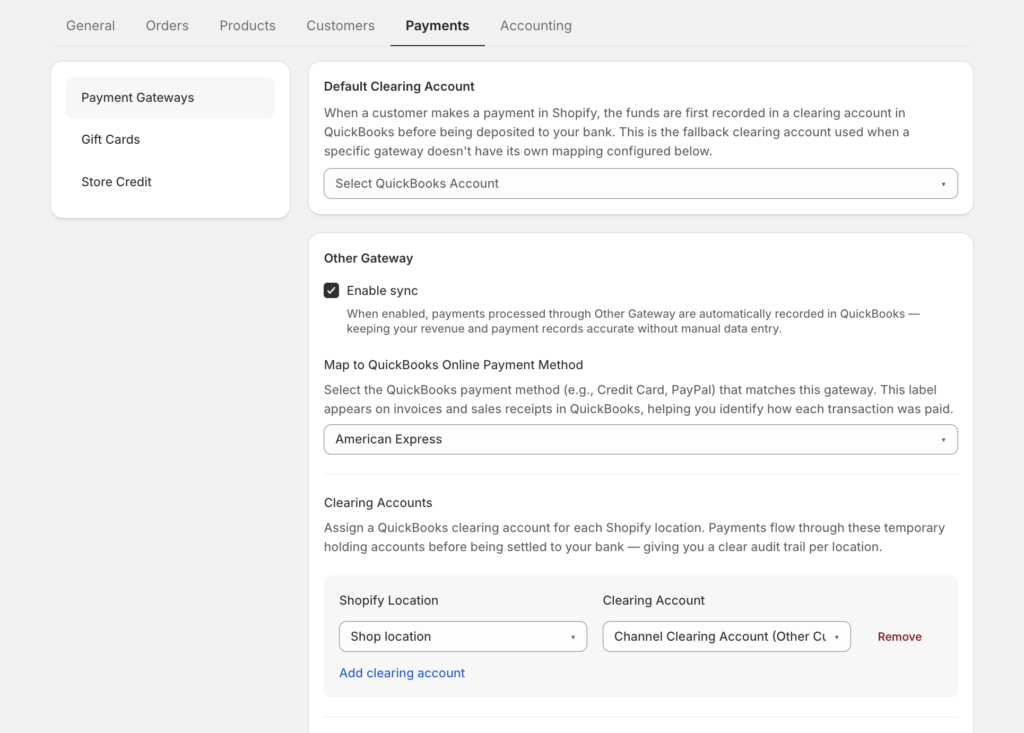
Çoğu mağaza için resmi öneri: Yalnızca Ödendi, Teslim Edilmemiş ve Teslim Edilmiş işaretliyken — böylece QuickBooks, nakliye durumuna bakılmaksızın para gerçekten hareket ettiğinde geliri kaydeder. Belgeler, yukarıdaki nedenlerden ötürü Beklemede'yi "dikkatli kullanın" olarak işaretler ve iptal edilen siparişler varsayılan olarak hariç tutulur, bu nedenle iptaller asla gelir olarak görünmez.
Yalnızca Ödendi tetikleyicileriyle, defterlerinizdeki her şey tahsil edilmiş parayı temsil eder. Bu, bir ödemenin en başta eşleşebilmesi için ön koşuldur.
Hiç senkronize etmediğiniz iadeler
İşte eşleşmeme durumunun klasik bir versiyonu: bir müşteri iade alır, Shopify bu iadeyi ödeme tutarından düşer ve QuickBooks tam satışı gösterir — çünkü iade hiç senkronize olmamıştır. Hata yok, uyarı yok. Defterler sessizce bankadan uzaklaşır.
Çözüm iki onay kutusudur. Sync Config » Orders » Sync Triggers altında, İade Edildi ve Kısmen İade Edildi'yi işaretleyin. Bunlardan hiçbiri işaretlenmezse, iadeler senkronizasyondan sessizce hariç tutulur — bu nedenle bu tür bir eşleşmeme, entegrasyonu bir kez kurup bir daha gözden geçirmeyen mağazalar için bu kadar kalıcıdır.
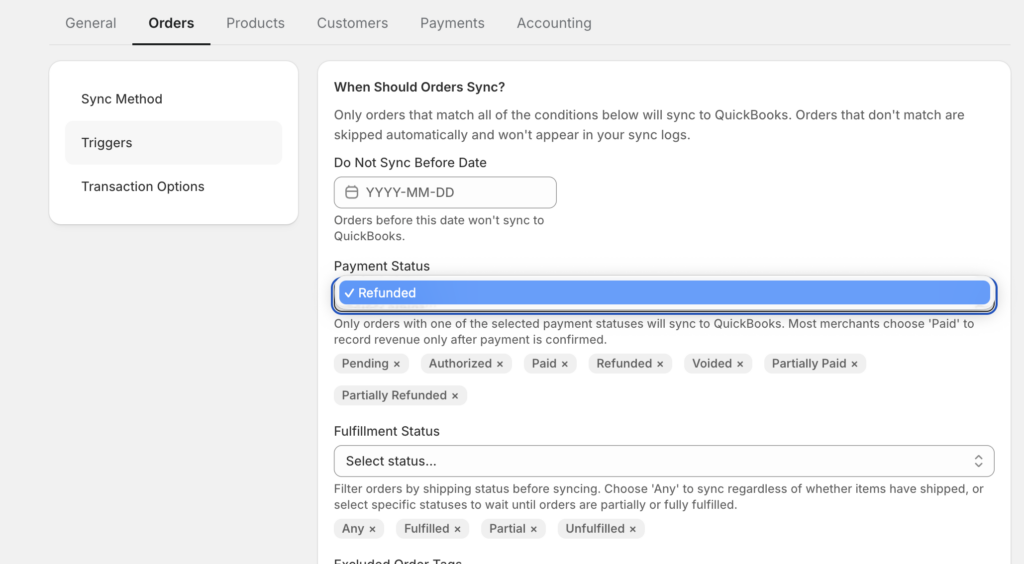
Etkinleştirildiğinde, eşitlenen bir iade QuickBooks'te gerçek bir muhasebe belgesi oluşturur: Satış Makbuzları olarak eşitlenen siparişler için bir İade Makbuzu veya Faturalar olarak eşitlenen siparişler için bir Kredi Notu — orijinal işleme bağlı, vergi ve nakliye ayrı satırlar olarak ayrılmış şekilde Shopify ile tam olarak eşleşir. Kısmi iadeler yalnızca iade edilen tutar için bir belge oluşturur; orijinal satış dokunulmaz.
Bir uyarı: Orijinal siparişin zaten QuickBooks'te olması gerekir, çünkü iade ona eklenir. Ancak gereksinim budur. İki onay kutusu, bir kategoriye giren ödeme uyumsuzluğunu kapatır.
Hiç ulaşmayan siparişleri bulun
Üçüncü gizli boşluk kaynağı: senkronizasyondan tamamen hataya düşen siparişler. Eşlenmemiş bir ürün, eksik bir fatura alanı, süresi dolmuş bir QuickBooks bağlantısı — bunların herhangi biri, satışın orada olmaması nedeniyle hiçbir ödemenin karşılaştırılamayacağı bir gelir boşluğu bırakır.
Önemli olan bu hataların adlandırılmasıdır, sessiz kalmamasıdır. LedgerPort'taki her senkronizasyon denemesi bir durum alır — Eşlendi, Hata, Bekliyor veya Beklemede — ve denetim günlüğünü Durum = Hata olarak filtrelemek, dikkat gerektiren her şeyi ortaya çıkaran 30 saniyelik bir kontroldür. Hataların nedenleri vardır: "Ürün Eşlenmedi", "Gerekli Alan Eksik" veya süresi dolmuş jeton "Bağlantı Sağlıksız" — belgelerde en yaygın senkronizasyon hatası olarak belirtilir.
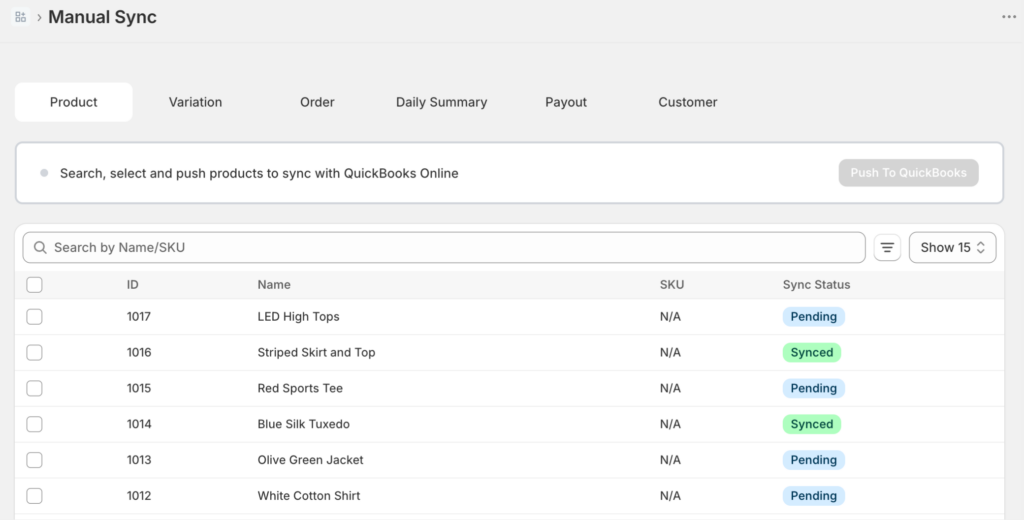
Kurtarma hamlesi kısa: nedeni düzeltin, Başarısız kayıtları Manuel Senkronizasyonda seçin, Seçilenleri Eşitle'ye tıklayın. Başarısız kayıtlar asla kaybolmaz ve QuickBooks büyük bir gönderiyi oranla sınırlandırırsa, denemeler otomatik olarak gerçekleşir.
Ödeme boşluğunu kapatmak kısmen yapı — hesapları temizleme, ücret eşleme — ve kısmen de tamlıktır. Tamlık bir filtre tıklamasıdır.
Bu durumun tüm ironisi, iki yıldır bir şeylerin bozuk olduğuna inanmış olmanızdır. Shopify'ın matematiği yanlıştı, veya QuickBooks eksikti, veya muhasebeciniz bir şeyi kaçırdı, veya siz bir şeyleri yanlış yapıyordunuz.
Siz değildiniz. Onlar da değildi.
Her iki sistem de bütün zaman boyunca işlerini doğru yapıyorlardı. Onları birbirine bağlayan hiçbir şeyiniz yoktu.
LedgerPort'un Shopify ve QuickBooks'i nasıl bağladığını görün →
