
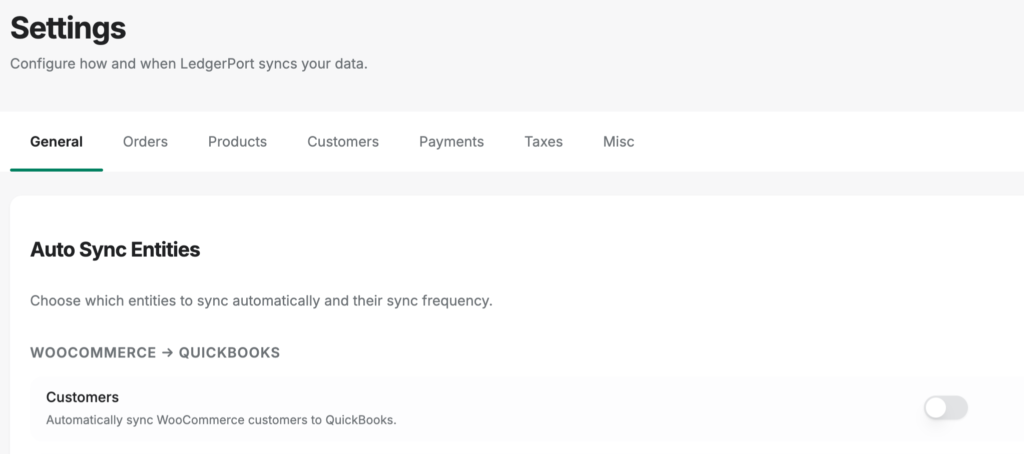
Sync Config-sidan styr hur LedgerPort bearbetar och skickar dina WooCommerce-data till QuickBooks Online. Vi har organiserat dessa i sju flikar: Allmänt, Ordrar, Produkter, Kunder, Betalningar, Skatter och Övrigt.
Gå till LedgerPort » Sync Config för att öppna sidan.
Spara ändringar
- 1. Klicka på Spara ändringar för att tillämpa dina ändringar. De träder i kraft omedelbart för alla framtida synkroniseringar.
- 2. Klicka på Avvisa för att återställa dina ändringar till det senast sparade tillståndet.
Spara-fältet visas bara när du har osparade ändringar – det är annars inte synligt på sidan.
Allmän flik
Den allmänna fliken har två kort: Autosynkronisering av entiteter och Synkroniseringskontroll & Historisk synkronisering.
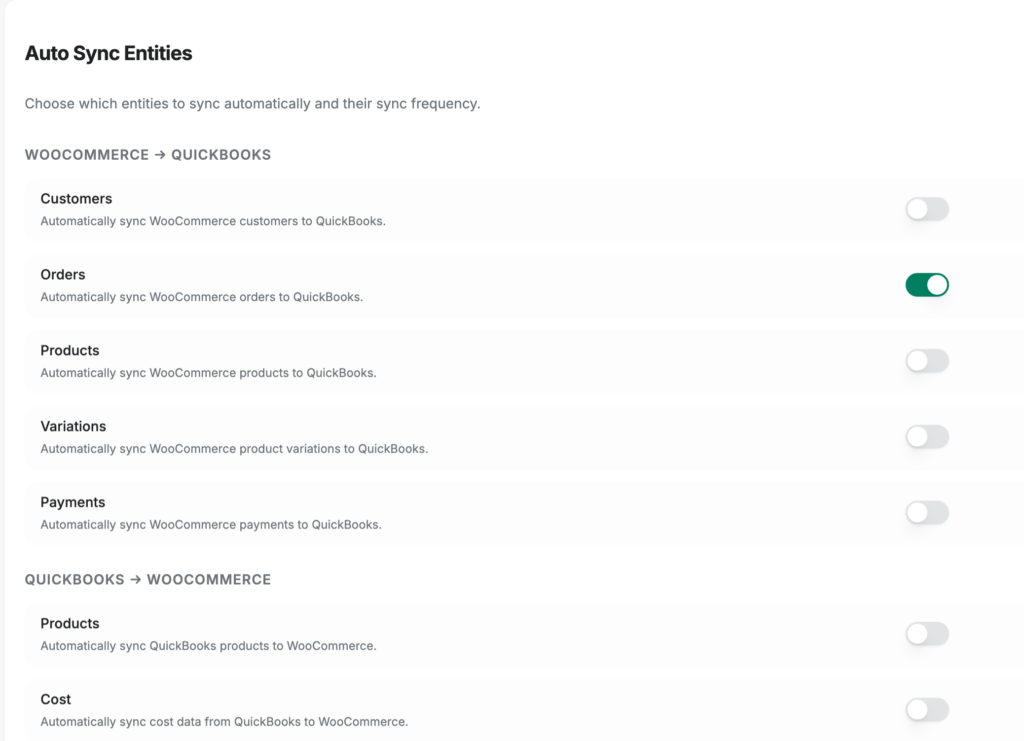
Autosynkronisering av entiteter
Styr vilka datatyper som inkluderas i varje synkroniseringsriktning.
WooCommerce till QuickBooks:
| Entitet | Vad den styr |
|---|---|
| Kunder | Synkronisera automatiskt WooCommerce-kunder till QuickBooks |
| Ordrar | Synkronisera automatiskt WooCommerce-ordrar till QuickBooks |
| Produkter | Synkronisera automatiskt WooCommerce-produkter till QuickBooks |
| Varianter | Synkronisera automatiskt WooCommerce-produktvarianter till QuickBooks |
| Betalningar | Synkronisera automatiskt WooCommerce-betalningar till QuickBooks |
QuickBooks till WooCommerce:
| Entitet | Vad den styr |
|---|---|
| Produkter | Synkronisera automatiskt QuickBooks-produkter till WooCommerce |
| Kostnad | Synkronisera automatiskt kostnadsdata från QuickBooks till WooCommerce |
| Lager | Synkronisera automatiskt lagernivåer från QuickBooks till WooCommerce |
| Prissättning | Synkronisera automatiskt prissättning från QuickBooks till WooCommerce |
Synkroniseringskontroll & historisk synkronisering
| Inställning | Vad den gör |
|---|---|
| Autosynkronisering | Aktivera automatisk synkronisering mellan WooCommerce och QuickBooks. När den är avstängd måste synkroniseringar utlösas manuellt från sidan Manuell synkronisering. |
| Synkroniseringsfrekvens | Hur ofta den automatiska synkroniseringen körs. Lägre frekvenser kan kräva en högre nivåplan. |
| Historisk synkronisering | Aktivera för att importera tidigare WooCommerce-data till QuickBooks. |
| Startdatum | Synlig när Historisk synkronisering är på. Endast data som skapats på eller efter detta datum kommer att importeras. |
Beställningsflik
Fliken Beställningar har fem kort: Synkroniseringsmetod, Synkroniseringsutlösare & filtrering, Transaktionsalternativ, Frakt och Rabatter.
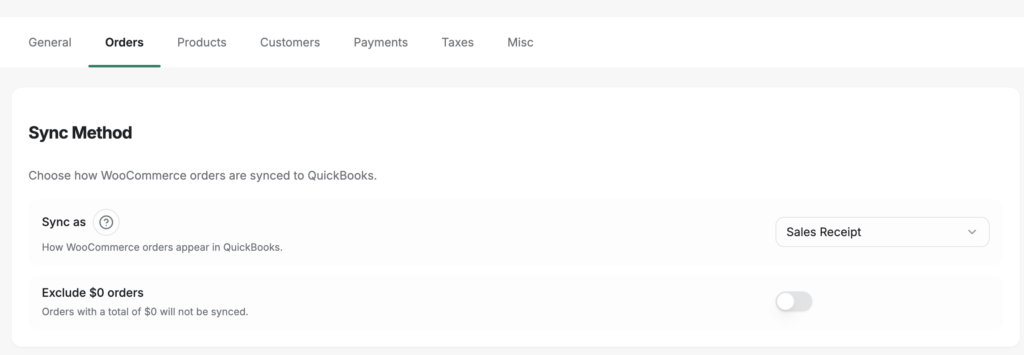
Synkroniseringsmetod
| Inställning | Vad den gör |
|---|---|
| Synkronisera som | Hur WooCommerce-beställningar visas i QuickBooks. Försäljningskvitto är bäst för betalda beställningar. Faktura är för beställningar som kräver betalning. Offert är för prisuppgifter. |
| Exkludera beställningar på 0 kr | Beställningar med en total på 0 kr kommer inte att synkroniseras till QuickBooks. |
Synkroniseringsutlösare & filtrering
| Inställning | Vad den gör |
|---|---|
| Autosynkronisera orderstatusar | Vilka WooCommerce-orderstatusar som utlöser en synkronisering (Processing, Completed, On Hold, Pending, Cancelled, Refunded, Failed). En beställning synkroniseras när den övergår till en vald status. |
| Synkronisera inte före datum | Beställningar som gjorts före detta datum kommer att hoppas över. |
| Synkronisera inte före order-ID | Ordrar med ett ID lägre än detta värde kommer att hoppas över. |
| Ogiltigförklara QB-ordrar för avbrutna ordrar | När en WooCommerce-order avbryts, ogiltigförklara motsvarande QuickBooks-transaktion. Endast ordrar som redan har synkroniserats till QuickBooks ogiltigförklaras – ordrar som avbrutits före synkronisering hoppas över. |
Transaktionsalternativ
Transaktionsalternativ innehåller fyra underavsnitt.
Numrering & Datum
| Inställning | Vad den gör |
|---|---|
| Numreringskälla | Använd WooCommerce-ordernummer eller låt QuickBooks numrera transaktionen automatiskt. |
| Datumkälla | Vilket datum som ska användas för QuickBooks-transaktionen: Orderdatum, Betaldatum, Slutfört datum eller Synkroniseringsdatum. |
| Förfallodatum förskjutning (dagar) | Dagar efter transaktionsdatumet som ska anges som förfallodatum (för fakturor). |
| Använd orderdatum för tjänstedatum | Använd WooCommerce-orderdatum som tjänstedatum på QuickBooks-artikelrader. |
Anteckningar & Beskrivningar
| Inställning | Vad den gör |
|---|---|
| Destinationsplats för orderanteckningar | Var WooCommerce orderanteckningar visas i QuickBooks: Ingen, Kundmemo, Privat anteckning eller Artikelrad. |
| Inkludera leveransmetod i anteckningar | Lägg till WooCommerce leveransmetod i orderanteckningarna. |
| Beskrivningskälla för artikelrader | Vilken text som ska användas för beskrivningar av QuickBooks-artikelrader: WooCommerce produktnamn, WooCommerce produktbeskrivning, QuickBooks produktbeskrivning eller Ingen. |
| Inkludera anpassad meta för orderartikelrader | Lägg till anpassade WooCommerce orderartikelradsfält i beskrivningarna av artikelrader. |
| Använd första radens beskrivning för privat anteckning | Använd den första artikelradens beskrivning som QuickBooks privata anteckning. |
Betalning & Fakturering
| Inställning | Vad den gör |
|---|---|
| Källplats för betalningsreferensnummer | Använd WooCommerce-ordernummer eller betalningsgatewayens transaktions-ID som QuickBooks betalningsreferensnummer. |
| Källplats för faktureringsadress | Använd orderns faktureringsadress eller QB-kundens faktureringsadress på QuickBooks-transaktionen. |
| Använd befintlig kundfaktureringsadress i QB | Behåll faktureringsadressen som lagras i QuickBooks istället för att skriva över den med beställningens faktureringsadress. |
Faktureringsalternativ
Dessa inställningar gäller när Synkronisera som är inställt på Faktura.
| Inställning | Vad den gör |
|---|---|
| Utskriftsstatus | Ange utskriftsstatusen på QuickBooks-fakturan: Inte inställd, Behöver skrivas ut, eller Utskrift slutförd. |
| Köa för QuickBooks att skicka senare | Markera fakturan i QuickBooks som redo att skickas. Du måste manuellt skicka köade fakturor i batch från QuickBooks. |
| Tillåt onlinebetalning | Aktivera betalning med kreditkort och ACH på QuickBooks-fakturor. |
| Använd standardkundmeddelande | Inkludera standardkundmeddelandet från QuickBooks på fakturor. |
Frakt
| Inställning | Vad den gör |
|---|---|
| Synkronisera frakt som en separat post | Lägg till fraktkostnader som en separat post i QuickBooks-transaktionen. |
| Fraktprodukt | QuickBooks-produkten/tjänsten som ska användas för fraktposten. Endast Service- och Icke-lagerprodukter visas. |
| Hoppa över fraktpost på 0 kr | Lägg inte till en fraktpost när fraktkostnaden är 0 kr. |
Rabatter
| Inställning | Vad den gör |
|---|---|
| Rabattsynkroniseringsmetod | Hur rabatter registreras i QuickBooks: Rabatterat pris i posten minskar priset för varje post, eller Separat post lägger till en negativ rabattpost. |
| Rabattpostprodukt | QuickBooks-produkten som ska användas för rabattposten. Syns endast när Rabattsynkroniseringsmetod är inställd på Separat post. |
| Tillämpa rabatt före moms | Tillämpa rabatter innan momsen beräknas. |
Produkterflik
Produkterfliken styr hur WooCommerce-produkter skapas, matchas och synkroniseras i QuickBooks.
Fältsynkronisering
| Inställning | Vad den gör |
|---|---|
| Synkronisera kostnad | Synkronisera produktkostnaden från WooCommerce till QuickBooks. |
| Synkronisera pris | Synkronisera produktpriset. |
| Synkronisera beskrivning | Synkronisera produktbeskrivningen. |
| Synkronisera bilder | Synkronisera produktbilder. |
| Synkronisera produkttyp till kategori | Mappa WooCommerce-produkttyp till QuickBooks-produktkategori. |
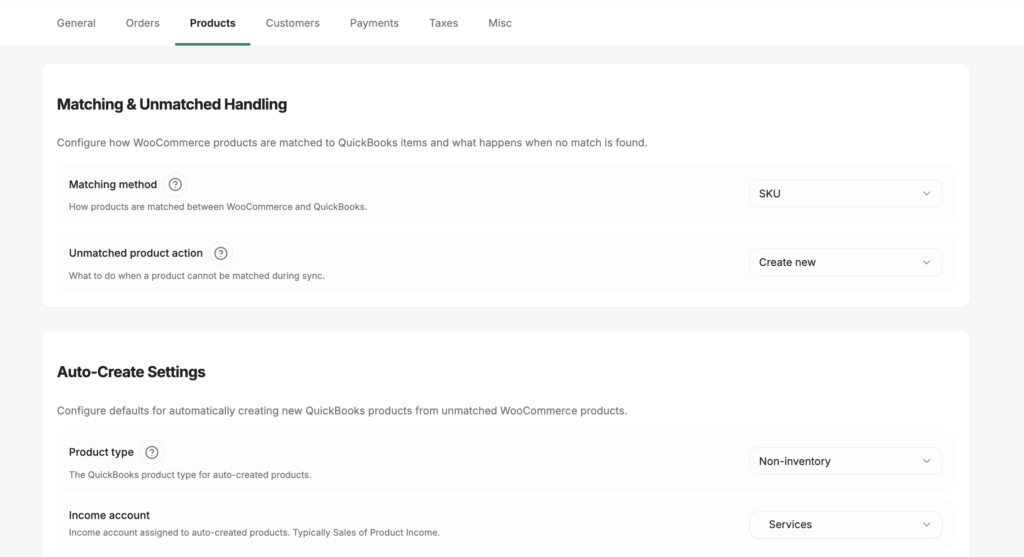
Hantering av matchningar & omatchningar
| Inställning | Vad den gör |
|---|---|
| Matchningsmetod | Mappa WooCommerce-produkter till QuickBooks-artiklar efter SKU eller namn. |
| Hantering av omatchningar | Vad som ska hända när ingen QuickBooks-matchning hittas: Skapa en ny artikel automatiskt, använd en generisk produkt som en "catch-all", eller Vänta och logga ett fel tills produkten är manuellt mappad. |
| Generisk produkt | QuickBooks-artikeln som används för alla omatchade produkter (när Hantering av omatchningar = Generisk produkt). |
| Använd radbeskrivning | Använd WooCommerce-radbeskrivningen för omatchade produkter istället för produktnamnet. |
Inställningar för automatisk skapning
Tillämpas när Hantering av omatchningar är inställt på Skapa.
| Inställning | Vad den gör |
|---|---|
| Produkttyp | Skapa nya QuickBooks-artiklar som Ej lagerförda, Lagerförda eller Tjänst. |
| Tillgångskonto | QuickBooks tillgångskonto för lagerförda produkter. |
| Intäktskonto | QuickBooks intäktskonto att tilldela nya produkter. |
| Kostnadskonto | QuickBooks kostnadskonto att tilldela nya produkter. |
| Standard skattekod | QuickBooks skattekod som tillämpas på nyskapade produkter. |
Lager & Variationer
| Inställning | Vad den gör |
|---|---|
| Lagerstartdatum | Synkronisera endast lagerdata som skapats på eller efter detta datum. |
| Konto för lagerjustering | Det QuickBooks-konto som används för poster för lagerjustering. |
| Visa QuickBooks-fält i variationer | Visa QuickBooks-mappningsfälten på redigeringsskärmarna för WooCommerce-produktvariationer. |
Beskrivningssynkronisering
Styr hur produktnamn och beskrivningar översätts mellan WooCommerce och QuickBooks.
WooCommerce till QuickBooks:
| Fält | Källalternativ |
|---|---|
| Produktnamn | WooCommerce produktnamn, WooCommerce produktbeskrivning eller QuickBooks produktbeskrivning |
| Produktbeskrivning | WooCommerce produktnamn, WooCommerce produktbeskrivning eller QuickBooks produktbeskrivning |
| Inköpsbeskrivning | WooCommerce produktnamn, WooCommerce produktbeskrivning eller QuickBooks produktbeskrivning |
QuickBooks till WooCommerce:
| Fält | Källalternativ |
|---|---|
| Produktnamn | QuickBooks produktnamn, QuickBooks produktbeskrivning eller QuickBooks produkt-SKU |
Kunderflik
Kunderfliken styr hur WooCommerce-kunder matchas till eller skapas i QuickBooks.
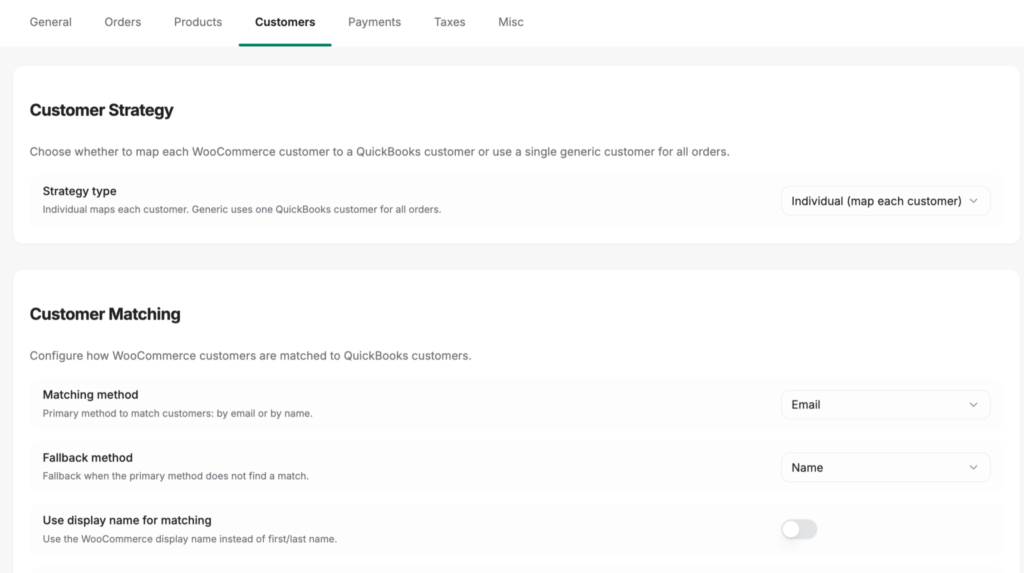
Kundstrategi
| Inställning | Vad den gör |
|---|---|
| Strategityp | Individuell: varje WooCommerce-kund synkroniseras som en separat QuickBooks-kund. Generisk: alla beställningar bokförs till en enda kund i QuickBooks som samlar allt. |
| Generisk kund | QuickBooks-kunden som ska användas för alla beställningar (när Strategi = Generisk). |
Kundmatchning
| Inställning | Vad den gör |
|---|---|
| Matchningsmetod | Matcha kunder efter e-postadress eller namn. |
| Återfallsmetod | Sekundär matchningsmetod om den primära metoden inte hittar en matchning. |
| Skapa om den inte hittas | Skapa automatiskt en ny QuickBooks-kund när ingen matchning hittas. |
| Använd visningsnamn för matchning | Använd WooCommerce kundens visningsnamn vid matchning. |
| Åsidosätt med fraktbolag | Använd fraktbolagets namn för att identifiera kunden i QuickBooks. |
| Åsidosätt med faktureringsbolag | Använd faktureringsbolagets namn. |
| Åsidosätt med fakturerings förnamn/efternamn | Använd för- och efternamn från faktureringen istället för kontonamnet. |
Inställningar för automatisk skapning
Tillämpas när en ny kund skapas i QuickBooks.
| Inställning | Vad den gör |
|---|---|
| Visningsnamnsformat | Formatet som används för att konstruera QuickBooks kundens visningsnamn. |
| Standardvillkor | Betalningsvillkor som tilldelas nyskapade QuickBooks-kunder. |
| Standardbetalningsmetod | QuickBooks betalningsmetod som tilldelas nya kunder. |
| Lägg till användar-ID för dubbletter | När en namnkonflikt finns, lägg till WooCommerce användar-ID för att göra visningsnamnet unikt. |
Ytterligare kundalternativ
| Inställning | Vad den gör |
|---|---|
| Använd QuickBooks kundens e-postadress | Använd e-postadressen som lagras i QuickBooks istället för orderns fakturerings-e-postadress. |
| Använd QuickBooks kundens faktureringsadress | Använd faktureringsadressen som lagras i QuickBooks istället för orderns faktureringsadress. |
Betalningsflik
Betalningsfliken mappar dina WooCommerce betalningsgatewayer till QuickBooks clearingkonton och betalningsmetoder.
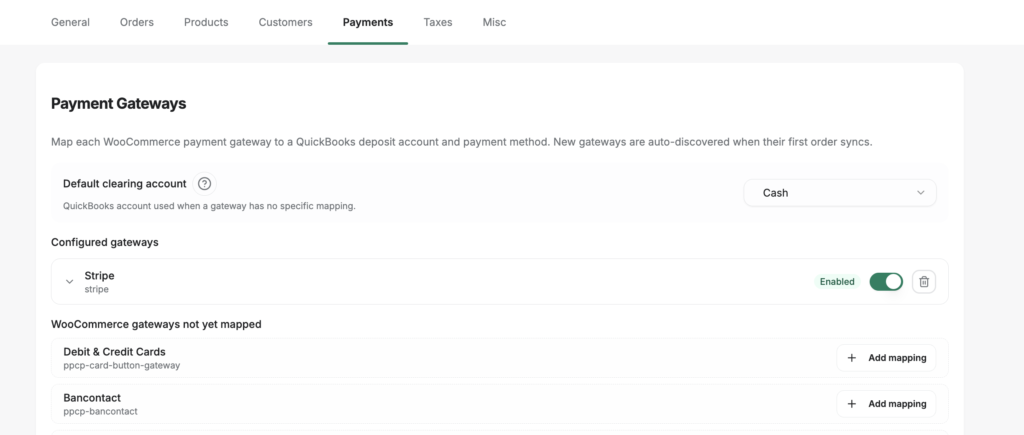
LedgerPort upptäcker de betalningsgatewayer som är aktiva i din WooCommerce-butik och listar dem här. För varje gateway kan du konfigurera:
| Inställning | Vad den gör |
|---|---|
| Aktiverad | Inkludera denna gateway's transaktioner i synkroniseringen. |
| Återbetalning aktiverad | Synkronisera återbetalningar som behandlats genom denna gateway. |
| Clearingkonto | QuickBooks bank- eller clearingkonto dit betalningar från denna gateway sätts in. |
| Betalningsmetod | QuickBooks-betalningsmetoden som ska tilldelas transaktioner från denna gateway. |
| Återbetalningsnumrering – prefix | Text som föregår återbetalningsreferensnumret i QuickBooks. |
| Återbetalningsnumrering – suffix | Text som läggs till efter återbetalningsreferensnumret. |
| Använd WooCommerce-återbetalnings-ID | Använd WooCommerce-återbetalnings-ID som QuickBooks-referensnummer istället för ett anpassat prefix/suffix-format. |
Ett standardavräkningskonto kan ställas in som en reservlösning för alla gateways som inte har ett eget avräkningskonto konfigurerat.
Skatterflik
Skatterfliken konfigurerar hur WooCommerce-skattebelopp representeras i QuickBooks-transaktioner.
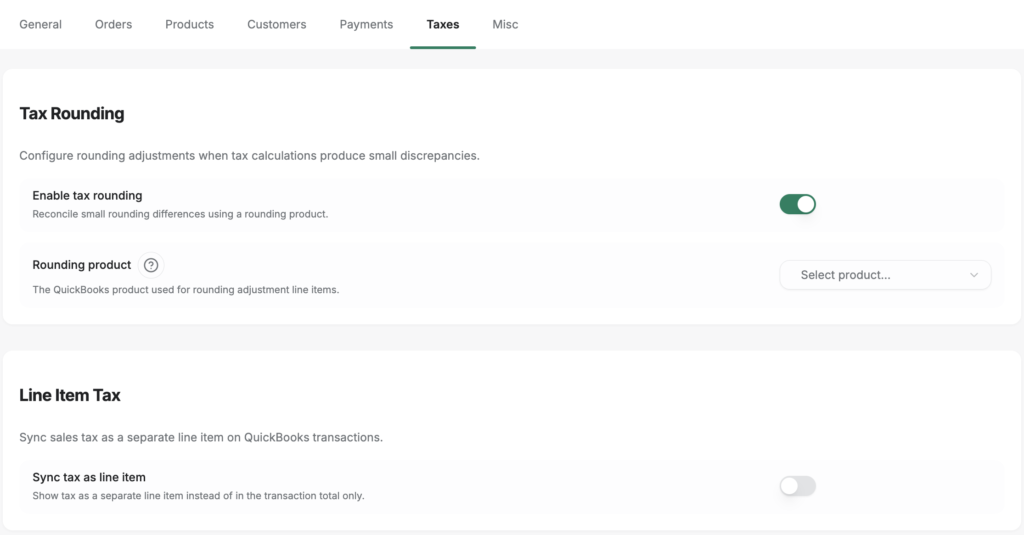
Skattavrundning
| Inställning | Vad den gör |
|---|---|
| Aktivera skattavrundning | Lägg till en avrundningsjusteringsrad för att korrigera cent-nivåskillnader mellan WooCommerce och QuickBooks skatteberäkningar. |
| Avrundningsprodukt | QuickBooks-produkt/tjänstobjekt som används för avrundningsjusteringsraden. |
Radpostskatt
| Inställning | Vad den gör |
|---|---|
| Aktivera radpostskatt | Synkronisera WooCommerce-skatt som en dedikerad radpost i QuickBooks-transaktionen istället för att förlita sig på QuickBooks inbyggda skatteberäkning. |
| Beskrivning | Etiketten som visas på skatteraden i QuickBooks. |
| Skattekonto | QuickBooks-skuldkonto där skattebelopp bokförs. |
| Skattprodukt | QuickBooks-produkt/tjänstobjekt som används för skatteraden. |
Diverseflik
Diversefliken innehåller inställningar för felsökningsloggning. Dessa är mest användbara vid felsökning av synkroniseringsproblem med LedgerPort-support.
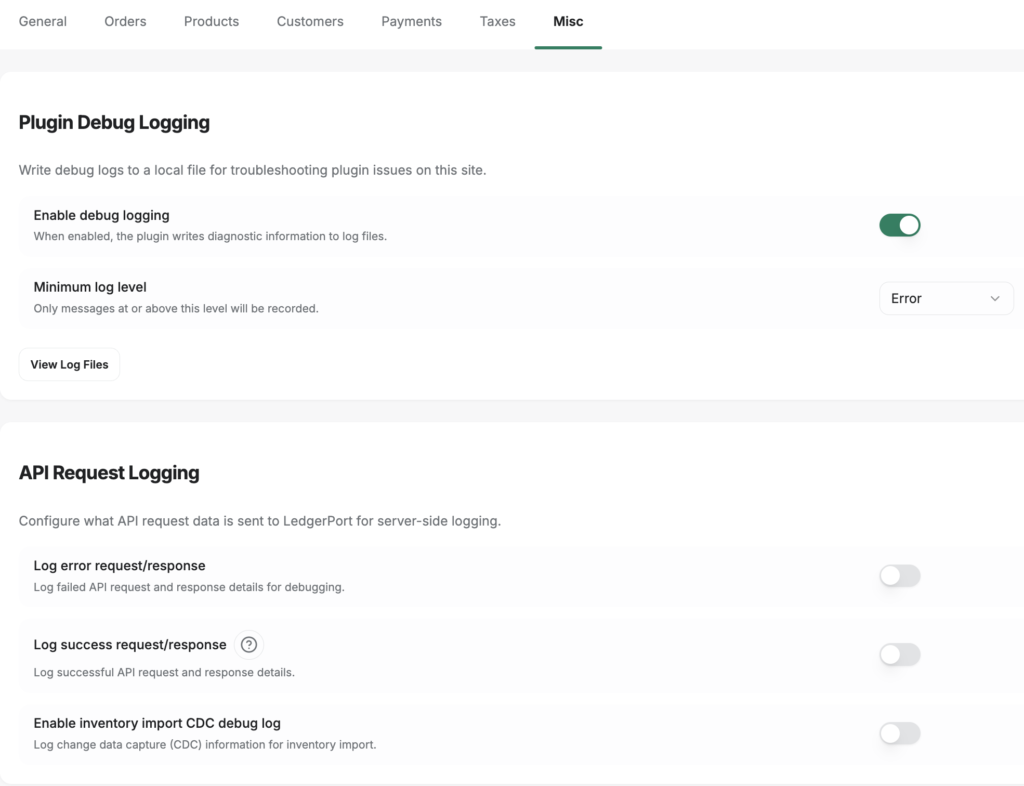
| Inställning | Vad den gör |
|---|---|
| Logga felbegäran/svar | Skriv hela API-begäran och svarsnyttolasten till felsökningsloggen när ett synkroniseringsfel inträffar. |
| Logga lyckade begäran/svar | Skriv hela API-begäran och svarspayloaden till debug-loggen för lyckade synkroniseringar. Aktivera detta endast tillfälligt, eftersom det genererar hög loggvolym. |
| Aktivera debug-logg för lagerimport CDC | Skriv ytterligare diagnostisk information för lager-synkroniseringsoperationer. |
Debug-loggposter kan granskas i LedgerPort » Debug Logs. Se Audit Logs and Troubleshooting in LedgerPort för vägledning.
Vanliga frågor
Måste jag konfigurera varje flik innan synkronisering? Nej. LedgerPort levereras med vettiga standardinställningar på varje flik. De flesta butiker kan börja synkronisera efter att ha slutfört anslutningen och mappningarna utan att röra Sync Config alls. Granska inställningarna som är mest relevanta för din bokföringskonfiguration – särskilt Ordrar, Kunder och Betalningar – och justera vid behov.
Påverkar ändringar i Sync Config historiska data? Nej. Ändringar gäller endast framtida synkroniseringar. Transaktioner som redan har bokförts i QuickBooks uppdateras inte retroaktivt.
Vad betyder "plan gated" för vissa inställningar? Vissa inställningar, som lägre synkroniseringsfrekvenser, är endast tillgängliga på högre LedgerPort-planer. Om en inställning visar en uppgraderingsikon krävs en planuppgradering för att låsa upp den. Besök anslutningssidan för att visa och uppgradera din plan.
Vad är skillnaden mellan Sync Config och Mappings? Sync Config styr hur data bearbetas och översätts till QuickBooks (synkroniseringsmetod, enhetstyper, datuminställningar, etc.). Mappings styr vilka specifika WooCommerce-produkter, kunder och konton som motsvarar vilka specifika QuickBooks-enheter. Båda måste konfigureras för en komplett installation.
Jag gjorde ändringar men såg inte spara-fältet. Vad hände? Spara-fältet visas bara när det finns osparade ändringar. Om det försvann sparades antingen dina ändringar framgångsrikt eller så klickade du på "Kassera". Kontrollera om inställningarna på fliken återspeglar de värden du avsåg.
Om du stöter på några problem är du välkommen att kontakta oss genom att klicka här. Vårt supportteam kommer att kunna hjälpa dig.
