
Mappings tell LedgerPort how to translate your WooCommerce data into QuickBooks Online. Before your first sync, you need to map WooCommerce entities – products, customers, tax codes, and payment methods – to the corresponding accounts or items in your QuickBooks company.
This guide covers how to open the Mappings page, how to use Auto-Map, how to sync mappings from your platforms, and how to manually adjust individual mappings.
Before You Start
- LedgerPort must be installed and connected to both WooCommerce and QuickBooks Online. See Installing LedgerPort and Connecting to QuickBooks Online if you have not yet connected.
- Your QuickBooks Online Chart of Accounts should be set up with the income and expense accounts you want to use for your WooCommerce transactions. LedgerPort maps to existing QuickBooks accounts – it does not create new ones.
Opening the Mappings Page
- In your WordPress admin, go to LedgerPort » Mappings.
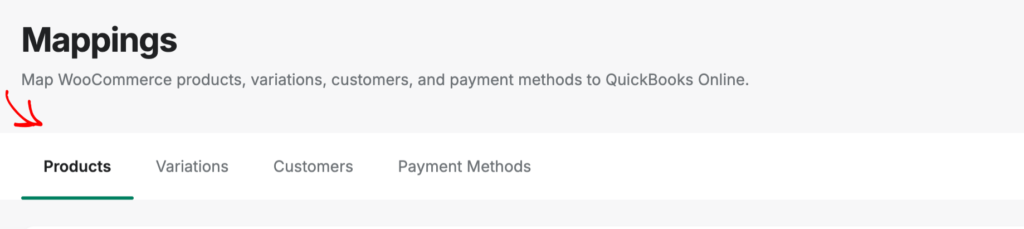
The Mappings page lists the WooCommerce entities that need to be mapped to QuickBooks. Entities are organized by type. You can filter by mapping status (mapped, unmapped, all) and search by name.
Syncing Mappings from Your Platforms
Before setting up mappings manually, run a sync to pull the latest entities from WooCommerce and QuickBooks into LedgerPort. This ensures all your current products, customers, and accounts are available to map.
- 1. On the Mappings page, click on product you have to use to Map and Save Changes.
- 2. LedgerPort fetches the latest data from WooCommerce and QuickBooks Online.
- 3. Wait for the mapping to complete. On stores with large product catalogues, this may take up to a minute or two.
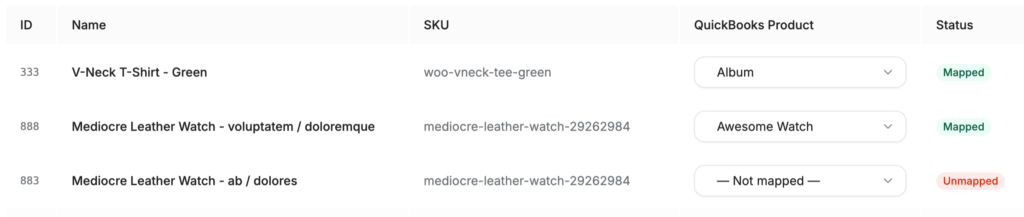
Run a sync any time you add new products or accounts in either platform to keep the mapping list current.
Using Auto-Map
Auto-Map attempts to match WooCommerce entities to QuickBooks entities automatically based on name similarity. It is the fastest way to get mappings configured on a new connection.
- On the Mappings page, click Auto-Map.
- LedgerPort compares entity names across both platforms and proposes matches.
- Review the suggested mappings. Auto-mapped entries are marked so you can confirm or override them.

Auto-Map works best when your WooCommerce product names and QuickBooks item names are consistent. Entities that cannot be matched automatically will remain unmapped and can be set manually.
Manually Mapping an Entity
For entities that Auto-Map did not match, or to correct an Auto-Map suggestion:
- Find the unmapped entity in the list.
- Click the entity row to expand it (or click the edit icon).
- In the QuickBooks field, select the matching QBO account or item from the dropdown.
- Click Save.
Repeat for each unmapped entity. You can filter the list to show only unmapped items to work through them efficiently.
Updating Mappings in Bulk
To update multiple mappings at once:
- Select from the dropdown the products you want to map.
- Once all are selected, you can click Save to apply the changes.
What Happens if an Entity is Unmapped
If a WooCommerce order comes in that contains an unmapped entity (such as a new product that was not yet mapped), LedgerPort will log a sync error in the Audit Logs. The order will not be posted to QuickBooks until the mapping is resolved.
To fix this:
- Go to LedgerPort » Mappings and map the missing entity.
- Go to LedgerPort » Manual Sync to re-send the affected orders.
- Confirm the entries appear in QuickBooks.
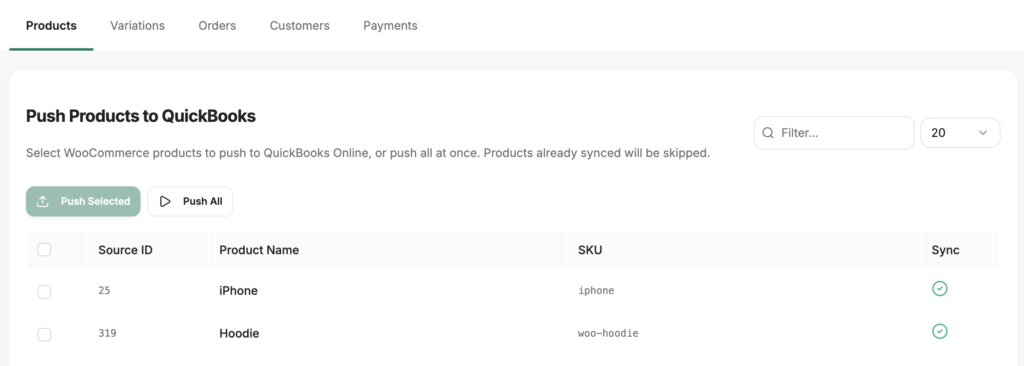
Frequently Asked Questions
Do I need to map every product individually? Yes, each WooCommerce product or product category needs to be mapped to a QuickBooks income account or service item. If you have many products, use Auto-Map first to handle the bulk of them, then address any remaining unmapped items manually.
What if I add a new product in WooCommerce after setup? New products are not automatically mapped. When a new product is created in WooCommerce, return to LedgerPort » Mappings, run a Sync to pull the new product in, and map it to the appropriate QBO account.
Can I map multiple WooCommerce products to the same QuickBooks account? Yes. Multiple WooCommerce products can be mapped to the same QuickBooks income account. This is common for stores that group all product revenue into a single Sales account.
What does it mean if an entity shows as Unmapped? Unmapped means LedgerPort does not know which QuickBooks account or item to use for that entity when syncing orders. Orders containing unmapped entities will log an error and not post to QuickBooks until the mapping is set.
Can I change a mapping after sync has started? Yes. You can update mappings at any time. Changes apply to future syncs. They do not retroactively update transactions already posted to QuickBooks.
If you run into any issues, please feel free to contact us by clicking here. Our support team will be able to help you.
