
Connecting your Shopify store gives LedgerPort access to your orders, products, customers, inventory, and payouts. Once the connection is active, LedgerPort can sync that data into QuickBooks automatically.
There are two ways to connect your Shopify store, depending on how you signed up. Both are covered below.
Before You Start
- You need a LedgerPort account and at least one Business set up. If you have not done that yet, start with the Getting Started guide.
- You need admin access to your Shopify store to complete the authorization.
- If you plan to connect QuickBooks as well (which is required for syncing), it helps to do that first. See Connecting QuickBooks Online.
Option A: Install from the Shopify App Store
If you prefer to start from Shopify, you can install LedgerPort directly from the Shopify App Store. This is the quickest path if you are already in your Shopify admin.
- Open the Shopify App Store and search for LedgerPort.
- Click Add app.
- Shopify will show you a list of permissions LedgerPort needs to access your store data. Review them and click Install app to confirm.
- You will be signed in to LedgerPort automatically using your Shopify credentials. Your store will already be connected.
[Screenshot: Shopify App Store listing for LedgerPort with the Add app button visible]
[Screenshot: Shopify permissions screen showing the list of permissions LedgerPort requires, with the Install app button]
Option B: Connect from the LedgerPort Dashboard
If you signed up at app.ledgerport.com directly, follow these steps to connect your Shopify store.
- Log in and go to your Business dashboard.
- From the left sidebar, click Connections.
- Under Shopify, click Connect Shopify Store.
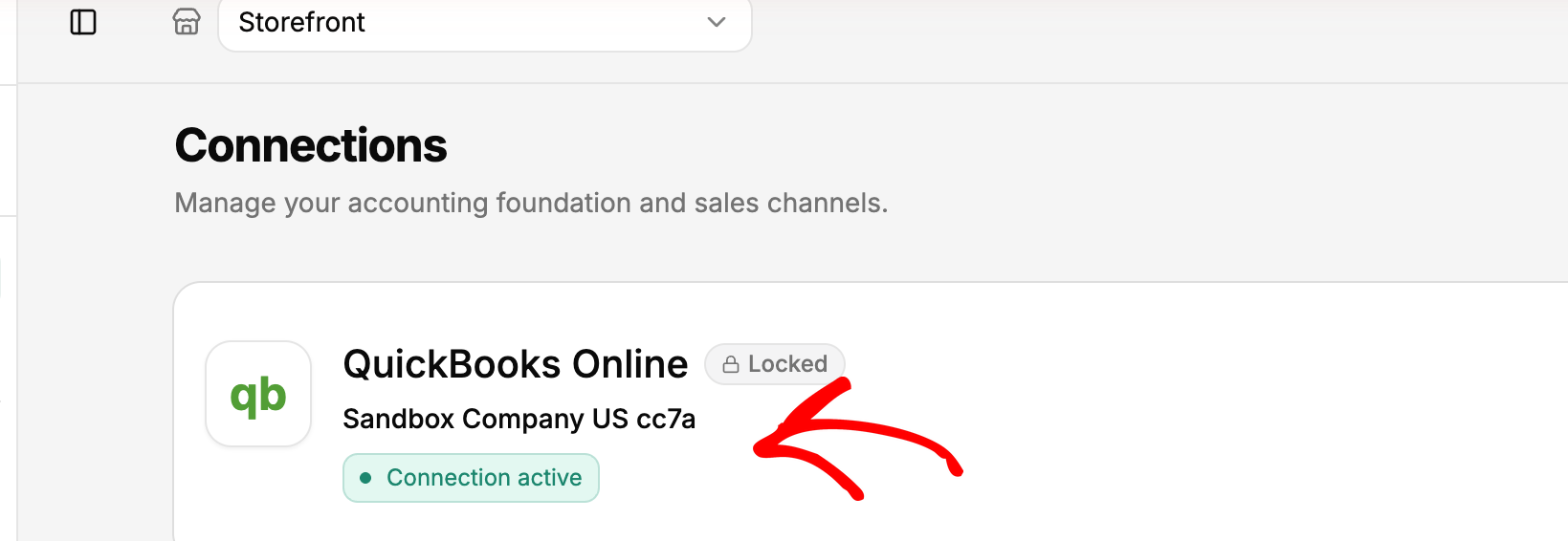
- Enter your Shopify store URL (for example, your-store.myshopify.com) and click Connect.
- You will be redirected to Shopify. Review the permissions and click Install app to authorize LedgerPort.
- You will return to LedgerPort and your store status will show as Connected.
Understanding the Connection Status
Once connected, LedgerPort displays a status indicator for your Shopify connection on the Connections page.
- Connected means the connection is active and LedgerPort can read your store data.
- Unhealthy means something interrupted the connection, often a permission change or a revoked authorization in Shopify. If you see this, disconnect and reconnect your store to restore it.
Disconnecting Your Shopify Store
If you need to remove the connection, you can do so from the Connections page.
- From the left sidebar, click Connections.
- Under Shopify, click Disconnect.
- Confirm when prompted.
Note: Disconnecting your store will pause all syncs. Your data in QuickBooks will not be affected, but no new data will come through until you reconnect.
If you run into any issues, contact us and our support team will be happy to help.