
Most sync errors fall into a small set of categories and have a clear fix. This guide covers the errors customers run into most often, what causes them, and exactly what to do about each one.
If you are not sure where to find your errors in the first place, start with Reading and Filtering Audit Log to locate the specific records that failed.
Error Statuses at a Glance
Before diving into specific errors, here is what each status in your Audit log means:
- Synced : the record was successfully sent to QuickBooks.
- Error : the sync attempt failed. The log entry will include a reason.
- Pending : the record is queued and has not been processed yet.
- On Hold : the record is waiting for a sync trigger condition to be met, such as a payment or fulfillment status requirement.
The errors below all appear with an Error status in your logs.
1. Customer Not Found in QuickBooks
What it means: LedgerPort tried to match the Shopify customer to an existing QuickBooks customer and could not find one. The order could not sync because there was no customer to attach it to.
How to fix it:
Option A: Map the customer manually.
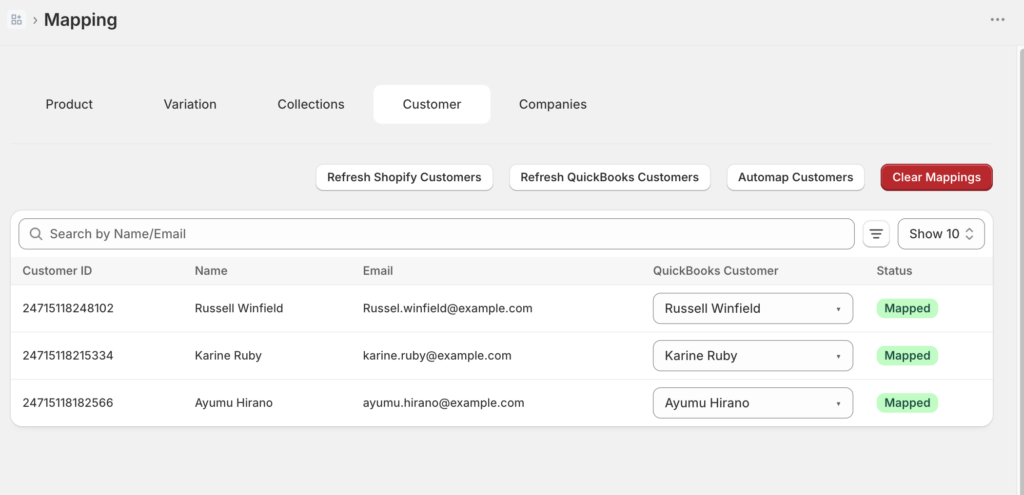
- Go to Mapping in the left sidebar.
- Click Customers.
- Find the customer and select the matching QuickBooks record from the dropdown.
- Go to Manual Sync » Orders and re-sync the affected order.
Option B: Switch to Generic customer mode. If you do not need per-customer tracking in QuickBooks, you can route all unmatched customers to a single generic QuickBooks customer.
- Go to Sync Config » Customers.
- Change the customer strategy to Generic.
- Re-sync the affected orders from Manual Sync » Orders.
2. Product Not Mapped
What it means: LedgerPort could not find a matching QuickBooks item for one or more products in the order. This usually happens when a product exists in Shopify but has not been mapped or created in QuickBooks yet.
How to fix it:
Option A: Run Auto-Map.
- Go to Mapping » Products.
- Click Auto-Map. LedgerPort will try to match products by SKU or name.
- Review any items that are still unmapped and handle them manually.
Option B: Map manually.
- Go to Mapping » Products.
- Find the unmapped product and select the correct QuickBooks item from the dropdown.
Option C: Set a default product fallback. If you want unmapped products to sync using a placeholder item instead of failing:
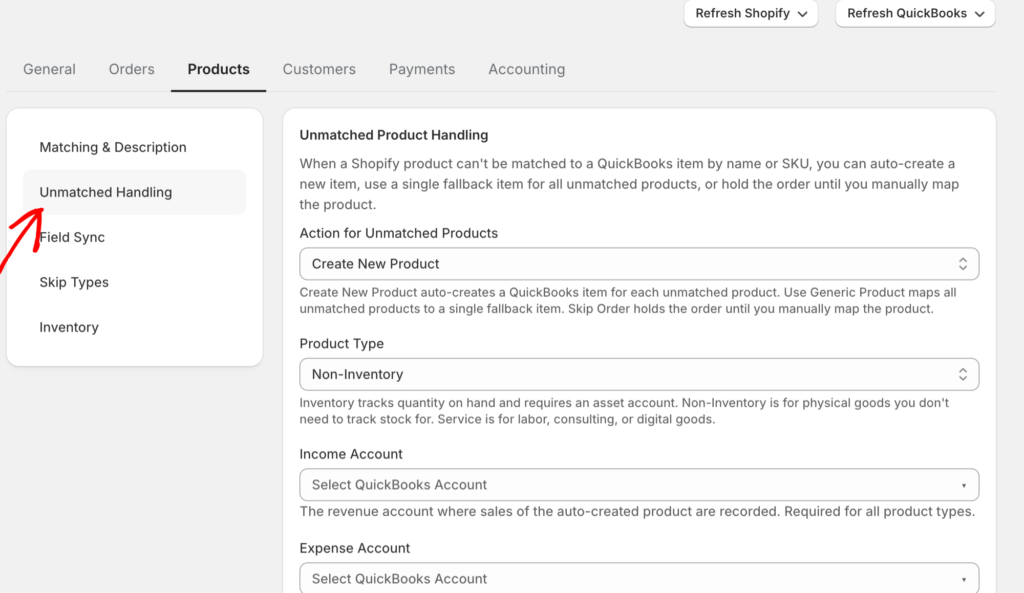
- Go to Sync Config » Products.
- Under Unmatched Handling, select Use Default Product and choose the fallback QuickBooks item.
3. QuickBooks Connection Unhealthy / Authorization Error
What it means: LedgerPort lost access to your QuickBooks account. This is usually because the QuickBooks access token expired. It is the most common sync error and is straightforward to fix.
How to fix it:
- Go to Connections in the left sidebar.
- Under QuickBooks Online, click Reconnect.
- Sign in to QuickBooks and click Authorize.
- Once reconnected, re-sync any orders that failed during the disconnected period from Manual Sync » Orders.
4. Duplicate Entry in QuickBooks
What it means: LedgerPort tried to create a transaction in QuickBooks but a record with the same order number already exists there. This can happen if an order was synced manually and then auto-synced again, or if a previous sync partially completed.
How to fix it:
Check QuickBooks first. If the transaction is there and correct, you can mark it as resolved in your auidt logs without re-syncing.
If the duplicate was created in error:
- Delete the duplicate transaction in QuickBooks.
- Go to Manual Sync » Orders, find the order, and re-sync it.
To prevent this going forward, make sure you are not running manual syncs on orders that are already in the auto-sync queue.
What it means: The tax rate applied to the Shopify order does not have a matching configuration in LedgerPort. The sync stopped because it could not determine where to record the tax in QuickBooks.
How to fix it:
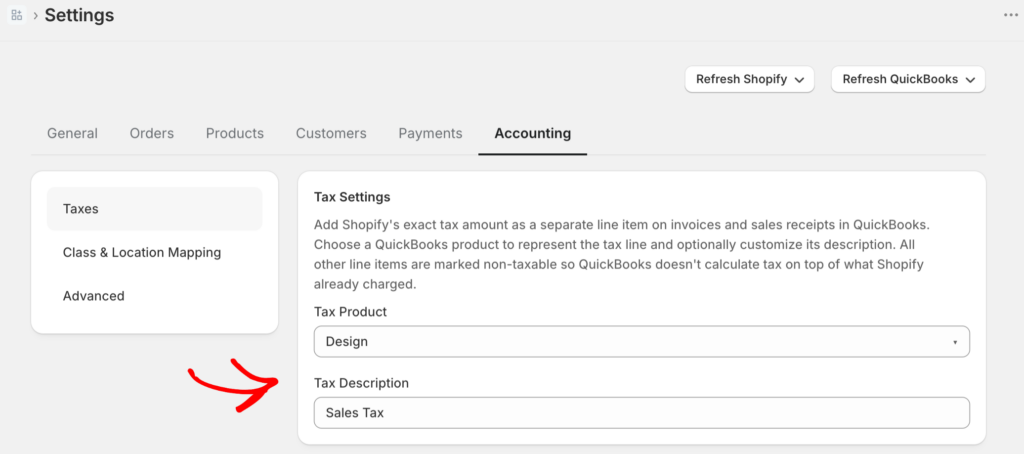
- Go to Sync Config » Accounting.
- Review your tax configuration. If you are using Line Item Tax, check that all Shopify tax rates have a corresponding QuickBooks tax code mapped.
- If you want QuickBooks to handle tax calculation automatically, switch to QuickBooks Automated Sales Tax in the same tab.
- Re-sync the affected orders from Manual Sync » Orders.
6. Invalid Account
What it means: A QuickBooks account referenced in your sync configuration (such as an income account, COGS account, or clearing account) no longer exists in QuickBooks, or was renamed or deleted.
How to fix it:
- Log in to QuickBooks and check your Chart of Accounts to confirm which accounts are active.
- In LedgerPort, go to Sync Config and review the Payments, Products, and Accounting tabs for any account references that may be outdated.
- Update the affected fields to point to the correct active accounts.
- Re-sync the affected records from Manual Sync.
7. QuickBooks API Timeout
What it means: LedgerPort sent a request to QuickBooks but did not get a response in time. This is usually caused by a temporary slowdown on QuickBooks’ end, not a configuration problem.
How to fix it:
Wait a few minutes and retry the sync.
- Go to Manual Sync and select the entity type that failed (Orders, Products, etc.).
- Select the affected records and click Sync Selected.
If timeouts keep happening over several hours, check the QuickBooks Online status page to see if there is a known service issue.
8. Rate Limit Exceeded
What it means: LedgerPort made too many requests to the QuickBooks API in a short period. QuickBooks enforces rate limits, and this error means the limit was temporarily hit. It is most common when syncing a large backlog of orders all at once.
How to fix it:
No configuration change is needed. LedgerPort will automatically retry rate-limited requests. If you are doing a large manual sync, give it 15 to 30 minutes and check the logs again. The records will typically sync on their own once the rate limit window resets.
9. Order on Hold
What it means: The order exists in Shopify but has not triggered a sync yet because it does not meet your configured sync trigger conditions. For example, if your sync is set to only run on paid orders and the order is still pending payment, it will sit on hold until payment is captured.
How to fix it:
This is usually expected behavior. Check your sync trigger settings:
- Go to Sync Config » Orders.
- Review which payment statuses and fulfillment statuses are set as sync triggers.
- If the order should have synced, confirm its status in Shopify matches your trigger criteria.
If you want to sync the order immediately regardless of its status, go to Manual Sync » Orders, find the order, and sync it manually.
10. Missing Required Field
What it means: The order or record is missing a piece of information that QuickBooks requires to create the transaction. Common examples include a missing billing address, an empty customer name, or a product with no price.
How to fix it:
- Open the order in Shopify and add the missing information (customer name, address, etc.).
- Return to LedgerPort and go to Manual Sync » Orders.
- Find the order and re-sync it.
If the issue is on the QuickBooks side (for example, a required custom field), log in to QuickBooks and check that the transaction template does not have required fields that LedgerPort cannot populate.
If none of the above resolves your error, the full error message in your audit logs will usually point to the specific cause. See Reading and Filtering Audit Logs to find and read the detailed error message for any failed record.
Log retention reminder: How far back you can view audit logs depends on your plan. Free keeps logs for 7 days, Growth for 30 days, Scale for 90 days, and Enterprise keeps them indefinitely. To access older logs you can upgrade your plan.
If you are still stuck, contact us with the affected order numbers and a screenshot of the error from your audit logs. Our support team will be able to help.