
QuickBooks Online is where all your Shopify data ends up once LedgerPort is running. Orders, customers, products, and payments sync across automatically, keeping your books current without any manual work on your end.
LedgerPort connects to QuickBooks using OAuth, which means you authorize it directly inside QuickBooks. Your password is never shared with LedgerPort.
Before You Start
- You need an active QuickBooks Online account. QuickBooks Desktop is not supported.
- Make sure you are connecting the right QuickBooks company. Once a QuickBooks account is linked to a LedgerPort Business, it cannot be switched to a different one later.
- You need admin access in both LedgerPort and QuickBooks to complete this step.
Connecting QuickBooks Online
- Log in to app.ledgerport.com and open your Business dashboard.
- From the left sidebar, click Connections.
- Under QuickBooks Online, click Connect QuickBooks.
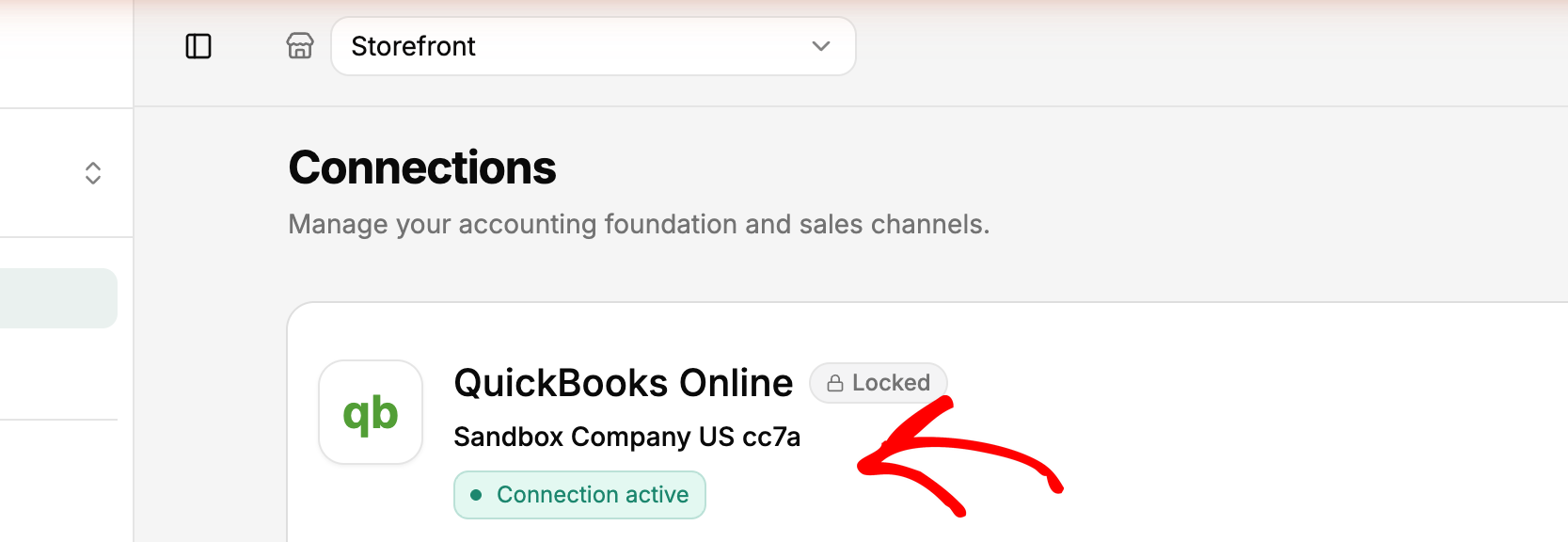
- You will be redirected to the QuickBooks sign-in page. Enter your QuickBooks credentials and log in.
- QuickBooks will ask you to confirm which company you want to connect. Select the correct company from the list.
- Click Authorize to grant LedgerPort access.
- You will be brought back to LedgerPort. The QuickBooks section on your Connections page will show a green Connected status.
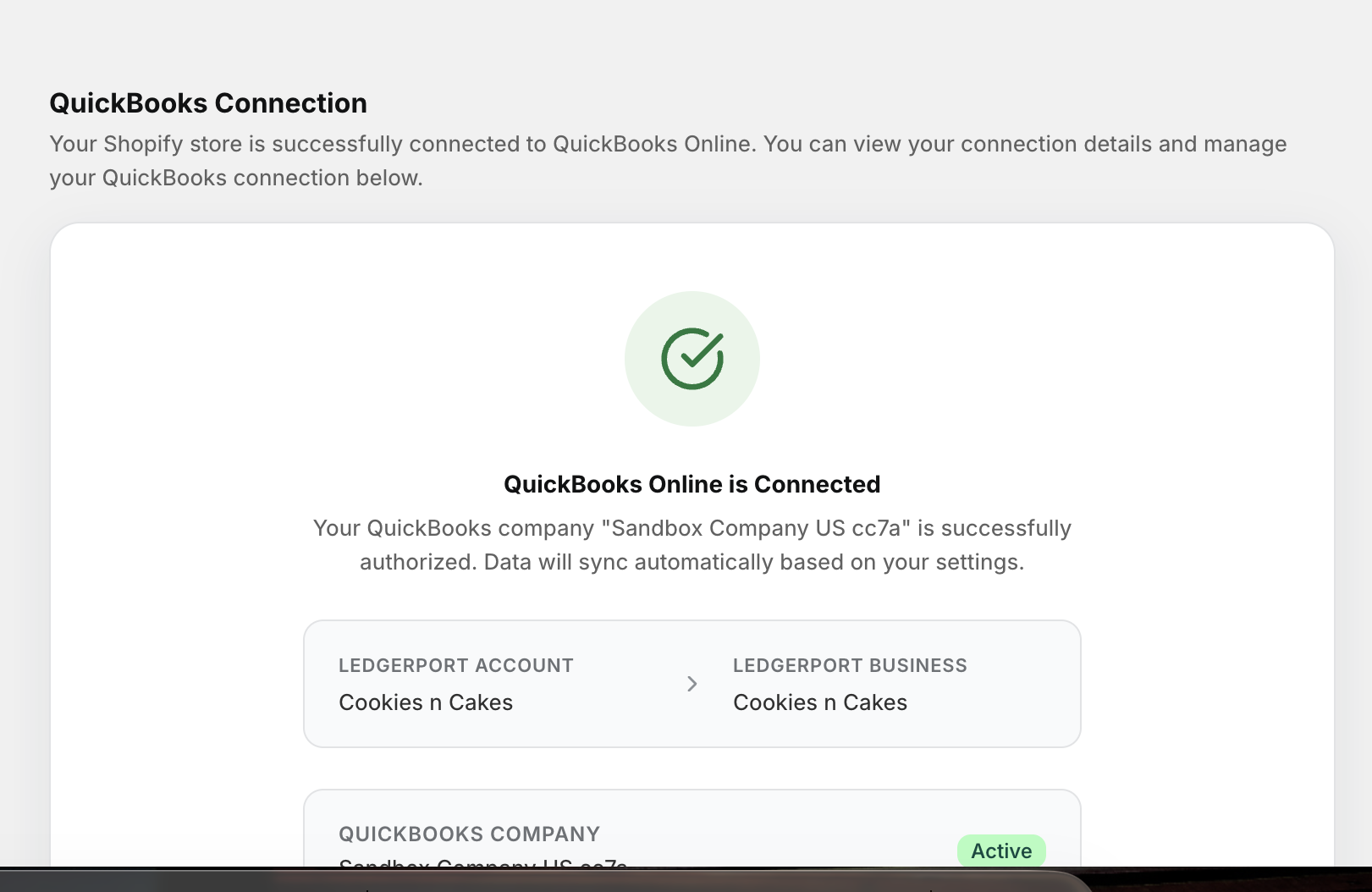
Important: Once you connect an accounting platform to a LedgerPort Business, it cannot be changed later. Take a moment to confirm you are selecting the right QuickBooks company before clicking Authorize.
Understanding the Connection Status
LedgerPort monitors the health of your QuickBooks connection and shows a status indicator on the Connections page.
- Connected means the connection is active and syncs are running normally.
- Unhealthy usually means your QuickBooks access token has expired. This is common and straightforward to fix. You can reconnect using the token.
Pausing and Resuming Sync
If you need to temporarily stop syncing without disconnecting QuickBooks entirely, you can pause syncing from the Connections page.
- From the left sidebar, click Connections.
- Under QuickBooks Online, click Pause Sync.
- To resume, click Resume Sync from the same location.
This is useful during inventory counts, maintenance windows, or any time you need a break from automatic syncing without losing your connection settings.
Disconnecting QuickBooks
If you need to remove the connection entirely, you can do so from the Connections page.
- From the left sidebar, click Connections.
- Under QuickBooks Online, click Disconnect.
- Confirm when prompted.
Note: Disconnecting QuickBooks pauses all syncs. Your existing data in QuickBooks will not be affected, but nothing new will sync until you reconnect.
If you run into any issues, contact us and our support team will be happy to help.