
Когда LedgerPort синхронизирует заказ из Shopify в QuickBooks, ему нужно знать, какой тип транзакции создать в QuickBooks. Именно это контролирует метод синхронизации заказов.
LedgerPort поддерживает пять методов: «Квитанция о продаже», «Счет», «Предварительный счет», «Ежедневное резюме» и «На основе тегов». Каждый из них подходит для определенного типа магазина или рабочего процесса. Правильный выбор заранее сэкономит много времени на исправлениях в будущем.
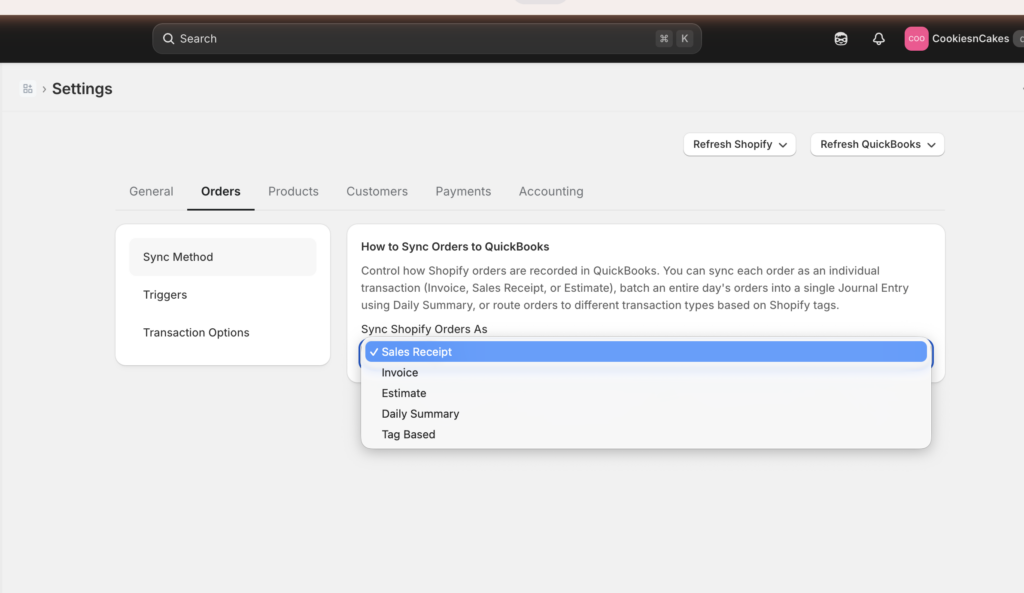
Понимание пяти методов синхронизации
Квитанция о продаже
Квитанция о продаже в QuickBooks регистрирует продажу, при которой оплата была получена во время покупки. Это наиболее распространенный метод для стандартных магазинов Shopify, где клиенты платят при оформлении заказа.
Используйте этот метод, если:
- Большинство ваших заказов оплачиваются немедленно через Shopify Payments, PayPal или другой платежный шлюз.
- Вы управляете магазином прямых продаж потребителям и не предоставляете клиентам кредиты или отсрочку платежа.
- Вы хотите иметь простой, пошаговый учет для каждого заказа в QuickBooks.
Каждый заказ Shopify создает одну квитанцию о продаже в QuickBooks, включая позиции, налоги, доставку и скидки.
Счет
Счет в QuickBooks регистрирует продажу, при которой оплата ожидается позже. Когда LedgerPort синхронизирует заказ как счет, он сначала создает счет, а затем создает запись об оплате, когда заказ оплачен в Shopify.
Используйте этот метод, если:
- Вы продаете оптом или B2B и предлагаете условия оплаты (например, нетто-30 или нетто-60).
- Вам необходимо отслеживать непогашенные остатки для клиентов, которые платят после выполнения заказа.
- Ваш бухгалтер предпочитает видеть открытые дебиторские задолженности в QuickBooks.
Примечание: Если вы используете счета, LedgerPort создаст две записи на заказ: счет при размещении заказа и оплату при его отметке как оплаченного в Shopify.
Предварительный счет
Предварительный счет в QuickBooks — это неподтвержденная запись, используемая для представления потенциальной или ожидающей продажи. Она не влияет на ваши книги до тех пор, пока не будет преобразована в счет или квитанцию о продаже.
Используйте этот метод, если:
- Вы принимаете заказы, которые еще не подтверждены или не оплачены.
- Ваш рабочий процесс включает в себя выставление предложений клиентам перед окончательным оформлением продажи.
- Вы хотите, чтобы заказы появлялись в QuickBooks для проверки перед тем, как они будут учтены как фактическая выручка.
Это наименее распространенный метод для магазинов Shopify. Если вы не уверены, нужен ли он вам, скорее всего, нет.
Ежедневное резюме
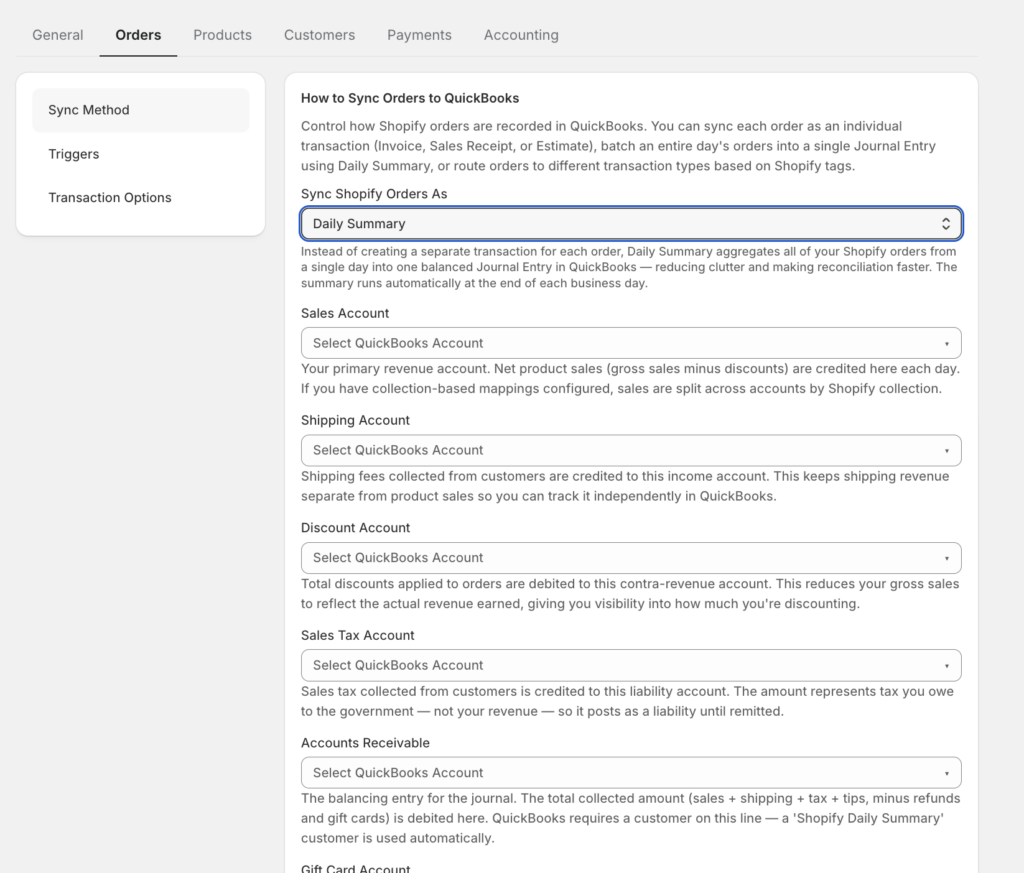
Вместо создания одной записи на заказ, режим «Ежедневное резюме» создает одну бухгалтерскую запись в конце каждого дня, которая агрегирует все заказы за этот день. Ваши QuickBooks остаются чистыми и управляемыми даже в периоды высокой загрузки.
Используйте этот метод, если:
- Вы обрабатываете большой объем заказов (примерно 100 или более в день) и не нуждаетесь в детализации по каждому заказу в QuickBooks.
- Ваш бухгалтер или bookkeeping работает с итогами, а не с отдельными транзакциями.
- Вы хотите уменьшить беспорядок в QuickBooks, не теряя точности.
Примечание: Постинг «Ежедневного резюме» доступен в планах Growth и Scale. Он не включен в план Starter.
На основе тегов
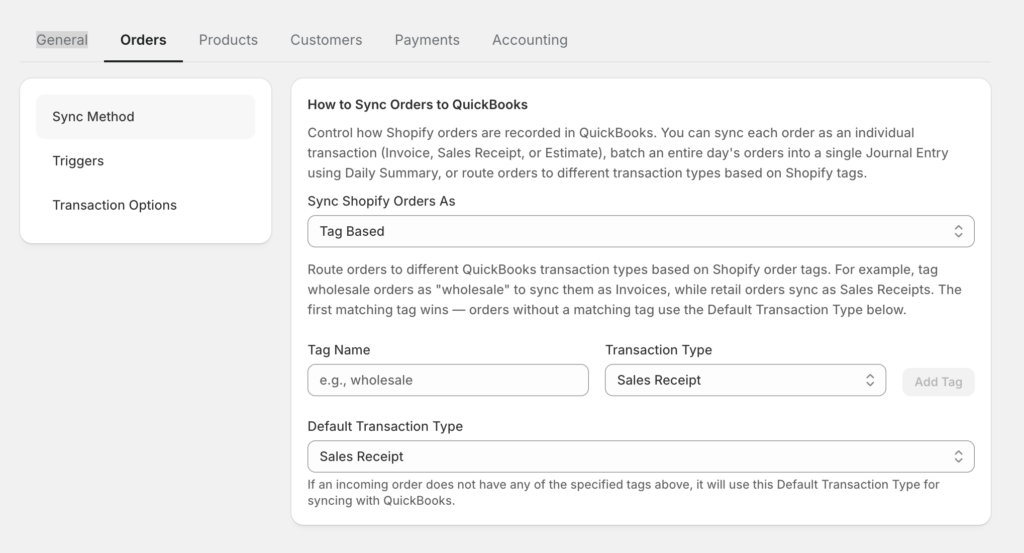
Режим «На основе тегов» позволяет использовать теги заказов Shopify для управления тем, как каждый заказ записывается в QuickBooks. Вы создаете правила, которые сопоставляют определенные теги с определенными типами транзакций, поэтому различные типы заказов обрабатываются по-разному без каких-либо ручных действий.
Например:
- Заказы с тегом wholesale синхронизируются как Счета.
- Заказы с тегом retail синхронизируются как Чеки продаж.
- Заказы с тегом do-not-sync полностью пропускаются.
Используйте этот метод, если:
- У вас смешанный магазин, обслуживающий как розничных, так и оптовых покупателей.
- Вы хотите исключить определенные заказы из синхронизации (возвраты, внутренние заказы, тестовые заказы).
- Вам нужны разные рабочие процессы QuickBooks для разных каналов продаж или типов заказов.
Примечание: Маршрутизация на основе тегов доступна только на плане Scale.
Выбор правильного метода
Не уверены, какой из них подходит вашему магазину? Вот быстрый способ подумать об этом.
| Если вы… | Используйте этот метод |
|---|---|
| Управляете стандартным магазином DTC, где клиенты платят при оформлении заказа | Квитанция о продаже |
| Продаете B2B или предлагаете клиентам условия оплаты | Счет |
| Принимаете индивидуальные или отложенные заказы перед подтверждением оплаты | Предварительный счет |
| Обрабатываете большой объем заказов и предпочитаете обобщенные книги | Ежедневное резюме |
| Имеете смешанные розничные, оптовые заказы или заказы, которые следует исключить | На основе тегов |
Если вы все еще не уверены, Чек продаж — это правильная отправная точка для большинства магазинов.
Вы всегда можете изменить метод синхронизации позже в разделе Sync Config » Orders.
Как настроить метод синхронизации
- В боковой панели слева нажмите Sync Config.
- Нажмите вкладку Orders.
- В разделе Sync Method выберите вариант, который подходит вашему магазину.
- Если вы выбрали Tag-Based, добавьте свои правила тегов в таблицу под выпадающим списком. Введите каждый тег Shopify и тип транзакции QuickBooks, к которому он должен быть сопоставлен.
- Если вы выбрали Daily Summary, настройте поля сопоставления счетов, которые появляются под выпадающим списком.
- Нажмите Save, чтобы применить изменения.
Примечание: Изменение метода синхронизации не влияет на заказы, которые уже были синхронизированы. Оно применяется только к будущим заказам.
Если у вас возникнут какие-либо проблемы, свяжитесь с нами, и наша служба поддержки будет рада помочь.