
Lorsqu'un remboursement est émis dans Shopify, LedgerPort peut créer automatiquement la transaction correspondante dans QuickBooks. Selon la manière dont vos commandes sont synchronisées, cette transaction sera soit un Avoir, soit un Reçu de remboursement.
La configuration correcte de la synchronisation des remboursements permet de maintenir l'exactitude de votre solde QuickBooks et vous évite de créer manuellement des entrées de remboursement.
Avant de commencer
- La synchronisation des remboursements nécessite que la commande d'origine ait d'abord été synchronisée avec QuickBooks. LedgerPort lie le remboursement à la transaction d'origine.
- Le type de transaction de remboursement créé dans QuickBooks dépend de votre méthode de synchronisation des commandes :
- Les commandes Reçu de vente génèrent un Reçu de remboursement dans QuickBooks.
- Les commandes Facture génèrent un Avoir dans QuickBooks.
- Si vous n'êtes pas sûr de la méthode de synchronisation que vous utilisez, allez dans Configuration de la synchronisation » Commandes et vérifiez le paramètre Méthode de synchronisation. Consultez Comprendre les méthodes de synchronisation des commandes pour une explication complète.
Fonctionnement de la synchronisation des remboursements
Lorsqu'un remboursement est traité dans Shopify, LedgerPort détecte le remboursement et crée la transaction correspondante dans QuickBooks :
- Un remboursement complet crée un Reçu de remboursement ou un Avoir pour le montant total de la commande.
- Un remboursement partiel crée un Reçu de remboursement ou un Avoir pour le montant remboursé uniquement. La transaction d'origine dans QuickBooks reste inchangée.
Les articles, les taxes et les frais de livraison remboursés sont détaillés dans la transaction QuickBooks pour correspondre à ce qui a été remboursé dans Shopify.
Activation de la synchronisation des remboursements
La synchronisation des remboursements est contrôlée par vos paramètres de déclenchement de statut de paiement.
- Dans le menu latéral gauche, cliquez sur Configuration de la synchronisation.
- Cliquez sur l'onglet Commandes.
- Faites défiler jusqu'à la section Déclencheurs de synchronisation.
- Sous Statut du paiement, cochez Remboursé pour synchroniser les commandes entièrement remboursées, Remboursé partiellement pour synchroniser les remboursements partiels, ou les deux.
- Cliquez sur Enregistrer.
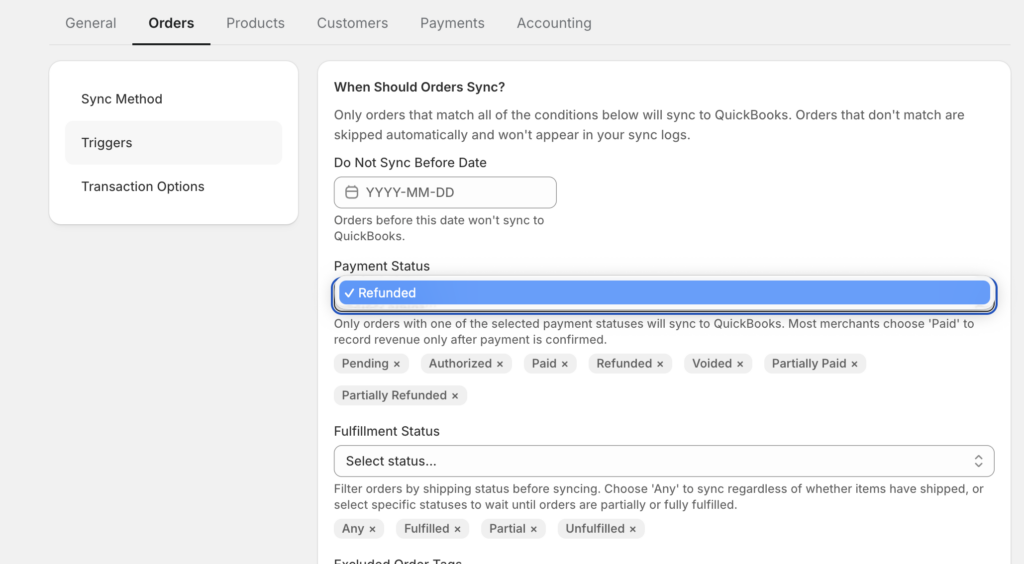
Une fois activés, les remboursements émis dans Shopify seront pris en compte lors du prochain cycle de synchronisation et la transaction correspondante sera créée automatiquement dans QuickBooks.
Remarque : La plupart des boutiques devraient activer à la fois Remboursé et Remboursé partiellement si elles souhaitent que toute l'activité de remboursement soit reflétée dans QuickBooks. Si vous désactivez ces options, les remboursements ne seront pas synchronisés et votre solde QuickBooks ne correspondra pas à celui de Shopify.
Avoirs (Commandes par facture)
Si vos commandes sont synchronisées en tant que Factures, les remboursements créent un Avoir dans QuickBooks.
L'avoir est lié à la facture d'origine et réduit le solde impayé. Si la facture a déjà été payée, QuickBooks considérera le crédit comme disponible sur le compte du client.
Ce qui est créé :
- Un Avoir sous le même client que la Facture d'origine.
- Des articles correspondant à ce qui a été remboursé dans Shopify.
- Ajustements de taxes et d'expédition si ceux-ci faisaient partie du remboursement.
Reçus de remboursement (Commandes avec reçu de vente)
Si vos commandes sont synchronisées en tant que reçus de vente, les remboursements créent un Reçu de remboursement dans QuickBooks.
Le reçu de remboursement enregistre l'argent retourné au client et réduit votre revenu pour cette transaction.
Ce qui est créé :
- Un reçu de remboursement lié au reçu de vente d'origine.
- Des articles correspondant à ce qui a été remboursé dans Shopify.
- Ajustements de taxes et d'expédition si applicable.
Vérification de l'état de synchronisation des remboursements
Après le traitement d'un remboursement dans Shopify, vous pouvez confirmer qu'il a été correctement synchronisé à partir de vos journaux.
- Dans le menu latéral gauche, cliquez sur Journaux de synchronisation.
- Utilisez le filtre Type d'entité et sélectionnez Commande (ou Remboursement s'il est listé séparément).
- Recherchez le numéro de commande associé au remboursement.
- L'entrée du journal indiquera Synchronisé si la transaction de remboursement a été créée avec succès, ou Erreur avec une raison si quelque chose s'est mal passé.
Synchronisation manuelle des remboursements
Si un remboursement n'a pas été synchronisé automatiquement, ou si vous devez en forcer un à la demande :
- Dans le menu latéral gauche, cliquez sur Synchronisation manuelle.
- Cliquez sur Commandes.
- Utilisez le filtre État pour trouver la commande, ou recherchez par numéro de commande.
- Sélectionnez la commande et cliquez sur Synchroniser la sélection.
LedgerPort re-traitera la commande et créera la transaction de remboursement dans QuickBooks si elle est manquante.
Problèmes courants
Remboursement synchronisé mais aucune transaction n'est apparue dans QuickBooks – Vérifiez que la commande d'origine a été synchronisée avec succès avant que le remboursement ne soit émis. Si la commande d'origine est manquante dans QuickBooks, LedgerPort n'a rien auquel attacher le remboursement. Synchronisez d'abord la commande d'origine, puis resynchronisez le remboursement.
Remboursement partiel a créé un avoir pour le mauvais montant - Cela se produit généralement si le remboursement dans Shopify a été modifié après sa création initiale. Vérifiez les détails du remboursement dans Shopify pour confirmer le montant correct, puis resynchronisez à partir de Synchronisation manuelle » Commandes.
Le remboursement n'apparaît pas du tout dans les journaux de synchronisation – Confirmez que Remboursé ou Partiellement remboursé est activé dans vos déclencheurs de synchronisation sous Configuration de la synchronisation » Commandes. Si aucune des deux options n'est cochée, les remboursements sont entièrement exclus de la synchronisation.
Si vous rencontrez des problèmes, contactez-nous et notre équipe de support sera ravie de vous aider.