

- 1מה הופך את החשבונאות לעסק מסחר אלקטרוני לשונה
- 21. אתה מקבל תשלומים בהעברות, לא במכירות
- 32. עמלות מופחתות לפני שאתה בכלל רואה את הכסף
- 43. מס מכירות מצטבר באופן בלתי נראה - והוא מעולם לא היה הכסף שלך
- 54. החזרים חוצים תקופות
- 65. מלאי ועלות המכר (COGS) יש להם שעון משלהם
- 7כל חמשתם הם בעיות תרגום
- 8קצב הנהלת החשבונות: יומי, שבועי, חודשי
- 9חשבונאות למוכרים אונליין בכל שלב
- 10מתחת לכ-30 הזמנות בחודש: משמעת מנצחת כלים
- 11צמיחה (כמה מאות עד כמה אלפי הזמנות): אוטומציה של התרגום
- 12ריבוי חנויות ואומניצ'אנל: בעיית האיחוד
- 13גיוס עזרה: מה להעביר, ומתי
- 14מילה על תוכנה
- 15הגרסה שבה המפה על הקיר
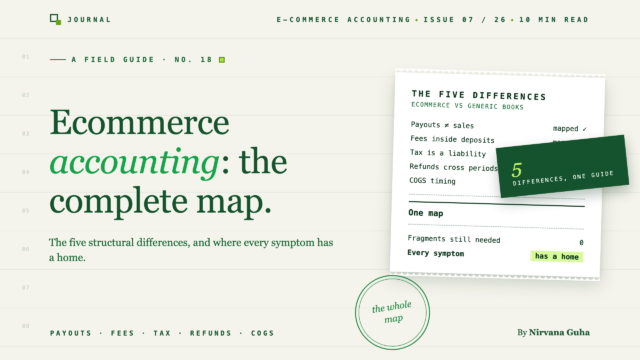
כל מאמר על חשבונאות מסחר אלקטרוני מכסה שבר אחד - העברות, עמלות, מס מכירות, החזרים. זהו המפה השלמה.
ההפקדה נכנסה לחשבון הבנק שלך ביום שלישי: 4,620$. שופיפיי אומרת שמכירות סוף השבוע היו 5,000$. הזנת הבנק מראה שורה אחת - סכום אחד גדול מעבד התשלומים שלך - ושום מקום, בשום מסך שתמצא, אין שורת פריט בשם "ה-380$ החסרים."
אם למדת הנהלת חשבונות כמו שרוב בעלי החנויות למדו - מדריך כללי לעסקים קטנים, הדרכה ב-QuickBooks, אולי עצה מחבר רואה חשבון - לימדו אותך מערכת נקייה: רשום את ההכנסות שלך, קטלג את ההוצאות שלך, התאם את ההפקדות שלך, בצע התאמה בנקאית חודשית. והמערכת הזו ממשיכה להיכשל לך בדרכים שהמדריך מעולם לא הזכיר. ההפקדה לא שווה למכירות. עמלות שלעולם לא קיבלת עליהן חשבונית מסתתרות איפשהו. מס מכירות מצטבר במקום שאינך יכול לראות. החזר מחודש שעבר פשוט הפך את המספרים של החודש הזה לשגויים. כל כמה שבועות, החנות שלך מוצאת כלל חדש להפרה.
הנה השקר שמתחת לכל זה: "חשבונאות מסחר אלקטרוני היא פשוט הנהלת חשבונות רגילה לעסקים קטנים עם חנות מקוונת מצורפת."
זה לא. חשבונאות מסחר אלקטרוני שונה מהנהלת חשבונות גנרית מבחינה מבנית - בחמש דרכים ספציפיות, שניתן להגדירן. לא "זה יותר מורכב". שונה במנגנון. הסיבה שאתה ממשיך להיות מופתע אינה שאתה גרוע בזה; זה שאף אחד לא נתן לך את המפה. המדריך הזה הוא המפה: חמשת ההבדלים, השגרה ששומרת עליהם מנוהלים, ואיך נראית חשבונאות למוכרים אונליין בכל שלב של צמיחה.
מה הופך את החשבונאות לעסק מסחר אלקטרוני לשונה
כל סימפטום מבלבל שנתקלת בו חוזר לאחד מחמשת ההבדלים המבניים. ברגע שתוכל להגדיר איזה מהם נושך אותך, התיקון כבר מתועד.
1. אתה מקבל תשלומים בהעברות, לא במכירות
יועץ מחייב לקוח ב-2,000$ ומקבל 2,000$. אתה מוכר 5,000$ בארבעים הזמנות ומקבל... משהו אחר, ימים אחר כך, באצווה.
זהו מודל התשלום. מעבד התשלומים שלך גובה כל הזמנה, מחזיק את הכסף, מנכה את העמלות שלו, מנכה החזרים, מוסיף התאמות, ומפקיד את הסכום נטו בלוח הזמנים שלו. ההפקדה בחשבונך אינה הכנסה – היא הכנסה פחות ארבעה דברים אחרים, המוזזים בזמן. רישום הפקדות כהכנסה וספריך ימעיטו במכירות, יסתירו עמלות, ויתרחקו מהמציאות מדי חודש.
הבדל יחיד זה גורם לתסמין הנפוץ ביותר של הנהלת חשבונות במסחר אלקטרוני: התשלום שלעולם אינו תואם את ספריך. כתבנו הסבר מלא על מדוע התשלום של Shopify שלך לעולם אינו תואם את מה ש-QuickBooks מציג, ושיטה מלאה להתאמת תשלומים של Shopify ב-QuickBooks – הדוח המדויק, רשומת היומן, הכל. אם אתה מוכר ביותר ממטבע אחד, חישוב התשלום מקבל שכבה נוספת; זה מקבל טיפול משלו במדריך שלנו למכירות Shopify מרובות מטבעות ב-QuickBooks.
2. עמלות מופחתות לפני שאתה בכלל רואה את הכסף
בעל הבית שלך שולח חשבונית. מעבד התשלומים שלך לא. עמלות עיבוד, עמלות פלטפורמה והתאמות עסקה יוצאות מהתשלום לפני שהוא מגיע אליך – אין חשבון לשלם, אין הוצאה להזין, אין הנחיה מכל סוג שהוא.
מה שאומר שאם אינך מחלץ אותן באופן פעיל, עמלות אלו פשוט אינן קיימות בספריך. על 5,000 דולר של מכירות סוף שבוע, כ-150 דולר של עלות עיבוד נעלמו בתוך ההפקדה של יום שלישי. דלג על החילוץ ושני מספרים משתבשים בבת אחת: ההכנסה מוערכת בחסר וההוצאות מוערכות בחסר, כך שהרווח שלך נראה נכון בעוד שהשוליים שלך משקרים. המדריך שלנו לעמלות Shopify ב-QuickBooks מפרט כל סוג עמלה והיכן כל אחת מהן שייכת.
3. מס מכירות מצטבר באופן בלתי נראה - והוא מעולם לא היה הכסף שלך
כאשר לקוח במדינה שיש לך בה נוכחות משלם 107 דולר עבור הזמנה של 100 דולר, 7 דולר אלו אינם הכנסה. זוהי התחייבות – כסף שאתה מחזיק מטעם רשות מס עד ליום ההעברה.
המלכוד הוא שהם מגיעים מעורבבים באותו תשלום כמו כל השאר. אם ספריך מתייחסים לכל ההפקדה כהכנסה, אתה מכיר בהכנסה שאתה חייב למישהו אחר, והחשבון עדיין מגיע – רק חודשים לאחר מכן, כהפתעה. כללי נוכחות כלכלית פירושם שאתה עשוי להיות חייב מס במדינות שמעולם לא דרכת בהן, אך ורק על נפח מכירות. הרשימת בדיקה להכנת מס לחנויות Shopify עוברת דרך הפיכת ההתחייבות הזו לנראית לפני שעונת הגשת הדוחות עושה זאת עבורך.
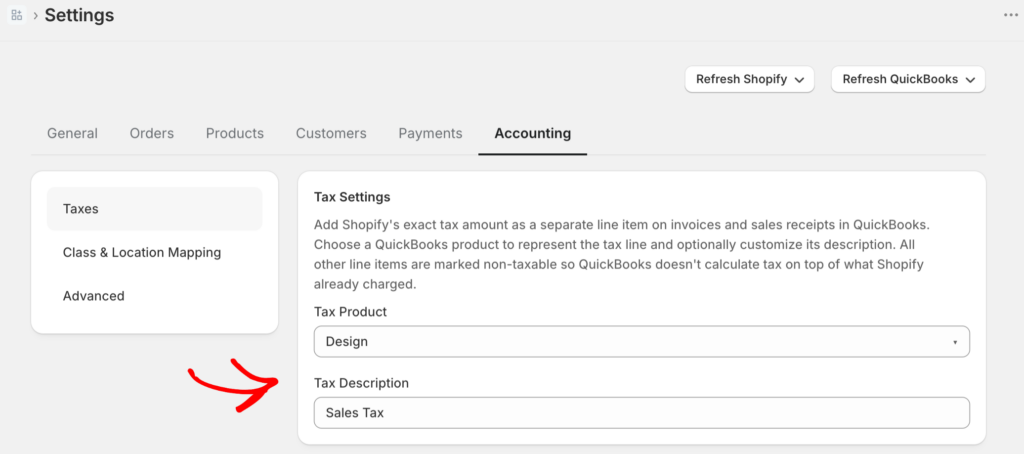
הוצאת ההתחייבות הזו משורת ההכנסות היא, בסופו של דבר, החלטת ניתוב — ושווה לראות אותה כהגדרה בפועל ולא כסגולה חשבונאית. ב-LedgerPort, הניתוב נמצא ב-Sync Config, תחת הגדרות המס, ויש לו בדיוק שני ענפים. Line Item Tax ממקם את המס על כל עסקה ב-QuickBooks כשורה משלו, שרשומה בחשבון התחייבות שתגדיר — כך ש-7 הדולרים נוחתים במשהו כמו "חוב מס מכירות" בכל הזמנה, אוטומטית, במקום לנפח הכנסות. או שאתה עובר ל-QuickBooks Automated Sales Tax ונותן למנוע של QuickBooks לחשב ולעקוב אחריו. שתי פרטים מראים עד כמה ברצינות העיקרון של כסף-שאינו-שלך נאכף. אם מגיעה הזמנה עם שיעור מס ללא תצורה תואמת, הסנכרון נכשל ומחזיק את ההזמנה במקום לנחש לאן צריך ללכת הכסף של מישהו אחר. ואפשרות עיגול מס מוסיפה התאמה ברמת הסנט בכל פעם שהחנות שלך ו-QuickBooks מחשבים מס בפער של פני, כך שרעש עיגול לעולם לא יופיע כחידה בעת התאמה. (הצילום מציג את אפליקציית Shopify; מהדורת WooCommerce חושפת את אותם פקדי מס.)
4. החזרים חוצים תקופות
החזר פיזי בחנות מתבצע בקופה, באותו מגירה, באותו יום. החזר מסחר אלקטרוני מתבצע באופן שגרתי שלושה שבועות לאחר המכירה — שלעיתים קרובות הוא חודש אחר, ולעיתים רבעון אחר.
אז המספרים ה"סופיים" של מרץ לא היו סופיים: החזרי אפריל הגיעו אחורה ושינו אותם. גרוע מכך, עמלת העיבוד מהמכירה המקורית בדרך כלל לא מוחזרת לך, כך שהחזר אינו ביטול נקי — הוא ביטול בתוספת עלות תקועה. אם מטפלים בהחזרים באופן נאיבי, הם מכפילים את ההכנסות או משאירים עמלות יתומות. אם מטפלים בהם נכון, הם דפוס ידוע עם רישום ידוע, המכוסה במדריך שלנו להחזרים וביטולים בחשבונאות מסחר אלקטרוני.
5. מלאי ועלות המכר (COGS) יש להם שעון משלהם
התסריט הגנרי אומר: קנית משהו לעסק, רשום את ההוצאה. עשה זאת עם מלאי והספרים שלך יתנדנדו — הזמנת מלאי של 12,000 דולר גורמת למרץ להיראות קטסטרופלי ול אפריל-יוני להיראות מבריק באופן מלאכותי.
מלאי אינו הוצאה כשאתה קונה אותו; הוא נכס שהופך להוצאה (עלות המכר) ברגע שכל יחידה נמכרת. הבדל תזמון זה הוא הבסיס כולו לידיעת השוליים האמיתיים שלך. הוא גם דורש מבנה חשבונות שנבנה עבורו — תרשים חשבונות גנרי אין לו מקום הגיוני לשים חשבון פיצוי, התחייבות מס מכירות, או עלות מכר לפי ערוץ. פרסמנו תבנית תרשים חשבונות למסחר אלקטרוני שנותנת לכל אחד מאלה בית, ומדריך לכיצד לרשום מכירות Shopify ב-QuickBooks שמכסה את שיטות הרישום — לפי הזמנה לעומת סיכום יומי — ומתי כל אחת מתאימה.
כל חמשתם הם בעיות תרגום
שימו לב לצורת הרשימה. אף אחד מהבדלים אלו, שהם חמישה במספר, אינו בעיה אריתמטית — כל אחד מהם הוא בעיית תרגום. החנות שלכם מדברת בסדרים, תשלומים ועמלות; הפנקס שלכם מדבר בחשבונות, רשומות ותקופות. הספרים משתבשים בדיוק במקום שבו התרגום חסר.
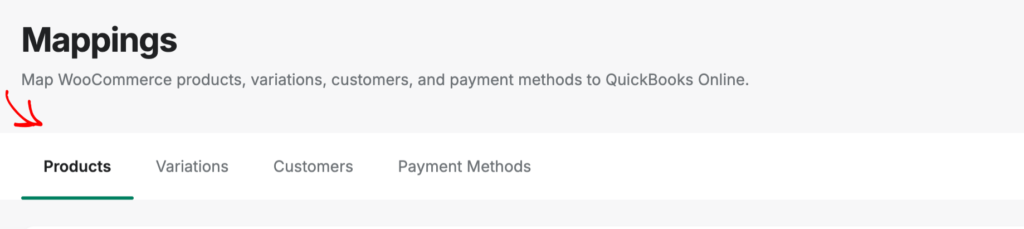
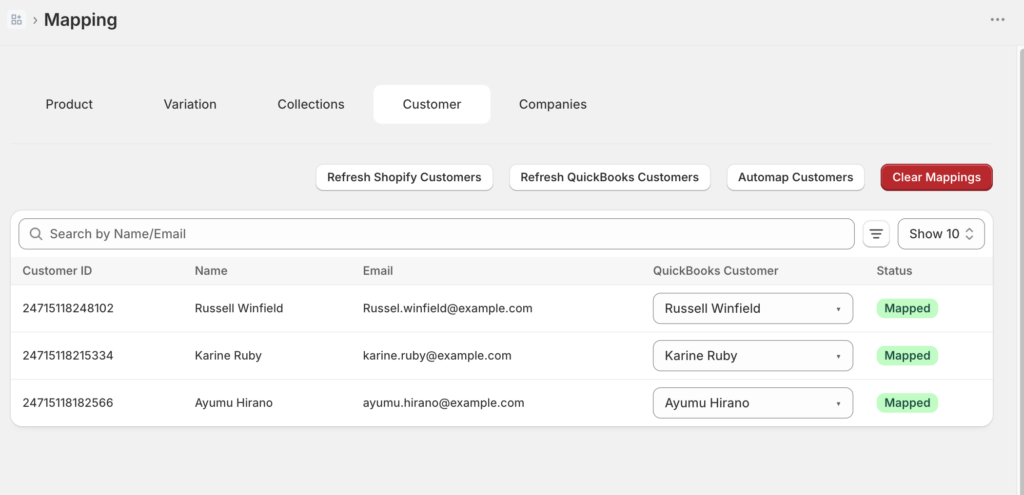
זו הסיבה שהתיקון הפעיל — בין אם אתם עושים זאת ידנית או באמצעות תוכנה — הוא תמיד שכבת תרגום: הצהרה מפורשת של "הדבר הזה של החנות מתאים לחשבון ה-QuickBooks הזה." ב-LedgerPort, השכבה הזו היא ממש דף. מסך המיפויים מפרט כל ישות שהחנות שלכם מייצרת — מוצרים, לקוחות, קודי מס, שיטות תשלום — ומשייך כל אחד מהם לחשבון או פריט QuickBooks. מעבר מיפוי אוטומטי מתאים את רובם לפי שם; אתם סוקרים את ההצעות וקובעים את החריגים באופן ידני. ברגע שהמיפוי קיים, כל הזמנה עתידית עוקבת אחריו מבלי לשאול אתכם.
קצב הנהלת החשבונות: יומי, שבועי, חודשי
הכרת חמשת ההבדלים היא המפה. שגרה היא מה ששומר אתכם עליה. הנהלת חשבונות למסחר אלקטרוני אינה חפירה הרואית רבעונית — כשעושים זאת נכון, זהו לולאה קטנה, משעממת וחוזרת על עצמה.
| קצב | זמן | מה שאתם באמת עושים |
|---|---|---|
| יומי | ~5 דקות | העיפו מבט על הזנת הבנק. אשר את ההזמנות של אתמול שנרשמו. בדקו שגיאות סנכרון או רישום בזמן שהן בנות יום אחד, לא תשעים. |
| שבועי | 15–30 דקות | קשרו את תשלומי השבוע להפקדות בנקאיות. נקו כל דבר שלא תאם — מוצר חדש, שיטת תשלום חדשה — לפני שהוא מצטבר. |
| חודשי | 1–2 שעות | הסגירה: התאימו את חשבון הפיקדון לאפס, סקרו את התחייבות מס המכירות, רשמו את עלות המכר, ואז קראו את דוח רווח והפסד כאילו אתם מתכוונים לכך. |
שני דברים גורמים לקצב הזה לעבוד. ראשית, המבנה: חשבונות ממוספרים, חשבון פיקדון, קטגוריזציה עקבית — הצד המשמעתי מכוסה במדריך שלנו שיטות עבודה מומלצות להנהלת חשבונות במסחר אלקטרוני, שמשתלב עם זה. שנית, הצפת שגיאות: השגרה נשארת קטנה רק אם בעיות מודיעות על עצמן במקום להסתתר.
זה החלק ששווה לראות באופן קונקרטי. ב-LedgerPort, כל רשומה שעוברת ל-QuickBooks מקבלת סטטוס ביומן הביקורת — מסונכרן, שגיאה, ממתין, או בהמתנה — כך שחמש הדקות היומיות הן ממש סריקה אחר אדום. ולכל סוג שגיאה יש תיקון מתועד, לא תעלומה: לקוח שלא נמצא, למשל, נפתר על ידי מיפוי הלקוח באופן ידני או על ידי הפעלת הגדרה אחת כך שכל הלקוחות בסגנון "הולכים ברגל" ינותבו ללקוח QuickBooks גנרי יחיד, ואז סנכרון מחדש של ההזמנות המושפעות.
הסגירה החודשית, בעולם הזה, מפסיקה להיות עבודת בילוש. חשבון הפיקדון מתאפס לאפס או שהוא לא — ואם הוא לא, היומן אומר לכם איזו רשומה היא האשמה.
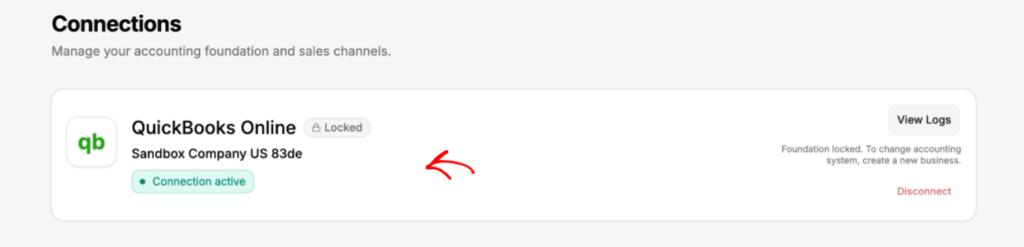
יש התנגדות הוגנת לכל זה: הקצב מניח צינור עובד בין החנות שלך לפנקס החשבונות שלך, וצינורות נשמעים כמו פרויקטי יישום. אז שווה לעבור על חמש עשרה הדקות הראשונות, כי הן הן הפרויקט. ניקח את נתיב לוח המחוונים של LedgerPort כדוגמה: צור חשבון - שם, דוא"ל, שם עסק, או המשך עם Google - ואז לחץ על חיבורים בסרגל הצד. QuickBooks תחילה: לחץ על Connect QuickBooks, היכנס בצד של QuickBooks, לחץ על Authorize, ואתה מוחזר עם הסטטוס הקורא מחובר. אזהרה אמיתית אחת כאן: חיבור הנהלת החשבונות לא ניתן להחלפה מאוחר יותר, אז אשר שאתה מאשר את חברת QuickBooks הנכונה. ואז החנות: לחץ על Connect Shopify Store, הזן את כתובת ה-URL שלך your-store.myshopify.com, אשר את ההתקנה, וזה קורא מחובר גם כן. בחזרה בלוח המחוונים, רשימת הבדיקה של ההגדרה כוללת בדיוק שלושה פריטים - חבר את החנות שלך, חבר את QuickBooks, אפשר סנכרון אוטומטי - ושניים מהם כבר מסומנים. הפעל את הסנכרון האוטומטי והלולאה למעלה יש משהו להפעיל עליו: חמש הדקות היומיות הופכות לסריקה אמיתית, כי יש עכשיו צינור המפיק סטטוסים לקריאה.
חשבונאות למוכרים אונליין בכל שלב
הכמות הנכונה של מכונות הנהלת חשבונות תלויה בנפח. הנה הגרסה הכנה של מה שנראית הנהלת חשבונות עבור מוכרי מסחר אלקטרוני בכל שלב - כולל היכן שהאפשרות הזולה היא באמת הנכונה.
מתחת לכ-30 הזמנות בחודש: משמעת מנצחת כלים
בנפח זה, גיליון אלקטרוני בתוספת מפת חמשת ההבדלים בתוספת הקצב השבועי היא מערכת לגיטימית. משטח השגיאות שלך קטן מספיק כדי לנהל ביד, והזמן שלך מושקע טוב יותר בהגעה ל-100 הזמנות.
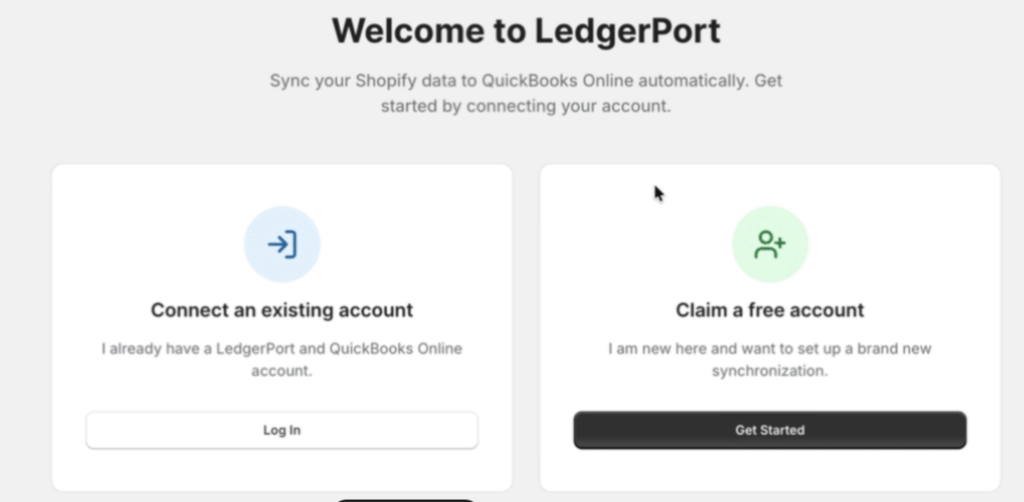
השדרוג היחיד שכדאי לקחת הוא אוטומציה חינמית, מכיוון שהיא קיימת: התוכנית החינמית של LedgerPort מכסה בדיוק את השלב הזה - חנות אחת, עד 30 הזמנות בחודש, סנכרון ידני מתי שתרצה. ההגדרה אורכת כ-15 דקות: התקן מחנות האפליקציות של Shopify, צור את החשבון שלך ישירות בתוך האפליקציה המשובצת, אשר את QuickBooks באמצעות OAuth (הסיסמה שלך לעולם לא נוגעת ב-LedgerPort), ודחוף את הסנכרון הראשון שלך כדי לאשר שהכל נוחת היכן שהמיפויים אומרים שהוא אמור.
פועל על WooCommerce במקום זאת? חמש ההבדלים זהים; המכניקה שונה. התחל עם מדריך הנהלת חשבונות של WooCommerce.
צמיחה (כמה מאות עד כמה אלפי הזמנות): אוטומציה של התרגום
אי שם אחרי כמה מאות הזמנות בחודש, הקצב הידני מפסיק להתאים לקופסאות הזמן שלו. הקישור השבועי הופך לערב; הסגירה החודשית הופכת לסוף שבוע. זה השלב שבו אוטומציה של שכבת התרגום מחזירה את עצמה הכי מהר - חנויות בנפח משמעותי מדווחות על חיסכון בשעות בכל שבוע. המדריך שלנו לאוטומציה של הנהלת חשבונות במסחר אלקטרוני מכסה מה לאטמט תחילה ומה להשאיר אנושי.
ריבוי חנויות ואומניצ'אנל: בעיית האיחוד
חנות שנייה - או ערוץ קמעונאי לצד החנות המקוונת שלך - לא מכפילה את עבודת הנהלת החשבונות; היא מציגה בעיה חדשה לחלוטין: שמירה על הפרדה מספקת בין ערוצים כדי להשוות ואיחוד מספק כדי להגיש. זו שאלה של הגדרה מבנית, המכוסה בהנהלת חשבונות למסחר אלקטרוני מרובה חנויות, ועבור מוכרים עם קמעונאות פיזית בתמהיל, תוכנת הנהלת חשבונות קמעונאית.
גיוס עזרה: מה להעביר, ומתי
ספרן או רואה חשבון שווה כל דולר אחרי שצינור הנתונים שלך נקי - איש מקצוע שעובד מנתוני תשלום מעוותים הוא הזנת נתונים יקרה. אם אתה מעריך עזרה חיצונית, החלק של שירותי הנהלת חשבונות בסקירה שלנו של תוכנות הנהלת חשבונות Shopify מכסה את ההעברה בכנות, ואם רואה החשבון שלך רוצה לתקנן את הצד שלו, הפנה אותו לLedgerPort עבור רואי חשבון.
מילה על תוכנה
מדריך זה נשאר בכוונה בצד של איך זה עובד, מכיוון שבחירת תוכנה לפני הבנת חמש ההבדלים היא הדרך שבה אנשים קונים את הדבר הלא נכון. כאשר אתה מוכן להשוות כלים: QuickBooks Online נשארת ספר הרשומות עבור רוב החנויות, ההחלטה האמיתית היא איזו שכבת תרגום יושבת בינך לבינה, והאפשרויות שונות בעיקר בהתאוששות שגיאות, הפרדת עמלות וטיפול במקרי קצה. עשינו את ההשוואה המלאה בסקירה של תוכנות הנהלת חשבונות למסחר אלקטרוני - כולל היכן כל מתחרה חזק באמת.
הגרסה שבה המפה על הקיר
חזור להפקדה של יום שלישי: 4,620$ לעומת 5,000$ במכירות. עם המפה, 380$ החסרים אינם חסרים כלל. בערך 150$ היו עמלות עיבוד - הבדל #2, שנרשם לחשבון הוצאות משלו. כ-200$ היו מס מכירות - הבדל #3, היושב בחשבון התחייבות מכיוון שהוא מעולם לא היה שלך. החזר של 30$ הגיע בחזרה משבוע שעבר - הבדל #4, בוטל בצורה נקייה עם העמלה התקועה שלו מטופלת. ההפקדה מקושרת לתשלום, התשלום מקושר להזמנות, וחשבון הניקוי קורא אפס.
זוהי כל הטרנספורמציה, והיא אנטי-קליימקטיבית באופן משביע רצון. אין סופי שבוע של חקירות פורנזיות. אין פחד מהשאלה "אתה יכול לשלוח לי את הספרים שלך?" - המייל של רואה החשבון שלך בסוף החודש מצטמצם לשורה אחת, והיא שורה נחמדה. לבעל החנות שקיבל הפתעות שוב ושוב לא היה חסר כישרון; היה חסר לו מפה עם חמישה ציוני דרך עליה. עכשיו היא על הקיר, וכל מספר מוזר שמופיע יש לו בית ידוע ותיקון ידוע.
כבר ראיתם כיצד שכבת התרגום נראית כמוצר אמיתי — דף המיפוי, יומן הביקורת, תהליך ההתחברות של שופיפיי תוך 15 דקות. אם בחנות שלכם יש פחות מ-30 הזמנות בחודש, התוכנית החינמית מכסה את כל מה שתואר במדריך זה, והתוכניות בתשלום מגיעות עם אחריות להחזר כספי תוך 14 יום, ללא שאלות. הגדירו את המיפוי פעם אחת, ותנו לכל הזמנה עתידית לעקוב אחריו →
