

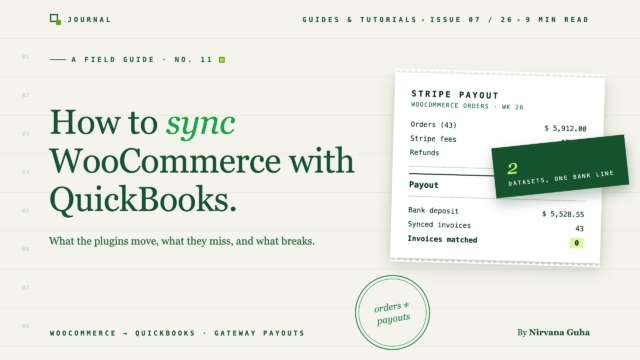
WooCommerceの注文をQuickBooksに取り込むのは簡単な部分です。このガイドは、プラグインのリストには記載されていない部分、つまり帳簿と銀行口座を一致させることについてです。
QuickBooks Onlineファイルには1,400件の新しい請求書があり、そのすべてが正確です。
コネクタをインストールし、いくつかのフィールドをマッピングして、それが機能するのを見守りました。すべてのWooCommerce注文が、顧客名、品目、配送、税金とともにQBOに届きました。プラグインの機能ページにあるあらゆる基準において、あなたのWooCommerce QuickBooks連携は完了していました。
次に銀行フィードを開きました。Stripeは月曜日に6,782.40ドルを入金し、PayPalは水曜日に1,911ドルを振り込みました。そして、その1,400件の請求書のどれ一つとして、どちらの金額とも一致しません。QuickBooksは現在、数十件の未処理請求書に対して単一の入金を照合するように求めていますが、それらの合計はいずれも一致しません。
もしあなたがこの状況に陥ったことがあるなら、おそらくほとんどのストアオーナーがするように、プラグインをアンインストールし、CSVエクスポートに戻り、このカテゴリ全体が壊れていると結論付けたことでしょう。壊れてはいません。しかし、あなたに販売されたもの、つまり注文同期は、実際の С問題ではありませんでした。
実際の С問題は、WooCommerceとあなたの銀行口座が2つの異なる現実を記述しており、注文同期をどれだけ行ってもそれらを翻訳できないことです。この記事では、その理由を数値とともに説明し、実際に照合される設定について説明します。
WooCommerceとQuickBooksを連携させる3つの方法
大まかに言って、すべての Сアプローチは3つの Сバケットのいずれかに分類されます。
1. 公式QuickBooksコネクタ。 Intuit独自のコネクタ(古いOneSaasエンジンをベースに構築)は、WooCommerceの注文を請求書または売上伝票としてQBOにプッシュします。安価で、Intuitによってサポートされており、基本的な注文コピーに関しては謳い文句通りの機能を果たします。それが知っているのは注文、つまり顧客が購入したものとWooCommerceが請求した金額です。
2. 専用同期プラグイン。 MyWorks Syncのようなツールは、さらに深く掘り下げます:双方向同期、詳細なフィールドマッピング、在庫と顧客の同期、リアルタイムプッシュ。あなたのビジネスが個々の請求書で運営されている場合(卸売アカウント、B2B顧客、特定の個人に関連付けられた支払い)、その注文ごとの忠実度は本当に価値があり、MyWorksはその点で強力です。もしあなたがその С経路を検討しているなら、LedgerPort vs. MyWorksで詳細な比較記事を書いています。
3. 手動CSVエクスポート。 WooCommerceから注文をエクスポートし、スプレッドシートを処理し、手動でQBOに仕訳を入力します。完全な С制御、 Сソフトウェア Сコスト Сゼロ、そして Сボリューム Сに応じて С月に С2 Сから С8 С時間 Сかかります С— Сそれに С加えて С疲れた С人間 Сが С3 С時間 С目に С犯す Сあらゆる Сエラー Сも С含まれます。
| 方法 | 移動するもの | コスト | 銀行口座と照合されますか? |
|---|---|---|---|
| QuickBooksコネクタ | 注文 → 請求書/領収書 | 低い | 単独では不可 |
| 同期プラグイン(例:MyWorks) | 注文、顧客、在庫 | ¥ – ¥¥ | 慎重な支払い設定でのみ |
| 手動CSV | あなたが入力したものは何でも | あなたの時間 | 自分で支払い計算をする場合のみ |
3つすべてに共通する点に注目してください。それらはすべて注文データから始まります。そして注文データは、あなたが必要とするデータセットの半分にすぎません。
注文レベルの同期がなぜ照合を妨げるのか
ここに構造的な問題があります。これは、どのプラグインを選択したかとは関係ありません。
WooCommerceは注文(顧客、商品、合計金額、税金)については把握していますが、Stripeが処理手数料としていくら差し引いたか、PayPalがいつ支払いバッチ処理したか、先週のどの返金が今週の入金と相殺されたか、またはチャージバック手数料が火曜日の支払い額にどう影響したかは把握していません。その情報は、完全に別のデータセットとして、完全に別のスケジュールで、支払いゲートウェイに存在します。
一方、銀行フィードは、ゲートウェイ側の話しか見ていません。つまり、ゲートウェイのタイムラインでバッチ処理された正味の入金です。そのため、同期ツールが注文をQBOにコピーすると、銀行口座では決して確認できないデータセットを忠実に記録していることになります。
実践的な例
例えば、あなたのストアが週末に96件の注文を受け付け、総額$7,200だったとします。WooCommerceはこれを3日間の別々の売上として報告し、注文レベルの同期はQBOに96件の請求書を作成します。
月曜日に、Stripeは1回の支払いを行います:
| Stripeの支払い — 月曜日 | 金額 |
|---|---|
| 週末の総売上(96件の注文) | $7,200.00 |
| 処理手数料(2.9% + $0.30 × 96) | −¥237.60 |
| 返金(先週の2件の注文) | −¥180.00 |
| 銀行への正味入金 | $6,782.40 |
QuickBooksには現在、$7,200の合計請求書が96件、金曜日、土曜日、日曜日に分散して記録されています。銀行フィードには、$6,782.40の月曜日の入金が1件記録されています。手数料の$237.60は、あなたの帳簿のどこにも存在しません。返金の$180は、今週のデータにない注文に対するものです。これらの96件の請求書のどの組み合わせも、その入金とは一致しません。計算が合わないのは、構造上当然です。
これをすべての支払い、すべてのゲートウェイ、すべての月で掛け合わせてください。そうすれば、1,400件の完璧な請求書と、それらのどれとも一致しない銀行フィードができあがります。
[画像:WooCommerceの注文データとStripeの支払いデータの2つの別々のストリームを示し、銀行フィードは支払いストリームにのみ接続されている — そして手数料と返金のタイミングが存在するギャップを示す図]
この時点で、ほとんどの人は次の3つのうちのいずれかにたどり着きます。簿記係を雇う必要があると判断する人もいれば、スプレッドシートに戻る人もいれば、問題がアーキテクチャにあると気づいてアーキテクチャを修正する人もいます。このセクションは、3番目のグループのためのものです。
「オープンソースなんだから、無料プラグインで対応できるはずだ」
それが合理的で、かつ間違っているという前提を直接名付けましょう。
WooCommerceはオープンソースであり、エコシステムにはあらゆるもののプラグインがあり、そのほとんどは無料または安価です。そのため、直感としては「無料のプラグインがQuickBooksも処理できるはずだ」となります。そして無料のプラグインは、プラグインが得意なこと — 注文データをあるデータベースから別のデータベースに移動させること — を処理できます。その部分は確かに解決済みの問題です。
しかし、照合はデータ転送の問題ではありません。それは、金額(総額対純額)、タイミング(注文日対支払い日)、および範囲(今週末の注文対先週の返金)について意見が異なる2つのデータセット間の*照合*の問題です。プラグインは、注文をより速く移動したり、フィールドをより正確にマッピングしたりすることで、それを修正することはできません。あなたはそれを間違って設定しませんでしたし、プラグイン開発者もそうではありませんでした。ツールは、理解した問題を解決しました。あなたが実際に抱えている問題は、ツールのモデルよりも大きいのです。
機能するアーキテクチャ:クリアリング口座、日次サマリー、手数料明細
その修正は、会計士が何十年も使用してきた構造をゲートウェイに適用したものです。3つのコンポーネント:ゲートウェイごとの*クリアリング口座*、注文ごとの請求書ではなく*日次サマリー*、およびすべての支払いにおける*明示的な手数料行*。ここに、ステップバイステップの手動設定を示します。
*各ゲートウェイのクリアリング口座を作成します。* QBOでは、*その他の流動資産*タイプの「Stripe Clearing」という口座、次に「PayPal Clearing」という口座、さらに追加のゲートウェイごとに1つ追加します。この口座は、顧客が支払ったがまだあなたの銀行に届いていないお金を表します。まさにそれなのです。
*個々の請求書ではなく、日次売上サマリーを投稿します。* 1日1回、ゲートウェイごとに1つのエントリを記録します:総売上、割引、発行された返金、配送料、および徴収された売上税。総額をクリアリング口座に貸方記入し、収入、配送料、および税金負債口座に借方記入します。あなたの損益計算書は、現在、1日ごとの収益を示しています。これは、税務準備と利益分析が必要とするすべてです。96件の孤立した請求書なしで。(収入および税金口座をゼロから設定する場合は、WooCommerce会計ガイドに完全な勘定科目表構造が記載されています。)
*支払いが入金されたら、仕訳として記録します。* 支払いの総額をクリアリング口座に貸方記入します。純預金額を当座預金口座に借方記入します。手数料の差額を「マーチャント処理手数料」という費用口座に借方記入し、返金取消を収入に対して投稿します。週末の例を使用します:Stripe Clearingに7,200ドルを貸方記入し、当座預金に6,782.40ドルを借方記入し、手数料に237.60ドルを借方記入し、180ドルの返金を収益に対して記帳します。すべてのドルに場所ができました。
*銀行フィードで預金と照合します。* 仕訳の銀行行は6,782.40ドルで、預金も6,782.40ドルなので、QuickBooksはワンクリックでそれらを照合します。この瞬間、全体の構造が報われます。照合は、調査ではなく確認になります。
*クリアリング口座の残高を監視します。* ゲートウェイで輸送中の金額、つまり数日分の売上、それ以上の金額にならない程度に、その残高は変動するはずです。着実に増加する残高は、手数料または返金がどこかで記録されていないことを意味します。この単一の数値はあなたの早期警告システムであり、優れたCPAが最初に確認するものです。
[画像:フロー図 — 日次サマリーエントリがStripe Clearing口座に流れ込み、次に支払い仕訳が当座預金(純額)と処理手数料(費用)に分割され、最後に銀行フィードとの照合が行われる]
これは手作業で行われ、有能な簿記担当者でもゲートウェイごとに週30〜60分かかり、各ステップでタイプミスが発生する可能性があります。しかし、構造は正しいです。そして構造とは、注文同期プラグインでは得られないものです。
LedgerPortでは、このアーキテクチャは設定ページです
もしその5つのステップが多くのジャーナル規律を必要とするように聞こえるなら、知っておく価値のある部分は次のとおりです。LedgerPortのWooCommerceプラグインでは、各コンポーネントは設定として存在します。Sync Configの[支払い]タブは、ストアでアクティブなすべての支払いゲートウェイを自動検出し、それぞれに独自の決済口座を割り当てます。設定していないものには、デフォルトの決済口座がフォールバックとして機能します。ゲートウェイごとの決済口座はジャーナル操作ではありません。ゲートウェイごとのドロップダウンです。
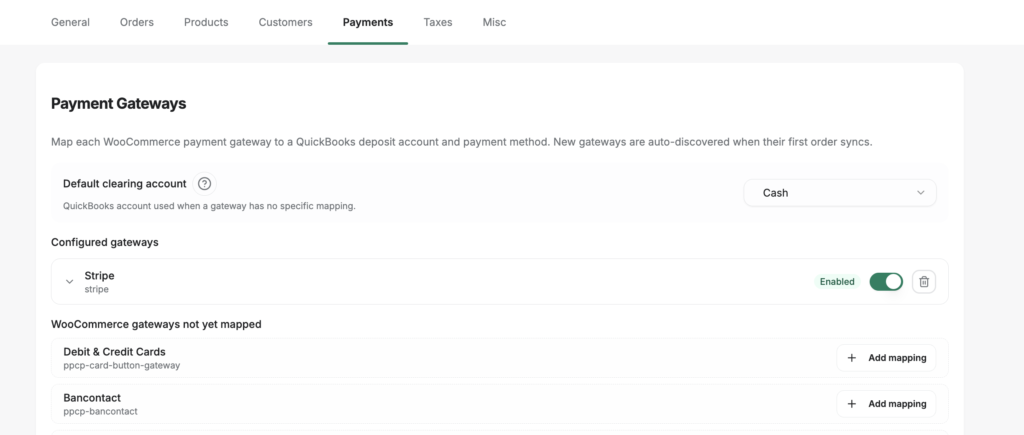
税金も同様の扱いを受けます。売上税は、指定したQuickBooksの負債口座に投稿され、丸め項目がWooCommerceの税金計算とQuickBooksの間のセント単位の違いを吸収します。これは、誰も警告してくれない調整の小さな問題です。注文の投稿方法は、さらに別のドロップダウンです。支払い済みの注文の場合は販売レシート、後で支払いが行われる場合は請求書、見積もりの場合は見積もりです。同期方法の分類はプラットフォームに依存しません。ドキュメント自体のガイダンスでは、1日あたり約100件以上の注文で、注文ごとの記録が簿記から沈殿物に変わる時点としており、これはまさに日次サマリーがその価値を発揮する場所です。
これらはどれも設定プロジェクトを必要としません。ドキュメントのFAQによると、すべてのタブには適切なデフォルト値が用意されており、ほとんどのストアはSync Configに一切触れることなく同期を開始でき、後で帳簿の要求に応じて設定を調整できます。
プラグインで十分な場合とそうでない場合
正直な答え:注文レベルのツールが適切な場合があります。
注文レベルの同期プラグインで十分な可能性が高いのは次の場合です:月に約100〜200件未満の注文で、ギャップを目視で確認できる場合。シンプルでまれな返金を行う単一のゲートウェイを使用している場合。または、請求書駆動型のビジネス(支払いと特定の顧客請求書が実際に結びついている卸売およびB2Bストア)の場合。最後のケースでは、注文ごとの同期はバグではなく要件であり、MyWorksのようなツールはまさにそのために作られています。
最後のケースについて、1つ明確にしておきます。これは、後方に取られるケースだからです。あなたのストアが請求書駆動型であるかどうかは、選択した同期ツールのプロパティではありません。それは、ストアレイヤーの上流で決定されます。WooCommerceストアは、卸売ロールを割り当て、B2B価格を適用し、承認されたバイヤーが条件付きでチェックアウトできるようにするものがなければ、請求書形状の注文を発行しません。通常、Wholesale Suite がそのように行われます。したがって、機能リストを読む前にストアを読んでください。ネットターム注文を生成している場合、支払い認識のある日次サマリーは、それらを単一の収益行に簡単に平準化し、ARの詳細を一緒に取得します。
支払い認識レイヤーが必要なのは次の場合です:複数のゲートウェイ(StripeとPayPalの組み合わせでほとんどのストアが境界線を越えます)を使用している場合。返金と異議申し立てが毎週発生する場合。注文ごとの入力が管理不能になるほどのボリュームがある場合。または、CPAが毎月帳簿を締め、銀行フィードが一致することを期待している場合。その時点で、注文データだけでは、どれだけうまく同期されていても、調整可能な帳簿を作成することはできません。
支払い認識ルートに傾いている場合、次に3つの実用的な異議が挙げられます:
「定期購入に対応していますか?」 LedgerPortは標準的なWooCommerceの注文および顧客データを同期し、サブスクリプションの更新はWooCommerceが作成する際に通常の注文として届くため、継続的な収益は同じパイプラインを流れます。特別な設定は不要です。
「同期がサイレントに失敗した場合はどうなりますか?」 リアルタイム同期はWooCommerceのWebhookを利用しており、WooCommerceは失敗した配信を自動的に再試行します。それでも何か見逃された場合は、wp-admin内の手動同期ページからオンデマンドでデータをプッシュできます。注文を再送信するためにサポートを待つ必要はありません。
「1つのアカウントで複数のストアを実行できますか?」 はい。接続された各ストアは、プランの制限に対して1つの接続としてカウントされ、接続ページに表示されます。その他の実用的な質問(HPOS互換性、認証情報の保存、必要なユーザーロール)については、WooCommerce向けLedgerPortの開始方法で回答しています。
同期レイヤーのエンジニアリングバーはクリアされるべきです
評価軸はもう1つあり、それはプラグインのリスティングには決して表示されないものです。ソフトウェアがストアに接続したとき、そして離れるときに何をするかということです。LedgerPortのプロビジョニングは自動的かつトランザクション的です。接続すると、読み取り専用のWooCommerce REST APIキーが作成されます。ストアを読み取りますが、書き込みはしません。そして、注文、製品、バリエーション、顧客、および払い戻しをカバーする13個の名前付きWebhookが登録されます。プロビジョニングステップのいずれかが途中で失敗した場合、既に完了したすべてが自動的にロールバックされるため、ストアが半構成のまま放置されることはありません。
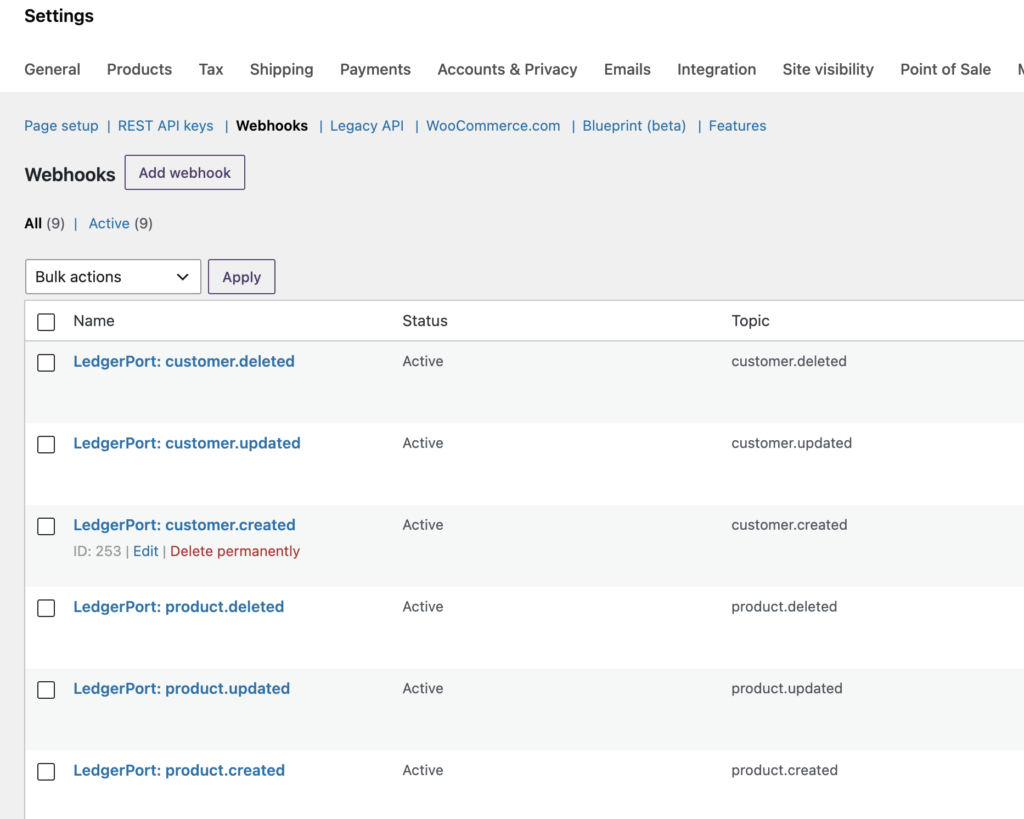
その他のセキュリティ体制も同様に確認可能です。認証情報は、サイト固有のWordPressセキュリティキーを使用してAES-256-CBCで暗号化されて保存されます。接続にはmanage_woocommerce権限(管理者およびショップマネージャー)が必要であり、LedgerPortは自分で作成したWebhookには一切触れません。切断も同様にクリーンです。作成したAPIキーとWebhookのみを削除し、ストアと注文はそのまま維持され、マッピングは再接続のために保持されます。最初の試行が失敗しても、何も失うものはありません。
同期がうまくいかない場合にも、同じ規律が示されます。障害はサイレントなギャップやPHP通知ではなく、文書化された修正がある名前付き分類です。期限切れのQuickBooksトークン(ドキュメントで最も一般的な同期エラーとして挙げられています)、マッピングされていない製品、重複エントリ、必須フィールドの欠落などです。各エラーには原因とその回復パスが記載されています。機能チェックボックスよりも、むしろそれが「プラグインは十分か」という本当の境界線です。回復不能で不可視な障害が始まる場所で終わります。
自動化された場合の様子
LedgerPortは、支払い認識レイヤーとして構築されており、WooCommerceとShopifyをサポートしています。ストアとゲートウェイに接続し、上記のアーキテクチャを自動的に実行します。毎日、ゲートウェイの清算口座に投稿されるサマリー、手数料が内訳された支払いジャーナル、銀行の明細と完全に一致する入金。設定は約15分で完了し、かなりの量のストアでは毎週数時間を節約できます。
WooCommerceのセットアップ全体を最初から最後までご紹介します。
プラグインをインストールします。 WordPress管理画面で、プラグイン » 新規追加に移動し、LedgerPortを検索して、今すぐインストール、次に有効化をクリックします。サイトにHTTPSが必要で、LedgerPortアカウントが必要です。 完全なインストールウォークスルーで、両方の前提条件をカバーしています。
セットアップウィザードを実行します。 起動後、LedgerPort はウィザードをフルスクリーンオーバーレイとして自動的に開きます。Connect to LedgerPort をクリックして開始してください。
接続を承認します。 app.ledgerport.com にリダイレクトされ、ログインし、接続するビジネスを選択して Authorize をクリックします。その後、WordPress 管理画面に直接戻ります。
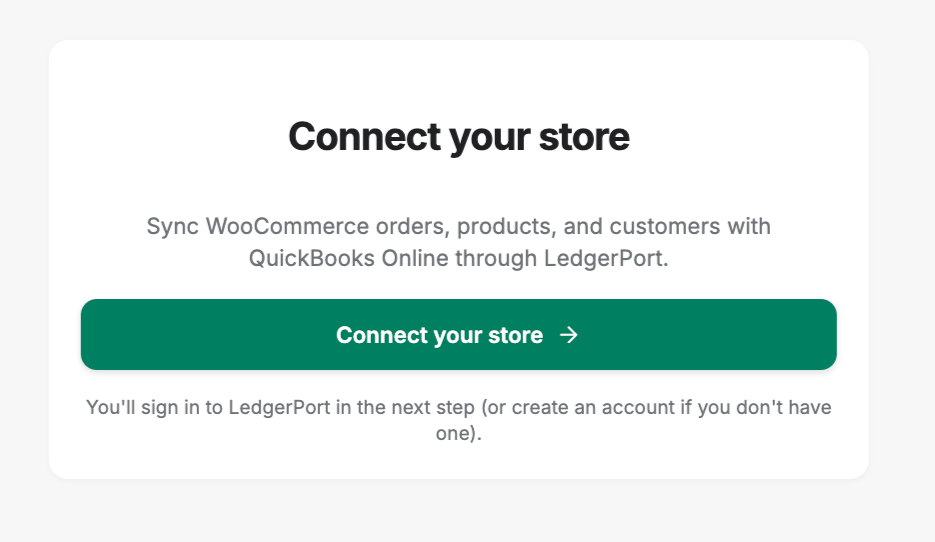
- プロビジョニングを実行します。 LedgerPort は読み取りアクセス権を持つ WooCommerce REST API キーを作成し、注文、返金、製品、顧客の Webhook を登録し、接続を確認します。いずれかのステップが失敗した場合、すべて自動的にロールバックされます。設定が不完全なストアは残りません。成功すると、LedgerPort ダッシュボードに接続された状態で表示されます。
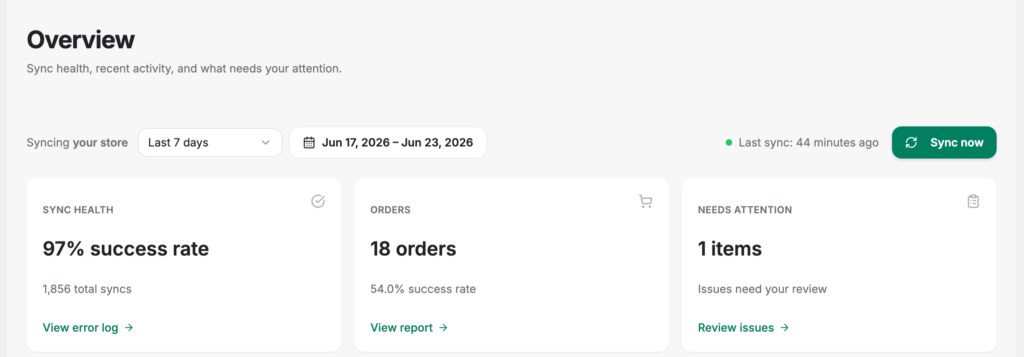
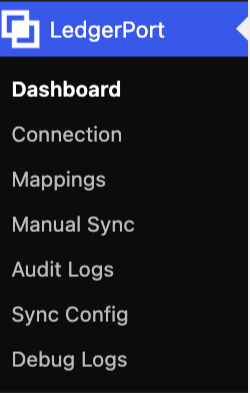
そこから、すべてが wp-admin 内の LedgerPort メニューの下に表示されます - ダッシュボード、マッピング、手動同期、監査ログ - そのため、配管を確認するために WordPress を離れる必要はありません。また、前のセクションの決済口座構造は、個別の設定プロジェクトではなく、日次サマリー同期方法であり、5つのドロップダウンのうちの1つで、一度選択されます。
そして、Webhookが失敗した場合 — それは必ず起こります
リアルタイム同期はWebフックに依存しており、Webフックはその性質について正直です。遅かれ早かれ、配信は失敗します。ほとんどの無料プラグインが答えられない質問は、次に何が起こるかです。ここでは、答えにはレイヤーがあります。WooCommerce自体は、失敗したWebフック配信を自動的に再試行します。それでも漏れたものは消えず、レコードごとの同期ステータスとして表示され、wp-admin内の手動同期ページから回復できます。
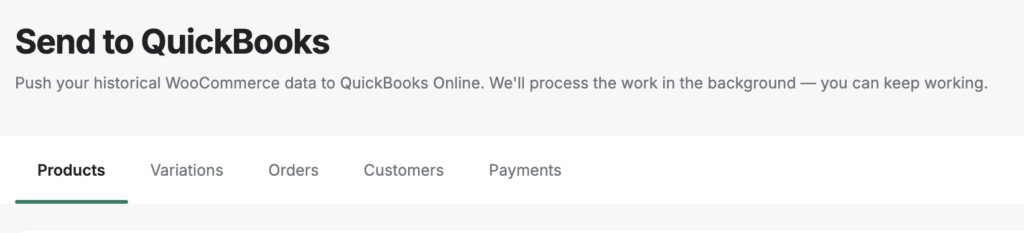
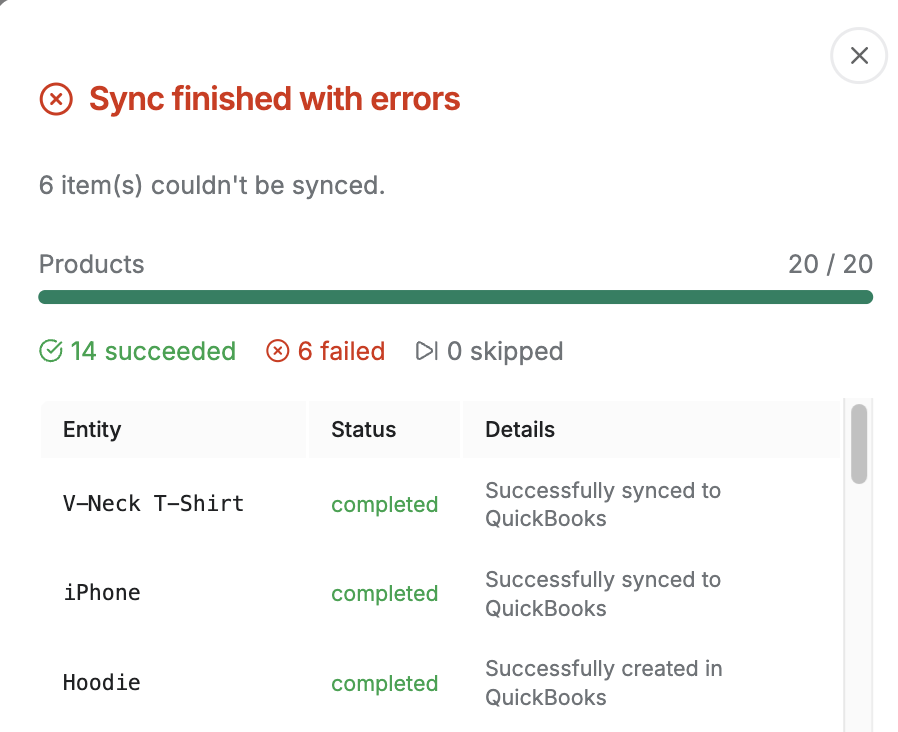
ワークフローはチェックボックスの選択、次に選択したものをプッシュまたはすべてプッシュ、次に各レコードの着陸または失敗を示すライブ進行状況モーダルです。単なる赤いアイコンではなく、理由が添付されています。障害後のキャッチアップを安全にする詳細:プッシュは重複しないことが保証されています。すでに同期されたレコードは自動的にスキップされ、失敗したレコードを再プッシュすると、QuickBooksエントリが2回投稿されるのではなく、作成または更新されます。悪い週の後に「すべて選択、すべてプッシュ」しても、収益を二重に投稿することはできません。
FAQから、ここにあるべき2つの追加情報があります。プラグインは、追加の設定なしでWooCommerceの高性能注文ストレージと完全に互換性があります。また、上記でカバーしたように、WooCommerceサブスクリプションの更新は、通常の注文と同じパイプラインで処理されます。履歴のバックフィルもこの同じページを使用します。つまり、「今年はすべてスプレッドシートで行ってきた」というのは、インポートであり、データ入力プロジェクトではありません。年を通してページをめくり、プッシュし、ステータスが緑に変わるのを見てください。
トレードオフは、率直に言って次のとおりです。LedgerPort は要約します。個々の顧客レコードを同期したり、QBO で在庫を管理したりしません。ビジネスで顧客ごとの請求書が必要な場合は、MyWorks のようなツールがより適しており、比較ではその点を正直に説明しています。
料金は無料から始まります - 月間 30 件の注文まで、1 ストア、オンデマンドの手動同期 - そのため、支払い前に実際の入金が照合されるのを確認できます。成長プランは月額 $25 からで、毎日の自動同期が含まれます。スケールプランは月額 $67 からで、リアルタイム同期に加え、この投稿で説明している入金ジャーナルと手数料処理が含まれます。有料プランにはすべて、14日間の無条件返金保証が付いています - トライアルではなく、全額返金、質問なし。
柔軟性の代償
WooCommerce に関する悲喜劇的な真実をここに示します。それは素晴らしいものであると同時に、帳簿を台無しにするものでもあります。
任意のゲートウェイ、任意のチェックアウトプラグイン、任意のサブスクリプション拡張機能、任意の地域別支払い方法を実行できます。そして、そのエコシステムはすべてをサポートします。その柔軟性こそが、あなたがプラットフォームを選択した真の理由です。しかしそれはまた、あなたの財務データが、同じ言語を話すことに同意したことのない 4 つまたは 5 つのシステムから発生し、会計レイヤーがそれらのすべての言語を受け継ぐことを意味します。
プラグインエコシステムは、構造というものはオープンエコシステムが強制しないものであるため、それをあなたのために構造化することはできません。したがって、構造は会計レイヤー、つまり決済口座、日次サマリー、手数料明細に存在する必要があります。これは、他のすべての柔軟性のために支払う税金であり、注文同期がそれを支払ってくれると期待するのをやめれば、公正な価格です。
オープニングからの1,400件の請求書は間違っていませんでした。それらは、あなたの銀行が決して尋ねなかった質問に答えていただけです。あなたの帳簿に正しい質問に答えてほしい場合は、WooCommerceストアをLedgerPortに接続してください — 無料プランでは最初の支払いまでカバーされ、入金が一致した瞬間に、アーキテクチャが機能していることがわかります。
