

毎週月曜の朝、いつも同じことが起こります。
銀行口座を確認します。Shopifyからの支払い(ペイアウト)が入金されています — $4,312.87。QuickBooksを開きます。週末の売上は$4,891.00と表示されています。両方の数字をしばらく見つめます。確認のためにShopifyを開きます。数字はまだ違っています。
もう2年もこうしています。経理担当者に尋ねました。Googleで検索しました。会計士に尋ねたところ、差額を手動で照合するように言われました。毎月そうしていますが、翌月には差額が異なります。時には$200、時には$900です。ある四半期には$3,000を超えましたが、どこに消えたのか今でも説明できません。
実は、何も間違っていないのです。
Shopifyでもありません。QuickBooksでもありません。あなたでもありません。あなたがずっと見つめてきた差額はエラーではなく、どちらも真実を伝えていると思っている2つのシステム間の構造的な不一致なのです。そして、どちらも真実を伝えています。
Shopifyの支払い(ペイアウト)の仕組み
Shopifyは会計システムではありません。決済処理機能を内蔵したeコマースプラットフォームであり、銀行に送金される金額はそのことを反映しています。
Shopifyが口座に資金を入金する際、それは総売上を送っているわけではありません。それは、Shopifyが請求するすべてのものを差し引いた残りの金額を送っているのです:
- 取引手数料(Shopify Paymentsの処理手数料 — 通常、取引あたり2.4〜2.9% + 30セント)
- 支払い期間中に発行された返金
- チャージバックによる控除と紛議中の保留金
- リザーブ(保証金)の留保(新規ストアやチャージバックリスクが高いストアで一般的)
- Shopify経由で請求されるアプリの料金
Shopifyはこれらすべてを1〜3営業日のローリングウィンドウで集計し、すべてを差し引いて、単一の金額をあなたに送ります。その金額は正確です。それは、請求された金額を正確に差し引いた、あなたが稼いだ正確な金額です。計算は正しいです。
しかし、それは総収益から5つの異なるカテゴリーの控除を差し引いたもので、1つの項目にまとめられ、複数日の取引をカバーしていますが、銀行の明細書にはその詳細が一切表示されません。
実際の支払い明細
両方の数字 — $4,891と$4,312.87 — は完全に正しいです。しかし、あなたの銀行にはそのうちの1つしか表示されません。
QuickBooksが見ているもの
QuickBooks Onlineは会計システムです。売上が発生した時点で、顧客が支払った総額として収益を記録します。Shopifyの手数料体系、返金のタイミング、または支払いが複数日をカバーしているという事実を自動的に認識しません。
ShopifyのデータをQuickBooksに手入力している場合、あなたは次のどちらかです:
A) 総売上高を入力している — この場合、収益は正しく見えますが、現金残高が銀行への入金と一致せず、手数料がどこに行ったのか手動で推測することになります。
B) 入金額を入力する — この場合、現金は一致しますが、出金から差し引かれたすべて手数料、返金、調整によって収益が過少計上されます。
どちらの選択肢も正しくありません。どちらも、翻訳レイヤーを持っていない人が行うことです。
簿記係が間違いを犯しているわけでも、会計士が何か明白なことを見落としているわけでもありません。2つのシステムは異なる言語を話しており、あなたは手作業でそれらの間の翻訳を試みています。
どちらのシステムも間違っていない
これは、答えになっていないように聞こえるため、人々が最初に聞いたときに戸惑う部分です。
Shopifyは、純粋な出金を送信することで正しいことをしています。それが決済処理業者が行うことです。彼らは資金の流れを処理し、手数料を差し引き、残りをあなたに送ります。
QuickBooksは、総収益を記録することで正しいことをしています。それが会計システムが行うことです。顧客が支払った金額を追跡します。なぜなら、それが損益計算書の正確性、税務報告、および実際の事業実績の理解のために必要なことだからです。
問題は、どちらかがあなたに嘘をついているということではありません。問題は、それらが取引の異なるレベルで異なる問題を解決していることであり、その間を翻訳するものが何もないことです。
SHOPIFYが見ているもの
純粋な出金:4,312.87ドル
売上総額から手数料、返金、調整を差し引いたもの — キャッシュフローに正確。
QUICKBOOKSが必要とするもの
総収益:4,891.00ドル + 個別費目の控除
各項目を正しい勘定科目にマッピング — 損益計算書と税務に正確。
あなたが必要としているのは、そのギャップを手動で調整するためのより良い方法ではありません。あなたが必要としているのは、両方の言語を話すものです。Shopifyから総売上を受け取り、各手数料の控除をQuickBooksの正しい経費勘定にマッピングし、出金を正しい取引に一致させ、ギャップを自動的に埋めるものです。
実際には差額を解消するもの
出金の不一致を解消するには2つの方法があります。
手動での照合とは、Shopifyの支払いレポートをエクスポートし、すべての取引を相互参照し、手数料、返金、調整などの各項目をQuickBooksの個別の明細行として入力することです。正しく行えば、毎月3〜5時間かかります。急いで行えば、新たなエラーが発生します。収益が100万ドル〜500万ドルのストアオーナーのほとんどは、この問題に年間30〜60時間を費やしており、それでも完全にクリーンな帳簿にはなっていません。手作業で行うのであれば、完全なステップバイステップの方法は、QuickBooksでShopifyの支払いと照合する方法のガイドに記載されています。
自動照合とは、翻訳レイヤーの作業を代行するツールを使用することです。Shopifyから各出金をプルし、その項目(総売上、取引手数料、返金、調整)に分解し、それぞれを正しいQuickBooks勘定にマッピングし、仕訳を自動的に記帳します。
LedgerPortは、介入なしで毎日これを行います。出金が銀行に振り込まれると、QuickBooksを開く頃には、エントリはすでにそこにあります。正しい勘定科目に分解され、正しい期間に一致し、会計士がレビューできる状態になっています。
何時間もかけて、かろうじて埋められたその差額は、自動的に解消されます。会計士に説明できなかったその理由は、仕訳入力に記載されています。
注文が現れた時ではなく、お金が動いた時に収益を記録する
支払いギャップの一部は純粋なタイミングの問題です。同期ツールがShopifyに注文が表示された瞬間に(支払いがまだ保留中または承認済みの場合)注文を記録すると、QuickBooksは支払いが発生する前に収益を表示します。帳簿がお金の動きより先行し、ギャップが実際よりも大きく見えます。
LedgerPortでは、収益が記録される瞬間は設定で決まります。Sync Config » Orders » Sync Triggersで、6つの支払いステータス(Paid、Authorized、Partially Paid、Pending、Refunded、Partially Refunded)のうち、どのステータスが注文の同期を資格付けるかを選択します。これに3つの出荷ステータスが加わります。注文は、各グループから1つの条件を満たした場合にのみ同期されます。
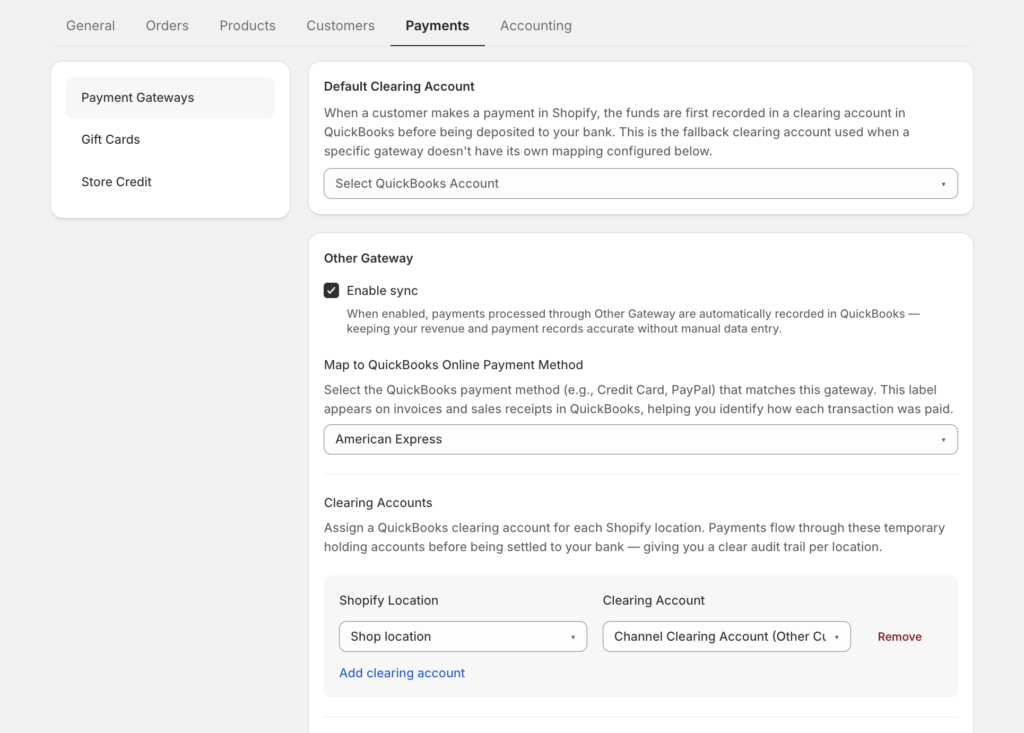
ほとんどのストアの公式推奨設定:支払い済み(Paid)のみ、未出荷(Unfulfilled)と出荷済み(Fulfilled)の両方にチェックを入れる — これにより、配送状況に関わらず、実際にお金が動いた瞬間にQuickBooksが収益を記録します。ドキュメントでは、上記の理由から保留中(Pending)は「注意して使用」とフラグが付けられており、無効化された注文はデフォルトで除外されるため、キャンセルは収益として表示されません。
支払い済みのみ(Paid-only)のトリガーを使用すると、帳簿上のすべてが回収されたお金を表します。これが、そもそも支払いが一致するための前提条件です。
同期されなかった返金
ここに不一致の典型的な例があります:顧客が返金を受け、Shopifyがその返金を支払いから差し引きますが、返金が同期されなかったため、QuickBooksは依然として全額の売上を表示します。エラーも警告もありません。帳簿が静かに銀行から乖離していきます。
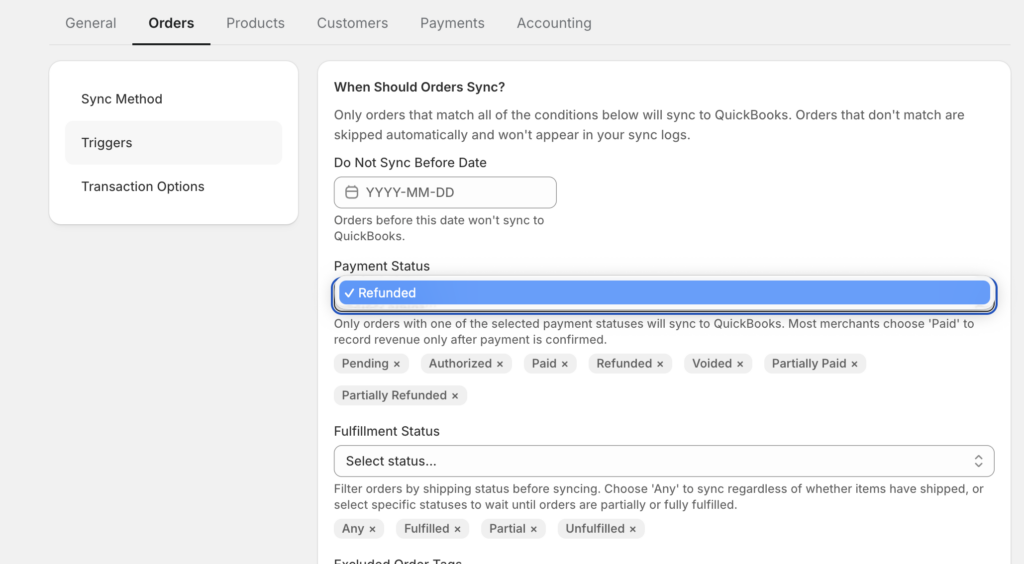
修正は2つのチェックボックスで行います。Sync Config » Orders » Sync Triggersで、返金済み(Refunded)と一部返金済み(Partially Refunded)にチェックを入れます。どちらにもチェックが入っていない場合、返金は同期から静かに除外されます — これが、一度統合を設定して見直さなかったストアで、この種の一致しない問題がしつこく発生する理由です。
有効にすると、同期された返金はQuickBooksに実際の会計ドキュメントを作成します。Sales Receiptsとして同期された注文の場合はRefund Receipt、Invoicesとして同期された注文の場合はCredit Memoとなり、元のトランザクションにリンクされ、税金と送料はShopifyと完全に一致するように個別の明細として分割されます。一部返金は、返金された金額のみのドキュメントを生成します。元の販売はそのまま残ります。
1つの注意点:返金は元の注文に添付されるため、元の注文はすでにQuickBooksに存在している必要があります。しかし、それが唯一の要件です。2つのチェックボックスにより、支払いの不一致のカテゴリ全体が解消されます。
届かなかった注文を見つける
3番目の隠れたギャップソース:同期から完全にエラーになった注文。マッピングされていない商品、請求フィールドの欠落、期限切れのQuickBooks接続など、これらはいずれもQuickBooksの収益に穴を残し、販売が存在しないため、どの支払いも調整できません。
重要なのは、これらの失敗が名前を持ち、サイレントではないことです。LedgerPortでのすべての同期試行には、同期済み、エラー、保留中、または一時停止中のいずれかのステータスが付与されます。監査ログをステータス=エラーにフィルタリングすると、注意が必要なすべてのものが表示される30秒のチェックになります。エラーには、「商品がマッピングされていません」、「必須フィールドがありません」、またはドキュメントで最も一般的な同期エラーとして指摘されている期限切れトークンの「接続が正常ではありません」といった理由が付随します。
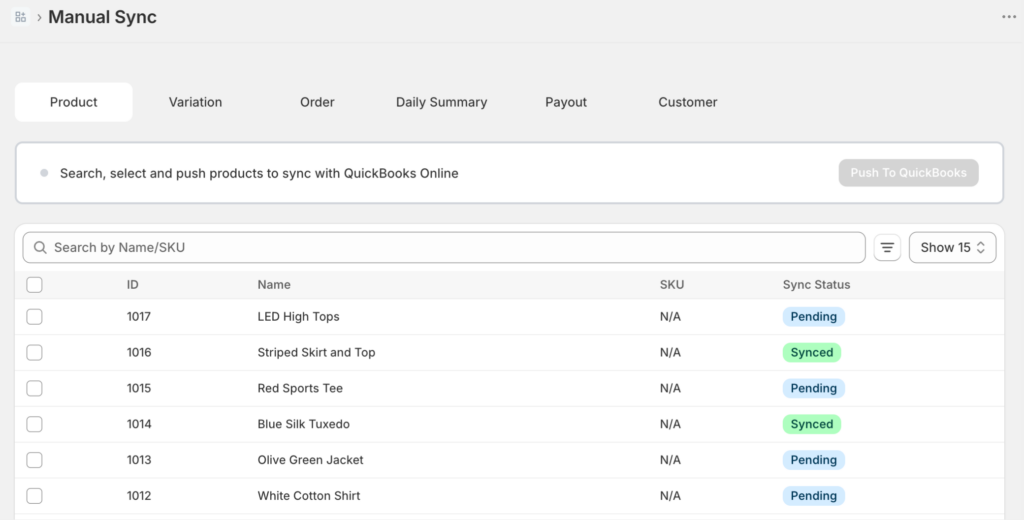
支払いギャップを閉じることは、一部は構造(アカウントのクリア、手数料のマッピング)であり、一部は完全性です。完全性はフィルターのクリックです。
LedgerPortのSync Config Orders画面で、RefundedおよびPartially Refundedの支払いステータスタートリガーチェックボックスが有効になっています
この状況の皮肉な点は、何かが壊れていると2年間思い込んでいたことです。Shopifyの計算が間違っていたのか、QuickBooksがずれていたのか、経理担当者が何かを見落としたのか、あるいはあなたが何か間違ったことをしていたのか。
あなたは間違っていませんでした。彼らも間違っていませんでした。
両方のシステムは、常に正しく機能していました。ただ、それらを連携させるものがなかっただけです。
