

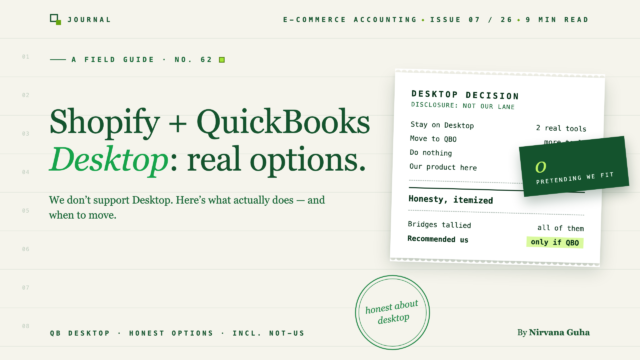
A guide to the Shopify–Desktop question written by a vendor who can't sell you anything on this page — which is exactly why it might be useful.
You've been at this for forty minutes. Every "best Shopify QuickBooks integration" list looks promising until you open the requirements page, and there it is, in small print or a pricing-table footnote: QuickBooks Online only. Tab after tab. You start wondering whether you're searching wrong.
You're not. So let's put the disclosure where it belongs — at the top, not the footer: we make LedgerPort, a Shopify and WooCommerce → QuickBooks sync tool, and LedgerPort does not support QuickBooks Desktop. Not with a workaround, not on a higher tier, not "coming soon" — we don't support it. If you run Desktop and you keep running Desktop, we cannot be your answer, and nothing in this post changes that.
Which makes this a strange post for us to write, and a useful one for you to read. We have no product to steer you toward for most of what follows. What we can do is give you the map most vendors won't: why almost every modern sync tool made the same QBO-only choice we did, what your three real options for Shopify + QuickBooks Desktop actually are, and how to decide between them without anyone's sales agenda in the room.
Why Almost Every Modern Sync Tool Is QBO-Only
This isn't laziness or fashion. It's architecture.
QuickBooks Online is a cloud product with a cloud API. A sync tool authenticates once, and from that point its servers can talk to your ledger directly — posting journal entries, checking for duplicates, updating mappings — with no software installed on your machine and no dependency on whether your computer is on. One integration works identically for every customer, and the vendor can monitor, fix, and improve it centrally.
QuickBooks Desktop is the opposite shape. Your books live in a company file on a local machine or a hosted server. There is no cloud door for a SaaS tool to knock on. Integrating means installing and maintaining a local connector that sits next to the company file and brokers every exchange — which drags in operating-system quirks, Desktop version compatibility, file locking, permissions, and an IT support surface that scales with every customer's individual setup.
For a vendor, that's not one integration; it's a long-term commitment to a fundamentally heavier kind of engineering and support. Most modern sync tools — ours included — looked at that commitment and declined it, betting instead on the platform Intuit itself is visibly investing in. The result is the wall you've been hitting all evening: a crowded, competitive ecosystem of QBO sync tools, and almost nobody serious left on the Desktop side.
Here's the Lie hiding in those forty minutes of tabs: "There must be a slick modern sync tool for Desktop — I just haven't found it yet." There isn't a shelf of them. The truth is that your decision isn't really about picking a sync tool at all. It's about picking a ledger platform first — and once you see it that way, you have exactly three real options.
Option 1: Webgility — the Serious Desktop-Supporting Tool
If you're staying on Desktop and you want maintained, supported software doing the Shopify translation, the shortlist is roughly one name long: Webgility.
That deserves plain credit. While the rest of the category (again: us included) went QBO-only, Webgility kept investing in Desktop and Enterprise support. If your business runs on Desktop for sound reasons — and plenty do — Webgility isn't just the best option; it's close to the only serious one.
Know what you're buying, though. Webgility is not a lightweight payout translator — it's a broader operations platform spanning orders, inventory, and accounting, and it's priced and implemented like one. On Desktop specifically, expect the integration to involve a locally installed component talking to your company file. That's the nature of Desktop, not a Webgility flaw — it's precisely the hard work everyone else declined — but it means setup is a project rather than an afternoon, and it rewards planning and onboarding help.
We've written up the full picture in our Webgility review — an honest one, conflict of interest declared in paragraph two — and a direct LedgerPort vs. Webgility comparison for anyone weighing the Desktop-vs-QBO fork explicitly. The short version: for a committed Desktop shop, Webgility earns the buy. Check their current pricing directly; published numbers in any review go stale.
Option 2: Manual Workflows and IIF Imports
The do-it-yourself path exists, and at low volume it's genuinely workable. It comes in two flavors.
Manual journal entries. For each Shopify payout, you export the payout report, break the deposit into its components — gross sales, refunds, Shopify fees, taxes — and post one summarized journal entry into Desktop by hand. This is the same summarized-entry structure a good sync tool would post automatically; you're just being the sync tool. At a handful of payouts a month, it's an hour or two of careful work. The failure mode isn't the concept — it's consistency. The month you skip becomes the quarter you dread.
IIF imports. Desktop's native import format, IIF, lets you bring transactions in as files instead of keystrokes. You export from Shopify, transform the data into IIF's layout — usually via a spreadsheet template or a small conversion utility — and import. Two honest warnings. First, IIF is an old format with minimal validation: Desktop will import what you give it with little protest, and a malformed file posts malformed transactions with no friendly undo. Back up the company file before every import; that's not paranoia, it's the standard operating procedure. Second, the template you build isn't a one-time cost. Shopify's report columns shift, your fee structure changes, you add a sales channel — and the mapping breaks quietly, which is worse than breaking loudly.
The real price of Option 2 is maintenance. The system works exactly as well as the person running it, every single month, forever. If that person is you, price your hours honestly — it's the same time-times-frequency math that makes automated bookkeeping pay for itself on the QBO side, with an extra fragility tax on top.
Option 3: Migrate to QuickBooks Online
The third option is to stop fighting the platform gap: move the ledger to where the tooling is.
When it's right: you're on Desktop by inertia rather than dependency (more on that distinction below), your accountant is comfortable in QBO or already works there with other clients, and the thing you actually want — automated, accurate Shopify sync with minimal IT — lives almost entirely on the QBO side of the wall.
What migration involves, at a process level:
- Pick a cutover date. The start of a fiscal year or quarter keeps your reporting clean and gives your accountant one unambiguous "before" and "after."
- Clean up the Desktop file first. Reconcile accounts, resolve stale open transactions, prune your lists. Migration copies your mess as faithfully as your data.
- Run the migration. Intuit maintains its own Desktop-to-Online migration tooling, and it moves the core of a company file — check Intuit's current migration resources for exactly what converts and what doesn't in your version, because the specifics change and they're the authority on their own tool.
- Verify against the old file. Compare balance sheet and P&L in both systems as of the cutover date before you trust the new ledger.
- Parallel-run a month if you're cautious, then involve your accountant early — ideally before step one, since they may have migrated a dozen files and will know where yours will snag.
What becomes possible after: the entire modern sync ecosystem opens up. Summarized payout entries posted automatically, fees separated from gross sales, deposits that match to the cent — the whole category of tooling you spent forty minutes discovering doesn't exist for Desktop. We've mapped that landscape honestly in our best Shopify accounting software roundup, competitors included.
Migration is real work — call it a focused week plus a month of double-checking, not an afternoon. But it's work you do once, against a maintenance cost you'd otherwise pay monthly.
Who Should Genuinely Stay on Desktop
No FUD here: QuickBooks Desktop is capable software, and for some businesses it's the correct choice. You should probably stay if:
- You depend on Desktop-specific features. Advanced inventory workflows in Enterprise, assemblies and manufacturing builds, granular job costing, industry-specific editions — if these run your operation, QBO's equivalents may not match them, and no sync tool is worth losing your operational backbone.
- Your accountant's practice is built around it. If your firm delivers excellent work in Desktop and your engagement depends on their workflows, that relationship may be worth more than tooling convenience.
- Your environment demands local control. Some businesses have connectivity, policy, or data-locality reasons for keeping the ledger on their own machines. Those reasons don't expire because the software industry moved to the cloud.
If you're in this group: you're not behind, you're not a laggard, and your path is Option 1 or Option 2 above — most likely Webgility if volume justifies software, manual workflows if it doesn't.
You're probably on Desktop by inertia if none of those apply — the file started in 2016, "we've always used it," and nobody can name a Desktop-specific feature you'd actually miss. Inertia is human and the migration hassle is real. But you're paying for that inertia every month, in either Webgility-scale tooling for a simple sync need or in manual hours, to stay on a platform you're not really using the Desktop-ness of.
The Honest Bottom Line
You came here looking for a sync tool. What you actually found is a platform decision wearing a sync tool's clothes.
If Desktop is load-bearing for your business, stay, and go evaluate Webgility — it's the serious option, and we say that as a competitor with nothing to gain. If you're small enough that an hour of careful monthly journal entries covers it, Option 2 is legitimately fine. And if the audit of that last section found only inertia, the migration week is probably worth more than another year of workarounds.
Only in that third case do we re-enter the picture. If you land on QuickBooks Online, the sync problem you started tonight's search with becomes the easy part — it's what tools like ours do all day, and you can judge how we stack up against the field in the ecommerce accounting software guide or head-to-head in LedgerPort vs. Webgility. Until then, you don't need us. You need the right ledger first.
That's the whole map. Three options, no ghost of a fourth — and now the forty minutes of tabs can close.
