
Shopify Payments konsoliderar din butiks intäkter till periodiska utbetalningar som sätts in direkt på ditt bankkonto. LedgerPort spårar dessa utbetalningar och synkroniserar dem till QuickBooks Online så att dina böcker korrekt återspeglar dina faktiska kontantinsättningar. Fliken Utbetalning på sidan Manuell synkronisering låter dig granska alla hämtade utbetalningar och skicka dem till QuickBooks vid behov.
Den här fliken är endast tillgänglig för Shopify-anslutningar. WooCommerce-anslutningar har ingen flik för utbetalningar.
Gå till LedgerPort » Manuell synkronisering och klicka på fliken Utbetalning.
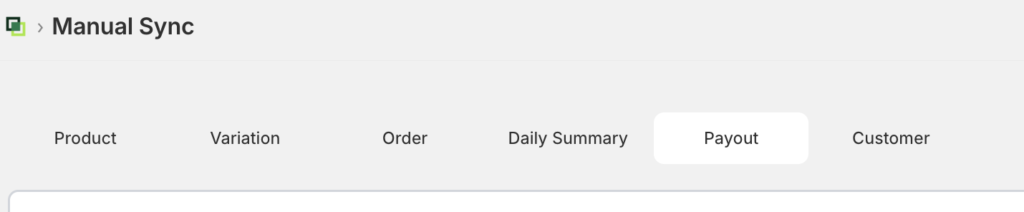
Fliken Utbetalning
Tabellen listar alla utbetalningsposter som LedgerPort har hämtat från din Shopify-butik. Varje rad representerar en Shopify Payments-insättning och visar:
- Utbetalningsdatum: datumet då utbetalningen utfärdades av Shopify
- Belopp: utbetalningsbeloppet formaterat i din företagsvaluta
- Synkroniseringsstatus: om utbetalningen har skickats till QuickBooks
Synkroniseringsstatusvärdena är desamma över alla flikar för manuell synkronisering:
| Ikon | Status | Vad det betyder |
|---|---|---|
| Grön bock | Synkroniserad | Framgångsrikt skickad till QuickBooks |
| Guldfärgad klocka | Väntar | Köad eller pågående |
| Röd X | Misslyckades | Det senaste push-försöket stötte på ett fel |
| Grå pil | Hoppades över | Undantagen av inställningar för synkroniseringskonfiguration |
| Guldfärgad paus | I vänteläge | Kommer inte att synkroniseras förrän spärren är borttagen |
Om tabellen är tom, klicka på Uppdatera för att hämta de senaste utbetalningarna från din Shopify-butik.
Skicka utbetalningar till QuickBooks
- Markera rutan bredvid varje utbetalning du vill skicka. För att välja alla rader på den aktuella sidan, markera rutan i kolumnrubriken.
- Klicka på Skicka i verktygsfältet. Knappen visar antalet valda utbetalningar.
- En bekräftelsedialogruta öppnas. Granska antalet och bekräfta. När överföringen är klar, klicka på Stäng. Tabellen uppdateras med uppdaterade synkroniseringsstatusar. Utbetalningar som redan har statusen Synkroniserad hoppas över automatiskt om de inkluderas i en överföring.
När ska man använda utbetalningsmappning
Initial historisk import: efter att ha anslutit LedgerPort till din Shopify-butik för första gången, skicka alla befintliga utbetalningsposter för att uppdatera QuickBooks innan automatisk synkronisering aktiveras.
Efter en misslyckad synkronisering: filtrera tabellen efter statusen Misslyckad, välj de berörda utbetalningarna och skicka dem igen efter att ha löst det underliggande felet. Kontrollera LedgerPort » Audit Logs för att läsa det specifika felmeddelandet för varje misslyckad post.
Efter ett anslutningsavbrott: om din QuickBooks-anslutning tillfälligt kopplades bort och utbetalningar inte synkroniserades under den perioden, skicka dem manuellt här istället för att vänta på nästa automatiska cykel.
Vanliga frågor
Är utbetalningar samma sak som beställningar? Nej. En utbetalning är en enskild insättning som Shopify gör till ditt bankkonto, vilket vanligtvis representerar nettointäkterna från flera beställningar minus Shopifys avgifter under en faktureringsperiod. Beställningar synkroniseras separat via fliken Beställningar. Använd fliken Utbetalningar när du behöver registrera de faktiska kontantinsättningarna i QuickBooks snarare än enskilda försäljningstransaktioner.
Skapar en utbetalning en dubblett om den redan har synkroniserats? Nej. Utbetalningar med statusen Synkroniserad hoppas automatiskt över under en push, så det är säkert att pusha ett parti igen som innehåller redan synkroniserade poster.
Varför är min flik Utbetalningar tom efter att ha klickat på Uppdatera? Bekräfta att din Shopify-anslutning är aktiv i LedgerPort » Anslutningar och att Shopify Payments är aktiverat i din butik. Utbetalningar visas bara om din butik har bearbetat minst en utbetalningscykel.
Fliken Utbetalningar är inte synlig. Varför? Fliken Utbetalningar visas bara för Shopify-anslutningar. Om du tittar på en WooCommerce-anslutning är denna flik inte tillgänglig.
Kan jag pusha utbetalningar om automatisk synkronisering är avstängd? Ja. Sidan Manuell synkronisering fungerar oberoende av inställningen för automatisk synkronisering i Synkroniseringskonfiguration. Du kan pusha poster här oavsett om automatisk synkronisering är aktiverad.
Om du stöter på några problem är du välkommen att kontakta oss genom att klicka här. Vårt supportteam kommer att kunna hjälpa dig.
