
LedgerPort connects your Shopify store to QuickBooks Online and keeps them in sync. Orders, products, customers, inventory, and payouts all flow across automatically, so your books stay current without you having to touch them.
This guide covers the full setup, from creating your account to running your first sync. The initial setup would take about 15 minutes from your Shopify App.
Before You Start
Before setting up LedgerPort, make sure you have the following ready:
- An active Shopify store with admin access.
- An active QuickBooks Online account. QuickBooks Desktop is not supported.
Please note that you would need Admin or owner-level access to both accounts as you will have to authorize LedgerPort to connect them.
1. Create Your LedgerPort Account
LedgerPort gives you two ways to sign up. One would be through LedgerPort Dashboard and other would be within Shopify Embedded App. We will discuss setup from Shopify App however if you have signed up through LedgerPort Dashboard, you can follow this guide.
Install LedgerPort from the Shopify App Store
- Open the Shopify App Store and search for LedgerPort.
- Click Add app and follow the Shopify authorization prompt.
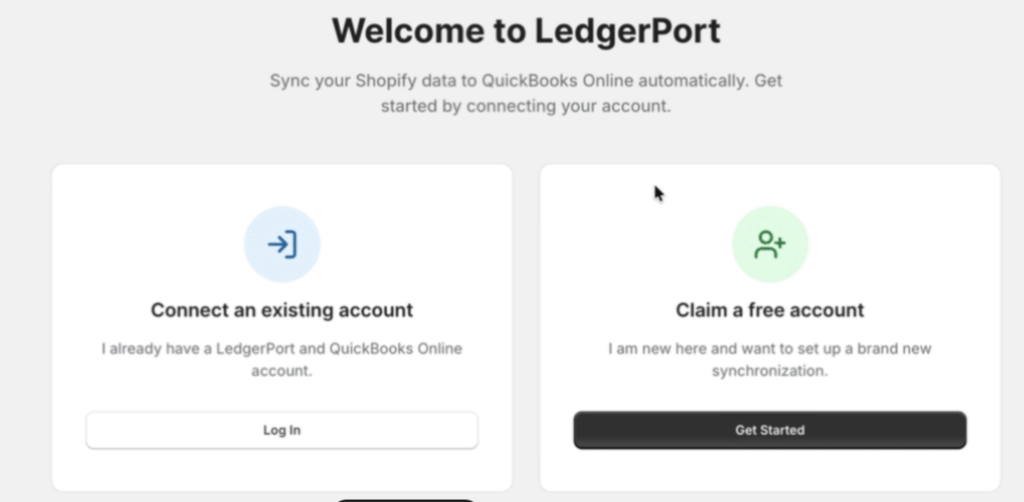
- You will be redirected to Shopify embedded app. Here you can either log in to an existing account or create a new one with LedgerPort. Based on your preference you can choose one method.
2. Managing Your First Business
In LedgerPort, a Business represents one Shopify store paired with one QuickBooks company. When you are installing the Shopify App, the store name you have is automatically added a business.
If you are signing up through LedgerPort Dashboard, you can manage your business here.
Note: You can add more businesses later from the account menu. How many you can manage at once depends on your plan.
3. Connect QuickBooks Online
LedgerPort connects to QuickBooks using OAuth, which means you authorize it directly inside QuickBooks. Your password is never shared with LedgerPort.
- From the left sidebar, click Connections.
- Under QuickBooks Online, click Connect QuickBooks.
- You will be redirected to QuickBooks. Sign in and click Authorize to grant LedgerPort access.
- Once authorized, you will be brought back to LedgerPort and your connection status will show as Connected.
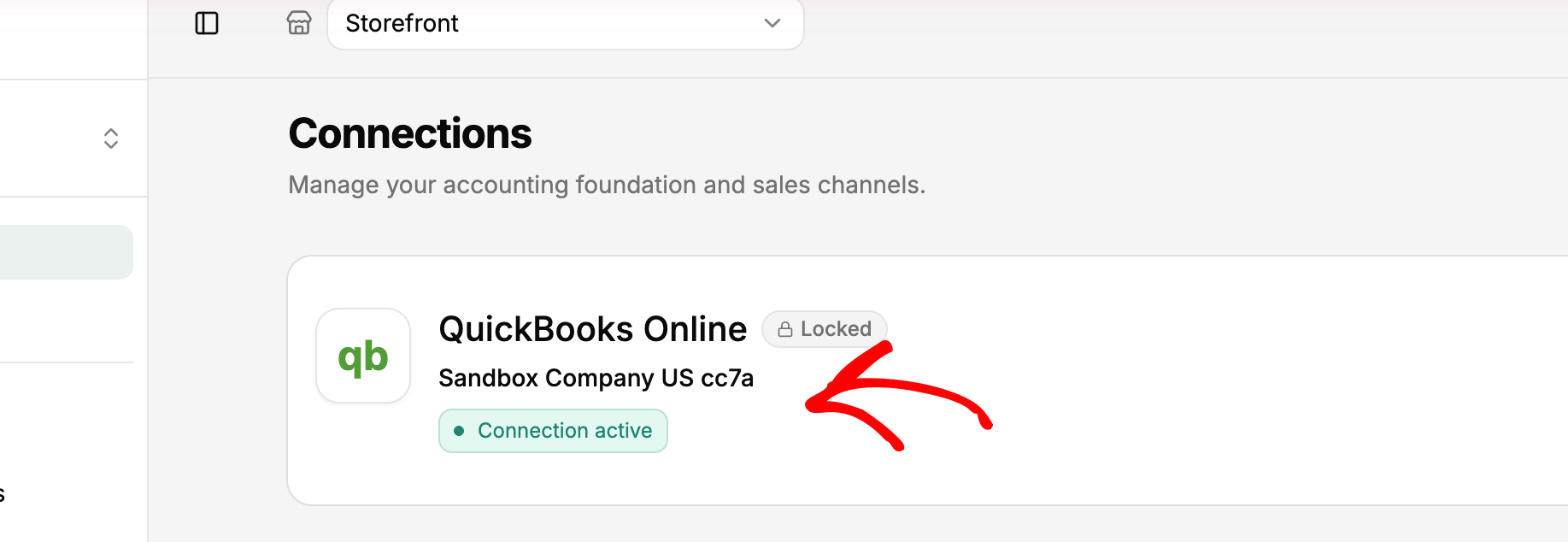
Important: Once you connect an accounting platform, it cannot be switched later. Make sure you are connecting the right QuickBooks company before you proceed.
4. Connect Your Shopify Store
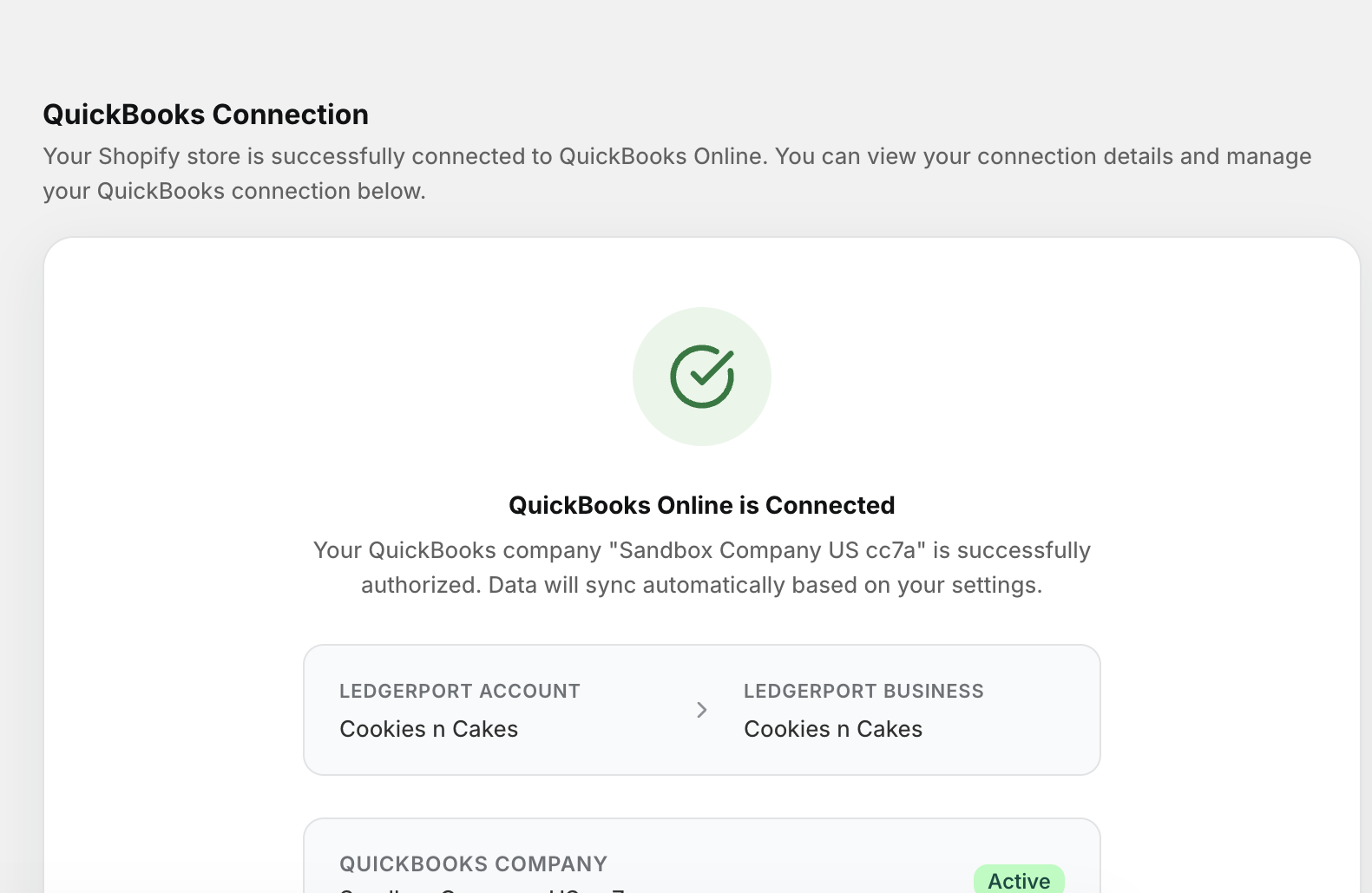
If you installed LedgerPort from the Shopify App Store, your store is already connected. Skip ahead to Step 5.
5. Run Your First Sync
The first thing to do is run a manual sync. This pushes your existing Shopify data into QuickBooks and lets you confirm everything is working before auto-sync takes over.
- From the Dashboard, click Push to QuickBooks.
- LedgerPort will start syncing your products, customers, and orders to QuickBooks. This can take a few minutes, depending on how much data you have.
- When it finishes, you will see a summary of what was synced. Click View Sync Logs in the left sidebar for the full details.
- In the sync logs, check for any items marked with a red error status. These point to things that need attention, like a product that could not be matched in QuickBooks.
What’s Next
With LedgerPort up and running, here are a few good next steps:
- Set up product and customer mapping so your Shopify items match the right records in QuickBooks. Go to Mapping in the left sidebar.
- Configure your order sync settings to choose how orders are recorded in QuickBooks. Sales Receipts, Invoices, and Daily Summaries are all supported. Go to Sync Config » Orders.
- Map your payment gateways to the correct QuickBooks clearing accounts. Go to Sync Config » Payments.
With both connections active and your first sync done, LedgerPort runs in the background and keeps QuickBooks up to date. You will not need to export data or copy anything between systems again.
If you run into any issues, contact us and our support team will be happy to help.