
In LedgerPort, a Business represents one Shopify store paired with one QuickBooks Online company. If you run more than one store, manage client accounts, or need to keep different entities separate, you can add multiple businesses under a single LedgerPort login.
How many businesses you can manage at once depends on your plan.
| Plan | Businesses Included |
|---|---|
| Free | 1 |
| Growth | 1 |
| Scale | 3 |
| Enterprise | 10 |
| Agency | Unlimited |
Switching Between Businesses
If you have more than one business set up, you can switch between them at any time without logging out.
- Click the Business name in the top-left corner of the dashboard. This opens the business switcher.
- You will see a list of all businesses on your account.
- Click the business you want to switch to.
LedgerPort will load that business’s dashboard, connections, sync logs, and settings. Each business is fully isolated – changes made in one business do not affect another.
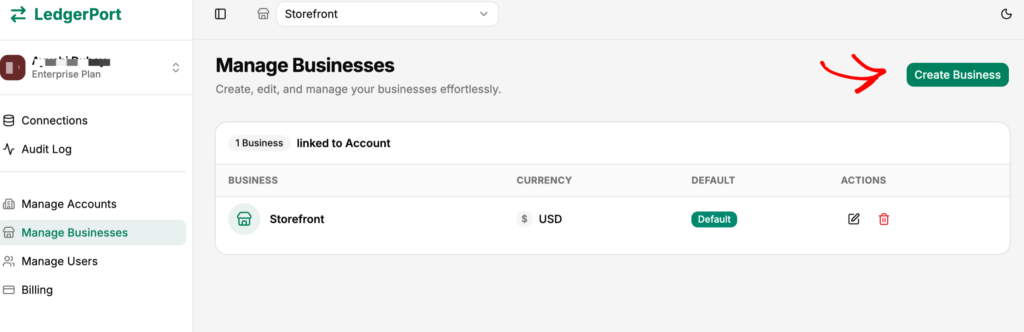
Adding a New Business
- Click the Business name in the top-left corner to open the business switcher.
- Click Add Business.
- Enter a Business Name, select a Currency, and choose a Timezone.
- Click Create Business.
Once created, you will be taken into the new business. From there, connect its Shopify store and QuickBooks account following the same steps as your first setup. See Getting Started with LedgerPort if you need a refresher.
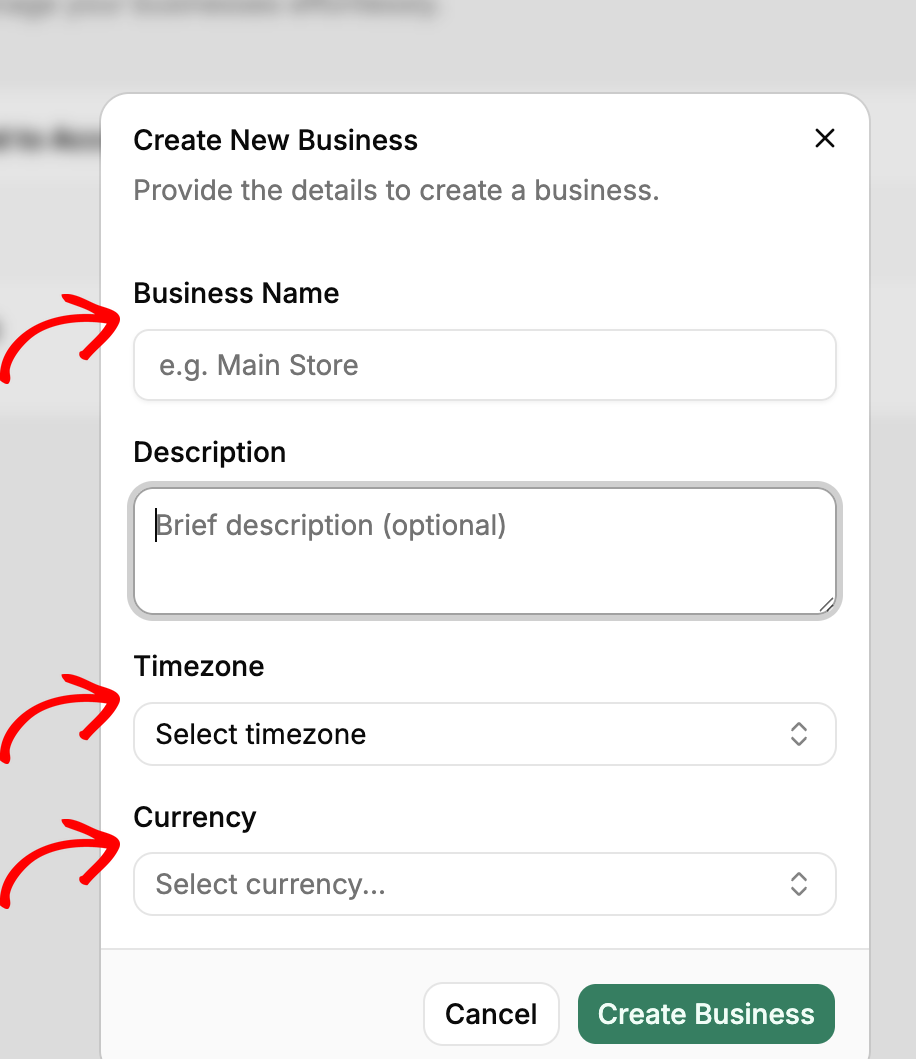
On Growth or Free? These plans support one business. To add a second, upgrade to Scale ($79/mo) from Billing.
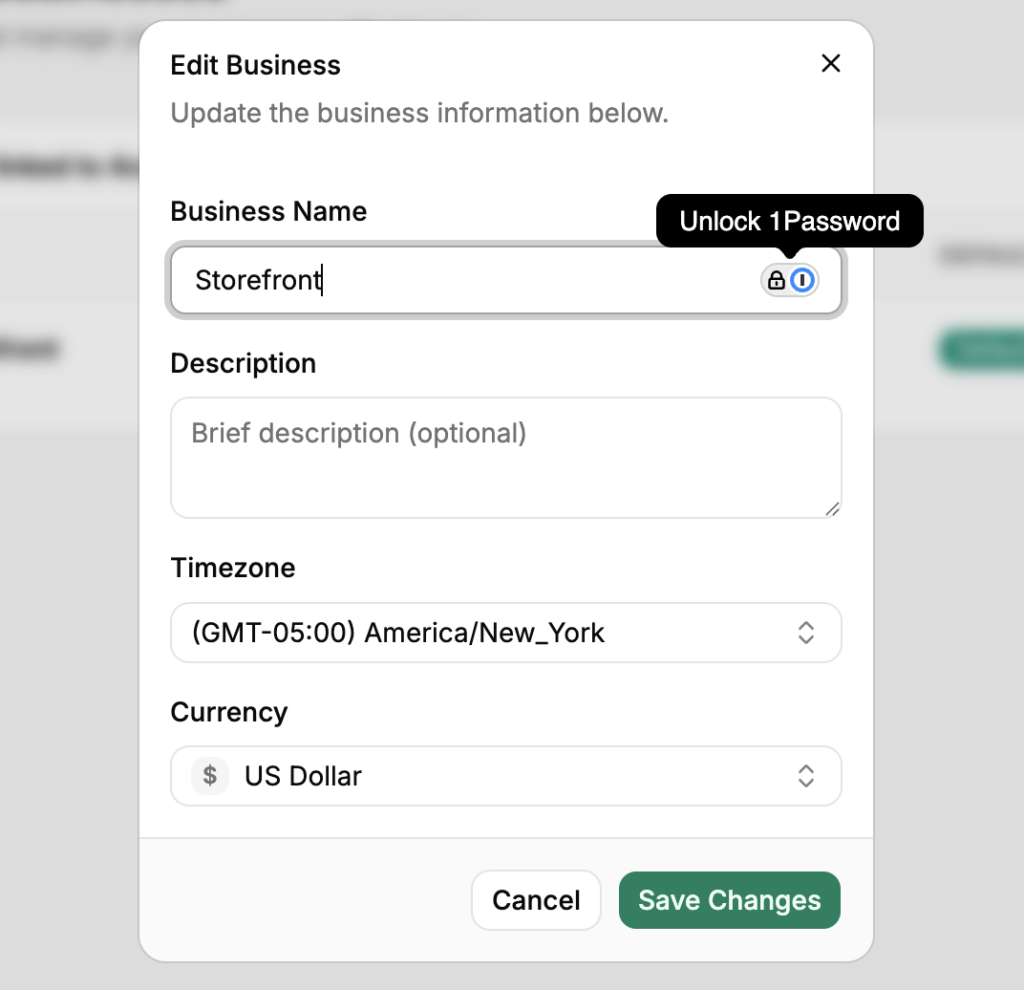
Renaming a Business
- Go to Settings from the left sidebar.
- Click the Business tab.
- Update the Business Name field.
- Click Save.
Deleting a Business
- Go to Settings from the left sidebar.
- Click the Business tab.
- Scroll to the bottom and click Delete Business.
- Confirm the deletion when prompted.
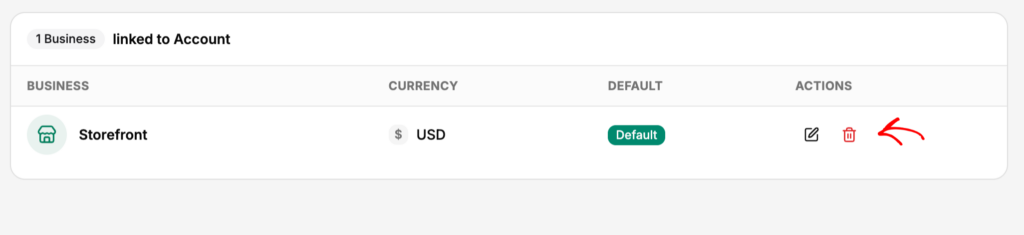
Deleting a business removes all its sync history, logs, mappings, and configuration. This cannot be undone. Your Shopify store and QuickBooks account are not affected – only the LedgerPort connection and data are removed.
Before deleting, make sure any records you need are saved in QuickBooks. Sync logs and mapping data are not recoverable after deletion.
If you run into any issues, contact us and our support team will be happy to help.