
Auto-sync handles most of your day-to-day syncing, but there are situations where you need to push specific orders to QuickBooks yourself. Manual sync lets you select individual orders or a batch of orders and send them across on demand, without waiting for the next scheduled sync run.
Common reasons to use manual sync:
- Your QuickBooks connection was down for a period and orders piled up during that time.
- You changed your sync triggers or configuration and want to re-sync orders that were previously skipped.
- An order failed to sync automatically and you want to retry it after fixing the error.
- You are on the Free plan, where all syncing is manual.
- You want to sync a specific order immediately without waiting for the next auto-sync window.
Syncing Orders Manually
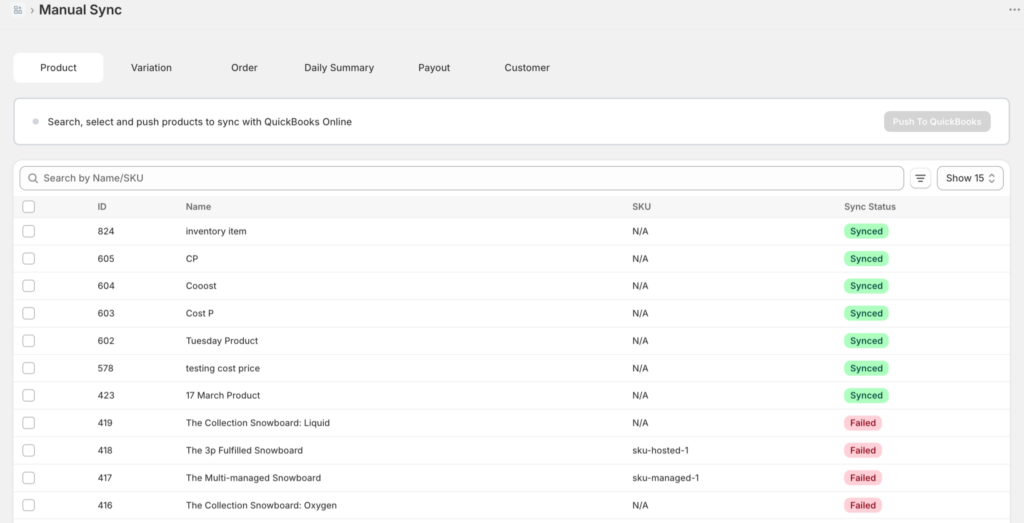
- From the left sidebar, click Manual Sync.
- Click Orders.
- You will see a list of orders available to sync. By default, this shows orders that have not been synced yet.
- Select the orders you want to sync. You can tick individual checkboxes, or use Select All to choose every order on the current page.
- Click Sync Selected.
- LedgerPort will queue the selected orders and start syncing them. A progress indicator will appear while the sync is running.
- Once complete, the status for each order will update. Successfully synced orders will show Synced. Any that failed will show Error with a reason.
Filtering Orders Before Syncing
If you have a large number of orders to sort through, use the filters at the top of the Manual Sync page to narrow down the list.
By date range : set a start and end date to show only orders placed within that window. Useful after a connection outage when you need to find everything that missed during a specific period.
By status : filter by sync status to show only unsynced orders, only errors, or all orders.
By search : type an order number or customer name to find a specific record.
Re-Syncing an Order That Already Synced
If an order has already been synced but something changed (for example, you updated the sync configuration, fixed a mapping error, or the original transaction in QuickBooks was deleted), you may need to force it through again.
- On the Manual Sync Orders page, use the Status filter and select Synced to show previously synced orders.
- Find the order you want to re-sync.
- Select it and click Sync Selected.
LedgerPort will attempt to create a new transaction in QuickBooks for that order. If the original transaction still exists in QuickBooks, this may create a duplicate. Check QuickBooks first and delete the original transaction before re-syncing if you want a clean result.
Syncing a Batch After a Connection Outage
If your QuickBooks connection was down for a period and a backlog of orders built up, here is the quickest way to catch them up:
- Go to Manual Sync » Orders.
- Set the Date Range filter to cover the period when the connection was inactive.
- Filter by Status: Unsynced to show only orders that did not go through.
- Click Select All to select everything on the page.
- Click Sync Selected and let it run.
- Once complete, check Sync Logs to confirm everything went through and address any errors.
For large batches, the sync may take a few minutes. If you hit a QuickBooks rate limit during a large batch, LedgerPort will retry automatically. See Common Sync Errors and How to Fix Them if you see rate limit errors in your logs.
Manual Sync on the Free Plan
If you are on the Free plan, auto-sync is not available. Every order needs to be synced manually using the steps above. Manual sync is available on all plans with no restrictions, so you can push through any order at any time.
If you find yourself syncing orders manually every day and would prefer LedgerPort to handle it automatically, the Growth plan ($29/mo) enables auto-sync every 60 minutes. Upgrade from Billing within your LedgerPort or Shopify Dashboard.
If you run into any issues, contact us and our support team will be happy to help.