
By default, LedgerPort does not sync every order the moment it appears in Shopify. It waits for an order to reach a specific payment or fulfillment state before pushing it to QuickBooks. These conditions are called sync triggers, and you control exactly which ones apply to your store.
Getting your triggers right means orders land in QuickBooks at the right time, with the right status, and without noise from pending or voided transactions you do not want recorded.
Before You Start
- Sync triggers apply to automatic syncing only. On the Free plan, auto-sync is not available. If you are on Free, orders will only sync when you push them manually.
- Auto-sync is available from the Growth plan ($29/mo) and above. To enable it, upgrade from Billing and then turn on Auto-Sync from Sync Config » General section within your Shopify Embedded App.
Where to Configure Sync Triggers
- From the left sidebar, click Sync Config.
- Click the Orders tab.
- Scroll to the Sync Triggers section.
Here you will find two sets of conditions: payment statuses and fulfillment statuses. An order must match at least one selected status in each group before LedgerPort will sync it automatically.
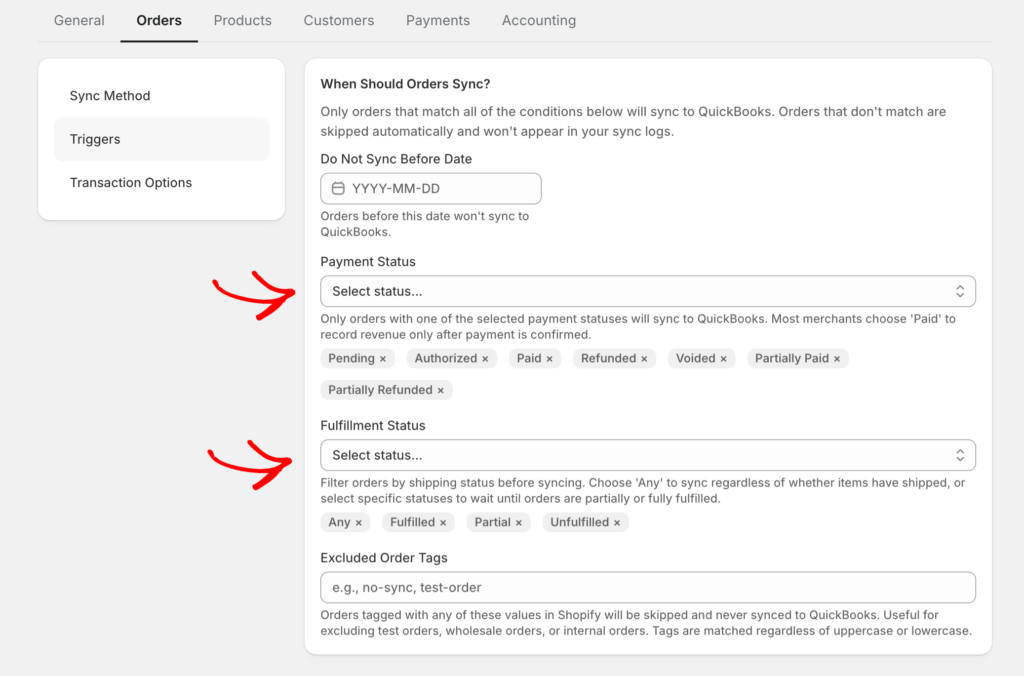
Payment Status Triggers
Payment statuses tell LedgerPort when to consider an order financially ready to record in QuickBooks. You can enable or disable any of the following:
Paid : the order has been fully paid. This is the recommended trigger for most stores. It ensures only completed transactions reach QuickBooks.
Authorized : payment has been authorized but not yet captured. Use this if you capture payments manually and want orders in QuickBooks before capture happens.
Partially Paid : the customer has paid part of the order total. Useful for stores that accept deposits or installment payments.
Pending : the payment is in progress but not yet confirmed. Enabling this will push orders to QuickBooks before you know whether the payment succeeded. Use with caution.
Refunded : the order has been fully refunded. Enable this only if you want refunded orders to create transactions in QuickBooks rather than being excluded.
Partially Refunded : part of the order has been refunded. If you handle partial refunds and want them reflected in QuickBooks immediately, enable this.
Recommendation for most stores: Enable Paid only. This keeps your QuickBooks clean and ensures only successfully completed transactions are recorded.
Fulfillment Status Triggers
Fulfillment statuses tell LedgerPort where an order needs to be in the shipping workflow before it syncs. You can enable or disable:
Fulfilled : all items in the order have been shipped or marked as fulfilled. Use this if you want orders in QuickBooks only after they have been dispatched.
Partially Fulfilled : some but not all items have been fulfilled. Useful for stores that ship orders in multiple packages.
Unfulfilled : the order has not been shipped yet. Enable this if you want orders to sync as soon as they are placed, without waiting for fulfillment.
Recommendation for most stores: Enable Unfulfilled and Fulfilled. This covers the full range of order states you will typically want in QuickBooks, without requiring you to wait for shipping to complete before an order is recorded.
Handling Voided Orders
Voided orders are excluded from syncing by default. This is the recommended setting for most stores, since voided orders represent cancelled transactions that should not appear as revenue in QuickBooks.
If you have a specific workflow that requires voided orders to be synced, you can enable this in the same Sync Triggers section. Most stores should leave this off.
How Triggers Work Together
Both a payment status trigger and a fulfillment status trigger must be satisfied before an order syncs automatically.
For example, if your payment trigger is set to Paid and your fulfillment trigger is set to Unfulfilled, an order will sync as soon as it is paid, regardless of whether it has been shipped. If you set fulfillment to Fulfilled instead, the order will only sync after it has been marked as fulfilled in Shopify, even if payment was captured earlier.
Think about your store’s workflow and set triggers to match the point at which an order is truly ready to be recorded as a sale in your books.
Saving Your Changes
- After selecting your trigger conditions, click Save at the bottom of the Orders tab.
- Changes apply to new syncs going forward. Orders that are already on hold will be re-evaluated against the updated triggers on the next sync cycle.
If you run into any issues, contact us and our support team will be happy to help.