
LedgerPort connects your Shopify store to QuickBooks Online and keeps them in sync. Orders, products, customers, inventory, and payouts all flow across automatically, so your books stay current without you having to touch them.
Here is how you can get started –
- Go to LedgerPort Dashboard.
- Click Get Started and choose Sign Up.
- Enter your name, email address, password and a Business name. Or click Continue with Google if you prefer to sign in with your Google account.
If you signed up with email, check your inbox for a verification code. Enter the code on the next screen to confirm your email address.
2. Setting up your First Business
In LedgerPort, a Business represents one Shopify store paired with one QuickBooks company. You will be asked to enter your business as soon as you sign up. Unless you are signing up through Shopify, in that case your business will be automatically created.
- After logging in, you can go to Manage Business
- Update Business Name, select your Currency, and choose your Timezone.
- Click Save Changes.
Note: You can add more businesses later from the account menu. How many you can manage at once depends on your plan.
3. Connect QuickBooks Online
LedgerPort connects to QuickBooks using OAuth, which means you authorize it directly inside QuickBooks. Your password is never shared with LedgerPort.
- From the left sidebar, click Connections.
- Under QuickBooks Online, click Connect QuickBooks.
- You will be redirected to QuickBooks. Sign in and click Authorize to grant LedgerPort access.
- Once authorized, you will be brought back to LedgerPort and your connection status will show as Connected.
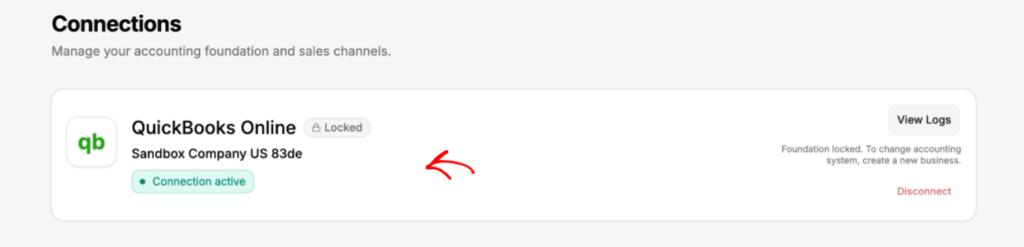
Important: Once you connect an accounting platform, it cannot be switched later. Make sure you are connecting the right QuickBooks company before you proceed.
4. Connect Your Shopify Store
If you installed LedgerPort from the Shopify App Store, your store is already connected. Skip ahead to Step 5. If you signed up from the LedgerPort dashboard, follow the steps below.
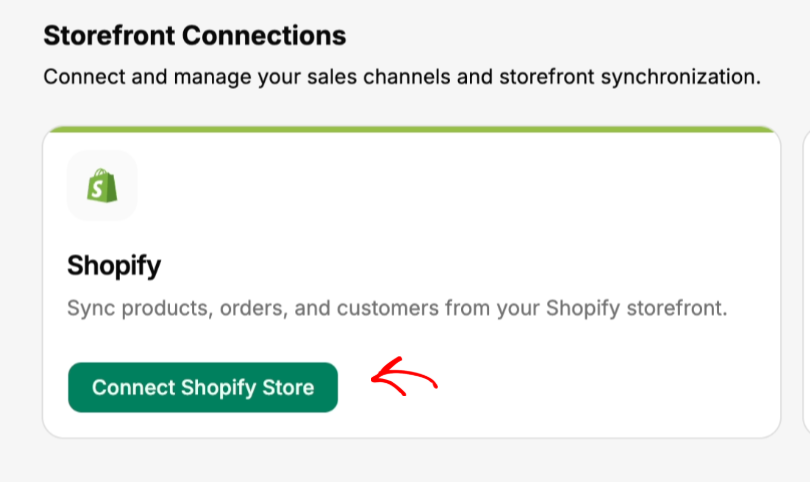
- From the left sidebar, click Connections.
- Under Shopify, click Connect Shopify Store.
- Enter your Shopify store URL (for example, your-store.myshopify.com) and click Connect.
- You will be redirected to Shopify to authorize the connection. Click Install app to confirm.
- Once authorized, you will return to LedgerPort and your store status will show as Connected.
5. Complete the Setup Checklist
Once both platforms are connected, the LedgerPort dashboard shows a short setup checklist.
- Click Dashboard in the left sidebar.
- You will see three checklist items: Connect your store, Connect QuickBooks, and Enable auto-sync.
- To enable auto-sync, click Enable Auto-Sync in the checklist, or go to Sync Config » General and toggle Auto-Sync on.
- Once all three items are checked off, you are ready to run your first sync from Shopify Dashboard.
If you run into any issues, contact us and our support team will be happy to help.