
Než může LedgerPort synchronizovat vaše objednávky ze Shopify do QuickBooks, musí vědět, která položka QuickBooks odpovídá každému produktu Shopify. Tomu se říká mapování produktů. Bez něj se objednávky obsahující nemapované produkty nebudou synchronizovat.
LedgerPort vám nabízí dva způsoby nastavení: Automatické mapování, které zvládne většinu vašeho katalogu jedním kliknutím, a ruční mapování, které vám umožní přiřadit konkrétní produkty sami. Většina obchodů používá obojí dohromady.
Než začnete
- Budete potřebovat aktivní připojení k QuickBooks Online. Pokud jste se ještě nepřipojili, podívejte se na Připojení QuickBooks Online.
- Mapování produktů ovlivňuje všechny metody synchronizace: Příjmové doklady, Faktury, Denní souhrny a další. Nastavte si to před prvním spuštěním synchronizace.
- Pokud produkt není při synchronizaci objednávky namapován, synchronizace selže s chybou Produkt není namapován. Podrobnosti naleznete v části Běžné chyby synchronizace a jak je opravit.
Kde najít mapování produktů
- V levém postranním panelu klikněte na Mapování.
- Klikněte na Produkty.
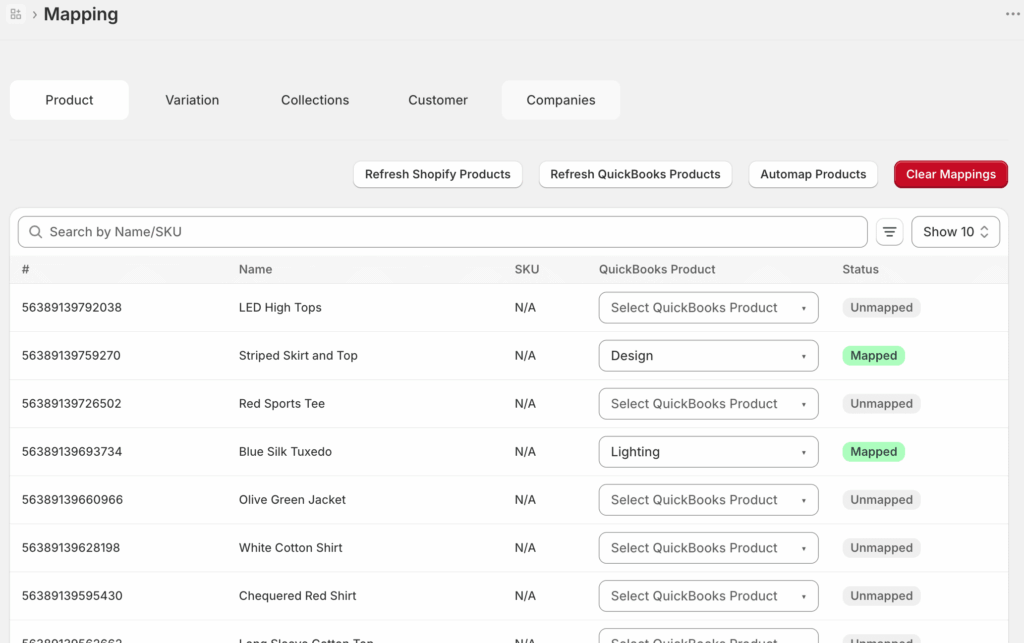
Zobrazí se seznam vašich produktů Shopify spolu s jejich aktuálním stavem mapování. Produkty, které byly spárovány s položkou QuickBooks, zobrazují název položky. Produkty, které ještě nebyly spárovány, zobrazují Nenamapováno.
Možnost 1: Automatické mapování
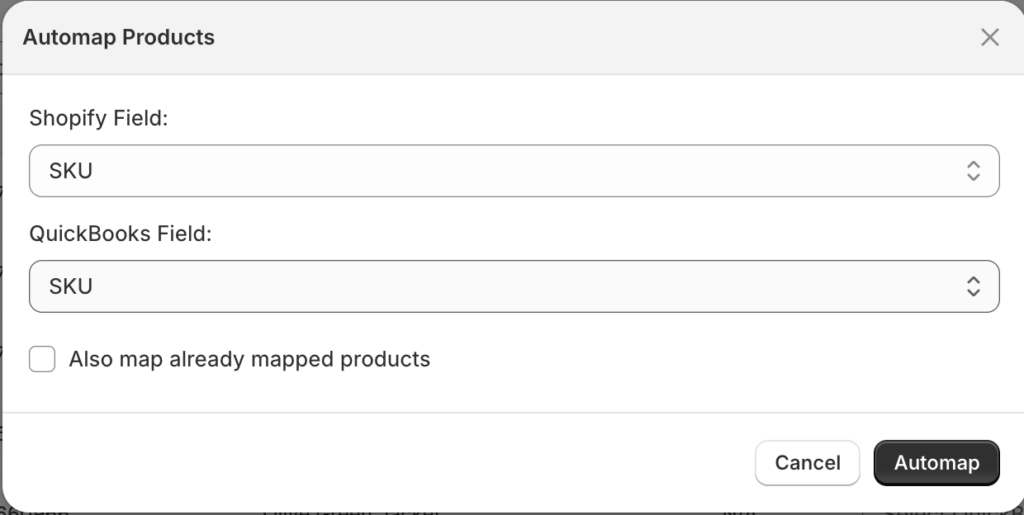
Automatické mapování je nejrychlejší způsob, jak spárovat vaše produkty. LedgerPort porovná vaše produkty Shopify s vašimi položkami QuickBooks a automaticky je propojí na základě shodných SKU nebo názvů produktů.
- Na stránce Mapování » Produkty klikněte na Automatické mapování.
- LedgerPort projde váš katalog a spáruje produkty, kde najde jasnou shodu SKU nebo názvu v QuickBooks.
- Po dokončení zkontrolujte výsledky. Produkty, které byly úspěšně spárovány, zobrazí název položky QuickBooks. Všechny produkty, které nebylo možné automaticky spárovat, budou stále zobrazovat Nenamapováno.
Automatické mapování funguje dobře, když se vaše SKU nebo názvy produktů Shopify shodují s tím, co je již v QuickBooks. Pokud se vaše konvence pojmenování mezi oběma platformami liší, některé produkty bude třeba namapovat ručně.
Možnost 2: Ruční mapování
U produktů, které automatické mapování nezachytilo, nebo u jakéhokoli produktu, kde chcete sami přiřadit konkrétní položku QuickBooks, použijte ruční mapování.
- Na stránce Mapování » Produkty najděte produkt, který chcete namapovat.
- Klikněte na rozbalovací nabídku ve sloupci Položka QuickBooks vedle daného produktu.
- Vyhledejte nebo vyberte správnou položku QuickBooks ze seznamu.
- Mapování se automaticky uloží.
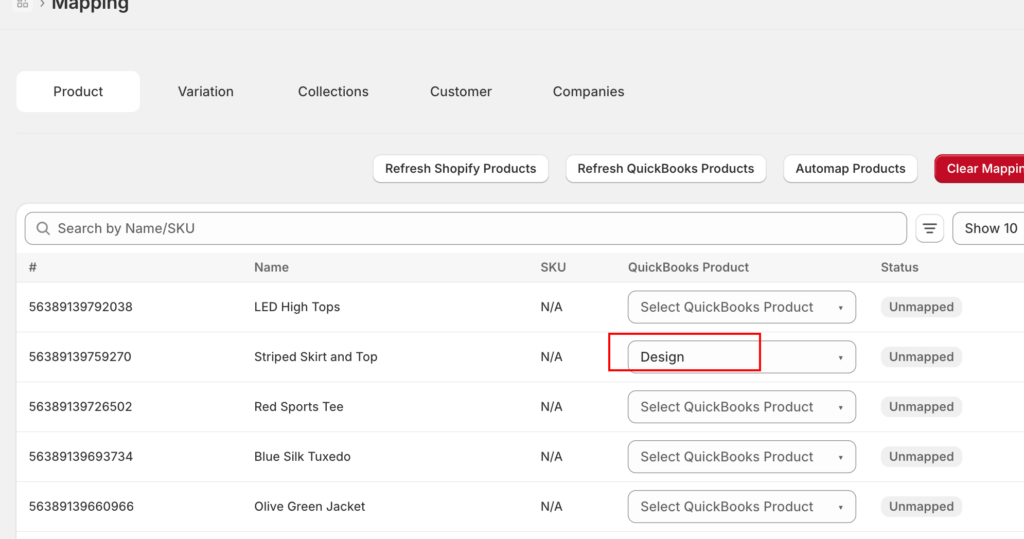
Opakujte pro všechny zbývající nenapmapované produkty. Ruční mapování můžete také použít k přepsání výsledku automatického mapování, pokud automatické spárování nebylo správné.
Nastavení výchozího produktu pro zálohu
Pokud máte produkty, které není třeba v QuickBooks sledovat jednotlivě, můžete nastavit záložní položku. Když LedgerPort narazí na nenapmapovaný produkt, použije zálohu místo selhání synchronizace.
- V levém postranním panelu klikněte na Konfigurace synchronizace.
- Klikněte na kartu Produkty.
- V části Zpracování nenapmapovaných položek vyberte Použít výchozí produkt.
- Vyberte položku QuickBooks, kterou chcete použít jako zálohu.
- Klikněte na Uložit.
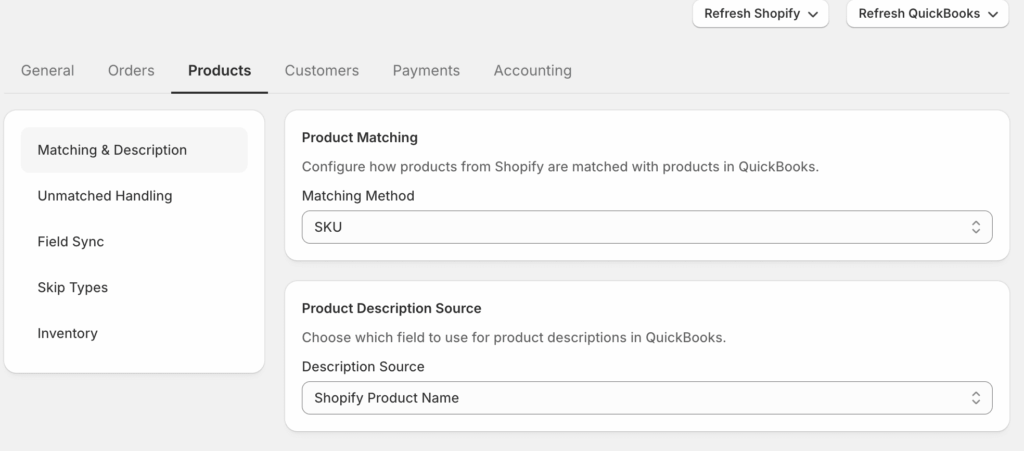
Díky záložnímu řešení již objednávky nebudou selhávat kvůli nepropojeným produktům. Záložní položka se v transakci QuickBooks zobrazí místo nespárovaného produktu Shopify.
Poznámka: Použití záložního řešení činí synchronizaci odolnější, ale snižuje viditelnost v QuickBooks. Pokud potřebujete vykazování pro jednotlivé produkty, namapujte každý produkt individuálně namísto spoléhání se na záložní řešení.
Znovu synchronizovat objednávky, které selhaly kvůli nepropojeným produktům
Pokud objednávky selhaly před dokončením mapování, můžete je znovu odeslat, jakmile budou produkty namapovány.
- V levém postranním panelu klikněte na Ruční synchronizace.
- Klikněte na Objednávky.
- Filtrujte podle Stav: Chyba, abyste našli objednávky, které selhaly.
- Vyberte dotčené objednávky a klikněte na Synchronizovat vybrané.
LedgerPort se pokusí tyto objednávky znovu zpracovat pomocí vašeho aktualizovaného mapování.
Pokud narazíte na jakékoli problémy, kontaktujte nás a náš tým podpory vám rád pomůže.