
LedgerPort ermöglicht es Ihnen, andere Personen zur Nutzung Ihres Geschäftskontos einzuladen. Dies ist nützlich, um Ihrem Buchhalter, Steuerberater oder Teammitgliedern den benötigten Zugriff zu gewähren, ohne Ihre Anmeldedaten weiterzugeben.
Die Anzahl der verfügbaren Plätze hängt von Ihrem Tarif ab.
| Tarif | Team-Plätze |
|---|---|
| Kostenlos | 1 (nur Inhaber) |
| Wachstum | 2 |
| Skalieren | 5 |
| Enterprise | 10 |
| Agentur | Unbegrenzt |
Ein Teammitglied einladen
- Klicken Sie in der linken Seitenleiste auf Einstellungen.
- Klicken Sie auf die Registerkarte Team.
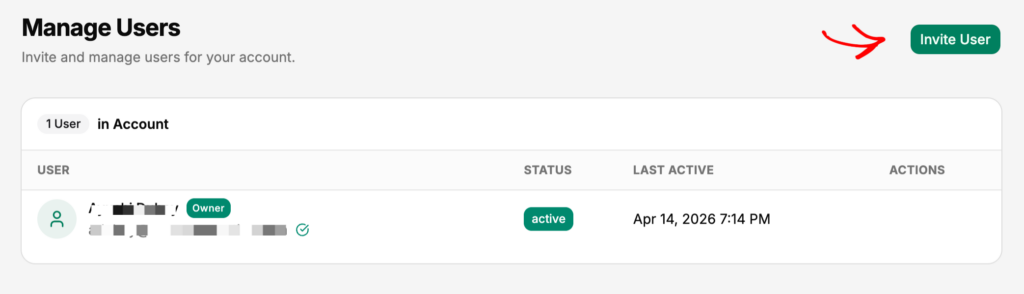
- Klicken Sie auf Mitglied einladen.
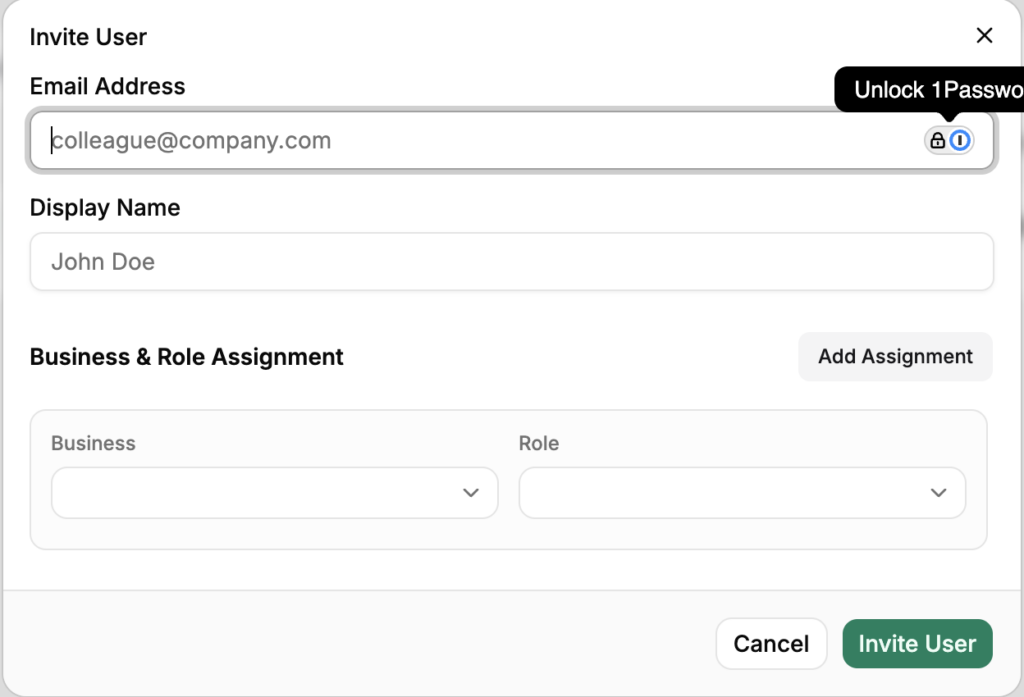
- Geben Sie die E-Mail-Adresse der Person ein und wählen Sie ihre Rolle.
- Klicken Sie auf Einladung senden.
LedgerPort sendet eine E-Mail-Einladung an diese Adresse. Der Eingeladene klickt auf den Link in der E-Mail, erstellt ein LedgerPort-Konto (oder meldet sich bei seinem bestehenden an) und hat sofort Zugriff auf Ihr Unternehmen.
Teammitglied-Rollen
LedgerPort hat zwei Rollen: Administrator und Mitglied.
Administrator Vollständiger Zugriff auf das Unternehmen. Administratoren können Verbindungen, Synchronisierungskonfigurationen, Zuordnungen, Abrechnung und Teameinstellungen verwalten. Sie können andere Teammitglieder einladen und entfernen. Verwenden Sie diese Rolle für einen vertrauenswürdigen Steuerberater oder Geschäftspartner.
Mitglied Lese- und Betriebsrecht. Mitglieder können Synchronisierungsprotokolle einsehen, manuelle Synchronisierungen durchführen und Zuordnungen überprüfen, aber sie können die Synchronisierungskonfiguration nicht ändern, die Abrechnung nicht anfassen oder Teameinstellungen verwalten. Verwenden Sie diese Rolle für einen Buchhalter oder Support-Mitarbeiter, der Einblick ohne Bearbeitungsrecht benötigt.
Der Inhaber des Kontos hat den gleichen Zugriff wie ein Administrator und ist die einzige Person, die das Unternehmen löschen oder den Besitz übertragen kann.
Eine Einladung erneut senden
Wenn jemand seine Einladung nicht erhalten hat oder der Link abgelaufen ist:
- Gehen Sie zu Benutzer verwalten.
- Finden Sie die ausstehende Einladung in der Teamliste.
- Klicken Sie neben dem Namen auf Einladung erneut senden.
Eine neue Einladungs-E-Mail wird an dieselbe Adresse gesendet.
Die Rolle eines Teammitglieds ändern
- Gehen Sie zu Benutzer verwalten.
- Finden Sie das Teammitglied in der Liste.
- Klicken Sie auf die Rollenbezeichnung neben dem Namen und wählen Sie eine andere Rolle aus dem Dropdown-Menü.
- Die Änderung wird sofort wirksam.
Ein Teammitglied entfernen
- Gehen Sie zu Benutzer verwalten.
- Suchen Sie das Teammitglied, das Sie entfernen möchten.
- Klicken Sie neben dem Namen auf Entfernen.
- Bestätigen Sie, wenn Sie dazu aufgefordert werden.
Das Entfernen eines Teammitglieds widerruft dessen Zugriff sofort. Die Person kann sich nicht mehr bei Ihrem Unternehmen anmelden. Das LedgerPort-Konto selbst wird nicht gelöscht: Nur der Zugriff auf Ihr Unternehmen wird entfernt.
Wenn Sie auf Probleme stoßen, kontaktieren Sie uns und unser Support-Team hilft Ihnen gerne weiter.