

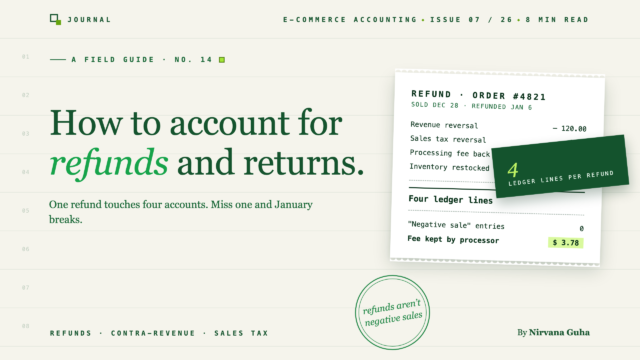
- 1Paano Mag-account para sa mga Refund sa E-commerce: Isang Refund, Apat na Ledger
- 21. Kita: kontra-benta, hindi binurang kita
- 32. Mga bayarin sa pagproseso: ang perang hindi na bumabalik
- 43. Buwis sa benta: pagbabalik ng pananagutan, hindi kita
- 54. Imbentaryo at COGS: kung ang mga produkto ay bumalik na maibebenta lamang
- 6Mga Espesyal na Kaso na Sumasakit sa Enero
- 7Bahagyang mga refund
- 8Mga refund na tumatawid sa mga panahon: ang benta noong Disyembre, ni-refund noong Enero
- 9Mga chargeback kumpara sa mga refund
- 10Mga bayarin sa restocking
- 11Ang Istraktura na Nagpapanatili ng Kaayusan Nito
- 12Kung Saan Kinukuha Ito ng Automation
- 13Sa WooCommerce: ang mga refund ay bawat gateway plumbing
- 14Ang mga Refund ay Hindi Kailanman Nagiging Masaya. Hindi Iyon ang Layunin.
Ang isang refund ay hindi isang negatibong benta. Ito ay apat na magkahiwalay na kaganapan sa accounting na nakasuot ng isang trench coat.
Ito ang ikalawang linggo ng Enero. Ang Q4 ang iyong pinakamahusay na quarter kailanman — ang Disyembre lamang ay nakagawa ng mas maraming kita kaysa sa buong unang kalahati ng nakaraang taon. Pagkatapos ay nagbukas ang bintana ng mga return.
Ngayon ang mga refund ay dumarating, at ang mga libro ay hindi na makatuwiran. Ang iyong mga payout ay kapansin-pansing mas maliit kaysa sa iyong mga benta. Kalahati ng mga refund na iyong pinoproseso ay para sa mga order mula noong Disyembre — isang buwan na inakala mong sarado na. At kapag binibilang mo ang lumabas sa iyong account kumpara sa kung ano ang iyong ni-refund sa mga customer, ang mga numero ay hindi tumutugma, dahil ang mga bayarin sa pagproseso mula sa orihinal na mga benta ay tila nawala sa kawalan.
Kung ikaw ay nakatitig dito at nagtataka kung may nasira ka, hindi. Natuklasan mo lamang na walang nagturo sa iyo kung paano mag-account para sa mga refund sa ecommerce — at ang intuitive na diskarte na halos lahat ay nagsisimula ay mali sa isang tiyak, naayos na paraan.
Narito ang intuwisyon, sinabi nang malinaw: "Ang isang refund ay isang negatibong benta lamang. Ibawas ito at magpatuloy."
Iyon ang kasinungalingan. Ito ay tama dahil ang karanasan ng customer ay simetriko — pera papasok, pera palabas. Ngunit ang iyong mga libro ay hindi nagtatala ng karanasan ng customer. Nagtatala sila ng apat na magkahiwalay na kaganapan sa pananalapi, at ang isang refund ay nagbabalik sa bawat isa nang iba. Ang ilan ay ganap, ang ilan ay bahagya, at ang isa ay hindi man lang.
Paano Mag-account para sa mga Refund sa E-commerce: Isang Refund, Apat na Ledger
Gawin natin itong konkreto sa isang malinaw na kathang-isip na order.
Noong Disyembre, bumili ang isang customer ng jacket sa halagang $120 kabuuan: $112 para sa produkto, $8 sa buwis sa benta. Ang iyong processor ay naningil sa iyo ng $3.50 na bayarin sa pagproseso sa benta. Ang jacket ay nagkakahalaga sa iyo ng $45 wholesale, na iyong itinala bilang gastos ng mga ibinentang produkto.
Noong Enero, ibinalik ito ng customer. Narito ang talagang kailangang mangyari sa iyong mga libro.
1. Kita: kontra-benta, hindi binurang kita
Ang iyong unang reaksyon ay maaaring burahin o bawasan ang orihinal na benta. Huwag. Ang benta noong Disyembre ay talagang nangyari — ang pagbubura nito ay sumisira sa iyong gross revenue figure, ang iyong visibility sa refund rate, at ang iyong audit trail.
Sa halip, ang $112 ay naitatala sa isang contra-revenue account — karaniwang tinatawag na "Refunds and Returns" o "Sales Returns and Allowances" — na nasa ilalim ng kita at may debit balance. Ang kabuuang kita ay nananatiling buo, ang mga refund ay ipinapakita bilang sarili nitong linya, at ang net revenue ay ang pagkakaiba. Ngayon ay makikita mo na ang iyong tindahan ay may $112 sa mga benta at $112 sa mga return, na ibang-iba ang impormasyon kaysa sa "Walang nangyari na $0."
2. Mga bayarin sa pagproseso: ang perang hindi na bumabalik
Ito ang bahagi na sumisira sa karamihan ng mga pagre-reconcile sa Enero. Karamihan sa mga processor, kasama ang Shopify Payments, ay hindi ibinabalik ang processing fee kapag ni-refund mo ang customer.
Kaya't nakukuha ng customer ang kanilang buong $120 pabalik, ngunit ang iyong $3.50 fee expense mula Disyembre ay nananatili. Walang reversing entry na gagawin — ang fee ay nananatili lamang sa iyong mga libro bilang isang tunay na gastos. Ibig sabihin, ang bawat refund ay tahimik na nagkakahalaga sa iyo ng pera, at ang isang payout sa isang linggo na maraming refund ay mas maliit kaysa sa inaasahan ng "sales minus refunds." Ang puwang na iyon ay hindi isang error. Ito ay mga bayarin.
3. Buwis sa benta: pagbabalik ng pananagutan, hindi kita
Ang $8 na sales tax ay hindi kailanman naging pera mo. Nang kolektahin mo ito, napunta ito sa isang sales tax payable liability account — hawak mo ito para sa estado.
Kapag ni-refund mo ang order, ang liability na iyon ay kailangang baligtarin: i-debit ang sales tax payable $8, kaya hindi mo na ito utang. Laktawan ang hakbang na ito at magpapadala ka ng buwis sa isang benta na wala na. Ang mga estado ay kilalang maluwag sa pagbibigay ng perang iyon pabalik, kaya mas mabuting huwag mo muna itong ipadala.
4. Imbentaryo at COGS: kung ang mga produkto ay bumalik na maibebenta lamang
Kung ang jacket ay bumalik sa kondisyon na maaaring ibenta muli, baligtarin mo ang bahagi ng gastos: i-debit ang imbentaryo $45, i-credit ang cost of goods sold $45. Ang jacket ay isang asset muli.
Kung ito ay bumalik na sira, nagamit, o hindi na bumalik, hindi ka gagawa ng reversal — ang $45 ay mananatili sa COGS bilang tunay na gastos ng transaksyong iyon. Ito ay isang desisyon na hindi kayang gawin ng software para sa iyo, kaya naman ang iyong proseso ng pag-refund ay nangangailangan ng isang "sellable or not" checkpoint na nagpapakain sa iyong bookkeeping.
Narito ang buong larawan para sa aming $120 na refund, ipagpalagay na ang jacket ay maaaring ibenta muli:
| Bahagi | Account | Debit | Credit |
|---|---|---|---|
| Kita | Mga Refund at Return (contra-revenue) | $112.00 | |
| Buwis sa benta | Sales Tax na Babayaran | $8.00 | |
| Cash out | Account ng paglilinis ng processor ng pagbabayad | $120.00 | |
| Imbentaryo | Imbentaryo | $45.00 | |
| Halaga ng mga Nabentang Bilihin | Gastos ng Ibinentang Produkto | $45.00 |
At ang fee? Wala sa entry na ito — ang orihinal na $3.50 ay nananatili kung saan ito inilagay ng Disyembre. Netong resulta: nawalan ka ng $120 sa cash, nawalan ka ng $3.50 sa mga bayarin magpakailanman, at nakakuha ka ng $45 na jacket pabalik. Iyan ang tunay na halaga ng isang refund.
[LARAWAN: Diagram na nagpapakita ng isang refund na nahahati sa apat na arrow — kita, bayarin, buwis sa benta, imbentaryo — bawat isa ay napupunta sa ibang account]
Mga Espesyal na Kaso na Sumasakit sa Enero
Ang malinis na apat na bahagi na bersyon ay sumasaklaw sa isang buong refund sa isang order na may isang item. Ang totoong mga Enero ay mas magulo. Narito ang accounting ng mga return na kinakaharap ng mga ecommerce store.
Bahagyang mga refund
Mag-refund ng $40 sa isang $120 na order at ang bawat bahagi ay proporsyonal na lumalaki — bahagyang contra-revenue, bahagyang sales tax reversal — maliban sa imbentaryo, na karaniwang hindi gumagalaw, dahil ang isang bahagyang refund ay karaniwang nangangahulugan na pinanatili ng customer ang mga produkto. Ang isang $40 na appeasement refund sa isang huling paghahatid ay nakakaapekto sa kita, buwis, at cash. Hindi nito kailanman naaapektuhan ang COGS.
Mga refund na tumatawid sa mga panahon: ang benta noong Disyembre, ni-refund noong Enero
Ito ang pinakamalaking dahilan kung bakit "nasira" ang mga libro ng Enero. Ang benta ay nasa Disyembre; ang refund ay nasa Enero. HINDI mo binubuksan muli ang Disyembre para i-net ang mga ito laban sa isa't isa — ang refund ay isang kaganapan sa Enero, na itinatala sa contra-revenue ng Enero.
Ang resulta: Mukhang masama ang net revenue ng Enero, dahil dala nito ang mga return mula sa dami ng Disyembre nang walang mga benta ng Disyembre. Hindi iyon pagkakamali sa bookkeeping. Iyon ang katotohanan, at ang malinaw na pagkakita dito ang punto. Nangangahulugan din ito na bahagyang pinalalaki ng iyong mga numero ng Disyembre ang iyong napanatili sa huli — sulit tandaan bago ka gumawa ng mga taya sa imbentaryo ng Enero batay sa top line ng Q4.
Mga chargeback kumpara sa mga refund
Ang chargeback ay hindi isang refund na may attitude — ito ay ibang mekanismo. Kinukuha ng bangko ng customer ang pera pabalik sa pamamagitan ng processor, karaniwang sinisingil ka ng dispute fee bilang karagdagan (na, hindi tulad ng refund mismo, maaari mo lang makuha muli kung manalo ka), at ang buong bagay ay maaaring manatiling hindi nalutas sa loob ng ilang linggo.
I-book ang mga chargeback sa kanilang sariling account sa halip na isama ang mga ito sa mga refund. Magkaiba ang mga mekanismo ng bayarin, magkaiba ang timing, at ang tumataas na chargeback rate ay isang alarm sa operasyon na gusto mong makita.
Para sa buong siklo ng hindi pagkakaunawaan at ang eksaktong mga entry para sa isang pagkalugi kumpara sa isang panalo, tingnan ang aming gabay sa accounting ng chargeback.
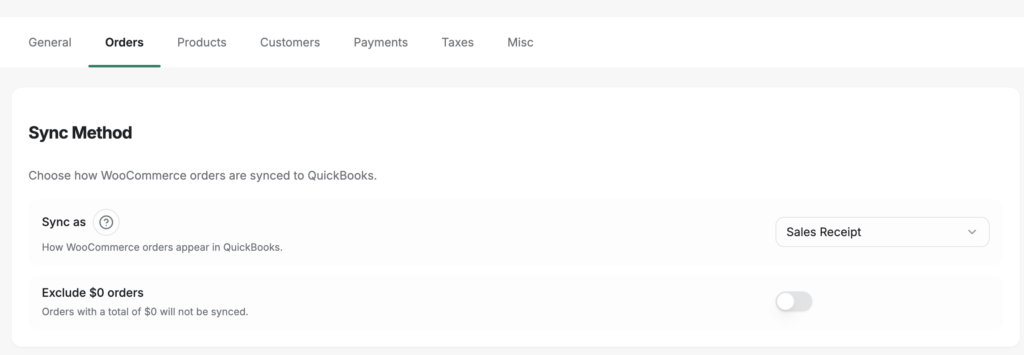
Ang mga pagkansela ay pangatlong uri pa, at sulit na makita kung paano mino-modelo ng sync software ang pagkakaiba. Sa LedgerPort, ang isang setting na "Void QB orders for cancelled orders" ay nagvo-void ng QuickBooks transaction kapag ang isang naka-sync na order ay nakansela — isang void, hindi isang deletion at hindi isang refund, kaya nananatili ang record para sa iyong audit trail habang nawawala ang kita; ang mga order na nakansela bago pa man sila nag-sync ay simpleng nilalaktawan. Ang isang refund, sa kabaligtaran, ay palaging gumagawa ng isang naka-link na reversing document laban sa orihinal na benta. At kung magbibigay ka ng store credit sa halip na ibalik ang pera, iyon ay pang-apat na kaganapan: ang mga gift card at store credit ay itinatala bilang mga pananagutan, hindi kita — parehong lohika tulad ng leg ng sales tax sa itaas, na inilapat sa merchandise na utang mo na ngayon.
Mga bayarin sa restocking
Kung maningil ka ng 10% restocking fee, ibabalik mo ang $108 sa aming $120 na order ngunit ang contra-revenue entry ay batay pa rin sa buong halaga ng produkto — ang $12 na napanatili mo ay itinatala bilang sarili nitong linya ng kita (restocking fee income) o bilang pagbawas sa refund. Alinman sa dalawa, huwag hayaang tahimik itong mawala sa isang "sapat na" halaga ng refund, dahil ito ang pagkakaiba sa pagitan ng iyong kabuuang refund at ng iyong kabuuang cash-out na kailanman ay hindi magre-reconcile.
Ang Istraktura na Nagpapanatili ng Kaayusan Nito
Hindi mo inaayos ang accounting ng refund nang paisa-isa sa Enero. Inaayos mo ito gamit ang istraktura, na naka-set up nang isang beses. Tatlong bahagi:
Isang nakalaang contra-revenue account. Kung ang mga refund ay kasalukuyang nagpapababa ng iyong kita nang hindi nakikita, lumikha ng "Mga Refund at Return" sa ilalim ng kita at idirekta ang bawat refund doon. Agad na sasabihin sa iyo ng iyong P&L ang iyong refund rate — karamihan sa mga may-ari ng tindahan ay nagugulat sa bilang.
Buwanang buod ng mga refund. Hindi mo kailangan ng apat na entry sa journal bawat refund. Ang kailangan mo ay ang buod ng mga refund bawat buwan na tumpak na nakalatag sa apat na bahagi — kita, buwis, imbentaryo, at ang mga bayarin ay naiwan — upang ang buwan ay tumayo sa sarili nito. Ito rin ang dahilan kung bakit ang mga refund na tumatawid sa mga panahon ay hindi isyu: ang buod ng Enero ay isasama lamang ang mga return ng Disyembre.
Pagtutugma ng payout na inaasahan ang mga refund. Ang isang payout na mabigat sa refund ay hindi kailanman magiging katumbas ng benta minus mga refund, dahil sa mga bayarin na hindi naibalik. Kailangang hatiin ng iyong proseso ng pagtutugma ang bawat payout sa mga benta, refund, at bayarin bago ito ihambing sa deposito ng bangko — ang buong pamamaraan ay nasa aming gabay sa pagtutugma ng mga payout ng Shopify sa QuickBooks. At kung mailalagay mo ang istrukturang ito bago matapos ang taon, ang panahon ng buwis ay hindi na magiging isang proyekto ng arkeolohiya — ang aming checklist sa paghahanda ng buwis para sa mga tindahan ng Shopify ay nagpapakita kung saan nakikinabang ang malinis na data ng refund.
Kung Saan Kinukuha Ito ng Automation
Lahat ng nasa itaas ay maaaring gawin nang manu-mano. Ito rin ang eksaktong uri ng paulit-ulit, apat-na-bagay-sabay-sabay na trabaho na dapat ginagawa ng software, kung saan kumikita ang isang sync tool.
Ang paghawak ng refund ng LedgerPort ay awtomatikong naglalapat ng istrukturang ito para sa mga tindahan ng Shopify at WooCommerce: ang mga refund ay nagpo-post sa isang contra-revenue account sa halip na i-overwrite ang mga benta, ang mga pagbabalik ng buwis sa benta ay kinakalkula bawat refund, ang mga hindi naibalik na bayarin sa pagproseso ay pinaghihiwalay upang ang mga payout ay tumugma pa rin, at ang mga refund na tumatawid sa mga panahon ay napupunta sa tamang buwan nang hindi hinahawakan ang iyong mga saradong libro. Sa Scale plan, ang mga journal ng payout ay dumarating na may mga bayarin at refund na nahati na — nagsisimula ang pagpepresyo nang libre, na may mga bayad na plano mula sa $25/buwan at 14-araw na garantiya ng pagbabalik ng pera.
Ang bahagi ng QuickBooks ay sumasalamin sa gagawin ng iyong accountant nang manu-mano. Ang mga order na nag-si-sync bilang mga invoice ay makakakuha ng credit memo na nakakabit sa orihinal na invoice; ang mga order na nag-si-sync bilang mga sales receipt ay makakakuha ng refund receipt na nakatali sa orihinal na benta. Sa alinmang paraan, ang orihinal na transaksyon ng Disyembre ay nananatiling hindi nagalaw — na siyang eksaktong "huwag burahin ang benta" na tuntunin mula sa apat na bahagi sa itaas, na ipinapatupad ng software. Ang mga bahagyang refund ay lumilikha ng isang transaksyon para lamang sa ibinalik na halaga, na may mga line item, buwis, at pagpapadala na nahati upang tumugma sa kung ano ang ibinalik sa Shopify.
Ang pag-on nito ay isang setting: sa ilalim ng Sync Config » Orders, suriin ang Refunded, Partially Refunded, o pareho bilang mga trigger ng status ng pagbabayad.
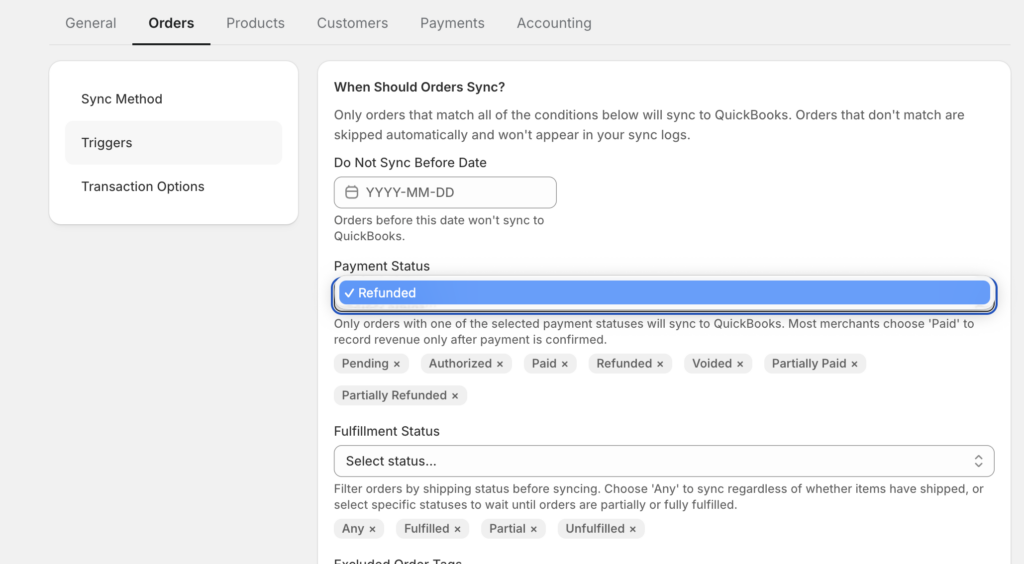
Ilang tapat na kompromiso na dapat mong malaman bago ka umasa dito. Ang refund ay maaari lamang kumabit sa isang order na umiiral na sa QuickBooks — kung ang orihinal na benta ay hindi na-sync, ang refund ay walang mapupuntahan hanggang sa i-sync mo muna ang order. Kung ang refund ay na-edit sa Shopify pagkatapos itong ilabas, ang na-sync na halaga ay maaaring mali hanggang sa itulak mo ulit ito. At kung wala sa dalawang refund trigger ang naka-enable, ang mga refund ay ganap na hindi kasama sa pag-sync at ang iyong balanse sa QuickBooks ay tahimik na lumalayo sa Shopify. Wala sa mga ito ang mga problemang nangangailangan ng muling pagbuo ng mga libro: kapag may nakalusot, manu-mano mong i-re-sync ang partikular na order at ang LedgerPort ay lilikha ng nawawalang transaksyon ng refund.
Sa WooCommerce: ang mga refund ay bawat gateway plumbing
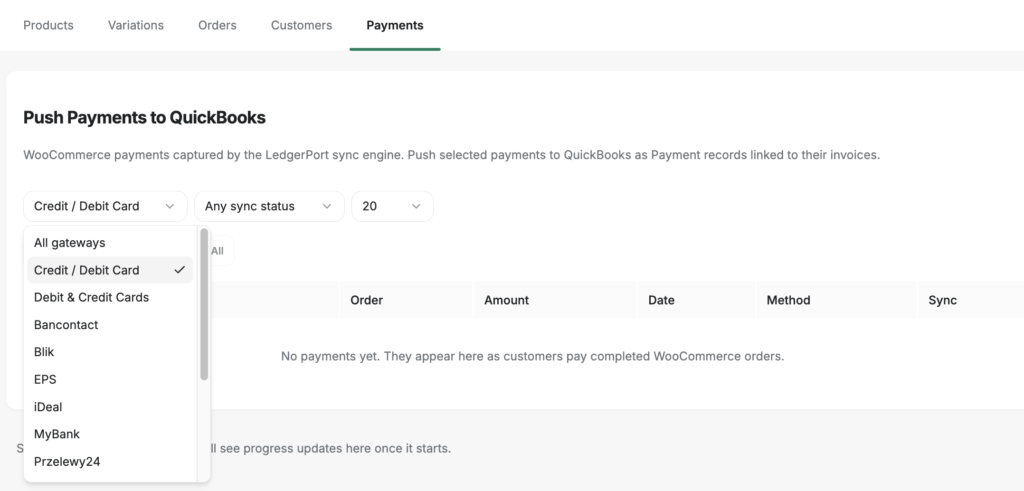
Ang kwento sa itaas ay ang edisyon ng Shopify. Sa WooCommerce, ang mga refund ay isang first-class na na-sync na entity sa kanilang sariling karapatan: ang LedgerPort plugin ay nagrerehistro ng isang dedikadong refund.created webhook, kaya ang paglalabas ng refund ay nagpapaputok ng sarili nitong sync event sa halip na mahinuha mula sa isang pag-edit sa order. At dahil ang iba't ibang mga gateway ay nagse-settle ng mga refund nang magkakaiba, ang refund sync ay naka-configure kada gateway sa Sync Config » Payments: bawat payment gateway na matuklasan ng LedgerPort sa iyong tindahan ay makakakuha ng sarili nitong refund-enabled toggle, sarili nitong clearing account, at sarili nitong refund reference numbering — isang format na prefix/suffix o ang WooCommerce refund ID — kaya bawat refund sa QuickBooks ay bumabalik sa eksaktong kaganapan sa tindahan na lumikha nito.
Ang operational payoff ay beripikasyon. Ang tab na Payments ng Manual Sync page ay pumapalit sa text search ng dalawang dropdown filter — payment gateway at sync status — kaya ang "bawat Stripe payment na hindi pa nakakarating sa QuickBooks" ay isang query na may dalawang dropdown. Ang parehong pares ng filter ay kung paano mo kinukumpirma, sa isang linggong maraming refund, na ang contra-revenue flow ay talagang tumakbo para sa bawat gateway sa halip na ipagpalagay na ito ay tumakbo.
Isang tapat na babala: walang tool ang makakapagsabi sa iyo kung ang isang ibinalik na dyaket ay mabebenta. Ang bahagi ng imbentaryo ay nangangailangan pa rin ng desisyon ng tao sa returns desk. Ang inaalis ng automation ay lahat ng pagkatapos ng desisyong iyon.
Ang mga Refund ay Hindi Kailanman Nagiging Masaya. Hindi Iyon ang Layunin.
Narito ang nakakalungkot na katotohanan tungkol sa lahat ng ito: kahit na may perpektong mga libro, ang mga refund sa Enero ay masakit pa rin. Ibinabalik mo pa rin ang pera mula sa iyong pinakamahusay na quarter, kinakain mo pa rin ang mga bayarin sa pagproseso, pinapanood mo pa rin ang net revenue na bumaba habang dumadaan ang alon ng mga refund.
Ang nagbabago ay ang sakit ay nagiging nakikita. Ang payout ay tumutugma. Ang pananagutan sa buwis ay tama. Ang Disyembre ay nananatiling sarado. Ang refund rate ay isang numero sa isang ulat sa halip na isang masamang pakiramdam sa iyong tiyan. Ang mga refund ay nagiging mula sa krisis tungo sa pagiging boring — at boring, sa bookkeeping, ay ang buong layunin.
Kung ang iyong Enero ay kasalukuyang mukhang katulad ng nasa itaas ng post na ito — lumiliit na mga bayad, mga refund ng Disyembre na bumabagabag sa Enero, mga bayarin na nawawala — ang apat na bahaging istraktura ang solusyon, at maaari mo itong patakbuhin bago ang susunod na alon ng mga refund. Magsimulang libre sa LedgerPort at hayaan itong maitala nang tama ang susunod na refund para sa iyo →
