
You can update your payment method, billing email, and other billing details at any time from inside LedgerPort. Changes take effect on your next billing cycle.
Updating Your Payment Method
- From the left sidebar, click the Billing tab.
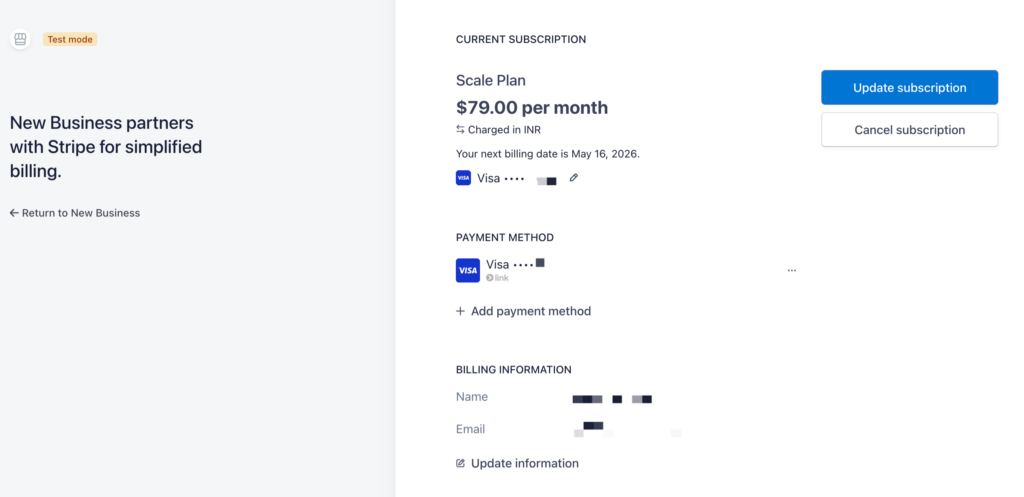
- Now you can click on Manage Subscription.
- Under Payment Method, click Update Payment Method.
- Enter your new card details and click Save.
Your old payment method is replaced immediately. The next invoice will be charged to the new card.
Updating Your Billing Email
By default, invoices and billing notifications are sent to the email address on your LedgerPort account. If you need them sent to a different address (such as your accounts team):
- Go to Billing. Now you can click on Manage Subscription.
- Under Billing Email, click Edit.
- Enter the new email address.
- Click Save.
Invoices going forward will be sent to the updated address. This does not change the login email for your LedgerPort account.
Updating Your Billing Address
If your billing address needs to match a specific entity for invoice purposes:
- Go to Billing. Now you can click on Manage Subscription.
- Under Billing Details, click Edit.
- Update the address fields as needed.
- Click Save.
The updated address will appear on all future invoices.
Viewing Past Invoices
LedgerPort keeps a record of all your invoices inside the app.
- Go to Billing.
- Scroll to the Invoice History section.
- Click Download next to any invoice to save a copy as a PDF.
If you run into any issues, contact us and our support team will be happy to help.