
Pinagsasama-sama ng Shopify Payments ang mga kita ng iyong tindahan sa mga pana-panahong payout na direktang idineposito sa iyong bank account. Sinusubaybayan ng LedgerPort ang mga payout na ito at ini-sync ang mga ito sa QuickBooks Online upang tumpak na maipakita ng iyong mga libro ang iyong aktwal na mga deposito ng pera. Ang tab na Payout sa pahina ng Manual Sync ay nagbibigay-daan sa iyong suriin ang lahat ng nakuha na payout at itulak ang alinman sa mga ito sa QuickBooks kapag kailangan.
Ang tab na ito ay magagamit lamang para sa mga koneksyon ng Shopify. Ang mga koneksyon ng WooCommerce ay walang tab na Payout.
Pumunta sa LedgerPort » Manual Sync at i-click ang tab na Payout.
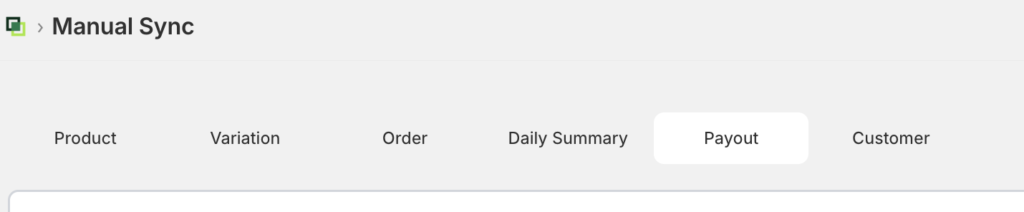
Ang Tab ng Payout
Nalista sa talahanayan ang lahat ng mga record ng payout na nakuha ng LedgerPort mula sa iyong Shopify store. Ang bawat hilera ay kumakatawan sa isang deposito ng Shopify Payments at nagpapakita ng:
- Petsa ng Payout : ang petsa kung kailan inisyu ang payout ng Shopify
- Halaga : ang halaga ng payout na naka-format sa iyong currency ng negosyo
- Katayuan ng Sync : kung naipadala na ang payout sa QuickBooks
Ang mga halaga ng katayuan ng pag-sync ay pareho sa lahat ng mga tab ng Manu-manong Pag-sync:
| Icon | Katayuan | Ano ang ibig sabihin nito |
|---|---|---|
| Berde na tsek | Na-sync | Matagumpay na na-push sa QuickBooks |
| Amber na orasan | Nakabinbin | Nakapila o isinasagawa |
| Pula na X | Nabigo | Ang huling pagtatangka sa pag-push ay nakaranas ng error |
| Abo na palaso | Nilaktawan | Hindi naisama ng mga setting ng Pag-configure ng Pag-sync |
| Amber na pahinga | Naka-hold | Hindi mag-sy-sync hanggang sa maalis ang hold |
Kung walang laman ang talahanayan, i-click ang Refresh upang makuha ang pinakabagong mga payout mula sa iyong Shopify store.
Pag-push ng Mga Payout sa QuickBooks
- Lagyan ng check ang kahon sa tabi ng bawat payout na gusto mong i-push. Upang piliin ang bawat hilera sa kasalukuyang pahina, lagyan ng check ang kahon sa header ng column.
- I-click ang Push sa toolbar. Ipinapakita ng button ang bilang ng mga napiling payout.
- Magbubukas ang isang dialog ng kumpirmasyon. Suriin ang bilang at kumpirmahin. Kapag natapos na ang pag-push, i-click ang Close. Magre-refresh ang talahanayan na may mga na-update na katayuan ng sync. Ang mga payout na mayroon nang status na Synced ay awtomatikong lalaktawan kung kasama sa isang push.
Kailan Gagamitin ang Payout Mapping
Paunang pag-import ng kasaysayan : pagkatapos ikonekta ang LedgerPort sa iyong Shopify store sa unang pagkakataon, i-push ang lahat ng umiiral na mga record ng payout upang ma-update ang QuickBooks bago paganahin ang awtomatikong pag-sync.
Pagkatapos ng nabigong sync : i-filter ang talahanayan ayon sa status na Failed, piliin ang mga apektadong payout, at i-push muli ang mga ito pagkatapos malutas ang pinagbabatayan na error. Suriin ang LedgerPort » Audit Logs upang basahin ang partikular na mensahe ng error para sa bawat nabigong record.
Pagkatapos ng pagkaantala ng koneksyon : kung pansamantalang naputol ang iyong koneksyon sa QuickBooks at hindi na-sync ang mga payout sa panahong iyon, i-push ang mga ito nang manu-mano dito sa halip na maghintay para sa susunod na awtomatikong cycle.
Mga Madalas Itanong
Magkapareho ba ang mga payout sa mga order? Hindi. Ang payout ay isang solong deposito na ginagawa ng Shopify sa iyong bank account, karaniwang kumakatawan sa netong kita mula sa maraming order minus ang mga bayarin ng Shopify sa isang panahon ng pagsingil. Ang mga order ay hiwalay na nag-si-sync sa pamamagitan ng tab na Order. Gamitin ang tab na Payout kapag kailangan mong itala ang aktwal na mga deposito ng pera sa QuickBooks sa halip na mga indibidwal na transaksyon ng benta.
Lilikha ba ng dobleng entry ang pag-push ng payout kung ito ay na-sync na? Hindi. Ang mga payout na may status na Synced ay awtomatikong nilalaktawan sa panahon ng pag-push, kaya ligtas na i-push muli ang isang batch na may kasamang mga record na na-sync na.
Bakit walang laman ang aking Payout tab pagkatapos i-click ang Refresh? Kumpirmahin na ang iyong koneksyon sa Shopify ay aktibo sa LedgerPort » Connections at na ang Shopify Payments ay naka-enable sa iyong tindahan. Ang mga payout ay lilitaw lamang kung ang iyong tindahan ay nakapagproseso ng hindi bababa sa isang payout cycle.
Hindi nakikita ang Payout tab. Bakit? Ang Payout tab ay lumilitaw lamang para sa mga koneksyon sa Shopify. Kung tinitingnan mo ang isang koneksyon sa WooCommerce, ang tab na ito ay hindi magagamit.
Maaari ba akong mag-push ng mga payout kung naka-off ang Auto sync? Oo. Ang pahina ng Manual Sync ay gumagana nang hiwalay sa setting ng Auto sync sa Sync Config. Maaari kang mag-push ng mga record dito anuman ang naka-enable na awtomatikong pag-sync.
Kung makaranas ka ng anumang mga isyu, huwag mag-atubiling makipag-ugnayan sa amin sa pamamagitan ng pag-click dito. Ang aming support team ay makakatulong sa iyo.
