

- 1"Retail Accounting Software" Is Three Different Stacks
- 2The Short List: Accounting Software for Retail Stores, Compared
- 3What Retail Accounting Systems Must Actually Handle Online
- 4The Online Retail Stack in Practice
- 5Omnichannel and Multi-Store Retail
- 6What Is Retail Accounting? (The Term Means Two Things)
- 7Retail Bookkeeping vs. Retail Accounting
- 8How to Evaluate Retail Store Accounting Software: 5 Questions
- 9Retail Accounting Software: FAQ
- 10What accounting software do most retail stores use?
- 11Is QuickBooks good for retail?
- 12What’s the difference between POS software and accounting software?
- 13How much does retail accounting software cost?
- 14What’s the best accounting software for a small retail shop?
- 15The Software You Were Actually Searching For
The search results are a mess because the category is a mess. Naming how you sell — before naming a product — collapses the whole decision into one manageable question.
It's 9:40 on a Tuesday night, and you have three tabs open.
Tab one is a point-of-sale system that says it "includes accounting." Tab two is an accounting suite advertising a "retail edition." Tab three is something called a retail management system whose screenshots appear to have been taken in 2011. All three came from the same search: retail accounting software.
If you’re comparing accounting software for retail stores — or for a small retail shop that also sells online — the fastest way through is to name how you sell first. That’s how this guide is organized.
None of them mentions the problem that sent you searching in the first place — the payouts sitting in your bank feed that still don't match what your store says you sold last month.
Here's the assumption doing the damage: retail accounting software is one product category, and my job is to find the best one. That's the lie the search results sell you. It isn't one category. It's three different stacks that happen to share a name — and which one you need depends entirely on how you sell.
"Retail Accounting Software" Is Three Different Stacks
When a vendor says "retail accounting," they mean one of three setups:
| How you sell | What the stack looks like | What anchors it |
|---|---|---|
| In-store only | POS system + its native accounting integration | The POS (Square, Lightspeed, Clover) |
| Online only | Storefront platform + general ledger + sync layer | The platform (Shopify, WooCommerce) |
| Omnichannel | Both of the above, unified in one ledger | The ledger (usually QuickBooks Online) |
The tabs you had open weren't three competitors. They were three answers to three different questions, and only one of those questions is yours.
If you're a pure brick-and-mortar retailer, be honest with yourself here — and let us be honest with you. Your accounting stack should be built around your POS. Square, Lightspeed, and Clover all maintain their own QuickBooks integrations, and they're good at what they do: register-level sales, cash drawer reconciliation, in-store inventory. LedgerPort — the tool this blog belongs to — is not a POS system and does not connect to any of those registers. If your sales happen at a counter, the POS-native path is the right one, and nothing below will change that.
The rest of this guide is for the other two rows: retailers who sell through a Shopify or WooCommerce storefront — possibly alongside a physical presence — and keep their books in QuickBooks Online. If that's you, your problem was never "find the best retail accounting software." It's that your platform's sales, fees, refunds, and payouts don't land cleanly in the ledger you already own.
The Short List: Accounting Software for Retail Stores, Compared
Names, because the three-stacks distinction only helps if you can sort real products into it. Every tool below is competent at what it actually is — the expensive mistakes come from buying one stack while expecting another.
| Software | Which stack it is | Best fit | The catch |
|---|---|---|---|
| QuickBooks Online | General ledger | The US default; every accountant speaks it | Knows nothing about your store until something feeds it data |
| Xero | General ledger | Retailers who prefer its interface and app ecosystem | Same translation gap as QuickBooks — it’s a ledger, not a store connection |
| Sage | Ledger / retail suite | Mid-market and multi-entity retail | Heavier implementation than an online store usually needs |
| Lightspeed Retail | POS suite | Brick-and-mortar-first retail that wants POS and inventory in one place | Still posts to a ledger — a POS suite doesn’t replace one |
| Square | POS suite | Small in-person retail with simple needs | Serious online multi-channel selling outgrows it |
| LedgerPort | Sync layer | Shopify and WooCommerce stores on QuickBooks Online | It’s the layer between store and ledger — you still need both sides |
| A2X | Sync layer | Marketplace-heavy sellers (Amazon, eBay, Walmart, Etsy) on QuickBooks or Xero | No WooCommerce, and pricing steps with order volume — our full A2X review covers both |
If your store is online-first, the short version: pick a ledger (QuickBooks Online or Xero), treat the POS decision as separate, and close the store-to-ledger gap with a sync layer. Our Shopify accounting software roundup compares the sync layers head-to-head.
What Retail Accounting Systems Must Actually Handle Online
Strip away the marketing and there are five mechanics that separate working retail accounting systems from generic bookkeeping. If a tool can't handle these, it doesn't matter what it calls itself.
1. Sales on the sale date, deposits on the payout date. Your platform pays you in batches, days after the sales happened, with fees already subtracted. If your books record revenue when the deposit hits the bank, your sales are dated wrong, understated by the fee amount, and impossible to reconcile. This single timing gap is the root of most mismatches — we walk through the full mechanics in How to Reconcile Shopify Payouts in QuickBooks.
2. Fees separated from revenue. A $100 sale with a $3.20 processing fee is $100 of revenue and $3.20 of expense — not $96.80 of revenue. Net-deposit bookkeeping quietly understates both your top line and your costs, which distorts every margin number you use to make decisions.
3. Refunds and exchanges as first-class events. A refund is not a negative sale on the day it happens to clear. It reverses revenue, claws back tax, and sometimes the processing fee doesn't come back at all. Retail has more of these events than almost any other business model — Refunds & Returns in E-commerce Accounting covers how they should post.
4. Sales tax as a liability, never income. Tax collected at checkout is money you're holding for a government. It needs to land in a liability account, separated by the platform's own tax lines — not lumped into sales. Your chart of accounts has to be structured for this before any tool can post to it correctly.
5. Inventory and COGS timing. Product cost should hit your books when the item sells, not when you buy stock. Get this wrong and your monthly profit swings with your purchasing schedule instead of your sales.
Notice what's not on this list: invoicing, payroll, dashboards. QuickBooks already does those. The five items above are the retail-specific layer — and they all live in the gap between your platform and your ledger.
The Online Retail Stack in Practice
For online retail, the working stack has exactly three parts: your platform (Shopify or WooCommerce), your ledger (QuickBooks Online), and a sync layer between them. The platform and the ledger you already have. The sync layer is the part you were actually searching for — it's where all five mechanics above get solved.
Here's what that looks like concretely, using LedgerPort as the example.
How sales get recorded. The sync layer decides what each order becomes in QuickBooks: a sales receipt per order for stores that want transaction-level detail, an invoice-plus-payment for wholesale terms, or a single daily summary journal entry for high-volume stores that don't want 300 rows a day cluttering the ledger. It also controls which entities sync automatically, how often, and from what start date — so the behavior of your books is a setting you choose, not an accident of whatever the export produced. All five recording methods, and when each fits, are documented in Understanding Order Sync Methods.
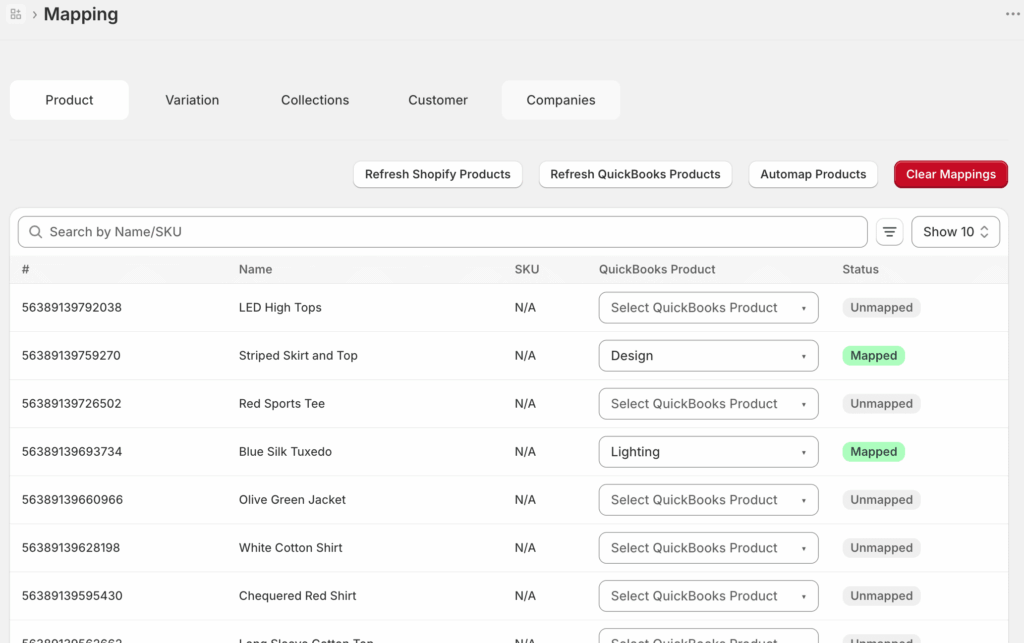
Mappings: where the translation actually happens. Every product, customer, payment method, and tax line in your store needs a destination in QuickBooks. The mapping screen lists your catalog next to the QuickBooks item each product posts to; an Auto-Map pass matches most of them by SKU or name, and anything left unmapped is flagged — orders containing an unmapped product fail visibly instead of posting to the wrong account and silently corrupting your books. That failure-by-default behavior sounds like an inconvenience. It's actually the feature: wrong-but-posted is the most expensive state your books can be in.
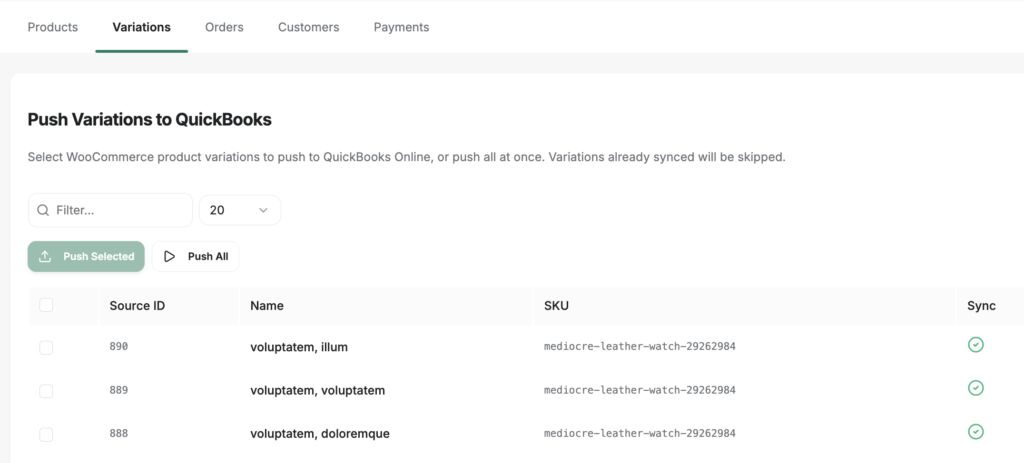
Catching up when your books are behind. Most retailers don't adopt a sync layer on day one of the business — they adopt it with months of unrecorded or badly recorded history behind them. A manual push page lists every record — orders, products, customers, payments, each on its own tab — with its sync status, so you can backfill a date range, re-send a handful of records that failed on a mapping error, or push the whole backlog and watch it post. Already-synced records are skipped automatically, so re-running a push doesn't create duplicates.
None of this is exotic. It's plumbing. But it's retail-specific plumbing, and it's precisely the part that a POS suite, a generic "retail edition," and a 2011-era retail management system all fail to do for a Shopify or WooCommerce store.
Omnichannel and Multi-Store Retail
Selling through more than one storefront — a Shopify store and a WooCommerce store, two brands, a US and an EU shop — doesn't change the stack. It multiplies it. Each store needs its own connection, its own mappings, and usually its own QuickBooks company, because blended books make per-store profitability invisible and tax filings painful.
The sync layer should treat each store as a separate, isolated business under one login, so you're not maintaining three tools or three subscriptions. In LedgerPort, Shopify and WooCommerce stores sit side by side in one account — the Scale plan covers up to 3 stores, Enterprise is unlimited. The full setup, including when to use separate QuickBooks companies versus one company with locations, is in Multi-Store E-commerce Accounting.
Here's what "isolated" means mechanically. In LedgerPort, each store is a Business: one storefront paired with one QuickBooks company, carrying its own currency, timezone, connections, mappings, sync logs, and settings. Adding a second one takes four fields — click the business name in the top-left corner of the dashboard, click Add Business, enter a name, pick a currency and timezone, and connect that store's platform and QuickBooks account the same way you connected the first. The same top-left switcher moves you between businesses without logging out: pick a store, and the dashboard, connections, and logs all swap to that business. Nothing you change in one — a mapping, a sync setting, a disconnected account — touches any other.
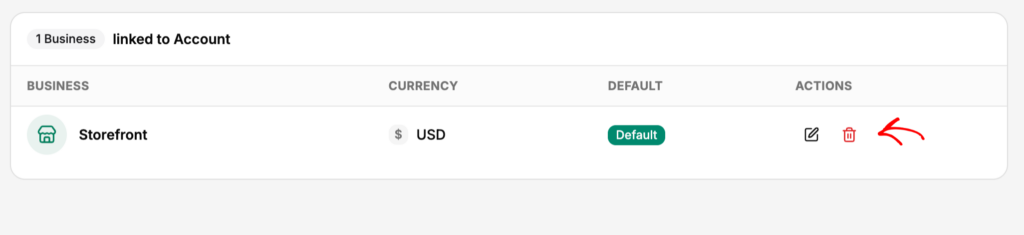
That isolation holds all the way to the end of a store's life. Close a brand down and you can delete its Business from Settings; only that store's LedgerPort sync history, logs, and mappings are removed. Your other businesses keep running, and the store's Shopify or WooCommerce account and its QuickBooks company are never touched.
One honest note for omnichannel retailers with a physical counter: if your in-store sales run through Shopify POS, they enter the same Shopify order stream as your online sales. If they run through a separate register system like Square or Lightspeed, that's a second stack — anchor it to the POS's own QuickBooks integration, and keep your online sync layer for the storefront. Don't buy one tool expecting it to be both.
What Is Retail Accounting? (The Term Means Two Things)
A short detour that clears up most of the confusion in search results: “retail accounting” is both a category and a specific technique, and they get blurred constantly.
As a category, retail accounting is ordinary accounting adapted to selling physical goods: inventory sits on the balance sheet, cost of goods sold is recognized as items sell, sales tax collects as a liability, and sales data arrives from a POS or e-commerce platform instead of from invoices you write yourself. That’s the sense this guide uses.
As a technique, the retail method is a specific way to estimate inventory value without tracking costs per unit: work out the ratio of cost to retail price across your stock, then value whatever’s unsold by applying that ratio to its retail price. It’s fast, it needs no per-unit cost records, and it survives in high-SKU merchandising businesses and interim financial statements. It’s also an estimate — markdowns, shrinkage, and mixed-margin product lines all bend the ratio away from reality.
Most online retailers never need the retail method. Your platform already records exactly which items sold and what they cost you, so actual COGS is computable — our guide to getting COGS right in QuickBooks walks through it. The retail method mostly matters when you’re reading accounting literature written for department stores and wondering why it doesn’t match your reality.
Retail Bookkeeping vs. Retail Accounting
One more distinction worth pinning down, because the search results blur it: retail bookkeeping is the recording work — daily sales entries, payout reconciliation, sales tax liabilities, inventory adjustments. Retail accounting is what happens on top of those records: margin analysis, valuation, tax strategy. Most of the software in this guide earns its keep by automating the bookkeeping for a retail store; if the recording layer is broken, no reporting tool downstream will fix it.
How to Evaluate Retail Store Accounting Software: 5 Questions
Once you've named your stack, the shortlist gets small. Whatever retail store accounting software you're comparing for the sync layer, ask these five questions — they're the same criteria we used in our roundup of Shopify accounting tools:
- Does it record sales on the sale date and reconcile payouts to bank deposits? If it only imports deposits, it's a bank feed, not an accounting layer.
- Does it separate fees, refunds, and tax into their own accounts automatically? Ask to see a synced transaction, line by line.
- What happens when something fails? Unmapped product, deleted item, API hiccup. Look for visible errors, logs, and selective re-sync — not silent skips.
- Does it handle your platforms and your store count? Multi-store and Shopify-plus-WooCommerce support varies more than any pricing page suggests.
- What does it cost against the hours it removes? Stores at meaningful volume report saving hours every week. Compare that honestly against the subscription — current plans are on the pricing page, starting free for up to 30 orders a month.
Question 3 has a shortcut: in the demo, ask to see the audit trail. Not the marketing page about it — the actual screen. In LedgerPort that's the Audit Log, where every sync attempt is one row with an explicit status: Synced, Error, Pending (queued, not yet processed), or On Hold (waiting for a trigger condition like a payment status to be met). Each row carries the order number, product, or customer it belongs to, and error rows expand to name the cause — "Product not mapped," "Customer not found in QuickBooks" — so a failure points at its own fix. Filtering to Status = Error is a thirty-second daily check; filtering by date range after a connection interruption surfaces exactly the records that missed their window, ready to re-send. The screen itself is documented in Reading and Filtering the Audit Log. If a vendor can't show you an equivalent, assume failures are silent — and silent failures are how books drift for months before anyone notices.
Any tool that answers all five well is a legitimate choice. The differences show up at the edges — error recovery, fee accuracy, refund handling — which is exactly where retail books live or die.
Retail Accounting Software: FAQ
What accounting software do most retail stores use?
QuickBooks Online is the most common ledger for US retail, with Xero the main alternative. In-person retail typically pairs the ledger with a POS suite; online retail pairs it with the e-commerce platform plus a sync layer that moves sales data into the ledger correctly.
Is QuickBooks good for retail?
As the ledger, yes. QuickBooks Online handles retail bookkeeping well once data reaches it. What it doesn’t do is understand your store: payouts, fees, refunds, and gift cards arrive as one lump deposit unless something translates them first. That translation layer is the piece most “QuickBooks for retail” advice skips.
What’s the difference between POS software and accounting software?
A POS runs the sale — catalog, checkout, inventory counts. Accounting software keeps the books — ledger, P&L, balance sheet, taxes. A POS suite reports sales, but it doesn’t produce financial statements. You need both, connected. That’s the three-stacks argument in one sentence.
How much does retail accounting software cost?
It depends which stack you’re pricing. Ledgers are tiered by features, POS suites price per location or register, and sync layers price either by order volume or flat. LedgerPort’s current pricing is here — including a free plan for small stores.
What’s the best accounting software for a small retail shop?
For a small shop that sells mostly in person, a POS suite like Square paired with a general ledger (QuickBooks Online or Xero) covers most needs. Once you also sell online through Shopify or WooCommerce, add a sync layer such as LedgerPort so orders, fees, refunds, and payouts post to QuickBooks automatically instead of by hand. The short list above shows where each tool fits.
The Software You Were Actually Searching For
Go back to those three tabs. A POS suite, a retail edition, a legacy retail system. You could evaluate all three for a month and none of them would fix the payouts sitting unreconciled in your bank feed — because none of them was built for the stack you already own.
That's the irony of the search term. You weren't looking for retail accounting software. You were looking for the missing layer of a stack that's already two-thirds assembled: your store on one side, QuickBooks on the other, and a translation gap in between.
LedgerPort is that layer for Shopify and WooCommerce retailers. The free plan covers up to 30 orders a month with one store, setup takes about 15 minutes, and every paid plan carries a 14-day money-back guarantee — no questions asked. Connect your store and see your first orders post to QuickBooks →
