

- 1Is QuickBooks Desktop Going Away? What Intuit Has Actually Announced
- 2What a discontinued version actually loses
- 3Sort Your Client Book: Move Now, Move in January, or Stay
- 4Why E-commerce Clients Are a Different Migration
- 5Migrating a Store Client from QuickBooks Desktop to Online: The Cutover Runbook
- 6A Firm-Level Plan for the Next 60 Days
- 7FAQ
- 8Will QuickBooks Desktop stop working in 2026?
- 9Can I still buy QuickBooks Desktop?
- 10Can LedgerPort sync a store to QuickBooks Desktop during the transition?
- 11The Date That Matters Is the One You Choose
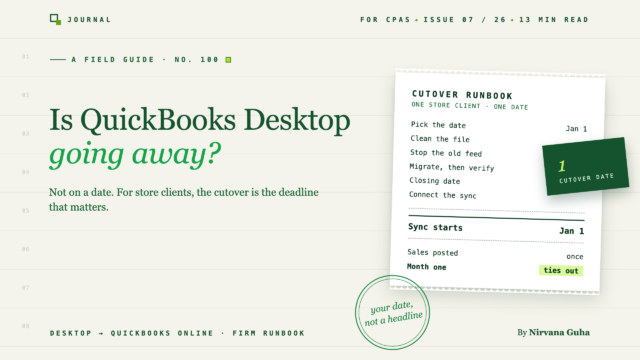
Desktop isn't switching off on a date. Your store clients' cutover is the deadline that matters.
The email arrives on a Tuesday morning. A client has forwarded a headline, "QuickBooks Desktop is going away in 2026," with one line of their own on top: Do we need to do something?
By lunch, two more clients have sent versions of the same question. Your first instinct is the efficient one: move everybody to QuickBooks Online before Christmas and get it over with.
Here's how that plays out for the one client who sells on Shopify. Intuit's migration tool runs cleanly. The balance sheet ties out, and you move on. A few weeks later someone connects a sync app to the new Online company and backfills from January 1 "to be safe." Every sale since January that was already in the migrated Desktop data posts a second time. Revenue for the year in QuickBooks Online now reads $1.6 million against a Shopify sales report of $800,000, and the client's lender wants year-end financials.
Nothing malfunctioned. The migration worked and the sync worked. The problem was the belief behind the plan: Desktop shuts off in 2026, so move every client now, and once the file has moved, the move is done.
Both halves of that are wrong. Desktop isn't being switched off on a date, so the deadline is yours to set, client by client. And for e-commerce clients the file move is the easy part. The risky part is the cutover week, when two systems can post the same sales.
This guide covers both. It starts with what Intuit has actually announced, then how to sort your client book, then a cutover runbook for store clients.
Is QuickBooks Desktop Going Away? What Intuit Has Actually Announced
As of November 2026, Intuit hasn't announced a date when QuickBooks Desktop stops working. What it has done is narrower, and it has published each step on its own help pages.
Updated November 2026. Every row comes from an Intuit page, linked in the Source column.
| Date | What happened | Source |
|---|---|---|
| September 30, 2024 | Intuit stopped selling new US subscriptions to QuickBooks Desktop Pro Plus, Premier Plus, Mac Plus and Enhanced Payroll. The deadline had been extended from July 31, 2024. Existing Desktop Plus and Desktop Payroll subscribers can keep renewing. | Intuit stop-sell help article |
| September 30, 2024 | QuickBooks Desktop Enterprise was not affected. New customers can still buy Enterprise subscriptions. | Same article |
| May 31, 2026 | QuickBooks Desktop 2023 was discontinued. That covers Pro Plus, Premier Plus, Mac Plus and Enterprise Solutions 23.0. | Intuit discontinuation policy |
| Now | Existing Desktop Plus and Enterprise subscribers receive version 2024 as part of their plan. | Same policy page |
| Desktop 2024 end date | Not listed on Intuit's policy page when we checked on November 3, 2026. | — |
Intuit's own description of the stop-sell is worth quoting to any client who's worried. It "applies only to new purchases, not a discontinuation (sunset)" of the product line, according to Intuit's announcement. The change is also US-only.
What a discontinued version actually loses
When a Desktop version retires, the software doesn't vanish. It loses the connected services around it. Intuit's policy page for Desktop 2023 lists live technical support, Desktop payroll services, payment processing, Online Banking (including downloading transactions), and a set of other connected features such as email and Shipping Manager.
For most clients, the loss of bank feeds and payroll is what forces a decision. A file that still opens but can't download transactions or run payroll isn't a working accounting system.
Dates you'll see that Intuit hasn't published
Third-party pages and community threads repeat several specific dates: "Desktop 2024 ends May 31, 2027," "ends September 30, 2027," and "Desktop is shut off in 2026." Intuit's discontinuation policy page didn't list any of them when we checked on November 3, 2026. Before you quote a date to a client, check Intuit's discontinuation page for that client's version.
So the accurate answer is that Desktop is being wound down by attrition. There are no new Plus buyers, and each version retires on its own schedule. Nothing is being switched off on one day.
The pressure on e-commerce clients comes from somewhere else. Almost every current store-sync tool, LedgerPort included, works with QuickBooks Online only. The longer a store client stays on Desktop, the narrower its options for getting sales into the books.
Sort Your Client Book: Move Now, Move in January, or Stay
There's no reason to treat every Desktop client the same way. Sort them into three groups.
Move first. These are clients on a version that's already discontinued, or about to be, who are now losing bank feeds and support. Add the e-commerce clients whose store data reaches Desktop through CSV imports or hand-keyed journal entries, if order volume has outgrown that routine. For them, staying put costs hours every month.
Move at a year boundary (most store clients). Plan in November and December and cut over on January 1. You get one clean "before" and "after" for the tax year: the full prior year in the migrated Desktop data, and the new year built entirely by the new sync. It's also the easiest cutover to explain to a client and to a reviewer.
Stay for now. Enterprise clients who depend on Enterprise-specific workflows, such as advanced inventory or assemblies, and clients whose Desktop setup carries real weight in how they run the business. Enterprise is still sold and supported, so there's no urgency to manufacture. If a store owner in this group needs a way to get sales into Desktop in the meantime, point them to the Shopify and QuickBooks Desktop options.
To place each client, ask five questions:
- Which Desktop edition and version are you on? This tells you whether support has already ended.
- How do sales get into Desktop today? A connector, a CSV import, or summary entries keyed by hand.
- Do you run payroll in Desktop? Payroll moves on its own timeline (more below).
- Do you track inventory in Desktop? Inventory-heavy files are the hardest to migrate.
- Do you have open receivables or wholesale invoices? Those need to be clean at cutover.
If you already run a structured intake, these fit into the e-commerce client intake questionnaire.
Why E-commerce Clients Are a Different Migration
A service business has one thing to move: the ledger. A store client has a ledger plus a feed. Sales have been reaching Desktop through something, usually a Desktop-capable connector such as Webgility, an import routine, or summary journal entries.
After the migration, a new Online-side sync starts posting. That handoff is where revenue duplicates. The migrated Desktop history already contains every sale up to the cutover. If the new sync also posts orders from those same months, the store's sales land in QuickBooks twice. The migration tool can't catch this, because from its side everything worked.
Two other things travel badly.
Clearing and undeposited balances. Whatever unreconciled payout mess sat in Desktop moves to Online exactly as it was. The migration copies it faithfully. Clean it before you move, not after. The CPA guide to cleaning up Shopify books in QuickBooks walks through the usual defects, and they're the same ones you'd find in a Desktop file.
Item lists. Years of SKUs come across as Online products, and the new sync will try to match store products to them. Decide how matching should work before the first sync, by SKU or by name. Otherwise you can end up with a second set of near-duplicate products.
Size matters too. Intuit's migration requires the file's "Total Targets" count to be below 4,000,000, and its batch tool notes that files above 750,000 targets may see data discrepancies, particularly with inventory. Large inventory files deserve extra verification time. Intuit also maintains the list of what does and doesn't transfer to Online, and that list changes, so check it on Intuit's migration article for each client rather than relying on someone else's summary.
Migrating a Store Client from QuickBooks Desktop to Online: The Cutover Runbook
This is the order that keeps sales posting once. It applies whichever sync tool you choose. The core rule is the one we use for switching sync tools within QuickBooks Online: one cutover date, and nothing posts across it twice.
1. Pick the cutover date. Choose a month boundary, ideally the start of the fiscal year. Avoid Black Friday through Cyber Monday and the client's own peak season. Changing ledgers while order volume is at its highest is how small errors become big ones.
2. Clean the Desktop file. Reconcile bank and clearing accounts through the day before cutover. Clear stale undeposited funds and old open items, and prune lists you won't need. The migration will carry whatever is there.
3. Stop the old feed. Confirm that the Desktop-side connector or import routine has posted everything through the last day before cutover, then turn it off. From this point nothing should post to Desktop.
4. Migrate. Use Intuit's tool. From Desktop Pro or Premier, Intuit's instruction is to go to Company, then select Migrate this company file to QuickBooks Online. Enterprise uses a different path, so follow Intuit's step-by-step article rather than a summary. Intuit also notes that "your accountant or bookkeeper can help you with the migration," which is the opening for your engagement letter.
Payroll moves separately. Payroll isn't part of the company-file move. Intuit's written steps say to make sure the migration is complete at least seven business days before the client's next scheduled payroll. Plan the payroll move around the client's pay calendar, not around your cutover date, and never in the week of a pay run. For payroll history and tax forms, follow Intuit's payroll guidance rather than assuming it all comes across.
5. Verify before anything else posts. Run the balance sheet and P&L as of the cutover date in both systems and compare them line by line. Check AR, AP and inventory totals. Do this while the Online company holds only migrated data, because that's when differences are easiest to trace.
6. Mind the replace window. Intuit gives you time to bring Desktop data into the Online company: 90 calendar days if the client signed up themselves, 180 if their accountant signed up for them. If you import again into a company that already has data, you're choosing to replace it. Intuit says the migrated Desktop file "replaces all data," and that you "can no longer undo the action." Anything the new store sync has posted would be wiped with it. So finish migration and verification first, then connect the store sync. If you ever have to re-import later, plan to re-sync from the cutover date afterward.
7. Set a closing date in Online. Set it to the last day before cutover, December 31 for a January 1 cutover, so late edits don't land in migrated months. One honest caveat: a sync can't post into a closed period, and closed accounting periods are one of the common causes of sync failures listed in our docs. If a pre-cutover order ever does need posting, lift the closing date temporarily, post it, then put the closing date back.
8. Connect the store sync so nothing posts before the cutover date. On every tool and every plan the rule is the same: never sync into migrated months. Using LedgerPort as the example:
- Connect the new Online company by signing in to QuickBooks. LedgerPort works with QuickBooks Online only; our setup doc states plainly that QuickBooks Desktop is not supported. The full walkthrough is in how to connect Shopify to QuickBooks Online.
- Map the accounts to the clearing, fee and revenue accounts you rebuilt in Online. The e-commerce chart of accounts template is a good starting point.
- On the Free plan, there's no automatic sync. You push orders manually, so you choose exactly which orders go across: only those dated on or after the cutover.
- On paid plans, "Historical sync with custom start date" (see pricing) lets you set the start date to the cutover date, and automatic sync carries on from there.
- For WooCommerce clients, connect on the cutover date and let new orders sync from there. With a January 1 cutover there's no history to backfill anyway. The WooCommerce sync guide covers the setup.
If you push again later, records that already synced are skipped rather than posted twice. That's useful, but it isn't a substitute for getting the start date right. For the rest of the setup, such as mappings, triggers and the first review, use the Shopify client onboarding guide as you would for any new client.
Sales tax: set up sales tax in the new Online company before the first sync, and check Intuit's migration guidance for how Desktop sales tax items come across. On the LedgerPort side, collected tax posts to the sales tax liability account you map.
9. Run the first-month checks. Compare the Shopify sales report with Online revenue for the first full month after cutover. Tie out the first payout from deposit back to orders, fees and refunds; the payout reconciliation guide shows how. Then run the first close with the month-end close checklist for e-commerce clients. If month one ties out, the cutover worked.
Old Desktop files after the move. In the walkthrough video on its migration article, Intuit says clients keep view-only access to their Desktop data for 12 months after canceling the Desktop subscription. Export the reports you'll need for the tax year (the prior-year P&L, balance sheet, general ledger and sales tax liability) well before that access runs out.
A Firm-Level Plan for the Next 60 Days
If you have several store clients on Desktop, batch them for January 1.
November. Send clients the accurate version of the news, calmly, with no countdown. Run the five intake questions, pick January 1 cutovers for the store clients, and do file cleanup in the quiet weeks. Don't touch a store's books during Black Friday and Cyber Monday.
December. Finish cleanup, reconcile everything through December 31, and line up each client's payroll move around their pay calendar.
First week of January. For each client: freeze, migrate, verify, set the closing date, then connect the store sync from January 1.
To keep the workload manageable, batch similar clients together. Intuit's Accountant Batch Migration Tool moves up to 50 client files from QuickBooks Desktop Accountant. The page lists Pro, Premier and Mac company files, and its own limits include 5 GB per file and a 60-day window from creating the Online account. Read it before you plan around it.
If you'll be running store syncs for several clients after the move, here's how LedgerPort works for accounting firms.
FAQ
Will QuickBooks Desktop stop working in 2026?
Intuit hasn't announced a shutoff. Versions lose support on Intuit's schedule: Desktop 2023 was discontinued after May 31, 2026. A discontinued version loses services such as live support, payroll and online banking. Check Intuit's discontinuation policy for your client's version.
Can I still buy QuickBooks Desktop?
In the US, new subscriptions to Pro Plus, Premier Plus and Mac Plus stopped after September 30, 2024. Existing subscribers can keep renewing, and QuickBooks Desktop Enterprise is still sold.
Can LedgerPort sync a store to QuickBooks Desktop during the transition?
No. LedgerPort syncs to QuickBooks Online only. Connect it to the new Online company once the migration is verified, with the start date set to the cutover date.
The Date That Matters Is the One You Choose
Go back to that forwarded headline. The honest reply to the client isn't a date from a headline. It's a date your firm chose: their cutover, picked for their tax year and their sales calendar, with a plan behind it.
Intuit decides when each Desktop version stops getting updates. You decide when each client moves, and for store clients that decision is worth more than the migration tool.
Moving a store client to QuickBooks Online? Connect the store to the new company on LedgerPort's Free plan, push a few days of real orders from after the cutover, and check them in QuickBooks before you commit the client to a paid plan. The Free plan covers up to 30 orders a month, and you choose which orders to push.
Running this for several clients? See LedgerPort for accounting firms and the CPA Partner Program.
