

- 1Sales Discount Accounting in One Paragraph
- 2The One Decision: Discount Line or Lower Price
- 3The product decides the account
- 4If you enter sales by hand
- 5Pick it before BFCM
- 6Three Edge Cases That Break Discount Reporting
- 71. Free shipping
- 82. Gift cards are payments, not discounts
- 93. Discount before tax
- 10When Discounts Stack
- 11Your Pre-BFCM Discount Checklist
- 12FAQ
- 13Are discounts an expense or contra-revenue?
- 14How do I record a discount in QuickBooks Online?
- 15Why doesn't my free-shipping promo show up in discounts?
- 16Decide in November, Know in January
A discount is a lower price to your customer. To your books, it's a number you'll want back in January.
Picture a store that runs 30% off sitewide from Black Friday to Cyber Monday. The weekend goes well. Orders flow into QuickBooks Online through the store sync, the way they do every other week.
In January, the owner asks one simple question: what did the promotion cost us?
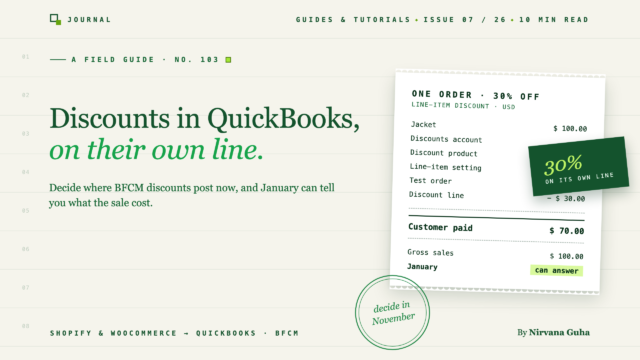
QuickBooks can't say. Every order landed at its discounted price: a $100 jacket shows up as a $70 sale, and nothing anywhere says $30 was given away. December just looks like a busy month at oddly low prices. Meanwhile Shopify's sales report shows a Discounts total of, say, $40,000 for the weekend. That number appears nowhere in the books. The accountant ends up rebuilding it from Shopify exports.
The setup rested on a reasonable-sounding belief: "A discount is just a lower price. The books only need to know what the customer paid."
They need both numbers. Getting both is mostly one setting in your sync, and the time to choose it is before Black Friday, not after. Our BFCM finance prep checklist covers the rest of the season (cash timing, fees, payout lag, returns). This post covers the discount part in detail: the one decision, three edge cases that still break it, and a test order to run while volume is normal.
Sales Discount Accounting in One Paragraph
Discounts are contra-revenue. They reduce revenue and sit directly under gross sales on the P&L. They aren't a marketing expense, and they shouldn't be invisible. That's also how your store platform reports them. Shopify's sales report defines net sales as "gross sales – discounts – sales reversals", and your P&L should be able to show the same three pieces.
Here's the sales discount journal entry for one $100 item sold at 30% off (tax left out to keep it simple):
| Account | Debit | Credit |
|---|---|---|
| Cash or clearing account | $70 | |
| Sales Discounts (contra-revenue) | $30 | |
| Sales | $100 |
The customer paid $70, so $70 arrives. But Sales records the full $100, and the $30 lands in its own account. In January you can add up that one account and know what the promotion cost. That's the whole point of sales discount accounting: the discount becomes a number you can report, compare and feed into contribution margin by SKU or channel, instead of something hidden inside lower prices.
The One Decision: Discount Line or Lower Price
When a synced order carries a discount into QuickBooks, it can arrive in one of two shapes:
- As its own line. The item comes in at full price, followed by a negative discount line. The discount is visible and reportable.
- Absorbed into the price. The item comes in at the discounted price. There's no discount number anywhere.
The first shape gives you the journal entry above. The second gives you the January problem. In LedgerPort, this is a setting on each connection.
Shopify. Go to Sync Config › Accounting › Advanced Settings › Discounts. LedgerPort's Shopify accounting settings doc describes the two options:
- Line Item: "The discount is added as a negative line item on the invoice. This makes the discount visible and separately trackable in QuickBooks Online reports." When you choose it, a dropdown appears where you pick the QuickBooks product to use for discounts.
- Within Original Item: "The discount is absorbed into the original item price, reducing the line item amount rather than adding a separate line." The doc is candid about the trade-off: "This produces a cleaner invoice but makes it harder to report on total discounts given."
WooCommerce. Go to Sync Config › Orders and find the Discounts card. The sync configuration doc lists the Discount sync method (how discounts are recorded in QuickBooks): "Discounted price in line item reduces each line item price, or Separate line item adds a negative discount line item." When you choose Separate line item, a Discount line item product field appears for the QuickBooks product to use.
On LedgerPort's pricing page, these settings fall under "Tax, tips, shipping, discounts, and rounding", which is listed on the Growth, Scale and Enterprise plans. If your store isn't connected yet, start with the setup guide for Shopify or WooCommerce.
The product decides the account
Both platforms ask you to pick a QuickBooks product for the discount line, and that choice matters more than it looks. In QuickBooks Online, a product or service item carries an income account. The negative discount line posts to whatever income account that product points to.
So before you choose the product, set up the account:
- Create an income account called something like Sales Discounts in your chart of accounts, sitting under your sales accounts. If you're starting from scratch, our ecommerce chart of accounts template shows where it fits.
- Create (or pick) a product or service item named something like "Discount", and point its income account to Sales Discounts.
- Select that product in your sync's discount setting.
If the discount product points to your main Sales account instead, the discount line still shows on each order, but your P&L nets it straight back into Sales. You'd be halfway there.
If you enter sales by hand
Intuit has its own discount tools for invoices and sales receipts you create in QuickBooks yourself. Its help article on adding a discount explains that you can turn on a Discount field under Settings › Account and settings › Sales › Sales form content (select Edit), then "choose $ for a flat discount or % for a percentage discount." You can also "enter a discount as a specific item with a negative rate and a description." One limit to know: "Individual line-item discounts can only be used for whole amounts, not percentages."
Pick it before BFCM
LedgerPort's docs say these settings "apply to every synced order and should be reviewed before your first sync." If you change the setting later, the change affects orders from then on. The orders already in QuickBooks keep the shape they synced in.
That's why the timing matters. Switch on December 2 and your November and December books use two different methods, with part of the promotion's cost visible and part absorbed. Choose now, while you're syncing normal volume and can check the result on a few orders.
Three Edge Cases That Break Discount Reporting
Even with the discount line set up correctly, three kinds of promotion don't behave the way you'd expect.
1. Free shipping
Free shipping feels like a discount, but Shopify doesn't count it as one. In Shopify's sales report, Discounts covers "line item discount + order level discount share". Shipping discounts sit in a different metric: Shipping is "shipping charges – shipping discounts – refunded shipping amounts."
So a free-shipping promo may not appear in your discount line in QuickBooks at all. Going by Shopify's formulas, it's more likely to show up as lower shipping income. Don't assume either way: check it with the test order in the checklist below.
Then decide whether that's fine for your reporting. If you want shipping income visible as its own line, LedgerPort's Shopify settings let you post shipping as a Line Item (with a QuickBooks product for shipping) or through the Shipping Field.
WooCommerce is simpler here. Its coupon documentation says: "Coupons do not affect shipping since they can only apply to cart items."
2. Gift cards are payments, not discounts
A gift card used at checkout pays for the order. It doesn't discount it. Shopify is explicit about this in its sales report: "The full value of the item is claimed as sales." Its example: a $20 t-shirt with $5 paid by gift card shows as $20 in sales.
In accounting terms, redeeming a gift card is a payment that reduces a liability (the money you owed the card holder). It shouldn't touch your Discounts account. Promotional gift cards, like a "$50 card for $40" deal, are a separate question. Our BFCM prep post covers the rule, and the gift card and store credit guide covers the full lifecycle.
In LedgerPort, gift card and store credit accounting is an Enterprise plan feature, per the pricing page.
3. Discount before tax
Both platforms take the discount off before calculating tax. Shopify: "All discounts are applied before taxes." WooCommerce: "Coupons apply to product prices before tax calculation."
So in QuickBooks, the discount should come off before tax too. If it doesn't, the tax on your books won't match the tax you actually collected. For WooCommerce in LedgerPort, the Discounts card has an Apply discount above sales tax option ("Apply discounts before sales tax is calculated"). For sales you enter by hand, Intuit says: "To apply a discount before sales tax is calculated, select the double arrow icon next to the discount field."
That's as far as this post goes on tax. Setting up and reconciling sales tax is a bigger topic than the discount order.
When Discounts Stack
BFCM is when stores run several promotions at once, so it helps to know how they combine.
On Shopify, discounts "don't automatically combine". You choose which ones can combine. When they do, they apply in a fixed order: "Product discounts apply first to individual items. Order discounts apply to the revised subtotal after product discounts. Shipping discounts apply last." A customer can use "a maximum of 5 product or order discount codes and one shipping discount code on the same order."
On WooCommerce, core coupons are "fixed-cart, fixed-product, and percentage-based," and the Individual use only checkbox stops a coupon from being combined with others.
For your books, the point is simple. However many codes a customer stacks, you're looking at the order's discount, and over the promotion all of it should add up in one account. When BFCM ends, your Sales Discounts total for those dates should be close to the Discounts total on Shopify's sales report for the same dates, with free shipping most likely sitting in Shipping rather than Discounts (your test order will tell you).
Your Pre-BFCM Discount Checklist
Do these this month, while order volume is normal:
- A Sales Discounts income account exists, under your sales accounts, as contra-revenue.
- A discount product in QuickBooks points to it.
- Your sync's discount setting is the line-item option (Shopify: Line Item; WooCommerce: Separate line item), with that product selected.
- Discount before tax is set (WooCommerce: Apply discount above sales tax).
- You've run the test order. Place or find one order that used a discount code and one with free shipping. Sync them and open them in QuickBooks. You should see the full item price, a negative discount line, and tax calculated on the discounted amount. Note where the free-shipping order's shipping discount ended up.
After BFCM, do one more check: compare your Sales Discounts account with Shopify's Discounts total for the same dates. If they're close, your January reports will answer the question.
Returns on discounted orders are their own topic, covered in our refunds and returns accounting guide.
FAQ
Are discounts an expense or contra-revenue?
Contra-revenue. Sales discounts reduce revenue and appear directly under gross sales on the P&L, not in operating expenses. That keeps gross sales, discounts and net sales visible as separate numbers, the way Shopify reports them.
How do I record a discount in QuickBooks Online?
For sales you enter yourself, Intuit lets you turn on a Discount field on invoices and sales receipts, or add a discount as an item with a negative rate. For orders synced from your store, use the sync's line-item discount setting and point it at a discount product that posts to your Sales Discounts account.
Why doesn't my free-shipping promo show up in discounts?
Because Shopify counts shipping discounts inside Shipping, not Discounts. Its sales report calculates Shipping as "shipping charges – shipping discounts – refunded shipping amounts." So free shipping will most likely show up as lower shipping income. Confirm it with a test order.
Decide in November, Know in January
The promotion's cost is a number you can have in January for free, if you decide where it goes in November.
See how your discounts land today. Before Black Friday, connect your store on LedgerPort's Free plan, push a few real orders that used a discount code, and open them in QuickBooks to see exactly how they arrive. Then make the discount decision in your sync settings while volume is still normal. The Free plan covers 1 storefront and up to 30 orders a month, and no credit card is required.
The rest of your BFCM finance prep, from cash timing to returns, is in the BFCM finance checklist.
