

בכל יום שני בבוקר, אותו הדבר קורה.
אתה בודק את חשבון הבנק שלך. תשלום ה-Shopify הגיע - 4,312.87$. אתה פותח את QuickBooks. המכירות שלך לסוף השבוע מראות 4,891.00$. אתה בוהה בשני המספרים לרגע. אתה פותח את Shopify כדי לבדוק שוב. המספרים עדיין שונים.
אתה עושה את זה כבר שנתיים. שאלת את הנהלת החשבונות שלך. חיפשת בגוגל. שאלת את רואה החשבון שלך, שאמר לך פשוט ליישב את ההפרש ידנית. אתה עושה את זה, כל חודש, ובחודש הבא הפער שונה. לפעמים זה 200$. לפעמים זה 900$. ברבעון אחד זה היה מעל 3,000$ ועדיין אינך יכול להסביר לאן זה הלך.
הנה העניין: שום דבר אינו שגוי.
לא עם Shopify. לא עם QuickBooks. לא איתך. הפער שבהם בהית אינו שגיאה - זוהי אי-תאימות מבנית בין שתי מערכות ששתיהן חושבות שהן אומרות לך את האמת. והן אומרות.
איך תשלומי Shopify עובדים בפועל
Shopify אינה מערכת הנהלת חשבונות. זוהי פלטפורמת מסחר אלקטרוני עם מעבד תשלומים מובנה, והכסף שהיא שולחת לחשבונך משקף זאת.
כאשר Shopify מפקידה כסף בחשבונך, היא לא שולחת לך את המכירות הגולמיות שלך. היא שולחת לך את מה שנשאר לאחר שהיא לוקחת את כל מה שהיא חייבת לה:
- עמלות עסקה (עמלות עיבוד של Shopify Payments - בדרך כלל 2.4–2.9% + 30 סנט לעסקה)
- החזרים שהונפקו במהלך תקופת התשלום
- ניכויים של חיוב חוזר ו-עיכובים של מחלוקת
- החזקות שמורות (נפוץ לחנויות חדשות יותר או לחנויות עם סיכון מוגבר לחיובי אשראי)
- חיובים של אפליקציות המחויבים דרך Shopify
Shopify מרכזת את כל אלה על פני חלון גלילה של 1–3 ימי עסקים, מנקה את הכל, ושולחת לך מספר יחיד. המספר הזה מדויק. זה בדיוק מה שהרווחת, פחות בדיוק מה שהיה חייב. החישוב נכון.
אבל זה הכנסה גולמית פחות חמש קטגוריות שונות של ניכויים, מקובצים לפריט שורה אחד, המכסה עסקאות ממספר ימים - והצהרת הבנק שלך לא מציגה שום פירוט.
פירוט תשלום אמיתי
שני המספרים - 4,891$ ו-4,312.87$ - נכונים לחלוטין. אבל הבנק שלך מציג לך רק אחד מהם.
מה QuickBooks רואה
QuickBooks Online היא מערכת הנהלת חשבונות. היא רושמת הכנסות כאשר מתרחשת מכירה - הסכום הגולמי שהלקוח שילם. היא לא יודעת אוטומטית על מבנה העמלות של Shopify, תזמון ההחזרים שלך, או העובדה שתשלום מכסה מספר ימים.
אם אתה מזין נתוני Shopify ל-QuickBooks באופן ידני, אתה אחד מאלה:
א) מזין את נתוני המכירות הגולמיות — במקרה כזה ההכנסות שלך נראות נכונות, אך יתרת המזומנים שלך לעולם לא מסתדרת עם הפקדות הבנק שלך, ואתה מנחש באופן ידני לאן הלכו העמלות.
ב) הזנת סכום ההפקדה — במקרה זה המזומנים שלך מסתדרים, אך ההכנסות שלך מוערכות בחסר בכל עמלה, החזר והתאמה שנוכו מהתשלום.
אף אחת מהאפשרויות אינה נכונה. שתיהן מה שאנשים עושים כשאין להם שכבת תרגום.
הרואה חשבון שלך לא טועה. רואה החשבון שלך לא מפספס משהו ברור. שתי המערכות מדברות בשפות שונות, ואתה ניסית לתרגם ביניהן ידנית.
אף מערכת אינה שגויה
זה החלק שמעכב אנשים כששומעים את זה בפעם הראשונה, כי זה נשמע כמו תשובה לא תשובה.
Shopify צודקת לשלוח לך תשלום נטו. זה מה שמעבדי תשלומים עושים — הם מטפלים בזרימת הכסף, מנכים את העמלות שלהם, ושולחים לך את מה שנשאר.
QuickBooks צודקת לרשום הכנסה ברוטו. זה מה שמערכות הנהלת חשבונות עושות — הן עוקבות אחר מה שהלקוחות שילמו, כי זה מה שאתה צריך לדיוק רווח והפסד, דיווח מס והבנת ביצועי העסק האמיתיים שלך.
הבעיה היא לא שאחד מהם משקר לך. הבעיה היא שהם פותרים בעיות שונות ברמות שונות של העסקה — ושום דבר באמצע לא מתרגם ביניהם.
SHOPIFY רואה
תשלום נטו: 4,312.87$
מכירות ברוטו פחות עמלות, החזרים והתאמות — מדויק לתזרים מזומנים.
QUICKBOOKS צריכה
הכנסה ברוטו: 4,891.00$ + ניכויים מפורטים
כל רכיב ממופה לחשבון הנכון — מדויק לרווח והפסד ולמס.
מה שאתה צריך זה לא דרך טובה יותר ליישב את הפער ידנית. מה שאתה צריך זה משהו שמדבר בשתי השפות: שלוקח את המכירה ברוטו מ-Shopify, ממפה כל ניכוי עמלה לחשבון הוצאה נכון ב-QuickBooks, מתאים את התשלום לעסקאות הנכונות, וסוגר את הפער באופן אוטומטי.
מה באמת פותר את הפער
ישנן שתי דרכים לסגור את אי-ההתאמה בתשלום.
התאמה ידנית פירושה ייצוא דוח התשלומים של Shopify שלך, הצלבת כל עסקה, והזנת כל רכיב — עמלות, החזרים, התאמות — כשורות נפרדות ב-QuickBooks. כשעושים זאת נכון, זה לוקח 3–5 שעות בחודש. כשעושים זאת במהירות, זה מייצר שגיאות חדשות. רוב בעלי החנויות בטווח הכנסות של 1–5 מיליון דולר מוציאים בין 30 ל-60 שעות בשנה על בעיה זו ועדיין יש להם ספרים שאינם נקיים לחלוטין. אם אתה הולך לעשות זאת ידנית, השיטה המלאה צעד אחר צעד נמצאת במדריך שלנו ל-התאמת תשלומים של Shopify ב-QuickBooks.
יישוב אוטומטי פירושו שימוש בכלי שעושה את עבודת שכבת התרגום עבורך: מושך כל תשלום מ-Shopify, מפרק אותו לרכיביו (מכירות ברוטו, עמלות עסקה, החזרים, התאמות), ממפה כל אחד לחשבון QuickBooks הנכון, ורושם את רשומות היומן באופן אוטומטי.
LedgerPort עושה זאת כל יום, ללא התערבות. התשלום שלך מגיע לבנק שלך, ועד שתפתח את QuickBooks, הרשומה כבר שם — מפורקת לחשבונות הנכונים, מותאמת לתקופה הנכונה, מוכנה לבדיקת רואה החשבון שלך.
הפער שלקח לך שעות לסגור כמעט? הוא נסגר אוטומטית. ההסבר שלעולם לא יכולת לתת לרואה החשבון שלך? הוא נמצא ברישום היומן.
הכנסות שיא כאשר הכסף זז, לא כאשר הזמנות מופיעות
חלק מפער התשלומים הוא תזמון טהור. אם כלי הסנכרון שלך רושם הזמנה ברגע שהיא מופיעה ב-Shopify — בזמן שהתשלום עדיין ממתין או מאושר — QuickBooks מציג הכנסות לפני שקיים תשלום כלשהו. הספרים מקדימים את הכסף, והפער נראה גדול ממה שהוא באמת.
ב-LedgerPort, הרגע שבו ההכנסות נרשמות הוא הגדרה. תחת Sync Config » Orders » Sync Triggers, אתה בוחר באילו מששת סטטוסי התשלום מעניקים הזמנה לסנכרון — Paid, Authorized, Partially Paid, Pending, Refunded, Partially Refunded — לצד שלושה סטטוסי משלוח. הזמנה מסונכרנת רק כאשר היא עומדת בתנאי אחד מכל קבוצה.
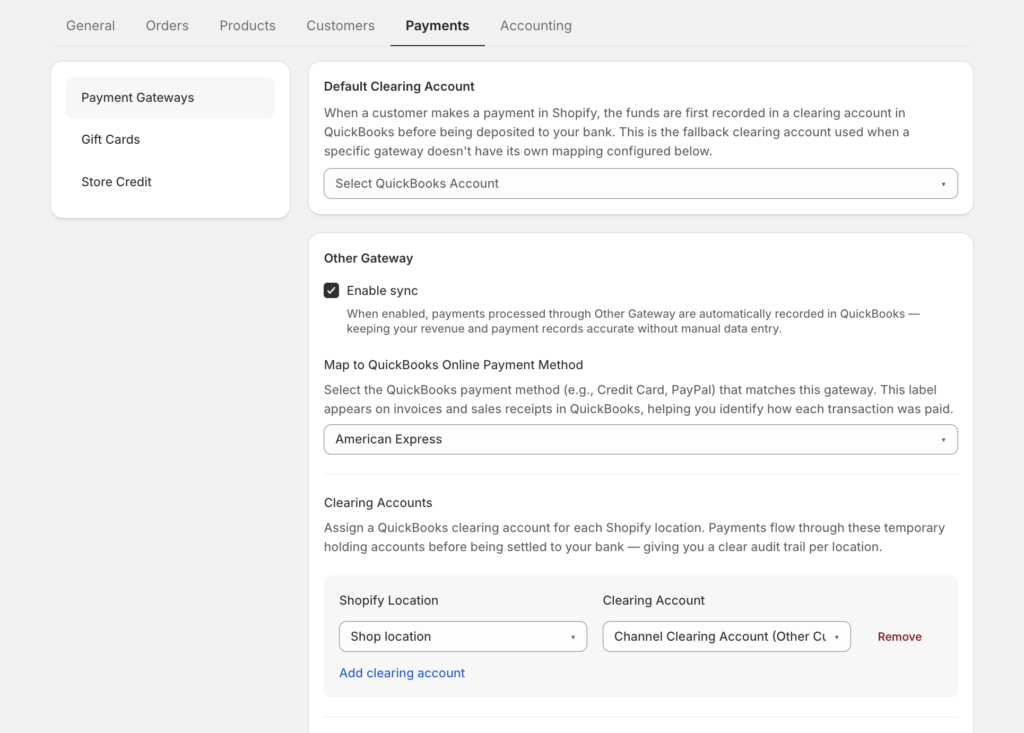
ההמלצה הרשמית לרוב החנויות: Paid בלבד, עם Unfulfilled ו-Fulfilled מסומנים — כך ש-QuickBooks רושם הכנסות ברגע שהכסף באמת זז, ללא קשר למצב המשלוח. התיעוד מסמן Pending כ"שימוש בזהירות" בדיוק מהסיבה הנ"ל, והזמנות מבוטלות אינן נכללות כברירת מחדל, כך שביטולים לעולם לא יופיעו כהכנסה.
עם טריגרים של Paid בלבד, כל מה שבספרים שלך מייצג כסף שנקלט. זוהי תנאי מקדים לכך שתשלום יתאים מלכתחילה.
ההחזרים שמעולם לא סינכרנת
הנה גרסה קלאסית של אי-התאמה: לקוח מקבל החזר, Shopify מקזז את ההחזר הזה מהתשלום, ו-QuickBooks עדיין מציג את המכירה המלאה — מכיוון שההחזר מעולם לא סונכרן. אין שגיאה, אין אזהרה. הספרים פשוט מתרחקים בשקט מהבנק.
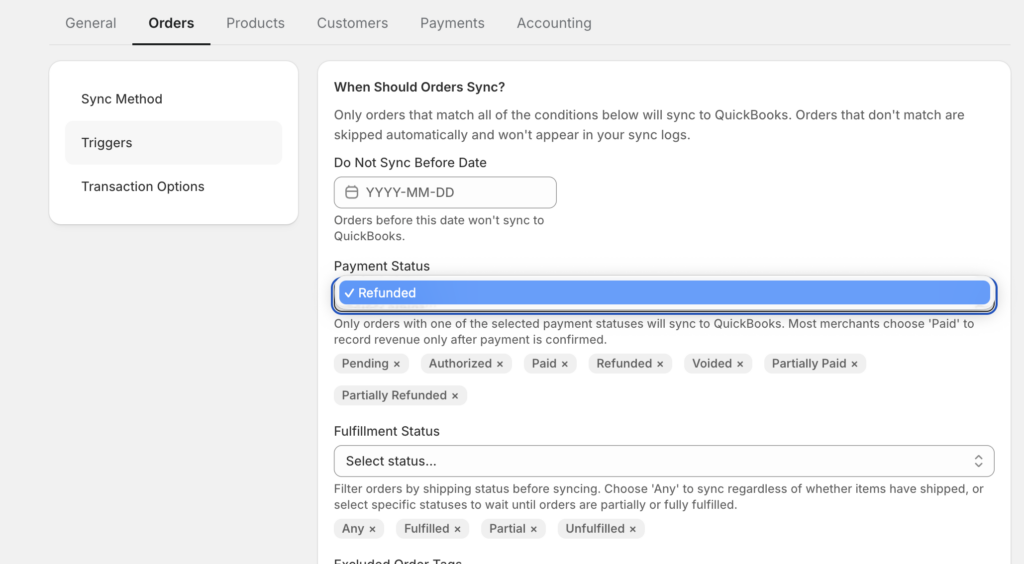
התיקון הוא שתי תיבות סימון. ב-Sync Config » Orders » Sync Triggers, סמן Refunded ו-Partially Refunded. אם אף אחד מהם לא מסומן, החזרים נכללים בשקט מהסנכרון — וזו הסיבה שקטגוריה זו של אי-התאמה כה עקשנית עבור חנויות שהגדירו את האינטגרציה שלהן פעם אחת ולא חזרו אליה.
לאחר הפעלתו, החזר מסונכרן יוצר מסמך חשבונאי אמיתי ב-QuickBooks: קבלה להחזר עבור הזמנות המסונכרנות כקבלי מכירה, או תעודת זיכוי עבור הזמנות המסונכרנות כחשבוניות — מקושר לעסקה המקורית, עם מס ומשלוח מפורטים כשדות נפרדים כדי להתאים בדיוק ל-Shopify. החזרים חלקיים יוצרים מסמך עבור הסכום המוחזר בלבד; המכירה המקורית נשארת ללא שינוי.
הערה אחת: ההזמנה המקורית חייבת כבר להיות ב-QuickBooks, מכיוון שההחזר מצורף אליה. אבל זו הדרישה כולה. שתי תיבות סימון סוגרות קטגוריה שלמה של אי-התאמה בתשלומים.
מצא את ההזמנות שלעולם לא הגיעו
מקור הפער הנסתר השלישי: הזמנות שכשלו בסנכרון לחלוטין. מוצר שלא מופה, שדה חיוב חסר, חיבור QuickBooks פג תוקף — כל אחד מאלה משאיר חור בהכנסות QuickBooks שאף תשלום לא יכול ליישב מולו, מכיוון שהמכירה פשוט לא שם.
מה שחשוב הוא שהכישלונות הללו נקראים בשם, לא שקטים. כל ניסיון סנכרון ב-LedgerPort מקבל סטטוס — מסונכרן, שגיאה, ממתין, או בהמתנה — וסינון של יומן הביקורת לפי סטטוס = שגיאה הוא בדיקה של 30 שניות שחושפת את כל מה שדורש תשומת לב. השגיאות מגיעות עם סיבות: "מוצר לא מופה", "שדה נדרש חסר", או "חיבור לא תקין" (אסימון פג תוקף) — אשר התיעוד מציין כבעיית הסנכרון הנפוצה ביותר.
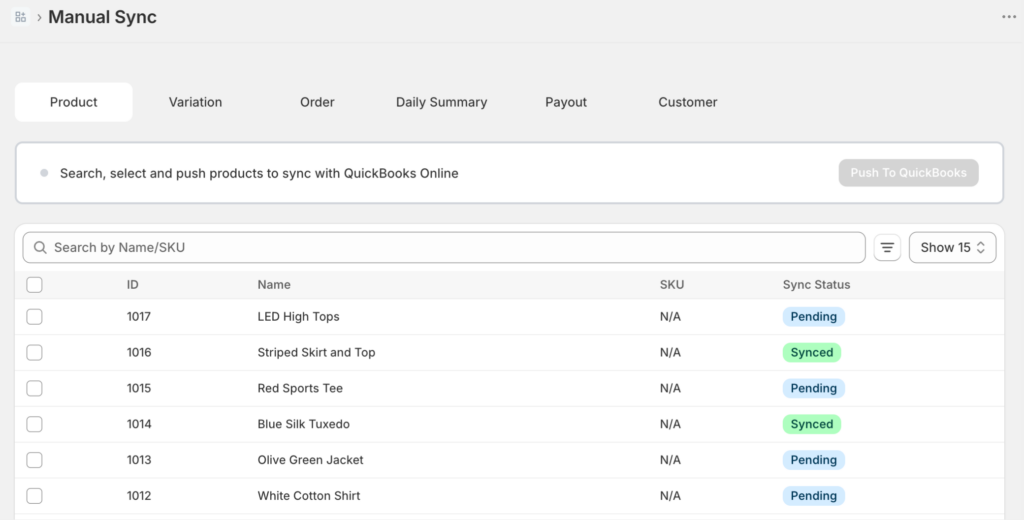
מהלך התיקון קצר: תקן את הסיבה, בחר את הרשומות שנכשלו בסנכרון ידני, לחץ על סנכרן נבחרים. רשומות שנכשלו לעולם לא הולכות לאיבוד, ואם QuickBooks מגביל קצב לדחיפה גדולה, הניסיונות החוזרים מתבצעים אוטומטית.
סגירת פער התשלומים היא חלקית מבנה — ניקוי חשבונות, מיפוי עמלות — וחלקית שלמות. שלמות היא קליק סינון.
האירוניה בכל המצב הזה היא שבזבזת שנתיים משוכנע שמשהו מקולקל. החשבונאות של שופיפיי הייתה שגויה, או ש-QuickBooks לא היה תקין, או שרואה החשבון שלך פספס משהו, או שאתה עשית משהו לא נכון.
לא היית. גם הם לא.
שני המערכות עשו את עבודתן כראוי כל הזמן. פשוט לא היה לך שום דבר שמחבר ביניהן.
